27.5 Kubernetes pods that go away
Why: the problem
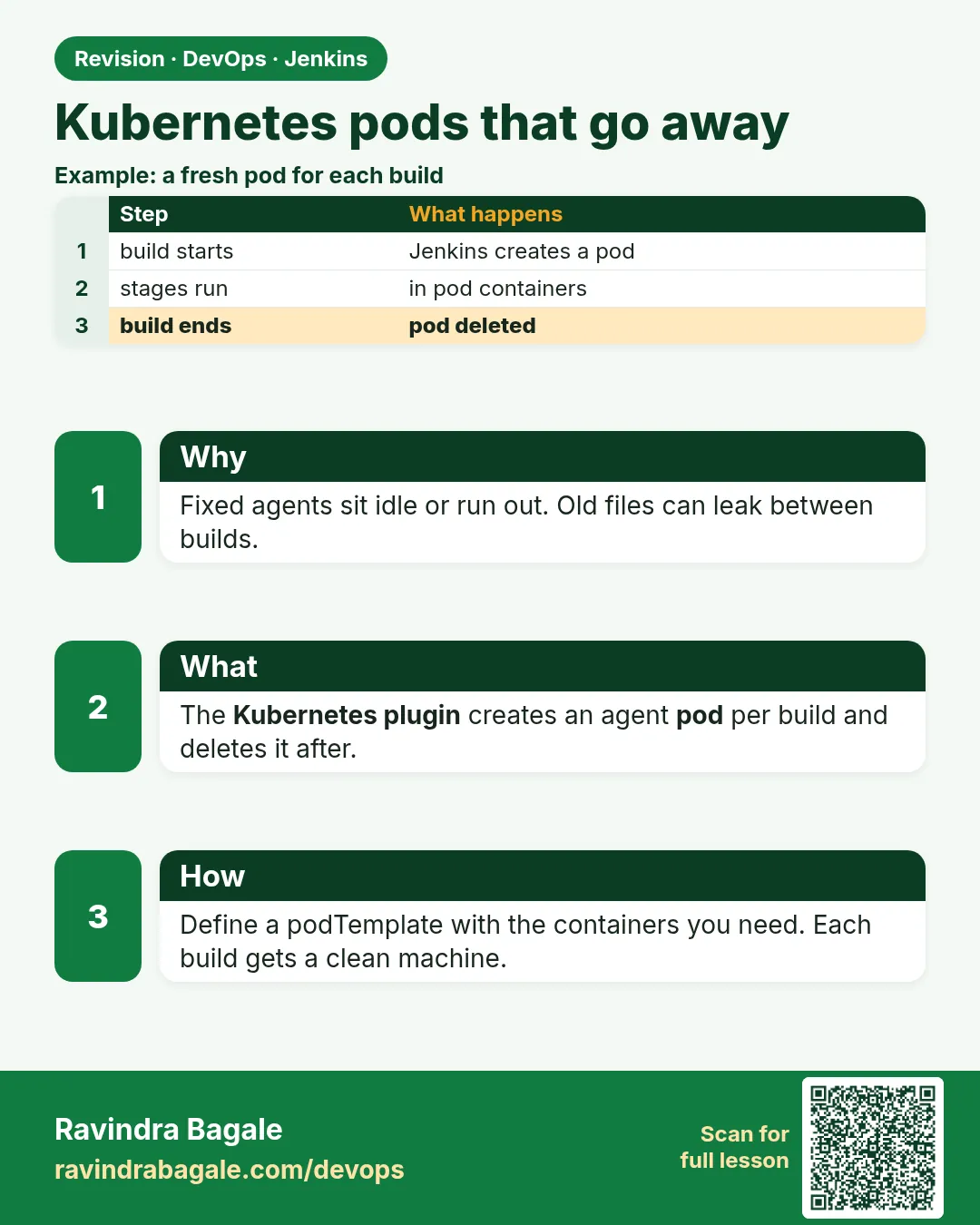
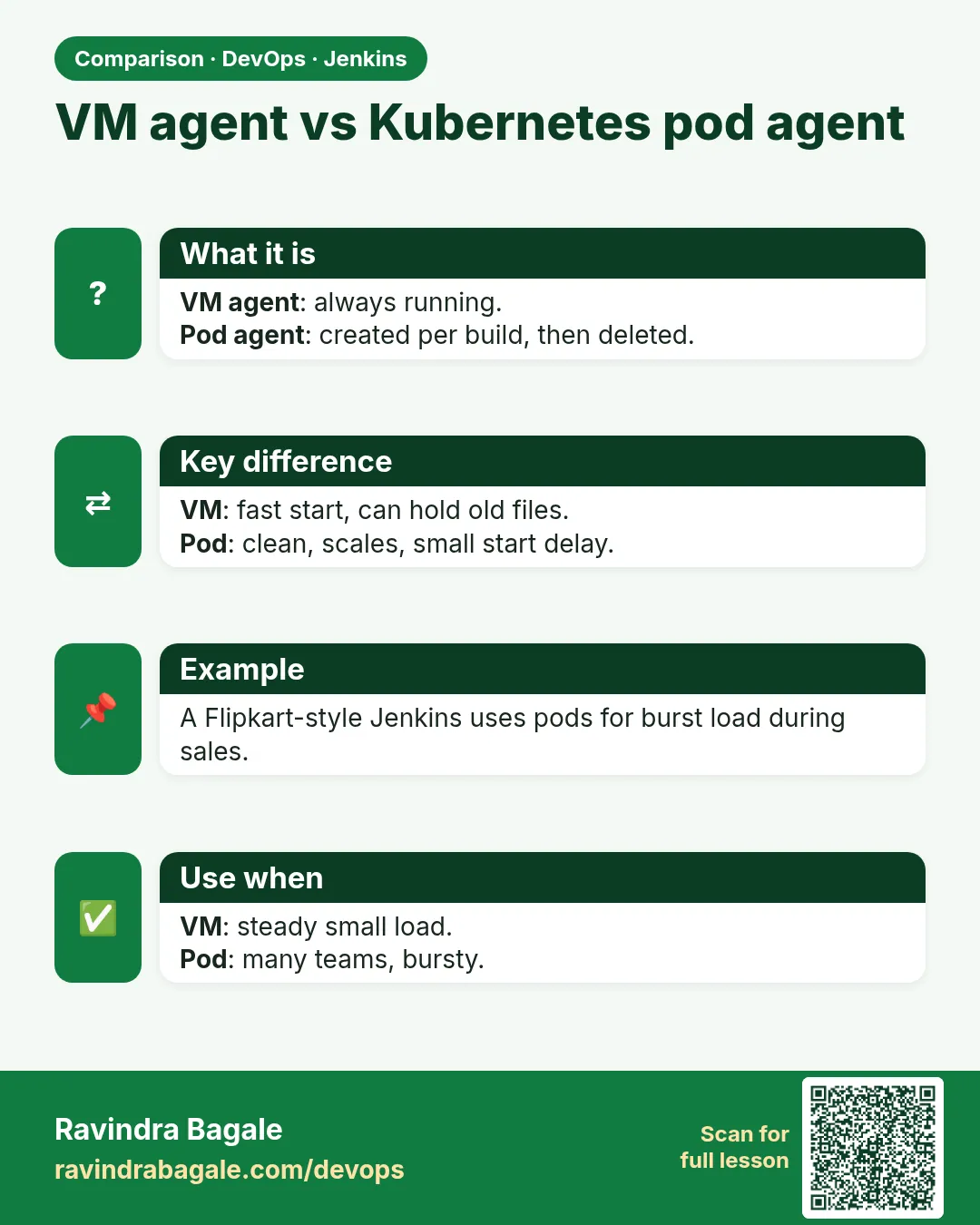
Think of Flipkart before the Big Billion Days sale. Developers push hundreds of changes a day, and the build queue grows to 300 jobs in the morning. At night it drops to almost zero. Permanent agents waste money at night and are too few in the morning. They also collect junk: old workspaces, leftover containers, cached passwords. Kubernetes agents fix both problems. When a build starts, the Jenkins Kubernetes plugin asks the cluster for a new pod. The pod has a jnlp container that connects back to Jenkins, plus tool containers like maven or node. The build runs. When it ends, the pod is deleted. Nothing stays behind. The cluster autoscaler adds nodes when many pods wait and removes them when the queue is empty. In this lesson you will connect Jenkins to a cluster, write a pod template in YAML inside the Jenkinsfile, use several containers in one pod, set CPU and memory limits, and watch pods appear and vanish.
What we will build
You will create a jenkins namespace and a service account in a lab cluster such as kind, minikube or EKS. You will add a Kubernetes cloud in Jenkins. Then you will run three pipelines: a simple maven pod, a pod with node and maven containers plus resource limits, and a pod that uses a shared cache volume. You will watch every pod with kubectl get pods -w.
What: every term in plain English
- Kubernetes plugin — Jenkins plugin that creates agent pods in a cluster for each build.
- Cloud — Jenkins setting that says where the cluster is and which namespace to use.
- Pod template — The pod shape for a build: containers, images, resources, volumes. Can live in the Jenkinsfile as YAML.
- jnlp container — The container in each agent pod that runs agent.jar and talks to Jenkins. Added automatically.
- container('maven') — Pipeline step that runs the next steps inside the named container of the pod.
- Ephemeral — Created for one build and deleted after it. No leftovers.
- Requests and limits — CPU and memory a container is guaranteed (request) and the most it may use (limit).
- Service account — A Kubernetes identity. Jenkins uses it to create and delete pods in its namespace.
How: step by step
-
Create a namespace and service account
kubectl create namespace jenkins-agents && kubectl -n jenkins-agents create serviceaccount jenkinsWhat it does: A separate place for agent pods.
Output
namespace/jenkins-agents created serviceaccount/jenkins created -
Give it pod rights only in that namespace
kubectl -n jenkins-agents create role jenkins-agents --verb=create,delete,get,list,watch --resource=pods,pods/log,pods/exec && kubectl -n jenkins-agents create rolebinding jenkins-agents --role=jenkins-agents --serviceaccount=jenkins-agents:jenkinsWhat it does: Least privilege: pods in one namespace, nothing else.
Output
role.rbac.authorization.k8s.io/jenkins-agents created -
Make a token for Jenkins
kubectl -n jenkins-agents create token jenkins --duration=8760hWhat it does: Jenkins stores this as a Secret text credential with ID k8s-agents-token.
Output
eyJhbGciOiJSUzI1NiIs... (long token) -
Add the cloud
Manage Jenkins > Clouds > New cloud > Kubernetes > URL https://API_SERVER > Namespace jenkins-agents > Credentials k8s-agents-token > Jenkins URL http://jenkins.jenkins.svc:8080What it does: Tells Jenkins how to reach the cluster and how pods reach back.
Output
Connected to Kubernetes v1.30.2 -
Watch pods
kubectl -n jenkins-agents get pods -wWhat it does: Keep this open while you start builds.
Output
No resources found in jenkins-agents namespace. -
Run a pod build
Build Now on the job with agent { kubernetes { yaml ... } }What it does: A pod is created for the build.
Output
shop-api-12-x7k2p-1n9q4 0/2 ContainerCreating -
See it go away
kubectl -n jenkins-agents get podsWhat it does: After the build the pod is gone.
Output
No resources found in jenkins-agents namespace.
Example 1: A simple Maven pod agent
Stack. Jenkins Kubernetes plugin, kind or EKS, Maven
Goal. A simple Maven pod agent.
Jenkinsfile
pipeline {
  agent {
    kubernetes {
      yaml """
apiVersion: v1
kind: Pod
spec:
  containers:
  - name: maven
    image: maven:3.9-eclipse-temurin-21
    command: ['sleep']
    args: ['infinity']
"""
      defaultContainer 'maven'
    }
  }
  stages {
    stage('Info') { steps { sh 'hostname; mvn -v | head -1' } }
    stage('Build') { steps { sh 'mvn -B -q package -DskipTests && ls target/*.jar' } }
  }
}
What each line does
kubernetes { yaml ... }— The pod shape for this build, kept in Git with the code.name: maven— The tool container. Jenkins adds jnlp next to it.command sleep, args infinity— Keeps the tool container alive until Jenkins is done.defaultContainer 'maven'— All sh steps run in maven unless you say otherwise.hostname— Prints the pod name, which changes every build.
Green output
Created Pod: kubernetes jenkins-agents/shop-api-12-x7k2p-1n9q4
Agent shop-api-12-x7k2p-1n9q4 is provisioned from template shop-api_12-x7k2p
Running on shop-api-12-x7k2p-1n9q4 in /home/jenkins/agent/workspace/shop-api
+ hostname
shop-api-12-x7k2p-1n9q4
Apache Maven 3.9.8
target/shop-api-0.0.1.jar
Finished: SUCCESS

(kubectl -w)
shop-api-12-x7k2p-1n9q4   0/2   ContainerCreating   0   1s
shop-api-12-x7k2p-1n9q4   2/2   Running             0   6s
shop-api-12-x7k2p-1n9q4   2/2   Terminating         0   41s
Expected result. A pod was created, ran the build and was deleted. Run it again and the pod name changes.
Example 2: Two tool containers with CPU and memory limits
Stack. Jenkins Kubernetes plugin, node:20-alpine, Maven
Goal. Two tool containers with CPU and memory limits.
Jenkinsfile
pipeline {
  agent {
    kubernetes {
      yaml """
apiVersion: v1
kind: Pod
metadata:
  labels:
    team: shop
spec:
  containers:
  - name: node
    image: node:20-alpine
    command: ['sleep']
    args: ['infinity']
    resources:
      requests: { cpu: '500m', memory: '512Mi' }
      limits:   { cpu: '1',    memory: '1Gi' }
  - name: maven
    image: maven:3.9-eclipse-temurin-21
    command: ['sleep']
    args: ['infinity']
    resources:
      requests: { cpu: '1', memory: '1Gi' }
      limits:   { cpu: '2', memory: '2Gi' }
"""
    }
  }
  stages {
    stage('Web') { steps { container('node')  { dir('web') { sh 'npm ci && npm run build' } } } }
    stage('API') { steps { container('maven') { dir('api') { sh 'mvn -B -q package -DskipTests' } } } }
  }
}
What each line does
labels team: shop— Lets admins see cost and pods per team.requests cpu 500m— Kubernetes reserves half a CPU for node.limits memory 1Gi— If node uses more, the container is killed with OOMKilled.container('node')— Run these steps in the node container.container('maven')— Run these steps in the maven container. Same workspace, shared by all containers in the pod.
Green output
[Pipeline] container
+ npm ci
added 318 packages in 8s
+ npm run build
built in 4.0s
[Pipeline] container
+ mvn -B -q package -DskipTests
Finished: SUCCESS

$ kubectl -n jenkins-agents top pod -l team=shop
NAME                        CPU(cores)   MEMORY(bytes)
shop-web-api-7-q2m9d-4zt8k  1140m        1310Mi
Expected result. One pod ran both builds. Limits stop one greedy build from hurting others on the node.
Example 3: Keep a Maven cache with a persistent volume
Stack. Jenkins Kubernetes plugin, EKS, EFS CSI driver
Goal. Keep a Maven cache with a persistent volume.
cache-pvc.yaml
apiVersion: v1
kind: PersistentVolumeClaim
metadata:
  name: maven-cache
  namespace: jenkins-agents
spec:
  accessModes: ["ReadWriteMany"]
  storageClassName: efs-sc
  resources:
    requests:
      storage: 10Gi
Jenkinsfile
pipeline {
  agent {
    kubernetes {
      yaml """
apiVersion: v1
kind: Pod
spec:
  securityContext:
    runAsUser: 1000
    fsGroup: 1000
  containers:
  - name: maven
    image: maven:3.9-eclipse-temurin-21
    command: ['sleep']
    args: ['infinity']
    env:
    - name: MAVEN_OPTS
      value: '-Dmaven.repo.local=/cache/m2'
    volumeMounts:
    - name: m2
      mountPath: /cache
  volumes:
  - name: m2
    persistentVolumeClaim:
      claimName: maven-cache
"""
      defaultContainer 'maven'
    }
  }
  stages { stage('Build') { steps { sh 'time mvn -B -q package -DskipTests' } } }
}
What each line does
PersistentVolumeClaim maven-cache— Disk that lives longer than any pod.ReadWriteMany with efs-sc— Many pods can use it at once. On AWS this is EFS.runAsUser 1000, fsGroup 1000— Run as a normal user and let it write the volume. No root.MAVEN_OPTS -Dmaven.repo.local=/cache/m2— Maven uses the shared cache.time mvn ...— Shows how long the build took, so you can compare.
Green output
$ kubectl apply -f cache-pvc.yaml
persistentvolumeclaim/maven-cache created
(first build)
real    2m41s
(second build, new pod)
real    0m38s
Finished: SUCCESS
Expected result. The pod is new each time, but the cache stays. Builds stay clean and fast.
Verify: did it work?
-
Pods per build
kubectl -n jenkins-agents get pods -l jenkins/label --show-labelsWhat it does: Shows agent pods while builds run.
Output
shop-api-13-... 2/2 Running -
Events for a stuck pod
kubectl -n jenkins-agents describe pod shop-api-13-abcde | tail -8What it does: The Events part says why a pod cannot start.
Output
Warning FailedScheduling 0/3 nodes are available: 3 Insufficient cpu.
When it is red 1
0/3 nodes are available: 3 Insufficient cpu.
Cause. The requests are bigger than free space on the nodes.
Fix, step by step
- Lower requests in the pod YAML.
- Add nodes or turn on the cluster autoscaler.
- Check other pods with kubectl top nodes.
When it is red 2
ERROR: Failed to launch shop-api-14-...
io.fabric8.kubernetes.client.KubernetesClientException: Forbidden: pods is forbidden: User "system:serviceaccount:jenkins-agents:jenkins" cannot create resource "pods"
Cause. The role or rolebinding is missing or in the wrong namespace.
Fix, step by step
- kubectl -n jenkins-agents get role,rolebinding.
- kubectl auth can-i create pods -n jenkins-agents --as=system:serviceaccount:jenkins-agents:jenkins.
- Fix the binding and retry.
When it is red 3
Agent went offline during build
terminated with OOMKilled
Cause. A container used more memory than its limit.
Fix, step by step
- Raise the memory limit.
- Lower JVM heap with MAVEN_OPTS -Xmx.
- Check kubectl describe pod for Reason OOMKilled.
Cleanup
-
Delete the lab namespace
kubectl delete namespace jenkins-agentsWhat it does: Removes all agent pods, roles and the cache claim.
Output
namespace "jenkins-agents" deleted
Ravindra Bagale's Tip
Pod build sathi yeto ani build sampla ki jato. Requests ani limits nakki theva. Lakshat theva!
Practice tasks
Easy Watch a pod live
Why: Seeing builds come and go builds trust.
What to do: kubectl get pods -w during a build.
- Start the watch.
- Start a build.
Check: You see Creating, Running, Terminating.
Medium Add limits
Why: Fair sharing on nodes.
What to do: Set requests and limits for each container.
- Edit resources.
Check: kubectl top shows usage within limits.
Hard Shared cache
Why: Fast and clean builds.
What to do: Add an EFS or NFS PVC for Maven.
- Create PVC.
- Mount at /cache.
Check: Second build is much faster.
Easy Say Kubernetes pod agents in two lines
Why: If you can say it simply, you understand it. Juniors and interviewers want the short version first.
What to do: Write two short lines about Kubernetes pod agents for a fresher who knows only Linux basics.
- Write what problem it solves.
- Write the one command or menu you use for it.
- Read it aloud to a friend.
Check: A fresher understands it without asking a question.
Easy Start a fresh lab Jenkins
Why: Practice needs a throwaway Jenkins. If you break it, you delete it and start again.
What to do: Run Jenkins LTS in Docker with a named volume.
- docker volume create jenkins_home
- docker run -d --name jenkins -p 8080:8080 -v jenkins_home:/var/jenkins_home jenkins/jenkins:lts-jdk17
- docker exec jenkins cat /var/jenkins_home/secrets/initialAdminPassword
Check: The Jenkins unlock page opens on localhost:8080.
Medium Break it on purpose
Why: You must know the red message by face. During an outage there is no time to read slowly.
What to do: Cause one error from the "When it is red" part of this lesson and fix it.
- Follow the error section.
- Copy the exact message into your notes.
- Write the fix in one line.
Check: You fixed it using only the steps, without searching the web.
Medium Write a one-page runbook
Why: At 2 a.m. nobody remembers where a file lives. A short page saves the on-call person.
What to do: Write a runbook page for this lesson.
- Title, when to use, exact command, how to check, how to undo.
Check: A teammate can follow it alone.
Medium Repeat it on a cloud VM
Why: A laptop is not a server. Real Jenkins runs on EC2 or a company VM.
What to do: Do the main steps of this lesson again on a small Ubuntu 22.04 EC2 instance.
- Launch t3.small with 20 GB disk.
- Open port 22 only to your IP.
- Repeat the steps and compare the output.
Check: Same green output on the VM as on your laptop.
Hard Explain it like an interview
Why: Interviewers want real stories, not definitions.
What to do: Record a 60 second answer about this lesson.
- Say the problem, the command you ran, and one error you hit.
Check: Your answer has a real command and a real error message.
Hard Draw the flow top to bottom
Why: A drawing shows who talks to whom and in what order.
What to do: Draw this lesson as boxes from top to bottom.
- Start at the developer push, go through the controller and agent, end at the result.
Check: Each box matches a real thing you saw on screen.
Homework: try at home
Try at home
At home, run five builds at the same time on Kubernetes agents and watch kubectl get pods -w. Count how many pods appear and how long each takes to start. Then set a too-small memory limit on purpose and read the OOMKilled reason.
Recap
- Kubernetes agents are pods created per build and deleted after.
- Pod YAML in the Jenkinsfile keeps tools in Git.
- Use container() to pick the tool container.
- Set requests and limits so builds share nodes fairly.
- Give Jenkins rights only in its agent namespace.
FAQ
Does Jenkins itself have to run in Kubernetes?
No. An outside Jenkins can use a cluster if pods can reach it back.
How fast does a pod start?
A few seconds when images are cached on the node.
Can I keep files between builds?
Only through volumes like a cache PVC, or by archiving artifacts.
Can Windows builds use pods?
Yes, with Windows nodes in the cluster and a nodeSelector.
What about AWS keys in pods?
Use IRSA or EKS Pod Identity on the service account, not keys.
Interview questions
-
How do Kubernetes agents work in Jenkins?
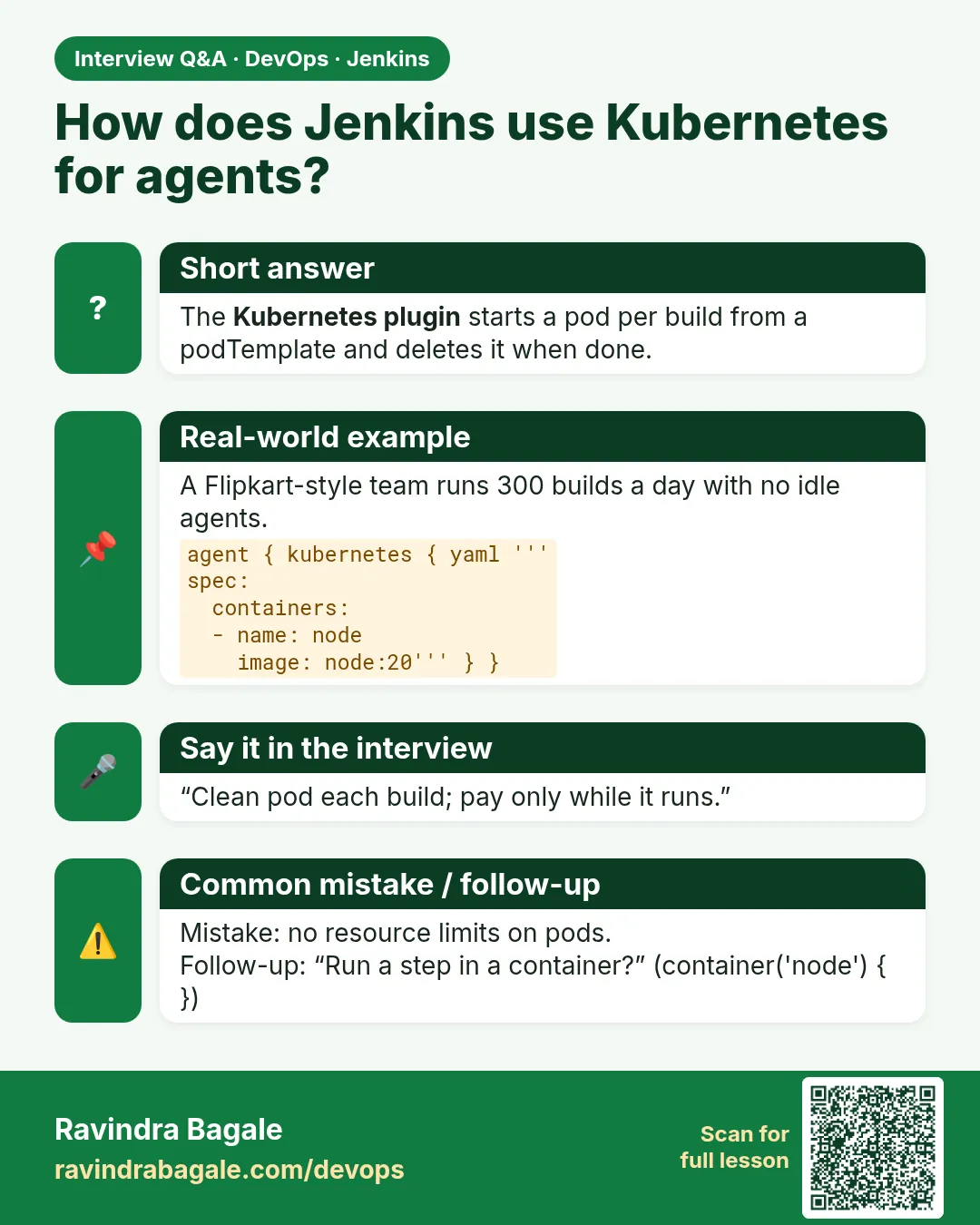
The Kubernetes plugin creates a pod from a template for each build. The jnlp container connects to Jenkins, steps run in tool containers, and the pod is deleted after.
-
Why use ephemeral agents?
Clean state every build, no leftover secrets, and automatic scaling with the cluster.
-
A pod agent stays Pending. How do you debug it?
kubectl describe pod and read Events: scheduling, image pull, quota or resource problems.
-
How do you keep builds fast on pod agents?
Pre-pulled or small images, cache volumes, and right-sized requests.
-
What RBAC does Jenkins need in the cluster?
Create, delete, get, list and watch pods, pods/log and pods/exec in the agent namespace only.
Quick quiz
Q1. What happens to the agent pod after the build?
It is deleted.
Q2. Which container connects the pod to Jenkins?
jnlp.
Q3. What does container('node') do?
Runs the next steps in the node container of the pod.
Q4. What is a memory limit?
The most memory a container may use before it is killed.
Q5. Where should the pod YAML live?
In the Jenkinsfile in Git, next to the code.
Samajla ka?
 Revision card
 Interview card
 Comparison card