27.1 Labels
Why: the problem
Think of Swiggy. It has one Jenkins controller and more than a hundred build jobs. Some jobs need Node.js 20. Some need Java 17 and Maven. Some need Docker. Some need a GPU for model tests. If every job runs on the controller, three bad things happen. First, the controller CPU hits 100 percent and the Jenkins web page becomes slow for everyone. Second, one job installs a tool that breaks another job. Third, a build script can read the controller disk, where all secrets and job configs live. So Jenkins splits the work. The controller only plans and shows results. Agents are separate machines that run the builds. A label is a simple tag on an agent, like node20 or maven or docker. The Jenkinsfile asks for a label, and Jenkins sends the build to any online agent with that label. In this lesson you will add labels, use them in a Jenkinsfile, combine labels with and, or and not, and set the controller to run zero builds.
What we will build
You will run a lab Jenkins controller in Docker. You will add two agents, one with labels linux node20 and one with labels linux maven docker. You will write three Jenkinsfiles that pick agents by label, by label expression, and per stage. Finally you will set the built-in node to 0 executors and prove that builds still run, but only on agents.
What: every term in plain English
- Controller — The main Jenkins server. It stores jobs, shows the web page and schedules builds. It should not run builds.
- Agent — A separate machine or container that runs build steps for the controller. Old name: slave or node.
- Node — Jenkins word for any machine that can run builds, including the controller itself, called the built-in node.
- Executor — One build slot on a node. An agent with 2 executors can run 2 builds at the same time.
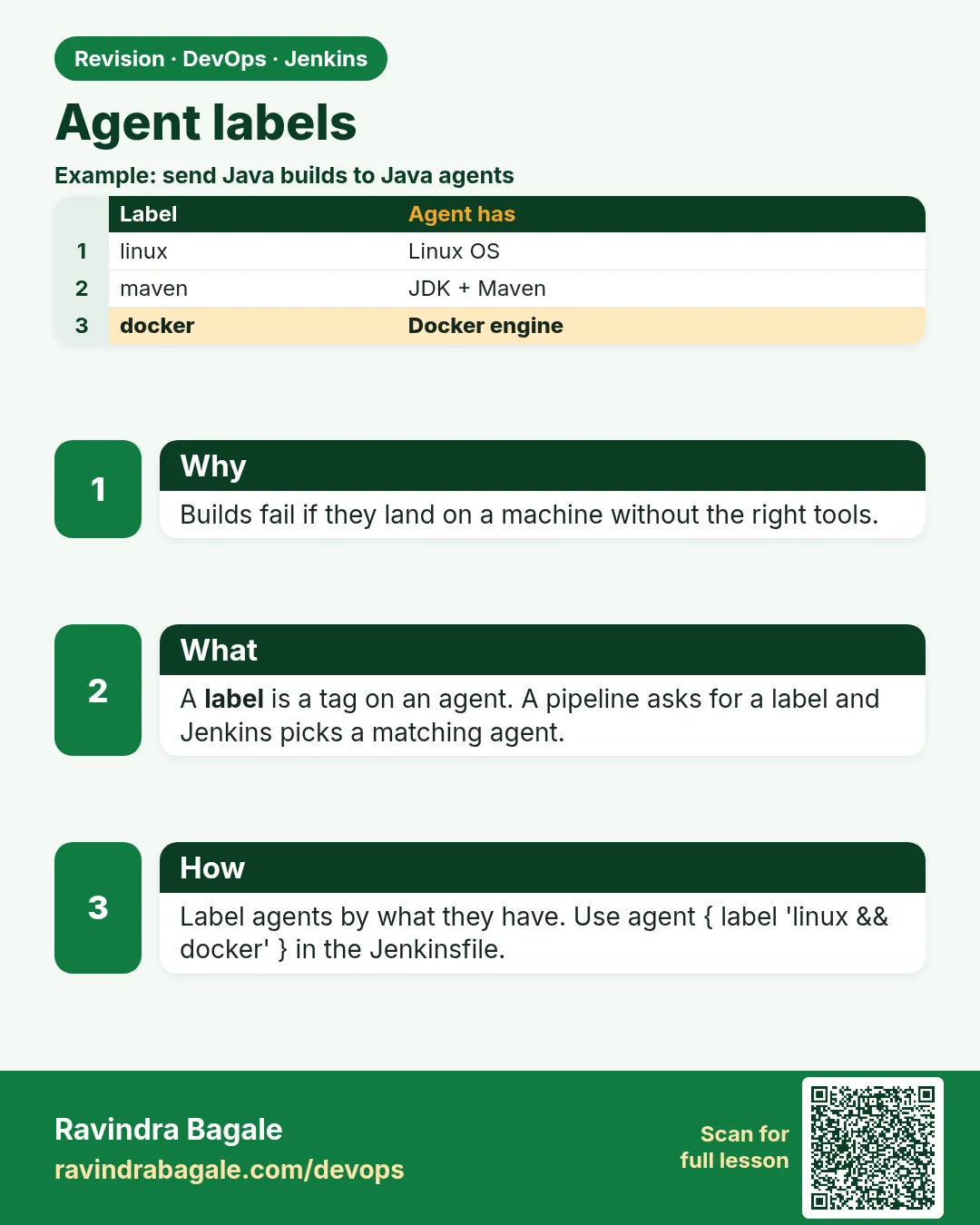
- Label — A tag on an agent, like linux, node20 or docker. Jobs ask for labels, not machine names.
- Label expression — A small rule like linux and docker, or maven || gradle, or !windows.
- Usage mode — Agent setting. Use this node as much as possible, or Only build jobs with label expressions matching this node.
- Remote root directory — The folder on the agent where Jenkins keeps workspaces, like /home/jenkins/agent.
How: step by step
-
Start a lab controller
docker network create jenkins
docker run -d --name jenkins --network jenkins -p 8080:8080 -p 50000:50000 -v jenkins_home:/var/jenkins_home jenkins/jenkins:lts-jdk17
What it does: Starts Jenkins with the web port 8080 and agent port 50000.
Output
3f9a1c... (container ID) -
Get the first admin password
docker exec jenkins cat /var/jenkins_home/secrets/initialAdminPasswordWhat it does: Prints the one-time unlock password.
Output
5b2e8c0d4f... (32 characters) -
Open the Nodes page
Manage Jenkins > Nodes > New Node > name agent-node20 > Permanent AgentWhat it does: Creates the agent entry on the controller.
Output
Page shows agent-node20 (offline) -
Give labels
Labels: linux node20 Executors: 2 Remote root: /home/jenkins/agent Usage: Only build jobs with label expressions matching this nodeWhat it does: Space separated labels. The strict usage mode stops random jobs landing here.
Output
Saved -
Check labels from the script console
Manage Jenkins > Script Console > Jenkins.instance.nodes.each { println it.nodeName + " -> " + it.labelString }What it does: Lists every agent and its labels.
Output
agent-node20 -> linux node20 agent-maven -> linux maven docker -
Use the label in a Jenkinsfile
agent { label 'node20' }What it does: The whole pipeline runs on an agent with node20.
Output
Running on agent-node20 in /home/jenkins/agent/workspace/badge-node -
Set built-in executors to 0
Manage Jenkins > Nodes > Built-In Node > Configure > Number of executors: 0What it does: The controller now runs no builds at all.
Output
Built-In Node: 0 executors
Example 1: Pick one agent by label for the whole pipeline
Stack. Jenkins LTS, permanent Linux agent, Node.js 20
Goal. Pick one agent by label for the whole pipeline.
Jenkinsfile
pipeline {
  agent { label 'node20' }
  options { timestamps() }
  stages {
    stage('Where am I') {
      steps {
        sh 'hostname'
        echo "Node name: ${env.NODE_NAME}"
        echo "Labels: ${env.NODE_LABELS}"
        sh 'node --version && npm --version'
      }
    }
    stage('Test') {
      steps {
        sh 'npm ci'
        sh 'npm test'
      }
    }
  }
}
What each line does
agent { label 'node20' }— Send the whole build to any online agent that has the node20 label.options { timestamps() }— Adds a clock time to every console line. Needs the Timestamper plugin.env.NODE_NAME— Built-in variable with the name of the agent that runs the build.env.NODE_LABELS— All labels of that agent, space separated.sh 'node --version'— Proves the right tool is installed on this agent.sh 'npm ci'— Clean install of packages from package-lock.json.
Green output
Running on agent-node20 in /home/jenkins/agent/workspace/badge-node
[Pipeline] stage (Where am I)
+ hostname
ip-10-0-1-25
Node name: agent-node20
Labels: agent-node20 linux node20
+ node --version
v20.15.1
10.7.0
[Pipeline] stage (Test)
+ npm ci
added 212 packages in 6s
+ npm test
Tests: 14 passed, 14 total
Finished: SUCCESS
Expected result. The build ran on agent-node20, not on the controller. Node and npm came from the agent.
Example 2: Use label expressions with and, or and not
Stack. Jenkins, two permanent agents
Goal. Use label expressions with and, or and not.
Jenkinsfile
pipeline {
  agent none
  stages {
    stage('Java build') {
      agent { label 'linux && maven' }
      steps {
        sh 'mvn -v | head -1'
        sh 'mvn -B -q package -DskipTests'
      }
    }
    stage('Image build') {
      agent { label 'docker && !windows' }
      steps { sh 'docker version --format "{{.Server.Version}}"' }
    }
    stage('Any JVM tool') {
      agent { label 'maven || gradle' }
      steps { echo "Picked ${env.NODE_NAME}" }
    }
  }
}
What each line does
agent none— No agent for the whole pipeline. Each stage picks its own.label 'linux && maven'— Both labels must be on the agent.label 'docker && !windows'— Has docker and does not have windows.label 'maven || gradle'— Either label is fine.mvn -B -q package— Batch mode, quiet output, build the jar.Per stage agent— Each stage can go to a different machine. Files do not move by themselves; use stash for that (chapter 21).
Green output
[Pipeline] stage (Java build)
Running on agent-maven in /home/jenkins/agent/workspace/badge-java
+ mvn -v
Apache Maven 3.9.8
[Pipeline] stage (Image build)
Running on agent-maven in /home/jenkins/agent/workspace/badge-java
+ docker version --format {{.Server.Version}}
26.1.4
[Pipeline] stage (Any JVM tool)
Picked agent-maven
Finished: SUCCESS
Expected result. Each stage found a matching agent. Change maven to gradle in one agent and watch the third stage still pass.
Example 3: Prove the controller runs zero builds
Stack. Jenkins Script Console
Goal. Prove the controller runs zero builds.
check-executors.groovy
// Manage Jenkins > Script Console
def j = Jenkins.instance
println "Built-in executors: " + j.numExecutors
j.computers.each { c ->
  println c.name.padRight(16) + " online=" + !c.offline + " executors=" + c.numExecutors + " labels=" + c.node.labelString
}
Jenkinsfile (bad on purpose)
pipeline {
  agent { label 'built-in' }
  stages { stage('x') { steps { echo 'never runs' } } }
}
What each line does
j.numExecutors— Number of executors on the built-in node. Should be 0.j.computers— Every node Jenkins knows, with live status.c.offline— True when the agent is not connected.label 'built-in'— The label of the controller itself. With 0 executors this build waits forever.Abort it— Cancel the stuck build from the queue. This proves the controller is protected.
Green output
Built-in executors: 0
                 online=true executors=0 labels=
agent-node20     online=true executors=2 labels=linux node20
agent-maven      online=true executors=2 labels=linux maven docker

(bad Jenkinsfile)
Still waiting to schedule task
Waiting for next available executor on 'built-in'
Expected result. The controller has 0 executors. Any job that asks for it waits. Real jobs go to agents only.
Verify: did it work?
-
Count builds per agent
Manage Jenkins > Nodes > agent-node20 > Build HistoryWhat it does: Shows only builds that ran on this agent.
Output
badge-node #12 agent-node20 SUCCESS -
Label page
http://localhost:8080/label/node20/What it does: Shows all agents with this label and how busy they are.
Output
Nodes: agent-node20 (idle)
When it is red 1
Waiting for next available executor on 'node20'
There are no nodes with the label 'node20'
Cause. No agent has this label, or the label is misspelled, like node-20.
Fix, step by step
- Open Manage Jenkins > Nodes and read the labels.
- Fix the spelling in the agent or the Jenkinsfile.
- Open /label/node20/ to confirm one agent appears.
When it is red 2
Waiting for next available executor on 'agent-node20'
agent-node20 is offline
Cause. The agent has the label but is not connected.
Fix, step by step
- Open the agent page and read the log.
- Restart the agent service (lesson 27.2).
- Check port 50000 or SSH port 22 is open.
When it is red 3
npm: command not found
Cause. The build landed on an agent without Node, because the label was too loose, like linux.
Fix, step by step
- Use a specific label, like node20.
- Put tool labels only on agents that really have the tool.
- Print node --version as the first step.
Cleanup
-
Remove a lab agent
Manage Jenkins > Nodes > agent-node20 > Delete AgentWhat it does: Removes the agent entry. Workspaces on the machine stay.
Output
agent-node20 deleted -
Stop the lab controller
docker rm -f jenkins && docker volume rm jenkins_home && docker network rm jenkinsWhat it does: Deletes the lab completely.
Output
jenkins
jenkins_home
jenkins
Ravindra Bagale's Tip
Controller var build nako, executors 0 theva. Label spelling Jenkinsfile ani agent madhe same pahije. Lakshat theva!
Practice tasks
Easy Label two agents
Why: Labels are the base of agent routing.
What to do: Give one agent node20 and another maven.
- Nodes > Configure > Labels.
Check: Both appear on their /label/ pages.
Medium Label expression stage
Why: Real pipelines mix tools.
What to do: Write a stage with docker && !windows.
- agent none at top.
- Stage level agent.
Check: Console shows the matching agent.
Hard Zero controller executors
Why: The controller holds secrets.
What to do: Set built-in executors to 0 and fix any job that breaks.
- Change the setting.
- Run all jobs once.
- Give each a label.
Check: All jobs pass on agents.
Easy Say Jenkins agents and labels in two lines
Why: If you can say it simply, you understand it. Juniors and interviewers want the short version first.
What to do: Write two short lines about Jenkins agents and labels for a fresher who knows only Linux basics.
- Write what problem it solves.
- Write the one command or menu you use for it.
- Read it aloud to a friend.
Check: A fresher understands it without asking a question.
Easy Start a fresh lab Jenkins
Why: Practice needs a throwaway Jenkins. If you break it, you delete it and start again.
What to do: Run Jenkins LTS in Docker with a named volume.
- docker volume create jenkins_home
- docker run -d --name jenkins -p 8080:8080 -v jenkins_home:/var/jenkins_home jenkins/jenkins:lts-jdk17
- docker exec jenkins cat /var/jenkins_home/secrets/initialAdminPassword
Check: The Jenkins unlock page opens on localhost:8080.
Medium Break it on purpose
Why: You must know the red message by face. During an outage there is no time to read slowly.
What to do: Cause one error from the "When it is red" part of this lesson and fix it.
- Follow the error section.
- Copy the exact message into your notes.
- Write the fix in one line.
Check: You fixed it using only the steps, without searching the web.
Medium Write a one-page runbook
Why: At 2 a.m. nobody remembers where a file lives. A short page saves the on-call person.
What to do: Write a runbook page for this lesson.
- Title, when to use, exact command, how to check, how to undo.
Check: A teammate can follow it alone.
Medium Repeat it on a cloud VM
Why: A laptop is not a server. Real Jenkins runs on EC2 or a company VM.
What to do: Do the main steps of this lesson again on a small Ubuntu 22.04 EC2 instance.
- Launch t3.small with 20 GB disk.
- Open port 22 only to your IP.
- Repeat the steps and compare the output.
Check: Same green output on the VM as on your laptop.
Hard Explain it like an interview
Why: Interviewers want real stories, not definitions.
What to do: Record a 60 second answer about this lesson.
- Say the problem, the command you ran, and one error you hit.
Check: Your answer has a real command and a real error message.
Hard Draw the flow top to bottom
Why: A drawing shows who talks to whom and in what order.
What to do: Draw this lesson as boxes from top to bottom.
- Start at the developer push, go through the controller and agent, end at the result.
Check: Each box matches a real thing you saw on screen.
Homework: try at home
Try at home
At home, make two agents with different labels. Write one Jenkinsfile with agent none and three stages that each pick a different label expression. Then set built-in executors to 0 and take a screenshot of the console showing the agent name in every stage.
Recap
- The controller schedules; agents build.
- Labels are tags; Jenkinsfiles ask for labels.
- Label expressions use &&, || and !.
- Use strict usage mode on special agents.
- Set the built-in node to 0 executors.
FAQ
Can one agent have many labels?
Yes. Separate them with spaces, like linux node20 docker.
Is the agent name also a label?
Yes. Every agent has its own name as a label, but use tool labels instead.
How many executors per agent?
Usually one per CPU core for light builds, fewer for heavy Java or Docker builds.
Do agents need Jenkins installed?
No. They need Java and the small agent.jar, or SSH with Java.
What happens if two agents share a label?
Jenkins picks any free one. That gives you simple load balancing.
Interview questions
-
Why should the controller have zero executors?
Builds on the controller can read its home folder with secrets and job configs, and heavy builds slow the UI. Agents isolate the work.
-
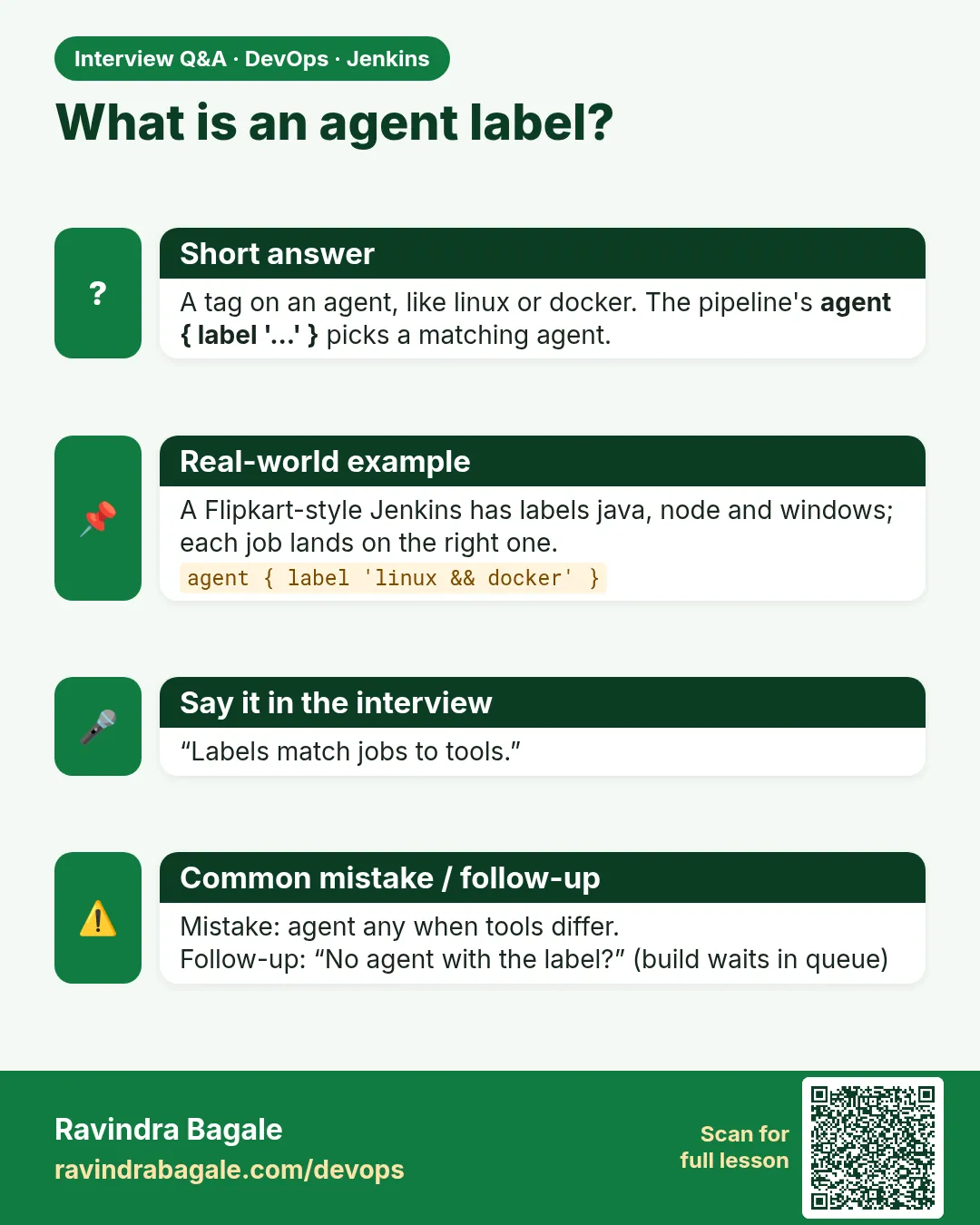
What is a Jenkins label?
A tag on an agent that jobs use to pick the kind of machine they need, for example node20 or docker.
-
How do you send one stage to a different machine?
Use agent none at the pipeline level and an agent block with a label inside each stage.
-
A build waits forever with no nodes with the label. What do you check?
Label spelling, whether any agent has that label, and whether that agent is online.
-
What is an executor?
A build slot on a node. Executors decide how many builds run at once on that machine.
Quick quiz
Q1. Where should builds run, controller or agents?
Agents. The controller should have 0 executors.
Q2. What does a label do?
It lets a job ask for a kind of agent instead of a machine name.
Q3. What does label 'linux && docker' mean?
The agent must have both labels.
Q4. Which variable prints the agent name?
env.NODE_NAME.
Q5. What does agent none do?
No agent for the whole pipeline, so each stage picks one.
Samajla ka?
 Revision card
 Interview card