27.2 Inbound or SSH
Why: the problem
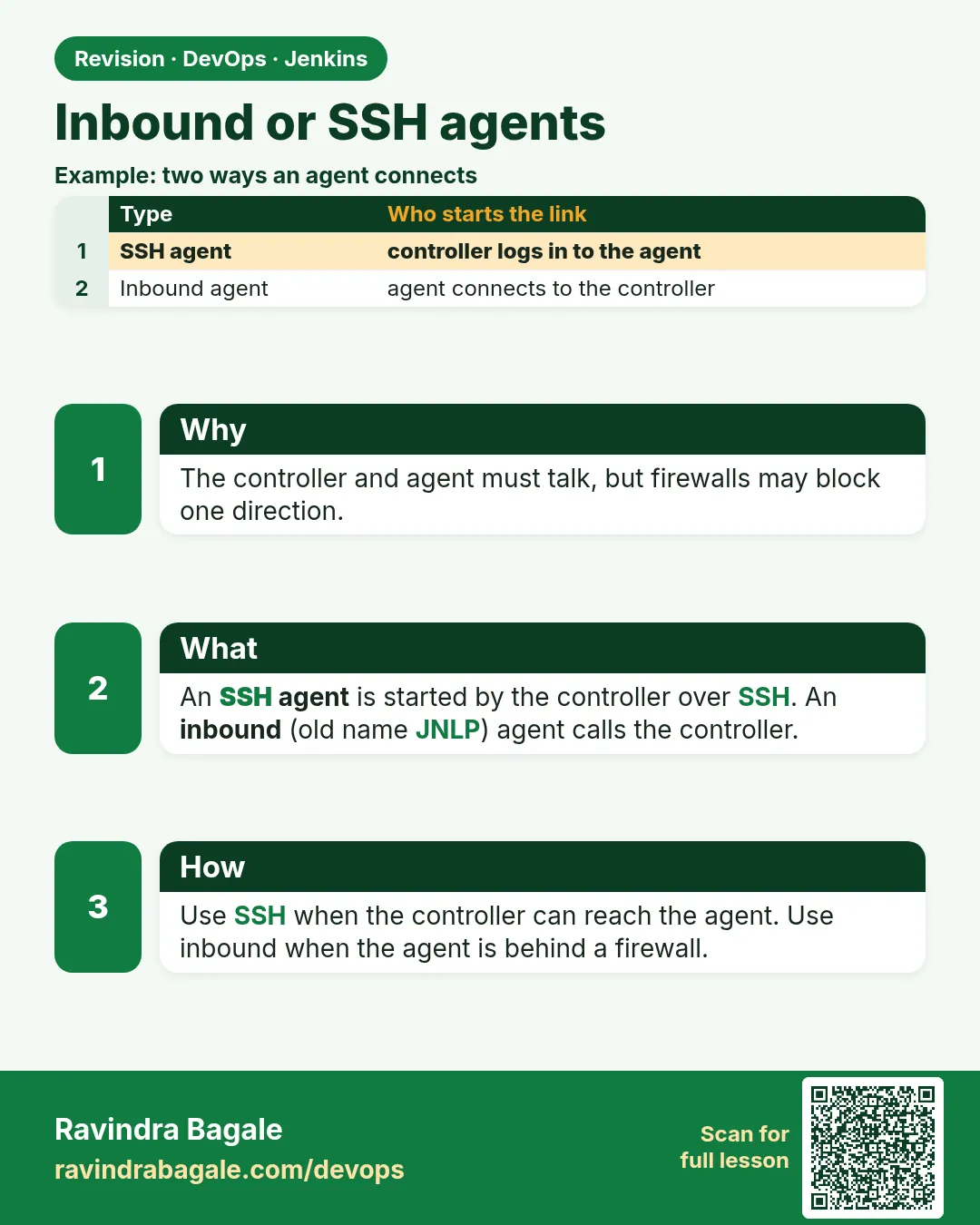
Think of Zomato. Its Jenkins controller runs in AWS. Some agents run in the same VPC. Some agents run in a Bengaluru office behind a firewall that blocks all incoming traffic. How does the controller talk to both? Jenkins has two common ways. In SSH mode, the controller connects out to the agent on port 22, logs in with an SSH key, copies a small agent.jar and starts it. This is easy when the controller can reach the agent. In inbound mode, the agent connects out to the controller on port 50000 or over WebSocket on port 443, using a secret. This is easy when the agent sits behind a firewall or NAT, because only outgoing traffic is needed. Both modes give the same agent in the end. In this lesson you will set up one SSH agent and one inbound agent, run them as systemd services so they survive reboots, and learn to fix the common connection errors.
What we will build
You will prepare an Ubuntu 22.04 machine with a jenkins user and Java 17. You will connect it as an SSH agent using the SSH Build Agents plugin and a saved private key. Then you will connect a second machine as an inbound agent with agent.jar, first by hand, then as a systemd service, then over WebSocket so only port 443 is needed.
What: every term in plain English
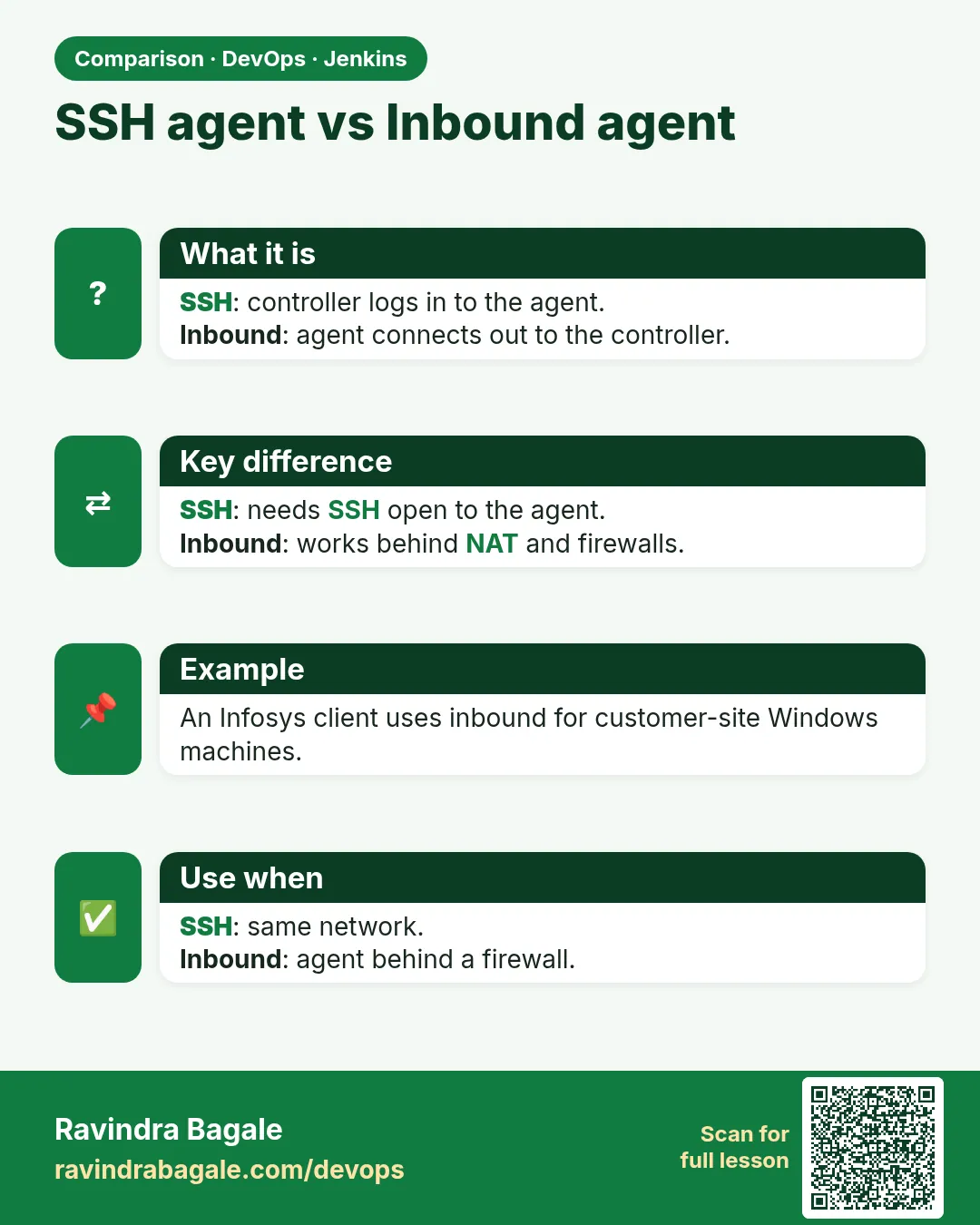
- SSH agent — The controller logs in to the agent over SSH and starts agent.jar there. Plugin: SSH Build Agents.
- Inbound agent — The agent starts agent.jar itself and connects to the controller. Old name: JNLP agent.
- agent.jar — The small Java program that turns a machine into a Jenkins agent. Download it from the controller at /jnlpJars/agent.jar.
- Agent secret — A long random string the controller gives each inbound agent. It proves the agent is the right one.
- TCP port 50000 — Default port for inbound agents. Set in Manage Jenkins > Security > Agents.
- WebSocket — A mode where the inbound agent uses the normal HTTPS port. Good behind proxies.
- Host key verification — SSH check that the agent is the real machine, not a fake. Use Known hosts file or Manually trusted.
- systemd service — A Linux unit file that starts the agent at boot and restarts it if it dies.
How: step by step
-
Create the jenkins user on the agent
sudo useradd -m -s /bin/bash jenkins && sudo apt-get update && sudo apt-get install -y openjdk-17-jre-headlessWhat it does: Java runs agent.jar. The user owns the workspace.
Output
Setting up openjdk-17-jre-headless ... -
Make an SSH key on the controller side
ssh-keygen -t ed25519 -f ./jenkins_agent_key -N "" -C jenkins-agentWhat it does: A key pair only for agents. The private key goes into Jenkins credentials.
Output
Your identification has been saved in ./jenkins_agent_key -
Install the public key on the agent
sudo mkdir -p /home/jenkins/.ssh && sudo cp jenkins_agent_key.pub /home/jenkins/.ssh/authorized_keys && sudo chown -R jenkins:jenkins /home/jenkins/.ssh && sudo chmod 700 /home/jenkins/.ssh && sudo chmod 600 /home/jenkins/.ssh/authorized_keysWhat it does: Safe permissions: only jenkins can read its keys.
Output
(no output) -
Save the private key in Jenkins
Manage Jenkins > Credentials > Global > Add > SSH Username with private key > ID agent-ssh > Username jenkins > paste keyWhat it does: The controller uses this to log in.
Output
Credential agent-ssh created -
Add the SSH agent
New Node > agent-ssh-01 > Launch method: Launch agents via SSH > Host 10.0.1.25 > Credentials agent-ssh > Host Key Verification: Known hosts fileWhat it does: Controller connects out on port 22.
Output
Agent successfully connected and online -
Start an inbound agent by hand
curl -sO http://jenkins.lab:8080/jnlpJars/agent.jar
java -jar agent.jar -url http://jenkins.lab:8080/ -secret @secret-file -name agent-inbound-01 -workDir /home/jenkins/agent
What it does: Agent connects out to the controller. The secret is read from a file, not typed on the command line.
Output
INFO: Connected -
Check it is online
curl -s -u admin:API_TOKEN http://jenkins.lab:8080/computer/agent-inbound-01/api/json?tree=offlineWhat it does: Controller API shows the agent status.
Output
{"_class":"hudson.slaves.SlaveComputer","offline":false}
Example 1: An SSH agent with known hosts checking
Stack. Jenkins SSH Build Agents plugin, Ubuntu 22.04, OpenJDK 17
Goal. An SSH agent with known hosts checking.
on the controller host
# trust the agent host key once, as the jenkins user on the controller
sudo -u jenkins mkdir -p /var/lib/jenkins/.ssh
ssh-keyscan -t ed25519 10.0.1.25 | sudo -u jenkins tee -a /var/lib/jenkins/.ssh/known_hosts
# test the login exactly as Jenkins will
sudo -u jenkins ssh -i /tmp/jenkins_agent_key jenkins@10.0.1.25 "java -version 2>&1 | head -1; hostname"
Node settings
Name:                 agent-ssh-01
Number of executors:  2
Remote root:          /home/jenkins/agent
Labels:               linux node20
Launch method:        Launch agents via SSH
Host:                 10.0.1.25
Credentials:          jenkins (agent-ssh)
Host Key Verification Strategy: Known hosts file Verification Strategy
Availability:         Keep this agent online as much as possible
What each line does
ssh-keyscan -t ed25519— Reads the agent host key once so Jenkins can check it later.tee -a known_hosts— Adds the key to the controller known_hosts file.sudo -u jenkins ssh ...— Tests with the same user and key Jenkins uses. If this fails, Jenkins will fail too.java -version— The agent must have Java, or agent.jar cannot start.Known hosts file Verification Strategy— Refuses to connect if the host key changes, which stops fake servers.Keep this agent online— Jenkins reconnects by itself after a drop.
Green output
10.0.1.25 ssh-ed25519 AAAAC3NzaC1lZDI1NTE5AAAAIExampleHostKeyOnly
openjdk version "17.0.11" 2024-04-16
ip-10-0-1-25
(agent log in Jenkins)
[SSH] Authentication successful.
[SSH] Starting agent process: cd "/home/jenkins/agent" && java -jar remoting.jar -workDir /home/jenkins/agent
Agent successfully connected and online
Expected result. The agent is online, and the controller checks its host key on every connect.
Example 2: An inbound agent as a systemd service
Stack. Ubuntu 22.04, systemd, Jenkins inbound agent
Goal. An inbound agent as a systemd service.
/etc/systemd/system/jenkins-agent.service
[Unit]
Description=Jenkins inbound agent
After=network-online.target
Wants=network-online.target

[Service]
User=jenkins
WorkingDirectory=/home/jenkins
EnvironmentFile=/etc/jenkins-agent.env
ExecStart=/usr/bin/java -jar /home/jenkins/agent.jar -url ${JENKINS_URL} -secret @/etc/jenkins-agent.secret -name ${AGENT_NAME} -workDir /home/jenkins/agent
Restart=always
RestartSec=10

[Install]
WantedBy=multi-user.target
/etc/jenkins-agent.env
JENKINS_URL=http://jenkins.lab:8080/
AGENT_NAME=agent-inbound-01
install steps
sudo -u jenkins curl -so /home/jenkins/agent.jar http://jenkins.lab:8080/jnlpJars/agent.jar
# paste the secret from the agent page into the file
sudo nano /etc/jenkins-agent.secret
sudo chown jenkins:jenkins /etc/jenkins-agent.secret
sudo chmod 600 /etc/jenkins-agent.secret
sudo systemctl daemon-reload
sudo systemctl enable --now jenkins-agent
systemctl status jenkins-agent --no-pager | head -5
What each line does
After=network-online.target— Start only when the network is up.User=jenkins— The agent never runs as root.EnvironmentFile— Keeps the URL and name outside the unit file.-secret @/etc/jenkins-agent.secret— Reads the secret from a file so it does not show in ps output.chmod 600— Only the jenkins user can read the secret.Restart=always— If the controller restarts, the agent reconnects by itself.enable --now— Start now and at every boot.
Green output
Created symlink /etc/systemd/system/multi-user.target.wants/jenkins-agent.service
● jenkins-agent.service - Jenkins inbound agent
     Loaded: loaded (/etc/systemd/system/jenkins-agent.service; enabled)
     Active: active (running) since Sun 2026-10-25 10:12:03 IST
INFO: Agent discovery successful
INFO: Connected
Expected result. Reboot the agent machine. After about a minute it shows online again without anyone logging in.
Example 3: Inbound agent over WebSocket behind a firewall
Stack. Jenkins inbound agent, WebSocket, nginx reverse proxy
Goal. Inbound agent over WebSocket behind a firewall.
start command
java -jar /home/jenkins/agent.jar \
  -url https://jenkins.company.in/ \
  -webSocket \
  -secret @/etc/jenkins-agent.secret \
  -name agent-office-01 \
  -workDir /home/jenkins/agent
nginx part on the controller side
location / {
    proxy_pass http://127.0.0.1:8080;
    proxy_http_version 1.1;
    proxy_set_header Upgrade $http_upgrade;
    proxy_set_header Connection "upgrade";
    proxy_set_header Host $host;
    proxy_read_timeout 300s;
}
What each line does
-webSocket— Use the normal HTTPS port instead of TCP 50000.-url https://jenkins.company.in/— The public HTTPS name of the controller.proxy_http_version 1.1— WebSocket needs HTTP 1.1.Upgrade and Connection headers— Let nginx pass the WebSocket upgrade to Jenkins.proxy_read_timeout 300s— Do not cut idle agent connections too fast.Why— Office firewalls usually allow outgoing 443 only. Port 50000 stays closed.
Green output
INFO: Using WebSocket: wss://jenkins.company.in/wsagents/
INFO: WebSocket connection open
INFO: Connected
Expected result. The office agent is online with only outgoing HTTPS. No inbound firewall rule was needed in the office.
Verify: did it work?
-
Agent log
Manage Jenkins > Nodes > agent-ssh-01 > LogWhat it does: Shows each connect attempt with the exact error.
Output
Agent successfully connected and online -
Service log on the agent
sudo journalctl -u jenkins-agent -n 20 --no-pagerWhat it does: Last 20 lines of the inbound agent service.
Output
INFO: Connected
When it is red 1
[SSH] Authentication failed.
Authentication failed.
Cause. Wrong user, wrong key, or authorized_keys has bad permissions.
Fix, step by step
- Test with sudo -u jenkins ssh -i key jenkins@host.
- Set .ssh to 700 and authorized_keys to 600, owned by jenkins.
- Check the credential username is jenkins.
When it is red 2
SEVERE: http://jenkins.lab:8080/ provided port:50000 is not reachable
Cause. Port 50000 is blocked between agent and controller.
Fix, step by step
- Open 50000 in the security group or firewall.
- Or use -webSocket over 443.
- Test with nc -vz jenkins.lab 50000.
When it is red 3
java.lang.UnsupportedClassVersionError: hudson/remoting/Launcher has been compiled by a more recent version of the Java Runtime
Cause. The agent has old Java, like Java 8 or 11.
Fix, step by step
- Install Java 17 or 21 on the agent.
- Set JavaPath in advanced settings if many Java versions exist.
- Reconnect the agent.
Cleanup
-
Stop the lab inbound agent
sudo systemctl disable --now jenkins-agent && sudo rm /etc/systemd/system/jenkins-agent.service /etc/jenkins-agent.secret /etc/jenkins-agent.envWhat it does: Removes the service and its secret.
Output
Removed /etc/systemd/system/multi-user.target.wants/jenkins-agent.service.
Ravindra Bagale's Tip
Firewall mage agent asel tar inbound + WebSocket vapra. Secret file madhe 600 permission ne theva. Lakshat theva!
Practice tasks
Easy Test SSH by hand
Why: If manual SSH fails, Jenkins fails.
What to do: Log in as jenkins with the agent key.
- sudo -u jenkins ssh -i key jenkins@host.
Check: You see the agent hostname.
Medium Survive a reboot
Why: Agents must come back alone.
What to do: Run the inbound agent as systemd.
- Write the unit.
- enable --now.
- Reboot.
Check: Online after reboot.
Hard WebSocket only
Why: Many offices block 50000.
What to do: Connect an agent with -webSocket through nginx.
- Add the Upgrade headers.
- Start with -webSocket.
Check: Log shows WebSocket connection open.
Easy Say SSH and inbound agents in two lines
Why: If you can say it simply, you understand it. Juniors and interviewers want the short version first.
What to do: Write two short lines about SSH and inbound agents for a fresher who knows only Linux basics.
- Write what problem it solves.
- Write the one command or menu you use for it.
- Read it aloud to a friend.
Check: A fresher understands it without asking a question.
Easy Start a fresh lab Jenkins
Why: Practice needs a throwaway Jenkins. If you break it, you delete it and start again.
What to do: Run Jenkins LTS in Docker with a named volume.
- docker volume create jenkins_home
- docker run -d --name jenkins -p 8080:8080 -v jenkins_home:/var/jenkins_home jenkins/jenkins:lts-jdk17
- docker exec jenkins cat /var/jenkins_home/secrets/initialAdminPassword
Check: The Jenkins unlock page opens on localhost:8080.
Medium Break it on purpose
Why: You must know the red message by face. During an outage there is no time to read slowly.
What to do: Cause one error from the "When it is red" part of this lesson and fix it.
- Follow the error section.
- Copy the exact message into your notes.
- Write the fix in one line.
Check: You fixed it using only the steps, without searching the web.
Medium Write a one-page runbook
Why: At 2 a.m. nobody remembers where a file lives. A short page saves the on-call person.
What to do: Write a runbook page for this lesson.
- Title, when to use, exact command, how to check, how to undo.
Check: A teammate can follow it alone.
Medium Repeat it on a cloud VM
Why: A laptop is not a server. Real Jenkins runs on EC2 or a company VM.
What to do: Do the main steps of this lesson again on a small Ubuntu 22.04 EC2 instance.
- Launch t3.small with 20 GB disk.
- Open port 22 only to your IP.
- Repeat the steps and compare the output.
Check: Same green output on the VM as on your laptop.
Hard Explain it like an interview
Why: Interviewers want real stories, not definitions.
What to do: Record a 60 second answer about this lesson.
- Say the problem, the command you ran, and one error you hit.
Check: Your answer has a real command and a real error message.
Hard Draw the flow top to bottom
Why: A drawing shows who talks to whom and in what order.
What to do: Draw this lesson as boxes from top to bottom.
- Start at the developer push, go through the controller and agent, end at the result.
Check: Each box matches a real thing you saw on screen.
Homework: try at home
Try at home
At home, connect one SSH agent and one inbound agent to your lab Jenkins. Reboot both machines. Write down how long each takes to come back online, and what you had to do by hand, if anything.
Recap
- SSH mode: controller connects to agent on port 22.
- Inbound mode: agent connects to controller on 50000 or 443.
- Run agents as a jenkins user, never root.
- Keep secrets in files with mode 600.
- Use systemd so agents survive reboots.
FAQ
Which mode is better?
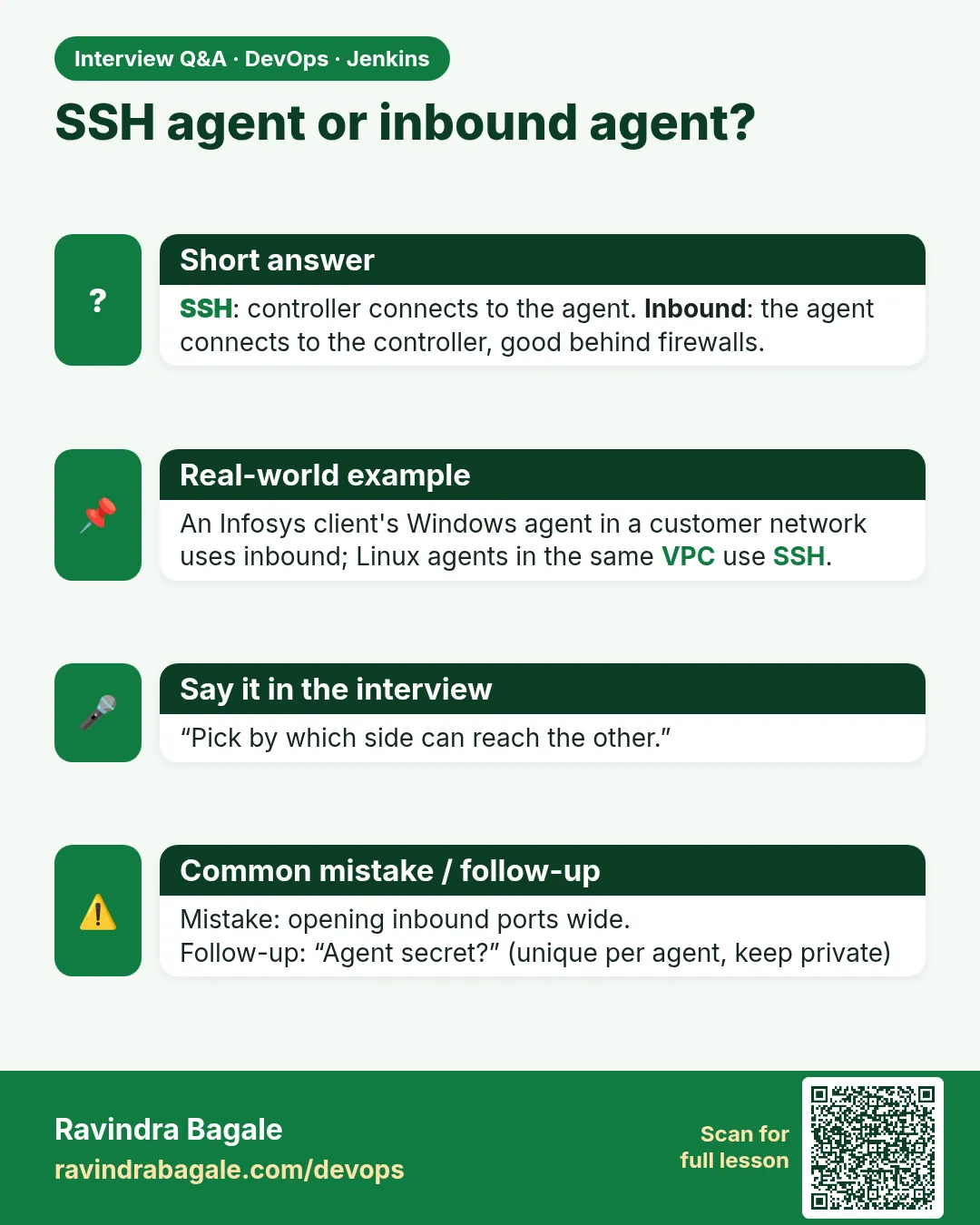
SSH when the controller can reach the agent. Inbound when the agent is behind NAT or a firewall.
Do I need to open 50000 to the internet?
No. Allow it only from agent IPs, or use WebSocket on 443.
Can Windows be an agent?
Yes. Use inbound mode with a Windows service, or OpenSSH for Windows.
Where is the agent secret?
On the agent page in Jenkins, under the run command.
What if the agent IP changes?
Inbound agents do not care. For SSH agents use a DNS name.
Interview questions
-
Explain SSH vs inbound agents.
SSH: the controller logs in to the agent and starts agent.jar. Inbound: the agent starts agent.jar and connects out to the controller with a secret, on TCP 50000 or WebSocket.
-
An inbound agent cannot connect. What do you check?
URL, secret, agent name, port 50000 or WebSocket, Java version, and the agent log.
-
How do you keep an inbound agent running after reboot?
A systemd service with Restart=always running as the jenkins user.
-
Why verify SSH host keys?
To stop the controller sending credentials and code to a fake machine.
-
How do agents work behind a corporate proxy?
Inbound mode with WebSocket over HTTPS, plus proxy settings for Java if needed.
Quick quiz
Q1. Which side starts the connection in SSH mode?
The controller connects to the agent on port 22.
Q2. Which side starts the connection in inbound mode?
The agent connects to the controller.
Q3. Which default port do inbound agents use?
TCP 50000, or 443 with WebSocket.
Q4. Why read the secret from a file?
So it does not appear in process lists or shell history.
Q5. What Java version should agents run?
Java 17 or 21, same as the controller.
Samajla ka?
 Revision card
 Interview card
 Comparison card