Chapter 25: Shared Libraries, Credentials and Environments
25.4 Credentials and withCredentials
Why: the problem
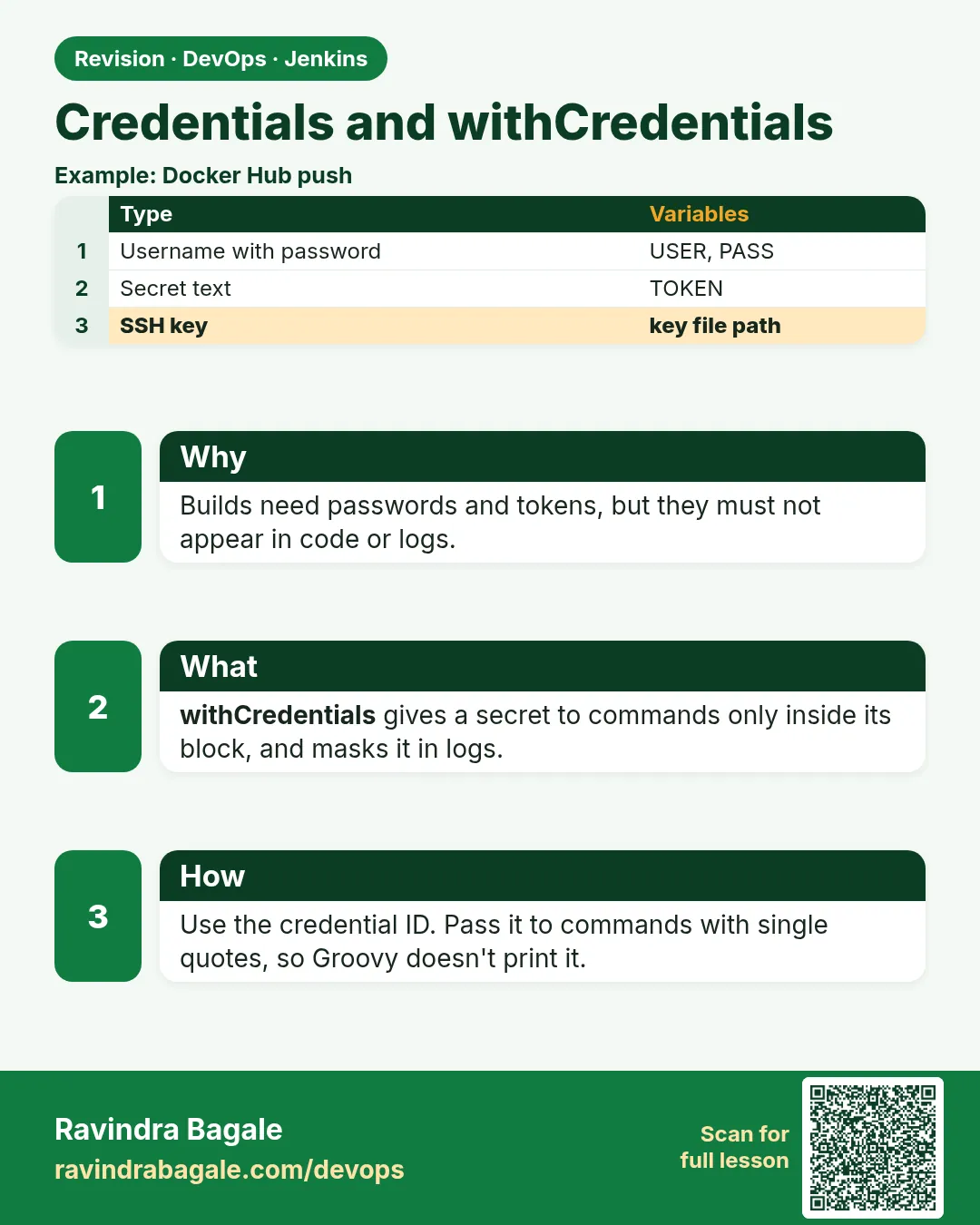
Imagine a Paytm developer who writes the database password straight into the Jenkinsfile. The file is in Git. Two hundred people can read it. Every fork and every laptop clone now has the password. Rotating it means a new commit, and the old one stays in Git history forever. Jenkins has a safe place for secrets called the credentials store. You save the secret once, give it an id like ecr-push or db-pass, and the Jenkinsfile only uses the id. The withCredentials step puts the secret into an environment variable just for the steps inside it. Jenkins also hides the value in the console as four stars. In this lesson you will save four kinds of credentials, use each one in a Jenkinsfile, see the masking, and learn the mistakes that still leak secrets.
What we will build
You will add four credentials in a lab Jenkins: a username and password for a Docker registry, a secret text API token, a secret file kubeconfig, and an SSH private key. Then you will write a pipeline that logs in to the registry, calls an API, runs kubectl, and copies a file over SSH, all without a single secret in Git.
What: every term in plain English
- Credentials store — The encrypted place inside Jenkins where secrets are kept.
- Credential id — The short name a Jenkinsfile uses, like db-pass. Not the secret itself.
- Username with password — A credential type for logins, like a registry user.
- Secret text — A credential type for one string, like an API token.
- Secret file — A credential type for a whole file, like a kubeconfig.
- SSH username with private key — A credential type for SSH keys, used with sshagent.
- withCredentials — Step that exposes a credential as environment variables only inside its block.
- Masking — Jenkins replaces the secret with **** in the console log.
- Scope — Global means jobs can use it. System means only Jenkins itself can use it.
How: step by step
-
Open the store
Manage Jenkins > Credentials > System > Global credentials > Add CredentialsWhat it does: Where admins add secrets for all jobs.
Output
Add Credentials form -
Add a registry login
Kind: Username with password
Username: ci-bot   Password: (paste from your password manager)
ID: registry-login
What it does: Saves the login. The id is what you type in pipelines.
Output
registry-login created -
Add an API token
Kind: Secret text
Secret: (paste token)
ID: slack-token
What it does: Saves one string.
Output
slack-token created -
Add a kubeconfig
Kind: Secret file
File: dev-kubeconfig.yaml
ID: kubeconfig-dev
What it does: Saves the whole file.
Output
kubeconfig-dev created -
Add an SSH key
Kind: SSH Username with private key
Username: ubuntu   Private key: Enter directly
ID: deploy-ssh
What it does: Saves a key for SSH deploys.
Output
deploy-ssh created -
Use one in a pipeline
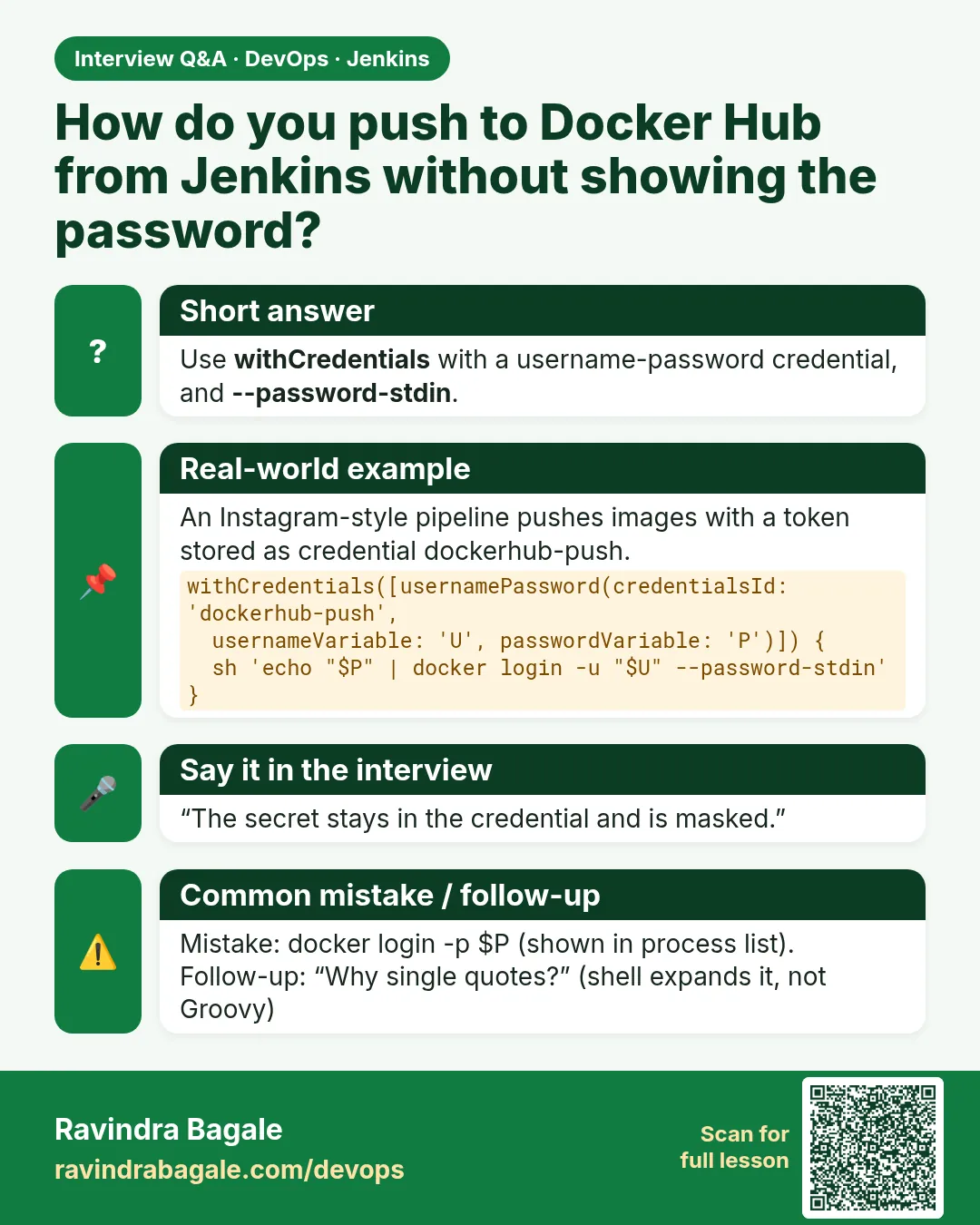
withCredentials([usernamePassword(credentialsId: 'registry-login', usernameVariable: 'REG_USER', passwordVariable: 'REG_PASS')]) { sh 'echo "$REG_PASS" | docker login -u "$REG_USER" --password-stdin registry.example.com' }What it does: Secret lives only inside the block.
Output
Login Succeeded -
Check masking
Console OutputWhat it does: The password shows as ****.
Output
+ docker login -u **** --password-stdin registry.example.com
Example 1: Log in to a registry with username and password
Stack. Jenkins, Docker, private registry
Goal. Log in to a registry with username and password.
Jenkinsfile
pipeline {
  agent { label 'docker' }
  environment { REGISTRY = 'registry.example.com' }
  stages {
    stage('Push') {
      steps {
        withCredentials([usernamePassword(credentialsId: 'registry-login',
                                          usernameVariable: 'REG_USER',
                                          passwordVariable: 'REG_PASS')]) {
          sh '''
            echo "$REG_PASS" | docker login -u "$REG_USER" --password-stdin "$REGISTRY"
            docker tag badge-api:$BUILD_NUMBER $REGISTRY/badge-api:$BUILD_NUMBER
            docker push $REGISTRY/badge-api:$BUILD_NUMBER
            docker logout "$REGISTRY"
          '''
        }
      }
    }
  }
}
What each line does
usernamePassword(...)— Binds the two parts to two variables.sh with single quotes— The shell, not Groovy, expands $REG_PASS. This avoids leaking it in Groovy strings.--password-stdin— Password goes through a pipe, not the command line, so ps cannot see it.docker logout— Removes the saved login from the agent after use.Block ends— REG_USER and REG_PASS are gone after the closing brace.
Green output
[Pipeline] withCredentials
Masking supported pattern matches of $REG_PASS
+ echo ****
+ docker login -u **** --password-stdin registry.example.com
Login Succeeded
+ docker push registry.example.com/badge-api:52
52: digest: sha256:7b1e... size: 1786
+ docker logout registry.example.com
Removing login credentials for registry.example.com
Finished: SUCCESS
Expected result. The image is pushed. The log shows stars, never the password.
Example 2: Use a secret file and a secret text together
Stack. Jenkins, Kubernetes, Slack API
Goal. Use a secret file and a secret text together.
Jenkinsfile
pipeline {
  agent { label 'docker' }
  stages {
    stage('Deploy dev') {
      steps {
        withCredentials([file(credentialsId: 'kubeconfig-dev', variable: 'KUBECONFIG'),
                         string(credentialsId: 'slack-token', variable: 'SLACK_TOKEN')]) {
          sh 'kubectl get nodes'
          sh 'kubectl -n dev set image deploy/badge-api app=registry.example.com/badge-api:$BUILD_NUMBER'
          sh 'kubectl -n dev rollout status deploy/badge-api --timeout=120s'
          sh '''curl -s -X POST -H "Authorization: Bearer $SLACK_TOKEN" -H "Content-type: application/json" --data '{"channel":"#deploys","text":"badge-api deployed to dev"}' https://slack.com/api/chat.postMessage'''
        }
      }
    }
  }
}
What each line does
file(credentialsId: 'kubeconfig-dev', variable: 'KUBECONFIG')— Jenkins writes the file to a temp path and puts that path in KUBECONFIG. kubectl reads it automatically.string(credentialsId: 'slack-token', ...)— Secret text becomes SLACK_TOKEN.kubectl set image— Changes the image of the deployment.rollout status --timeout— Waits until the new pods are ready or fails after 120 seconds.Temp file deleted— The kubeconfig file is removed when the block ends.
Green output
+ kubectl get nodes
NAME            STATUS   ROLES    AGE   VERSION
ip-10-0-1-20    Ready    none     30d   v1.30.2
+ kubectl -n dev set image deploy/badge-api app=registry.example.com/badge-api:52
deployment.apps/badge-api image updated
+ kubectl -n dev rollout status deploy/badge-api --timeout=120s
deployment "badge-api" successfully rolled out
{"ok":true,"channel":"C0DEPLOYS"}
Expected result. Dev is updated and Slack got a message. No kubeconfig or token in Git.
Example 3: Copy a file over SSH with sshagent
Stack. Jenkins, SSH Agent plugin, Ubuntu server
Goal. Copy a file over SSH with sshagent.
Jenkinsfile
pipeline {
  agent { label 'linux' }
  stages {
    stage('Ship') {
      steps {
        sshagent(credentials: ['deploy-ssh']) {
          sh '''
            scp -o StrictHostKeyChecking=accept-new dist/app.tar.gz ubuntu@10.0.3.14:/opt/badge/
            ssh ubuntu@10.0.3.14 "cd /opt/badge && tar xzf app.tar.gz && sudo systemctl restart badge"
            ssh ubuntu@10.0.3.14 "systemctl is-active badge"
          '''
        }
      }
    }
  }
}
What each line does
sshagent(credentials: ['deploy-ssh'])— Loads the key into a short-lived ssh-agent. Needs the SSH Agent plugin.StrictHostKeyChecking=accept-new— Trusts a new server once, but refuses if its key changes later.scp— Copies the build output to the server.systemctl restart— Restarts the app service.is-active— Prints active if the service runs.
Green output
[ssh-agent] Using credentials ubuntu (deploy-ssh)
+ scp -o StrictHostKeyChecking=accept-new dist/app.tar.gz ubuntu@10.0.3.14:/opt/badge/
Warning: Permanently added '10.0.3.14' (ED25519) to the list of known hosts.
+ ssh ubuntu@10.0.3.14 "systemctl is-active badge"
active
Finished: SUCCESS
Expected result. The server runs the new build. The key never touched the workspace.
Verify: did it work?
-
Find where an id is used
Manage Jenkins > Credentials > registry-login > UsageWhat it does: Shows jobs that used the credential, if fingerprints are on.
Output
badge-api #52 -
Check the log for leaks
grep -c 'REG_PASS' $JENKINS_HOME/jobs/badge-api/builds/52/logWhat it does: Search the raw log for the real value instead of the name in a lab.
Output
0
When it is red 1
ERROR: Could not find credentials entry with ID 'registry-login'
Cause. Wrong id, or the credential is in a folder the job cannot see.
Fix, step by step
- Copy the id exactly from the Credentials page.
- Check the scope is Global, not System.
- If it is a folder credential, move the job into that folder.
When it is red 2
Warning: A secret was passed to "sh" using Groovy String interpolation, which is insecure.
Cause. You used double quotes, like sh "echo $REG_PASS", so Groovy put the value into the command.
Fix, step by step
- Use single quotes so the shell reads the variable.
- Rerun and check the warning is gone.
When it is red 3
Secret shown in log after base64 or echo with spaces
Cause. Masking only hides the exact string. Changed forms are not hidden.
Fix, step by step
- Never print secrets, even encoded.
- Rotate the secret now.
- Delete the build log.
Cleanup
-
Rotate a test secret
Manage Jenkins > Credentials > slack-token > UpdateWhat it does: Paste a new value. Jobs keep using the same id.
Output
Saved -
Delete lab credentials
Credentials > deploy-ssh > DeleteWhat it does: Removes it from the store.
Output
Deleted
Ravindra Bagale's Tip
Password Git madhe kadhi nahi. Fakt id vapra, sh madhe single quotes. Lakshat theva!
Practice tasks
Easy Add a secret text
Why: Most tokens are secret text.
What to do: Add slack-token and print its length only.
- sh 'echo ${#SLACK_TOKEN}'
Check: Prints a number, not the token.
Medium Registry push
Why: Every CI pushes images.
What to do: Push to a local registry with registry-login.
- Run registry:2 on port 5000.
Check: Push succeeds and log shows stars.
Hard Find a leak
Why: Leaks happen in reviews.
What to do: Review three old Jenkinsfiles for double-quoted secrets.
- Search for sh " with a secret variable.
Check: You fix each one.
Easy Say Jenkins credentials in two lines
Why: If you can say it simply, you understand it. Juniors and interviewers want the short version first.
What to do: Write two short lines about Jenkins credentials for a fresher who knows only Linux basics.
- Write what problem it solves.
- Write the one command or menu you use for it.
- Read it aloud to a friend.
Check: A fresher understands it without asking a question.
Easy Start a fresh lab Jenkins
Why: Practice needs a throwaway Jenkins. If you break it, you delete it and start again.
What to do: Run Jenkins LTS in Docker with a named volume.
- docker volume create jenkins_home
- docker run -d --name jenkins -p 8080:8080 -v jenkins_home:/var/jenkins_home jenkins/jenkins:lts-jdk17
- docker exec jenkins cat /var/jenkins_home/secrets/initialAdminPassword
Check: The Jenkins unlock page opens on localhost:8080.
Medium Break it on purpose
Why: You must know the red message by face. During an outage there is no time to read slowly.
What to do: Cause one error from the "When it is red" part of this lesson and fix it.
- Follow the error section.
- Copy the exact message into your notes.
- Write the fix in one line.
Check: You fixed it using only the steps, without searching the web.
Medium Write a one-page runbook
Why: At 2 a.m. nobody remembers where a file lives. A short page saves the on-call person.
What to do: Write a runbook page for this lesson.
- Title, when to use, exact command, how to check, how to undo.
Check: A teammate can follow it alone.
Medium Repeat it on a cloud VM
Why: A laptop is not a server. Real Jenkins runs on EC2 or a company VM.
What to do: Do the main steps of this lesson again on a small Ubuntu 22.04 EC2 instance.
- Launch t3.small with 20 GB disk.
- Open port 22 only to your IP.
- Repeat the steps and compare the output.
Check: Same green output on the VM as on your laptop.
Hard Explain it like an interview
Why: Interviewers want real stories, not definitions.
What to do: Record a 60 second answer about this lesson.
- Say the problem, the command you ran, and one error you hit.
Check: Your answer has a real command and a real error message.
Hard Draw the flow top to bottom
Why: A drawing shows who talks to whom and in what order.
What to do: Draw this lesson as boxes from top to bottom.
- Start at the developer push, go through the controller and agent, end at the result.
Check: Each box matches a real thing you saw on screen.
Homework: try at home
Try at home
At home, add one credential of each type in your lab Jenkins. Write one pipeline that uses all four. Then switch one sh to double quotes, see the warning, and fix it.
Recap
- Secrets live in the credentials store, not in Git.
- Jenkinsfiles use the id.
- withCredentials exposes secrets only inside its block.
- Use single quotes in sh.
- Masking is a safety net, not a guarantee.
FAQ
Are credentials encrypted?
Yes, on disk with keys in JENKINS_HOME/secrets. Protect that folder.
Can I use AWS keys?
Better use an IAM role on the agent. If not, use the AWS Credentials plugin.
Can I use HashiCorp Vault?
Yes, with the Vault plugin, so secrets are fetched at run time.
Who can see credentials?
Users with Credentials permissions. Limit them.
Can a build print a secret on purpose?
A malicious script can. That is why only trusted people get Jenkinsfile write access.
Interview questions
-
How do you use secrets in a Jenkins pipeline?
Store them in the Jenkins credentials store and bind them with withCredentials or sshagent by id, inside a small block.
-
Why is Groovy string interpolation of secrets dangerous?
The secret becomes part of the command text, which can show up in logs and process lists. Single quotes let the shell expand it.
-
What credential types do you know?
Username with password, secret text, secret file, SSH private key and certificate.
-
How do you rotate a secret?
Update the value in the store under the same id. No Jenkinsfile change needed.
-
Is masking enough?
No. It only hides exact matches. Do not print secrets at all.
Quick quiz
Q1. What goes in the Jenkinsfile, the secret or the id?
The id.
Q2. Which binding gives a file path?
file(credentialsId: ..., variable: ...)
Q3. Why --password-stdin?
So the password is not on the command line.
Q4. Why single quotes in sh?
So Groovy does not insert the secret into the command.
Q5. What does masking hide?
The exact secret string in the console.
Samajla ka?
 Revision card
 Interview card