Chapter 24: Jenkins with GitHub, GitLab and Bitbucket
24.2 HTTPS or SSH
Why: the problem
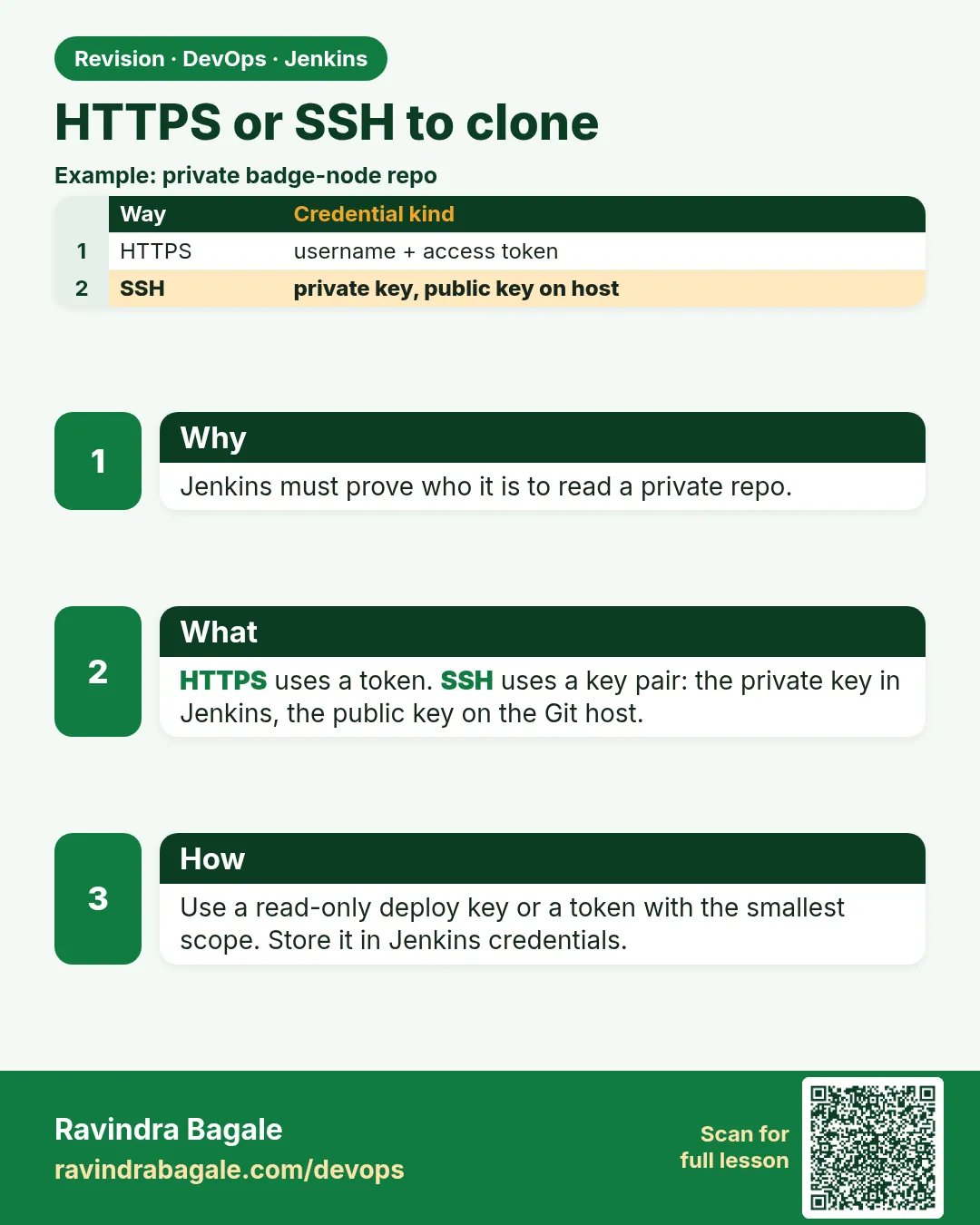
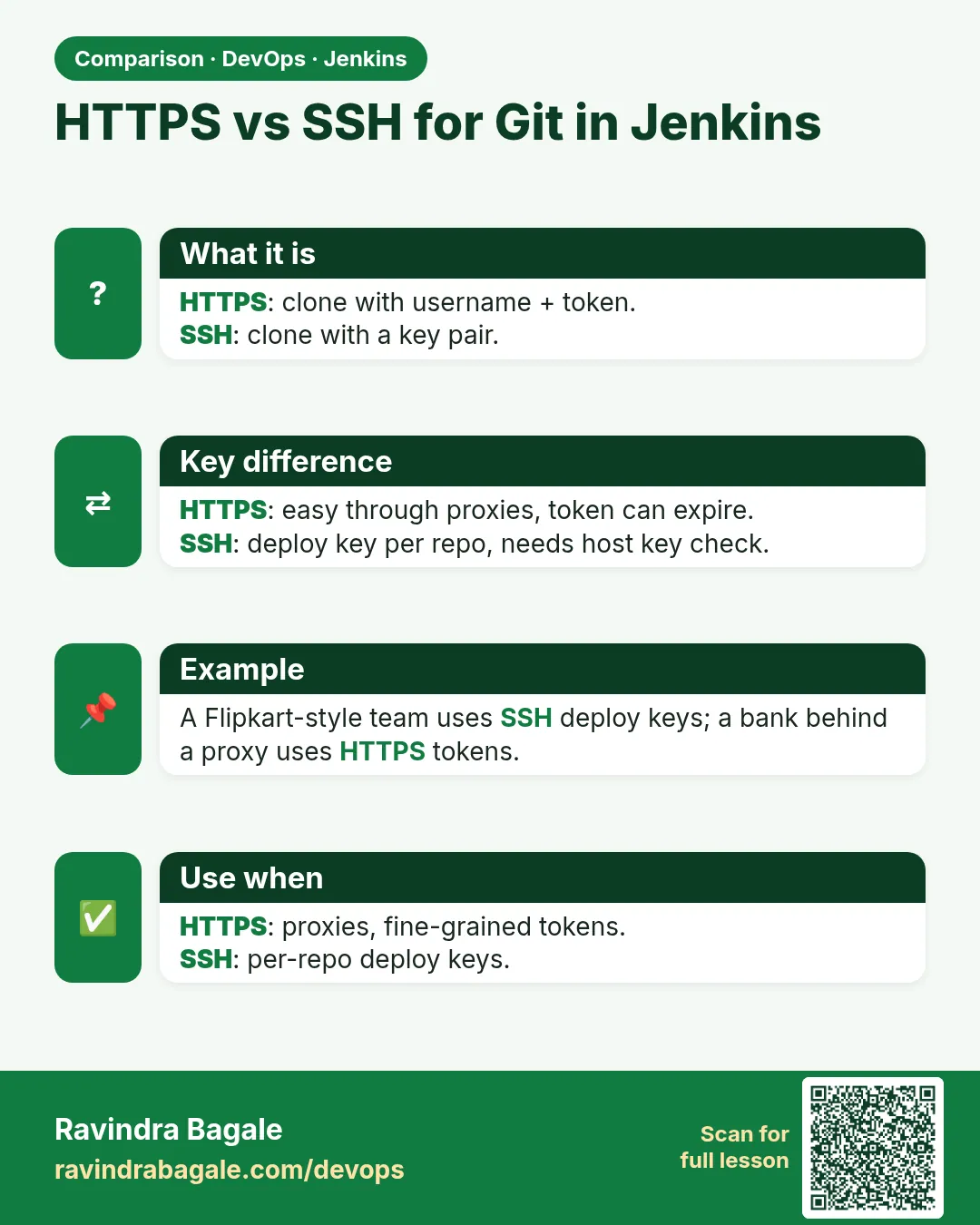
Think of Flipkart. A new Jenkins job fails on day one with "Authentication failed". The team lead asks: "Are you using HTTPS or SSH?" The fresher does not know. Git can talk to a host in two ways. HTTPS uses a username and a token, like a long password. SSH uses a key pair: a private key that stays with Jenkins and a public key that you give to the host. Both work. But each fails in its own way, and each needs a different credential type in Jenkins. Many teams also lose a week when a person leaves and their personal token stops working. So we also learn to use a bot account or a deploy key, not a personal login. In this lesson you set up both ways for the same repo and see the exact errors for each.
What we will build
You will make a fine-grained token on GitHub Enterprise, a project access token on GitLab and an app password style token on Bitbucket, and save each one in Jenkins as a Username with password credential. Then you will make an SSH key pair, add the public key as a deploy key on GitLab, and save the private key in Jenkins as an SSH Username with private key credential. You will clone with both and use withCredentials to push a tag safely.
What: every term in plain English
- HTTPS clone — Cloning with a URL that starts with https. You log in with a username and a token.
- Personal access token (PAT) — A long secret string from the host. It works like a password but can be limited and expired.
- Project or repo token — A token tied to one project, not to a person. It keeps working when people leave.
- SSH key pair — Two files. The private key stays secret with Jenkins. The public key goes to the host.
- Deploy key — A public SSH key added to one repo only. It can be read-only.
- known_hosts — A file listing host fingerprints you trust. It stops a fake server from pretending to be the host.
- Username with password credential — A Jenkins credential type. For HTTPS, put the token in the password box.
- SSH Username with private key — A Jenkins credential type. Holds the private key for SSH clones.
How: step by step
-
Make a read-only GitLab project token
GitLab > menu-api > Settings > Access tokens > name jenkins-read > role Reporter > scope read_repository > CreateWhat it does: A token only for this project, not for your person account.
Output
Your new project access token: glpat-XXXXXXXXXXXXXXXXXXXX -
Test the token from the Jenkins machine
git ls-remote https://jenkins-read:$GL_TOKEN@gitlab.com/shop-food/menu-api.git HEADWhat it does: Proves the token works before you save it. Put the token in a variable, not in the history.
Output
4c1a9e2b7f0d1e3a5c6b8d9e0f1a2b3c4d5e6f70 HEAD -
Save it in Jenkins
Manage Jenkins > Credentials > System > Global > Add > Username with password > user jenkins-read > password = token > ID gl-readWhat it does: Now jobs use the id gl-read. Nobody sees the token again.
Output
Credential gl-read added -
Make an SSH key for Jenkins
ssh-keygen -t ed25519 -C "jenkins@shop" -f ~/jenkins_ed25519 -N ""What it does: A new key pair just for Jenkins. Ed25519 keys are short and strong.
Output
Your identification has been saved in /home/ravi/jenkins_ed25519 Your public key has been saved in /home/ravi/jenkins_ed25519.pub -
Add the public key as a deploy key
cat ~/jenkins_ed25519.pub (copy) then GitLab > Settings > Repository > Deploy keys > AddWhat it does: The host now trusts this key for this one repo, read-only.
Output
Deploy key was successfully created. -
Save the private key in Jenkins
Credentials > Add > SSH Username with private key > user git > paste private key > ID gl-sshWhat it does: Jenkins keeps the private key encrypted.
Output
Credential gl-ssh added -
Trust the host key
Manage Jenkins > Security > Git Host Key Verification > Known hosts fileWhat it does: Jenkins checks the host fingerprint. Never pick No verification in real use.
Output
Saved
Example 1: HTTPS clone with a token credential in a Jenkinsfile
Stack. GitLab, Jenkins Git plugin
Goal. HTTPS clone with a token credential in a Jenkinsfile.
Jenkinsfile
pipeline {
  agent any
  stages {
    stage('Clone over HTTPS') {
      steps {
        git url: 'https://gitlab.com/shop-food/menu-api.git',
            branch: 'main',
            credentialsId: 'gl-read'
        sh 'git remote -v && git log -1 --oneline'
      }
    }
  }
}
What each line does
git url: 'https://...'— The git step clones the repo into the workspace.branch: 'main'— Which branch to check out.credentialsId: 'gl-read'— The id of the Username with password credential. The token stays hidden.sh 'git remote -v'— Shows the URL. Jenkins never prints the token in the URL.git log -1 --oneline— Shows the commit we got.
Green output
using credential gl-read
Cloning repository https://gitlab.com/shop-food/menu-api.git
 > git fetch --tags --force --progress -- https://gitlab.com/shop-food/menu-api.git +refs/heads/*:refs/remotes/origin/*
+ git remote -v
origin  https://gitlab.com/shop-food/menu-api.git (fetch)
+ git log -1 --oneline
4c1a9e2 menu-api first commit
Finished: SUCCESS
Expected result. The console says "using credential gl-read" and the token is never printed.
Example 2: SSH clone with a deploy key, and host key checking on
Stack. GitLab deploy key, Jenkins SSH credential
Goal. SSH clone with a deploy key, and host key checking on.
Jenkinsfile
pipeline {
  agent any
  stages {
    stage('Clone over SSH') {
      steps {
        git url: 'git@gitlab.com:shop-food/menu-api.git',
            branch: 'main',
            credentialsId: 'gl-ssh'
        sh 'git log -1 --format="%h %an %s"'
      }
    }
  }
}
known_hosts check
ssh-keyscan -t ed25519 gitlab.com 2>/dev/null | tee gitlab.known
ssh-keygen -lf gitlab.known
What each line does
git@gitlab.com:shop-food/menu-api.git— SSH URL. The user is always git. The colon comes before the owner.credentialsId: 'gl-ssh'— The SSH private key credential.ssh-keyscan -t ed25519 gitlab.com— Gets the host public key. Paste it into the Jenkins known hosts setting.ssh-keygen -lf gitlab.known— Prints the fingerprint. Compare it with the fingerprint the host shows in its docs.%h %an %s— Short hash, author name and subject of the commit.
Green output
+ ssh-keygen -lf gitlab.known
256 SHA256:eUXGGm1YGsMAS7vkcx6JOJdOGHPem5gQp4taiCfCLB8 gitlab.com (ED25519)
using GIT_SSH to set credentials gl-ssh
Verifying host key using known hosts file
Cloning repository git@gitlab.com:shop-food/menu-api.git
+ git log -1 --format=%h %an %s
4c1a9e2 Ravi menu-api first commit
Finished: SUCCESS
Expected result. Jenkins checked the host key and cloned with the deploy key.
Example 3: Push a release tag back to the host safely with withCredentials
Stack. GitLab, Credentials Binding plugin
Goal. Push a release tag back to the host safely with withCredentials.
Jenkinsfile
pipeline {
  agent any
  environment { TAG = "v1.0.${env.BUILD_NUMBER}" }
  stages {
    stage('Clone') {
      steps { git url: 'https://gitlab.com/shop-food/menu-api.git', branch: 'main', credentialsId: 'gl-write' }
    }
    stage('Tag') {
      steps {
        withCredentials([usernamePassword(credentialsId: 'gl-write', usernameVariable: 'GU', passwordVariable: 'GP')]) {
          sh '''
            git config user.email jenkins@shop.local
            git config user.name  "Jenkins Bot"
            git tag -a "$TAG" -m "release $TAG"
            git push "https://$GU:$GP@gitlab.com/shop-food/menu-api.git" "$TAG"
          '''
        }
      }
    }
  }
}
What each line does
credentialsId: 'gl-write'— A second token with write_repository scope. Read and write tokens are kept apart.withCredentials([usernamePassword(...)])— Puts the user and token in GU and GP only inside this block.sh ''' ... '''— Single quotes so Groovy does not put the secret into the script text. The shell reads the variables.git tag -a "$TAG"— Makes an annotated tag with a message.git push ... "$TAG"— Pushes only the tag, not branches.Masking— Jenkins replaces the token with **** if it appears in the log.
Green output
[Pipeline] withCredentials
Masking supported pattern matches of $GP
+ git tag -a v1.0.17 -m "release v1.0.17"
+ git push https://****:****@gitlab.com/shop-food/menu-api.git v1.0.17
To https://gitlab.com/shop-food/menu-api.git
 * [new tag]         v1.0.17 -> v1.0.17
Finished: SUCCESS
Expected result. GitLab shows tag v1.0.17. The log shows **** where the token would be.
Verify: did it work?
-
List credential ids (no secrets shown)
curl -s -u ravi:$JENKINS_TOKEN "http://localhost:8080/credentials/store/system/domain/_/api/json?tree=credentials[id,typeName]" | jq -r ".credentials[] | .id + \" \" + .typeName"What it does: Shows ids and types only.
Output
gl-read Username with password gl-ssh SSH Username with private key gl-write Username with password -
Test SSH from the agent
docker exec jenkins ssh -T -i /tmp/k git@gitlab.comWhat it does: A good key prints a welcome line. Use a copied key file only for this test, then delete it.
Output
Welcome to GitLab, @shop-food-deploy!
When it is red 1
remote: HTTP Basic: Access denied. The provided password or token is incorrect or it has expired.
fatal: Authentication failed for 'https://gitlab.com/shop-food/menu-api.git/'
Cause. The token is wrong, expired, or you put your account password instead of a token.
Fix, step by step
- Make a new token with read_repository scope.
- Update the gl-read credential password field.
- Run Build Now again.
When it is red 2
git@gitlab.com: Permission denied (publickey).
fatal: Could not read from remote repository.
Cause. The public key is not on the repo, or Jenkins uses a different private key.
Fix, step by step
- Check the deploy key is added to this exact project.
- Compare fingerprints: ssh-keygen -lf jenkins_ed25519.pub and the one on the host page.
- Pick the right credential in the job.
When it is red 3
No ED25519 host key is known for gitlab.com and you have requested strict checking.
Host key verification failed.
Cause. Host key checking is on, but the known hosts list is empty.
Fix, step by step
- Run ssh-keyscan for the host.
- Paste the line in Manage Jenkins > Security > Git Host Key Verification.
- Do not switch to No verification.
Cleanup
-
Delete the lab key files
rm -f ~/jenkins_ed25519 ~/jenkins_ed25519.pub gitlab.knownWhat it does: The private key now lives only in Jenkins.
Output
(no output) -
Remove the test tag
git push --delete origin v1.0.17 && git tag -d v1.0.17What it does: Cleans the lab tag from host and laptop.
Output
To https://gitlab.com/shop-food/menu-api.git
 - [deleted]         v1.0.17
Deleted tag 'v1.0.17'
Ravindra Bagale's Tip
Token ani key Jenkins credentials madhech theva. Jenkinsfile madhe fakt id. Lakshat theva!
Practice tasks
Easy Make a read-only token
Why: Least access means less damage if it leaks.
What to do: Make a project token with only read access and use it in a job.
- Pick the smallest scope.
- Set an expiry date.
Check: The job clones, but a push with this token fails.
Medium Rotate a token
Why: Tokens expire. Rotation must not break builds.
What to do: Make a new token and update the credential without changing any job.
- Create new token.
- Update the password of gl-read.
- Revoke the old token.
Check: Next build is green with the new token.
Hard Switch a job from HTTPS to SSH
Why: Some companies block HTTPS tokens.
What to do: Change one job to the SSH URL and gl-ssh credential.
- Edit URL and credential.
- Add the host key.
Check: Build is green and log says GIT_SSH.
Easy Say HTTPS and SSH credentials in two lines
Why: If you can say it simply, you understand it. Juniors and interviewers both want the short version first.
What to do: Write two short lines about HTTPS and SSH credentials for a fresher who knows only Linux and Git basics.
- Write the problem it solves.
- Write the one Jenkinsfile step or command you use for it.
- Read it aloud to a friend.
Check: A fresher understands it without asking a question.
Easy Start a fresh lab Jenkins
Why: Practice needs a throwaway Jenkins. If you break it, you delete it and start again.
What to do: Run Jenkins LTS in Docker with a named volume.
- docker volume create jenkins_home
- docker run -d --name jenkins -p 8080:8080 -v jenkins_home:/var/jenkins_home jenkins/jenkins:lts-jdk17
- docker logs jenkins 2>&1 | grep -A2 "initialAdminPassword"
Check: The Jenkins login page opens on localhost:8080.
Medium Do it on the second setup
Why: A release idea must work on a VM, on Docker and on Kubernetes. Only the deploy step should change.
What to do: Repeat this lesson on a different target than the one you used first.
- If you used Docker, use kind or minikube now.
- Change only the deploy commands.
- Keep the same Jenkinsfile stages.
Check: Same result, and the stage names did not change.
Medium Break it on purpose
Why: You must know the red output by face. In a real outage there is no time to read slowly.
What to do: Cause one error from the "When it is red" part of this lesson and fix it.
- Follow the error section.
- Copy the exact message into your notes.
- Write the fix in one line.
Check: You fixed it using only the steps, without searching the web.
Medium Write a release runbook page
Why: At 2 a.m. nobody remembers flags. A short page saves the on-call person.
What to do: Write a one-page runbook for this lesson.
- Title, when to use, exact commands, how to check, how to undo.
Check: A teammate can follow it alone.
Hard Explain it like an interview
Why: Interviewers want real stories, not definitions.
What to do: Record a 60 second answer about this lesson.
- Say the problem, the Jenkinsfile step, and one error you hit.
Check: Your answer has a real command and a real error message.
Hard Draw the flow top to bottom
Why: A drawing shows the order of work and who is waiting on whom.
What to do: Draw this lesson as boxes from top to bottom.
- Start at git push, go through the stages, end at the check in production.
Check: Each box matches a real step you ran.
Homework: try at home
Try at home
At home, clone one repo in Jenkins two ways: once with an HTTPS token and once with an SSH deploy key. Break each one on purpose (wrong token, wrong key) and save the two error messages in your notes.
Recap
- HTTPS uses a username and token; SSH uses a key pair.
- Save secrets in Jenkins and use them by id.
- Prefer bot, project tokens or deploy keys over personal logins.
- Keep host key checking on and add known hosts.
- Use withCredentials and single quoted sh for pushes.
FAQ
Which is better, HTTPS or SSH?
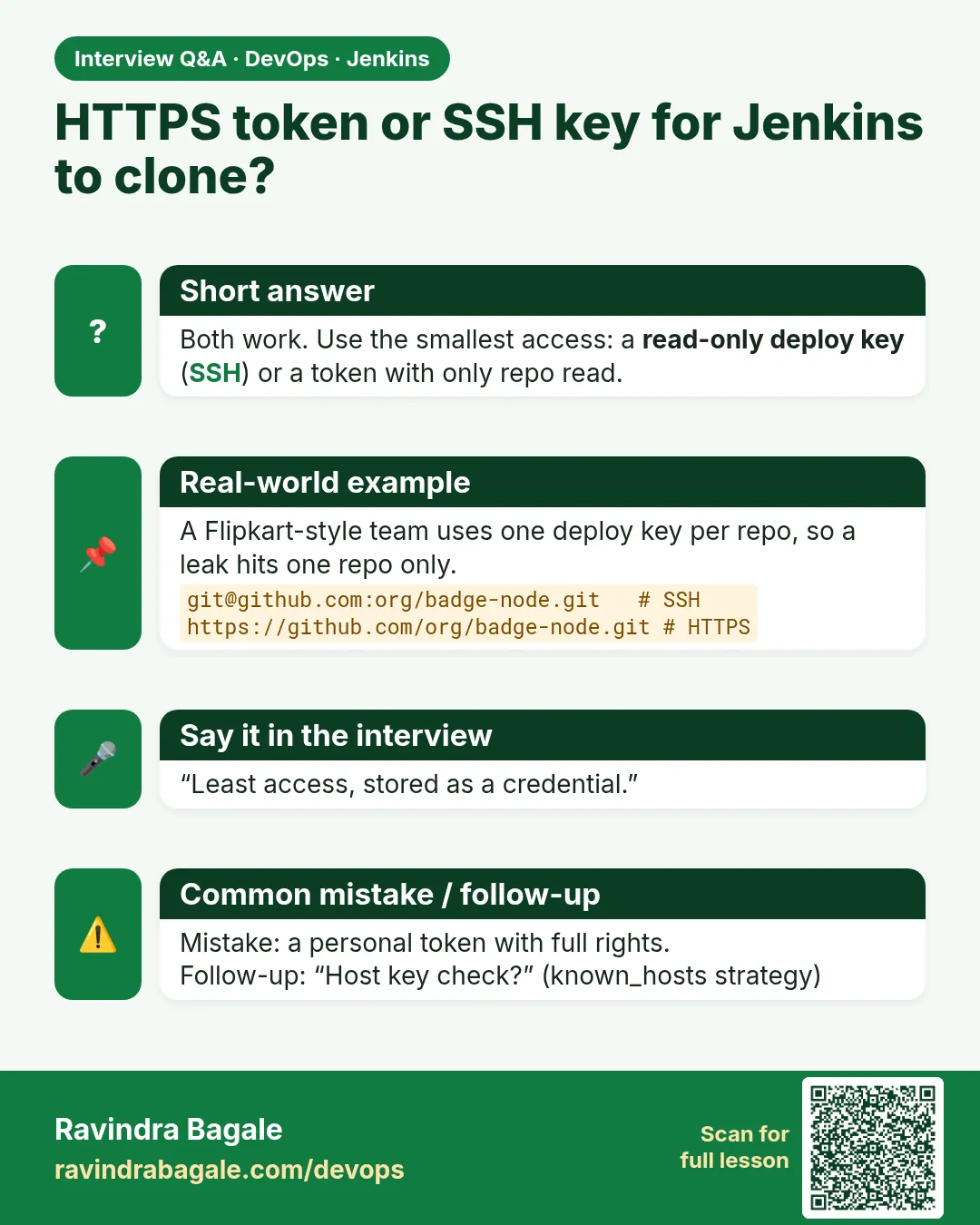
Both are fine. HTTPS passes most firewalls. SSH keys do not expire by default. Follow company rules.
Can I use my own GitHub password?
No. Hosts need tokens now, and personal logins break when you leave.
Why does Jenkins say "using credential" but still fail?
The credential exists, but its secret is wrong or has no access to this repo.
Should the SSH key have a passphrase?
For Jenkins it is usually empty, because Jenkins stores it encrypted. Protect Jenkins instead.
How often should tokens change?
Set an expiry, like 90 days, and rotate before it ends.
Interview questions
-
How do you give Jenkins access to a private repo?
Create a read-only token or deploy key, store it as a Jenkins credential, and use its id in the job.
-
What is the difference between a PAT and a deploy key?
A PAT is tied to a user and can reach many repos. A deploy key is an SSH key for one repo.
-
How do you avoid secrets in console logs?
Use withCredentials, which masks the value, and single-quoted sh blocks.
-
What is Host key verification failed?
The host key is not in known hosts or changed. Add the correct key after checking its fingerprint.
-
How do you rotate a token without downtime?
Create the new token, update the credential, run a build, then revoke the old one.
Quick quiz
Q1. Which Jenkins credential type is used for an HTTPS token?
Username with password, with the token in the password box.
Q2. Where does the private SSH key live?
Only in Jenkins credentials.
Q3. What does a deploy key give access to?
One repo only, often read-only.
Q4. Why keep host key checking on?
To stop a fake server from stealing code or keys.
Q5. Why use single quotes in sh with secrets?
So Groovy does not put the secret in the script; the shell reads it from the variable.
Samajla ka?
 Revision card
 Interview card
 Comparison card