Excel · मराठी आवृत्ती
Excel मध्ये PivotTable, Pivot Chart, Slicer आणि Timeline वापरून Sales Dashboard कसा बनवायचा (Step by Step)
या page मध्ये
- 1. Data तयार करा: Excel Table बनवा
- 2. PivotTable ने 4 KPI numbers बनवा
- 3. 4 Pivot Charts बनवा
- 4. City आणि Category साठी Slicers जोडा
- 5. एक slicer सगळ्या pivots ला जोडा (Report Connections)
- 6. Dates साठी Timeline जोडा
- 7. Dashboard ची मांडणी करा
- 8. Dashboard professional दिसेल असा करा
- 9. Fields आणि formulas
- 10. आकडे तपासा
- 11. नेहमीच्या चुका
- 12. अजून business उदाहरणं
- 13. FAQ
- 14. घरी करून पाहा
- थोडक्यात उजळणी
- Cards
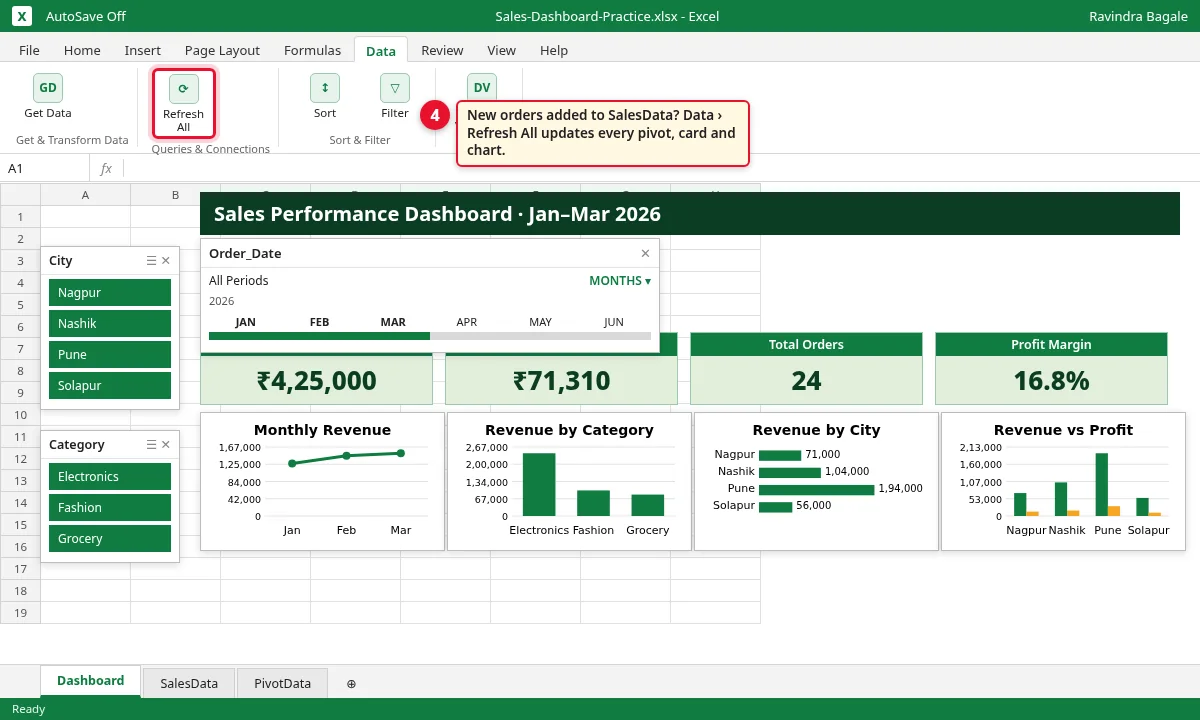
मागच्या chapter मध्ये तुम्ही पहिल्या PivotTables बनवल्या. आता त्या एकाच screen वर आणून clickable करायच्या. शेवटी तुमच्याकडे sales dashboard असेल: 4 KPI cards, 4 charts, 2 slicers आणि एक timeline. Pune वर click केलं की सगळे आकडे बदलतात; FEB वर click केलं की फक्त February दिसतो. एकही formula बदलायचा नाही.
Download: sales-dashboard-practice.xlsx (24 orders, pivot plan आणि उत्तरं तपासायला) आणि sales-dashboard-finished.xlsx (पूर्ण dashboard).
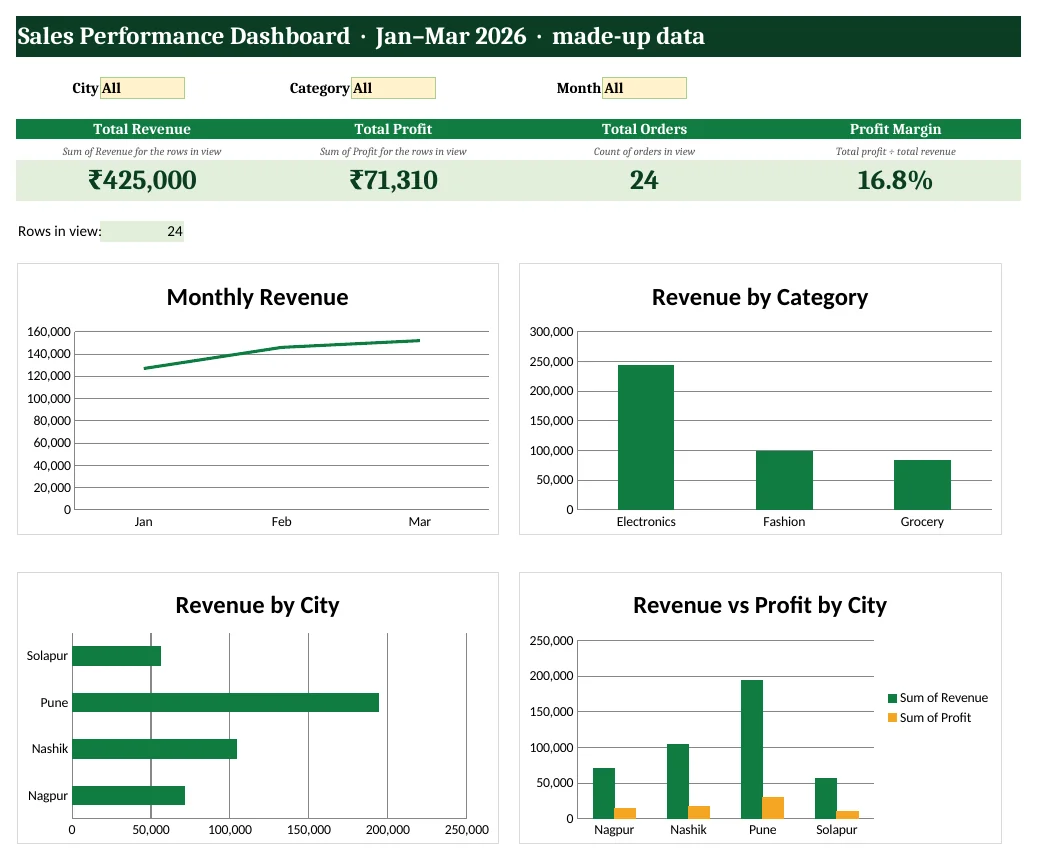
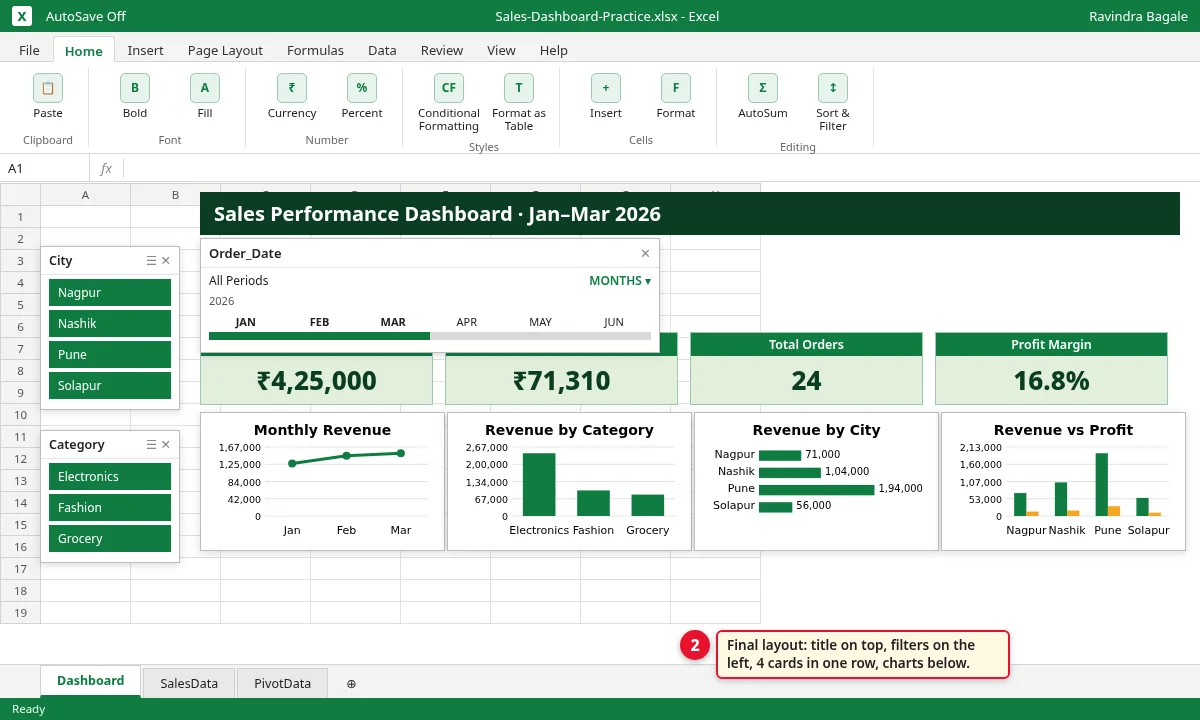
Figure 1. पूर्ण dashboard: Revenue ₹4,25,000, Profit ₹71,310, 24 orders, margin 16.8%.
1. Data तयार करा: Excel Table बनवा
का (Why)
Dashboard तितकाच चांगला, जितका त्याचा data. PivotTable एक table वाचते. Data Excel Table मध्ये असेल तर नवीन rows refresh केल्यावर आपोआप येतात.
काय (What)
आपला data म्हणजे January ते March 2026 मधल्या 24 orders, 4 cities मध्ये (Pune, Nashik, Nagpur, Solapur). एक row = एक order. Columns: Order_ID, Order_Date, City, Category, Revenue आणि Profit. एकूण revenue ₹4,25,000 आणि एकूण profit ₹71,310.
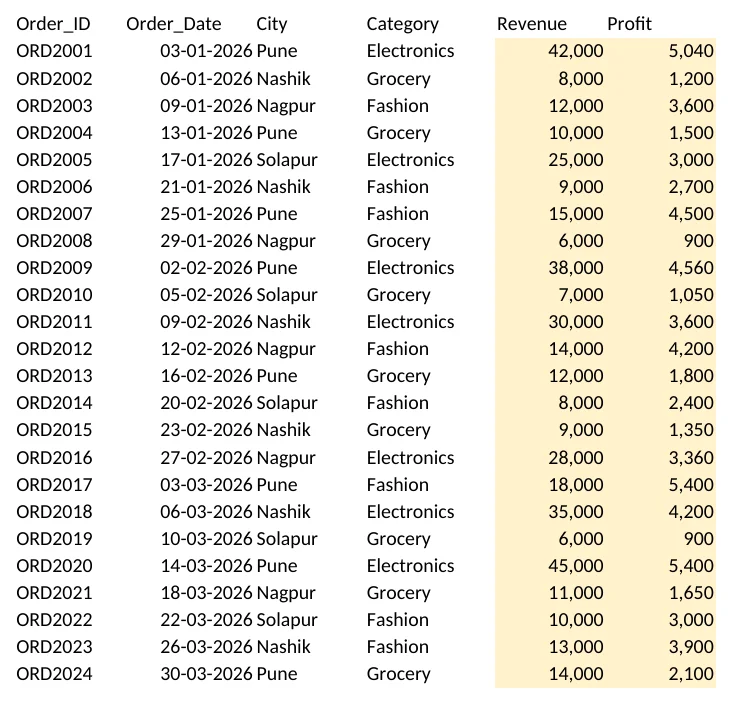
Figure 2. Practice file मधली SalesData sheet. पिवळ्या cells मध्ये input.
कसं (How)
Practice file उघडा, SalesData sheet वर जा. Data मधल्या कोणत्याही एका cell वर click करा, उदा. C5.
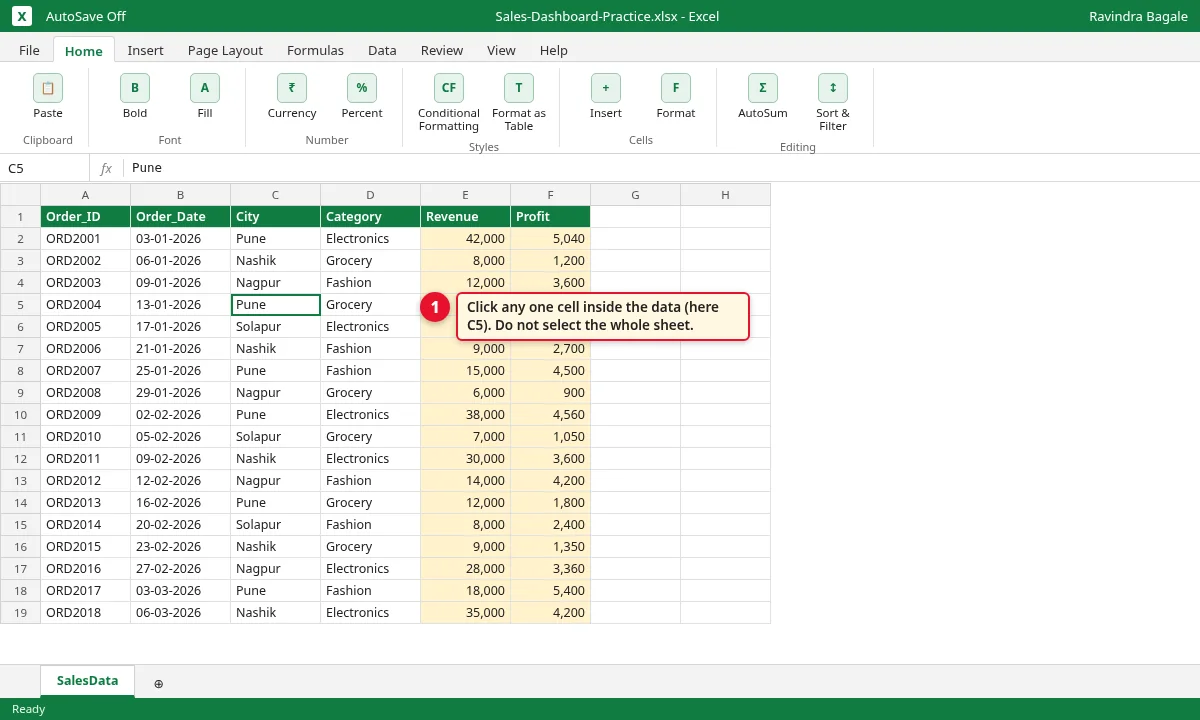
Step 1.1
Ctrl+T दाबा. Create Table box मध्ये
=$A$1:$F$25दिसेल. My table has headers tick ठेवा आणि OK करा.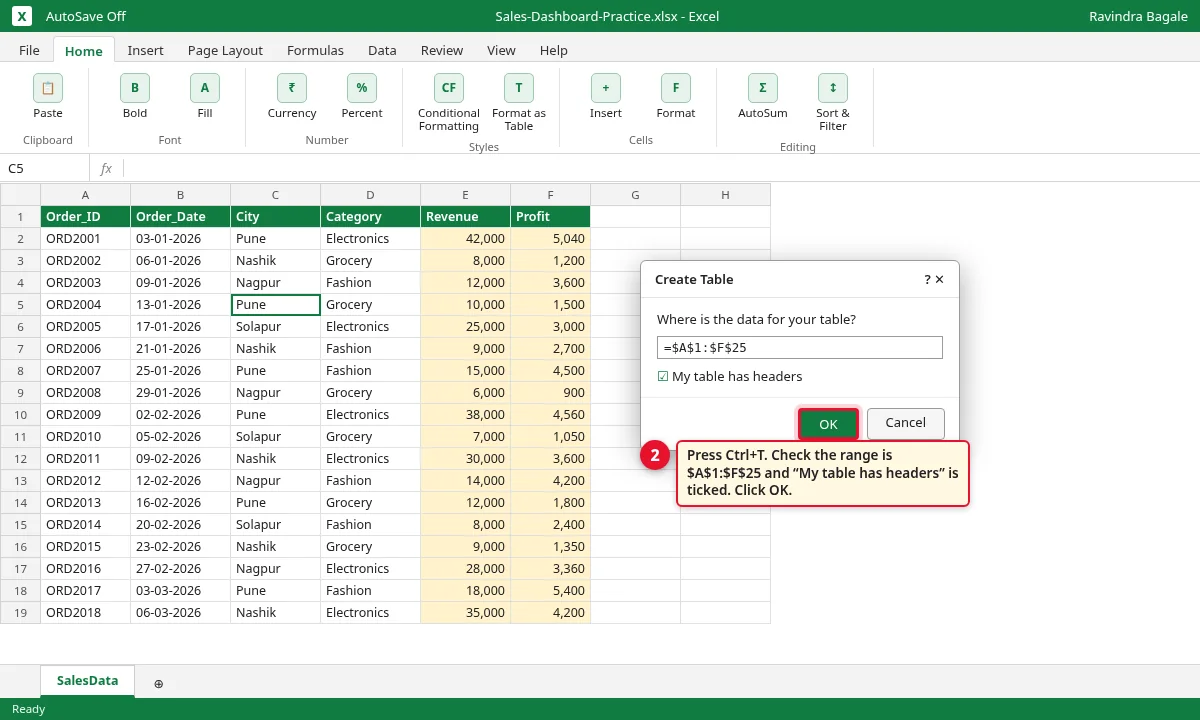
Step 1.2
Table Design tab वर जा. Table Name box मध्ये SalesData type करा आणि Enter दाबा.
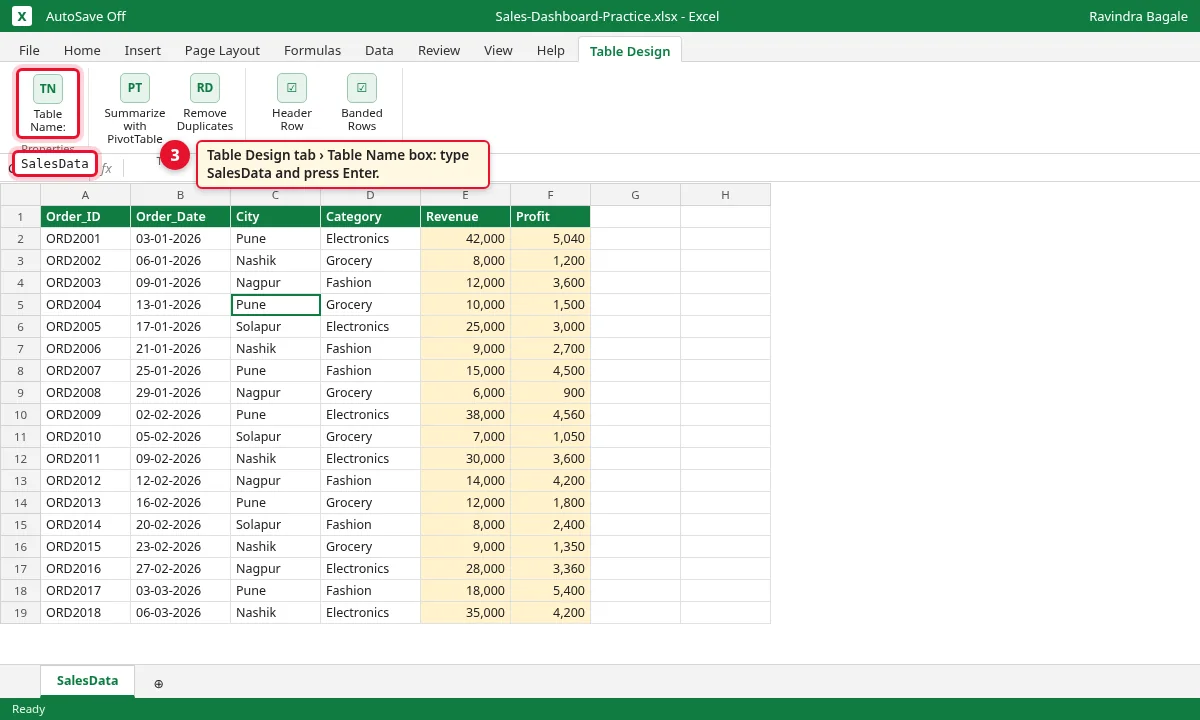
Step 1.3
2. PivotTable ने 4 KPI numbers बनवा
का (Why)
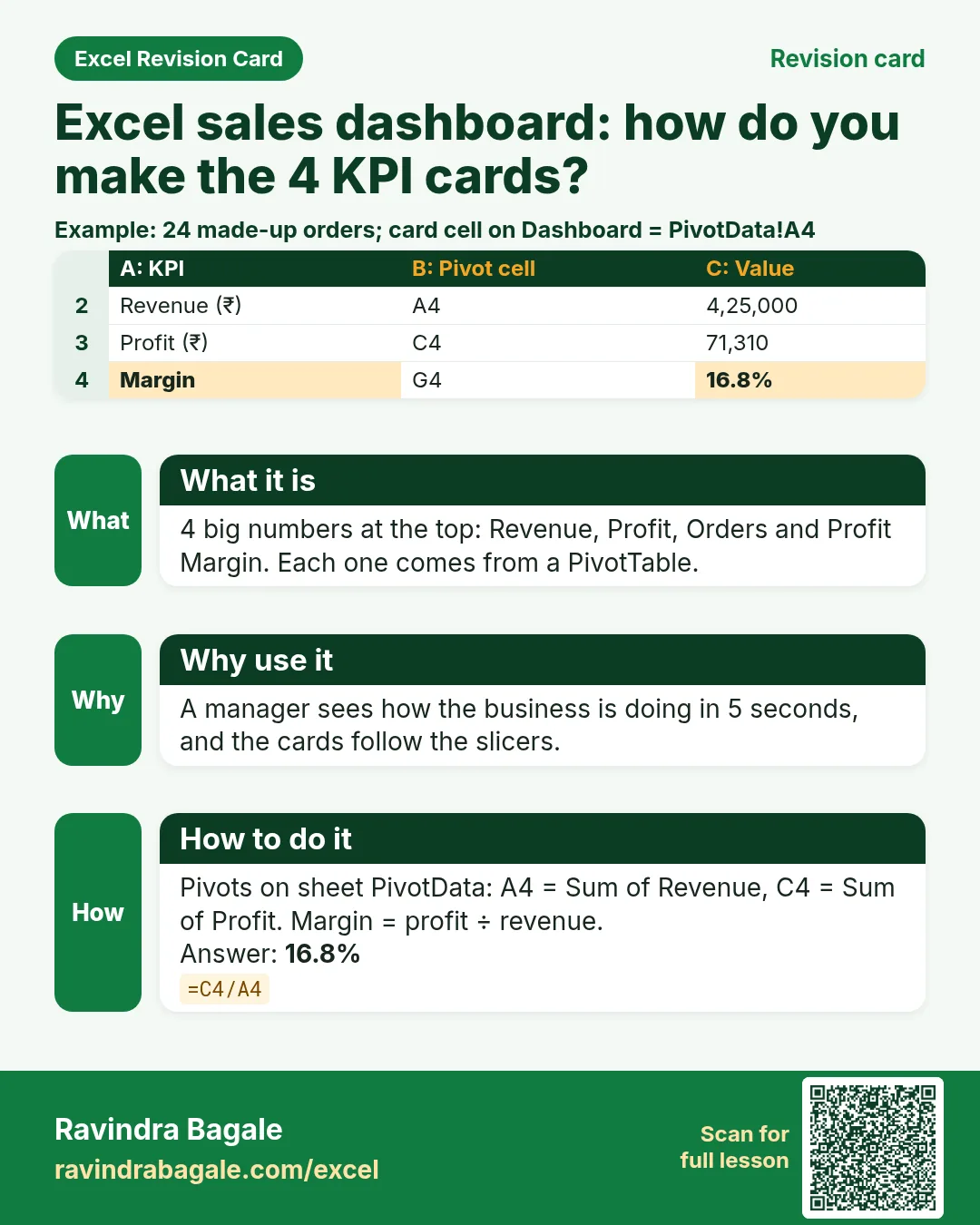
KPI म्हणजे Key Performance Indicator: manager सगळ्यात आधी वाचतो तो एक मोठा आकडा. Revenue, profit, orders आणि margin 5 seconds मध्ये business कसा चाललाय ते सांगतात.
काय (What)
तीन छोट्या PivotTables, Rows मध्ये काहीच नाही आणि Values मध्ये एक field: Sum of Revenue = 4,25,000, Sum of Profit = 71,310, Count of Order_ID = 24. चौथा KPI, Profit Margin = profit ÷ revenue = 16.8%. Margin हा column नाही, म्हणून formula वापरायचा.
| KPI | Pivot (PivotData sheet) | Value |
|---|---|---|
| Total Revenue | A3: Sum of Revenue | ₹4,25,000 |
| Total Profit | C3: Sum of Profit | ₹71,310 |
| Total Orders | E3: Count of Order_ID | 24 |
| Profit Margin | G4: =C4/A4 | 16.8% |
कसं (How)
SalesData table मध्ये click करा. Insert › PivotTable वर जा.
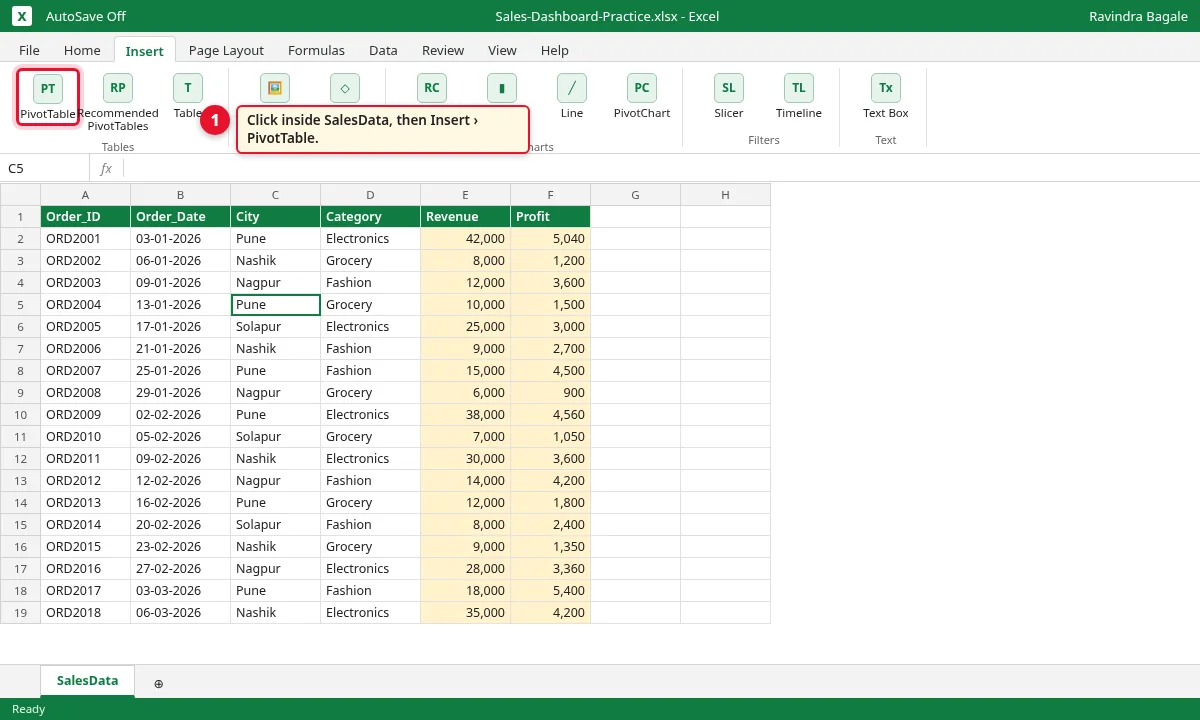
Step 2.1
Box मध्ये Table/Range: SalesData दिसेल. New Worksheet निवडा आणि OK करा.
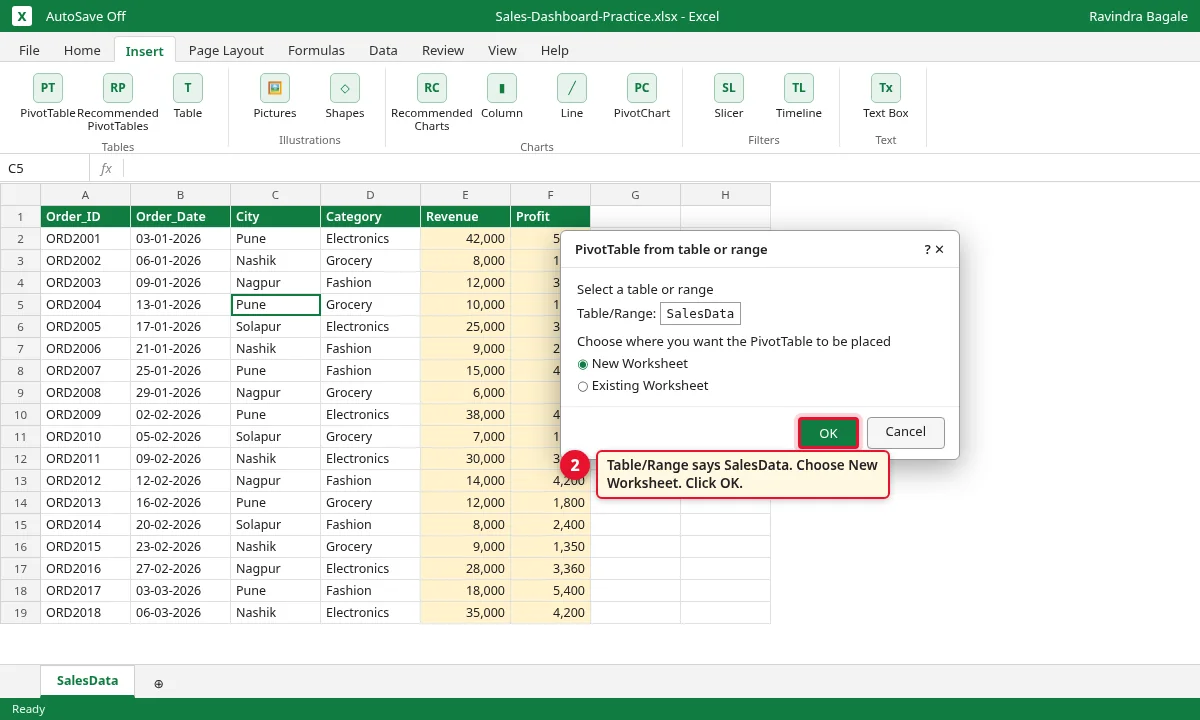
Step 2.2
PivotTable Fields pane मध्ये Revenue ओढून Values मध्ये टाका. A4 मध्ये 4,25,000 दिसेल.

Step 2.3
Sheet tab वर double-click करून नाव PivotData ठेवा. Pivot copy करून C3 आणि E3 ला paste करा. C3 वाल्या copy मध्ये Revenue ऐवजी Profit टाका (71,310). E3 वाल्या copy मध्ये Values मध्ये Order_ID टाका (Count = 24).
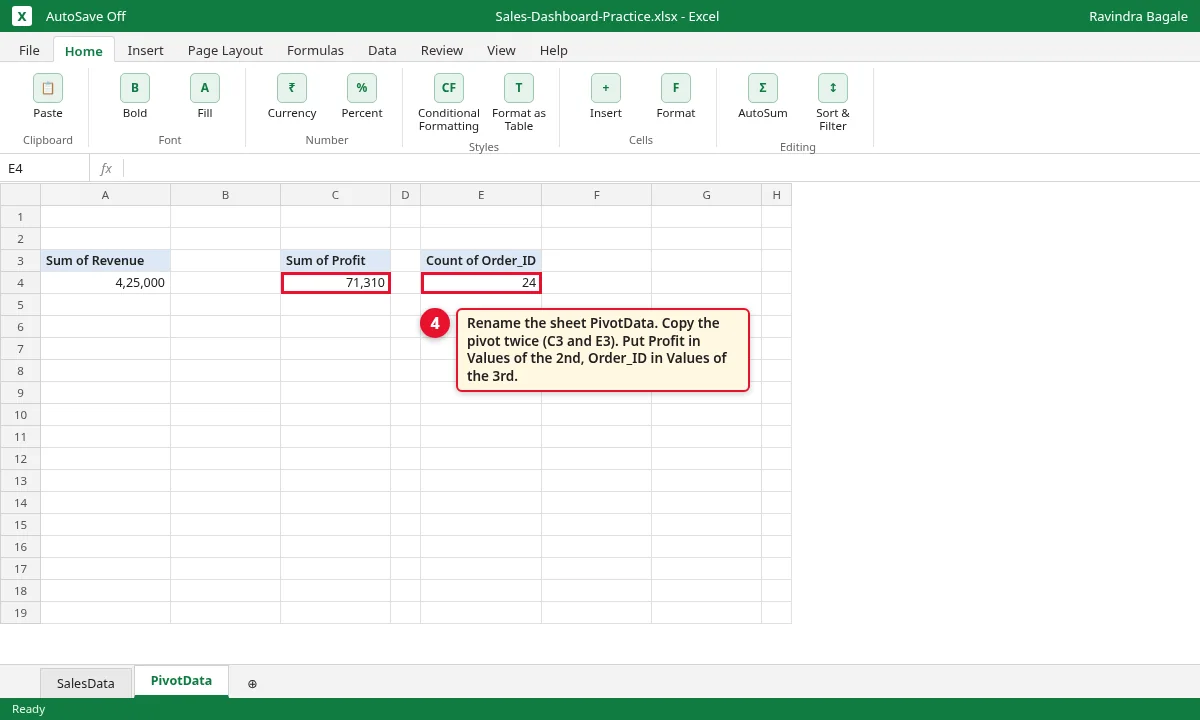
Step 2.4
G4 मध्ये
=C4/A4type करा (profit ÷ revenue). Home › % click करा. 16.8% दिसेल.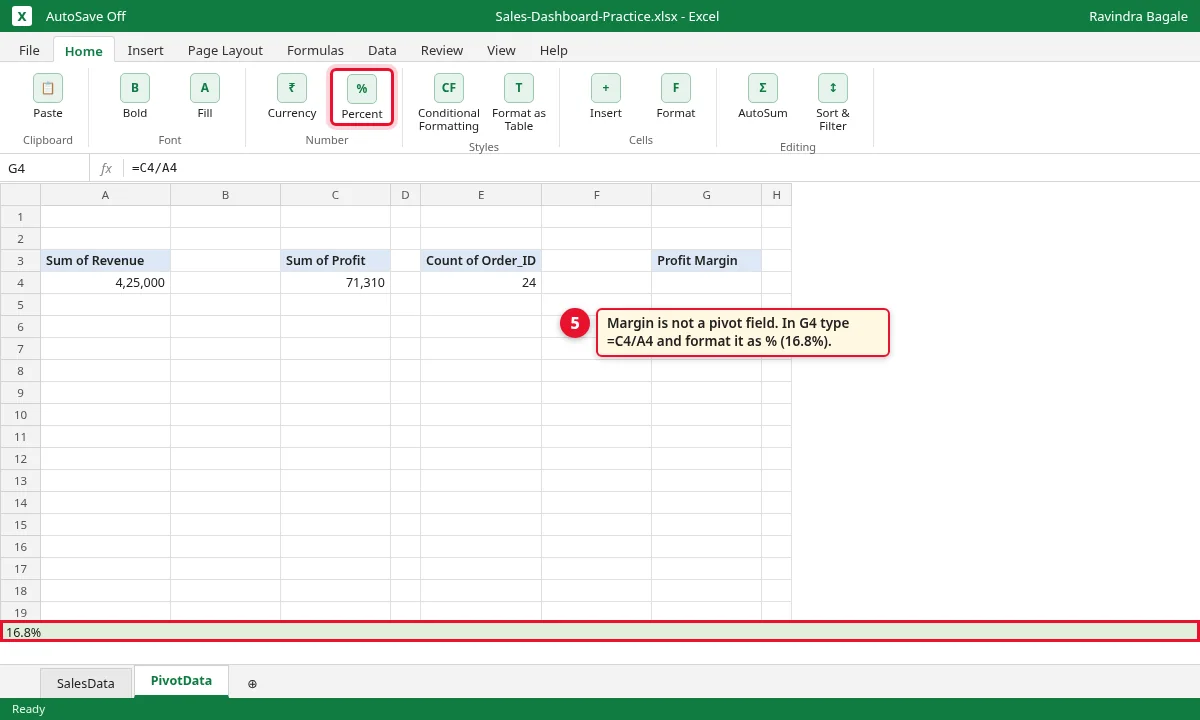
Step 2.5
3. 4 Pivot Charts बनवा
का (Why)
आकडे सांगतात किती. Charts दाखवतात कुठे आणि कधी: कोणता महिना वाढला, कोणती city पुढे आहे.
काय (What)
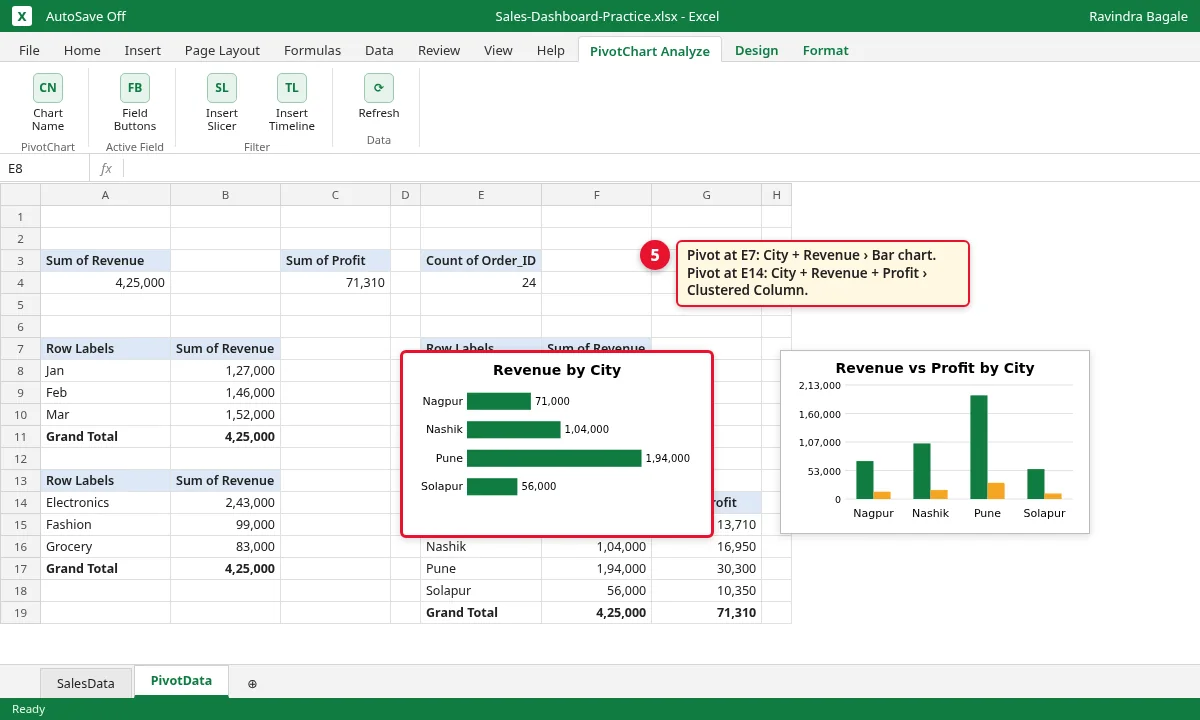
प्रत्येक chart साठी PivotData sheet वर वेगळी PivotTable लागते: (1) months › line chart, (2) category › column chart, (3) city › bar chart, (4) city, revenue आणि profit › clustered column chart.
कसं (How)
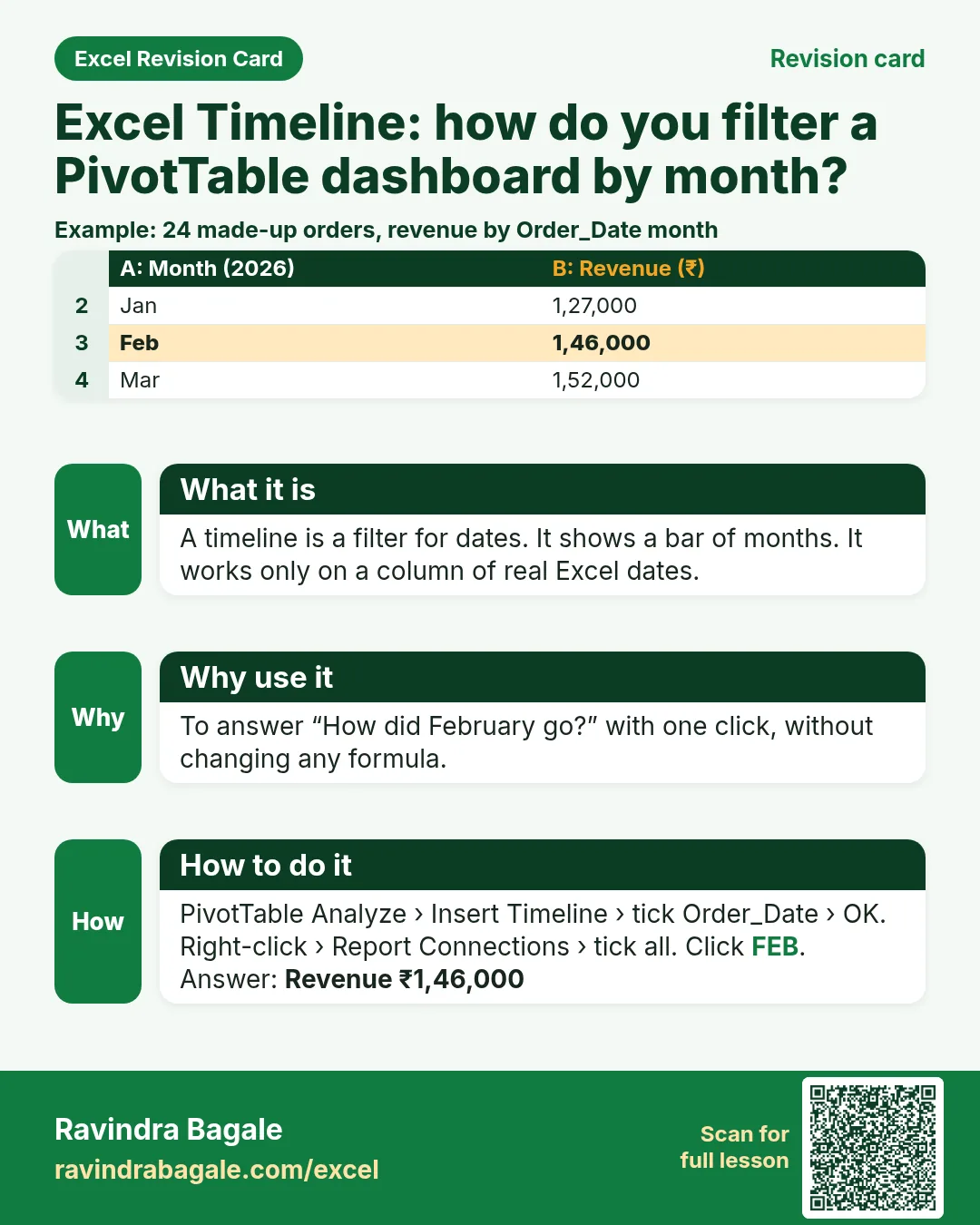
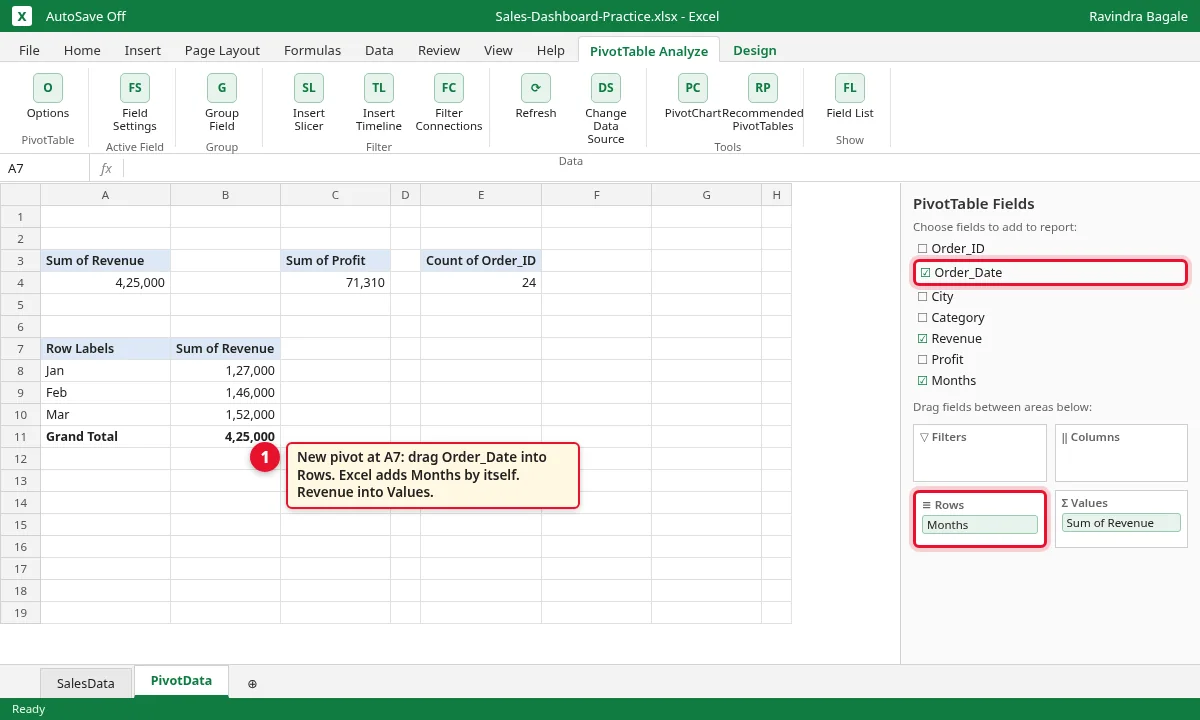
A7 ला नवीन pivot बनवा (Insert › PivotTable › Existing Worksheet). Order_Date Rows मध्ये टाका: Excel स्वतः Months जोडतो. Revenue Values मध्ये: Jan 1,27,000, Feb 1,46,000, Mar 1,52,000.
Step 3.1
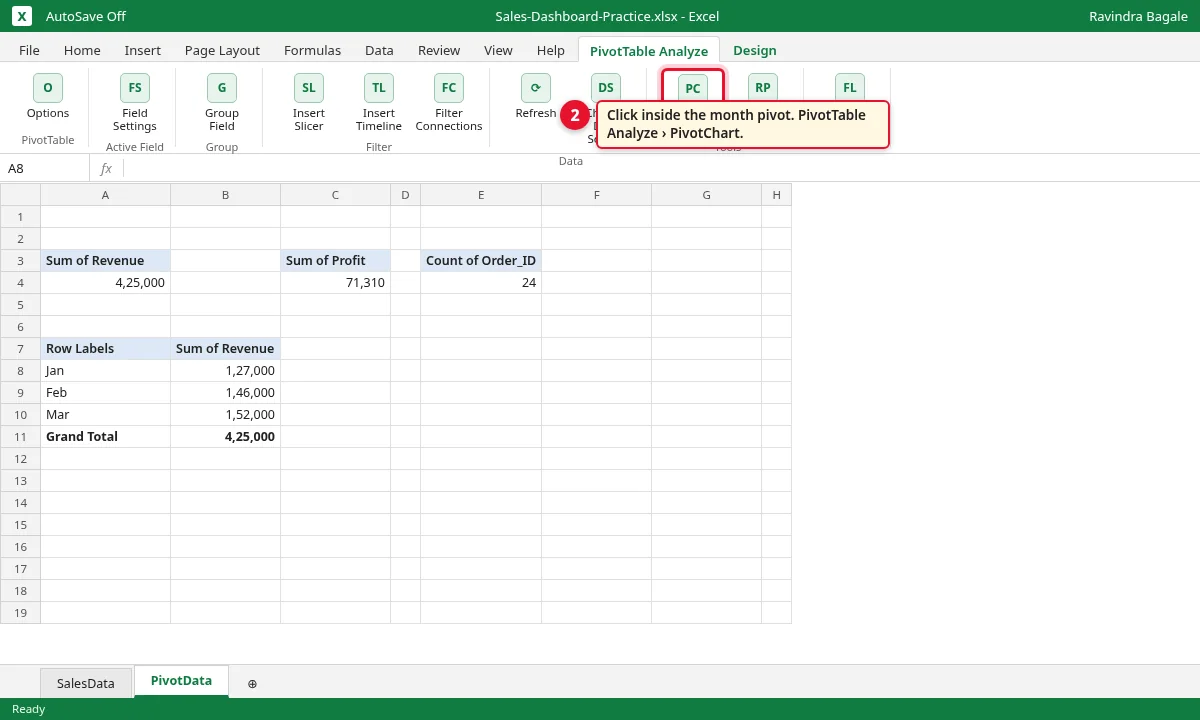
Month pivot मध्ये click करा. PivotTable Analyze › PivotChart वर जा.
Step 3.2
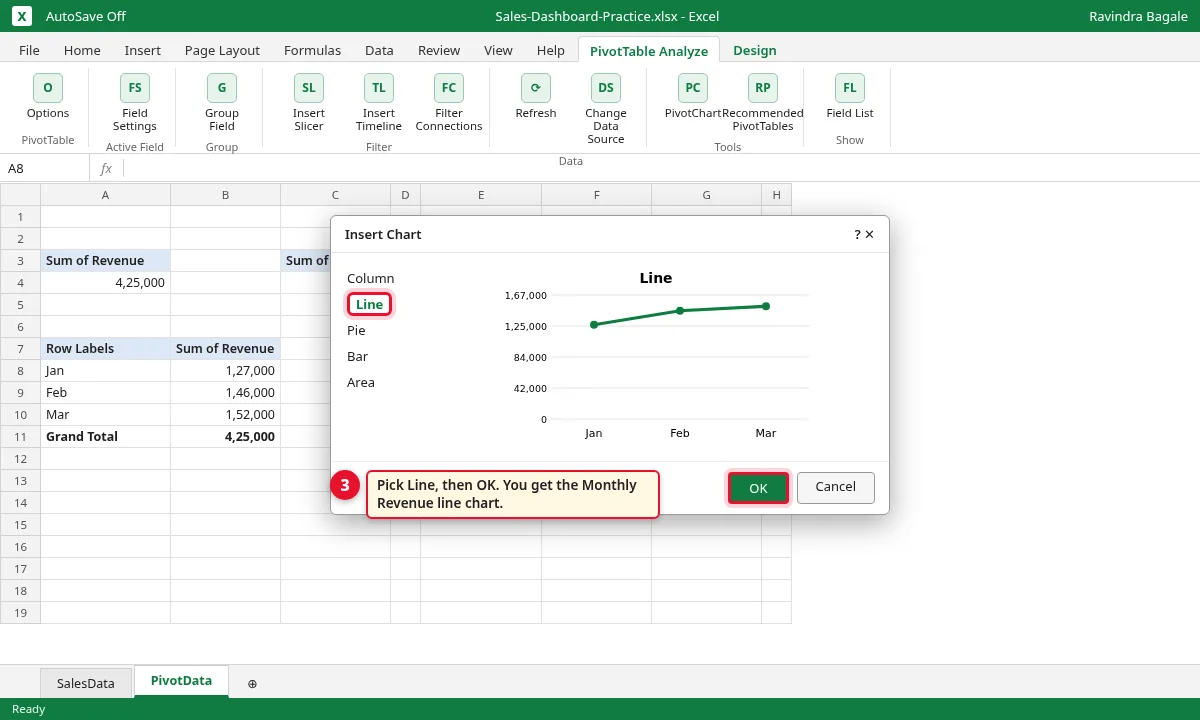
Insert Chart मध्ये Line निवडा आणि OK करा. हा Monthly Revenue chart.
Step 3.3
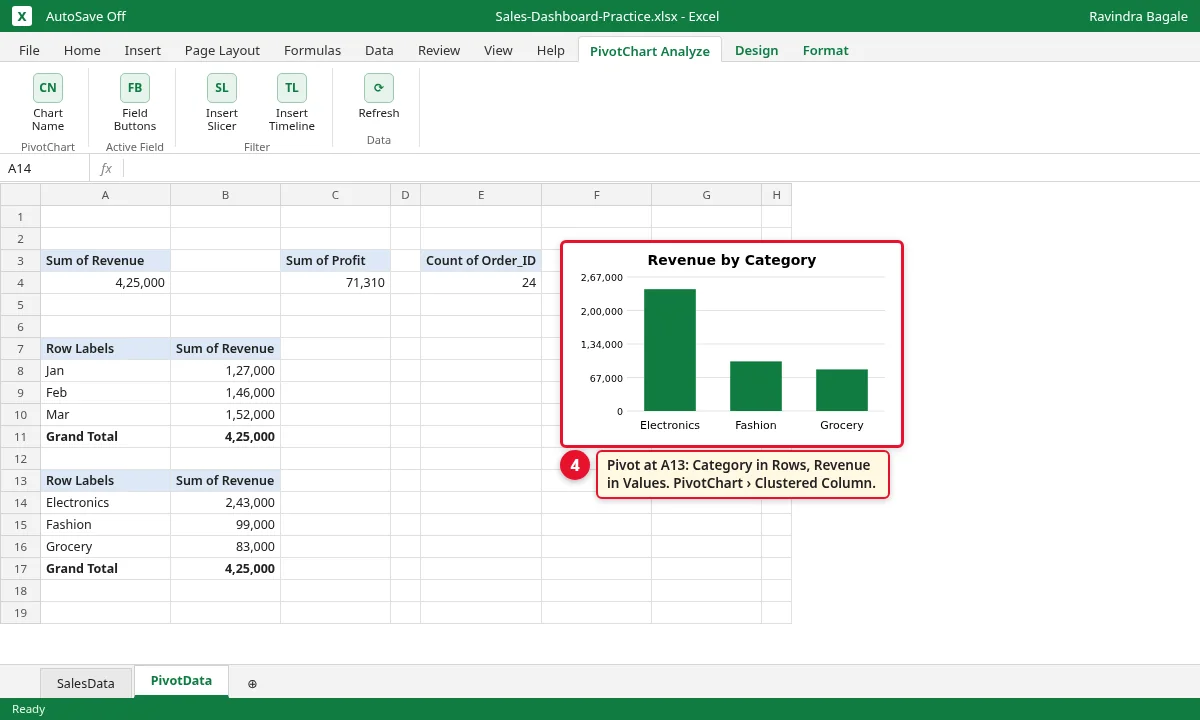
A13 ला pivot: Category Rows मध्ये, Revenue Values मध्ये. Clustered Column PivotChart टाका. Electronics सगळ्यात जास्त: 2,43,000.
Step 3.4
E7 ला pivot: City Rows, Revenue Values › Bar chart. अजून एक E14 ला: City Rows, Revenue आणि Profit Values › Clustered Column chart. Pune पुढे: 1,94,000.
Step 3.5
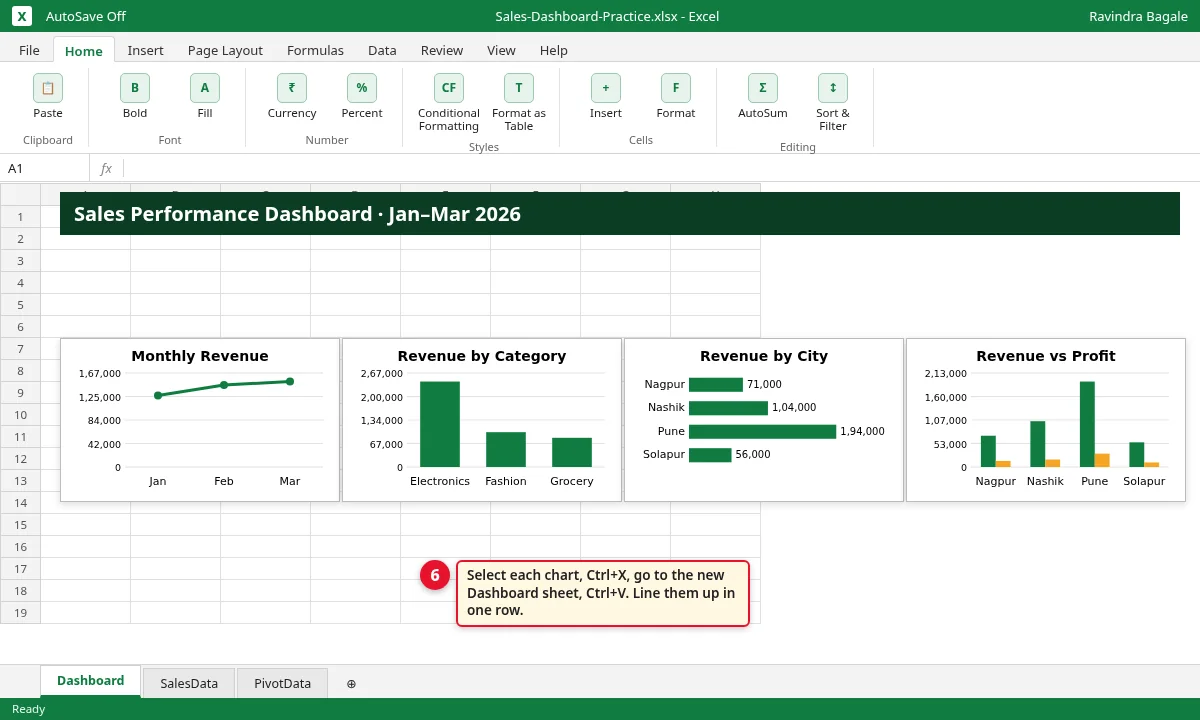
Dashboard नावाची नवीन sheet जोडा. प्रत्येक chart वर click करा, Ctrl+X, Dashboard वर जाऊन Ctrl+V. 4 charts एका row मध्ये ठेवा.
Step 3.6
4. City आणि Category साठी Slicers जोडा
का (Why)
Slicer म्हणजे buttons चा box, एका click मध्ये pivot filter करतो. Excel न येणाराही तो वापरू शकतो.
काय (What)
आपण दोन slicers जोडतो: City (Nagpur, Nashik, Pune, Solapur) आणि Category (Electronics, Fashion, Grocery). हिरवं button म्हणजे selected; एका button वर click केलं की फक्त तेच दिसतं.
कसं (How)
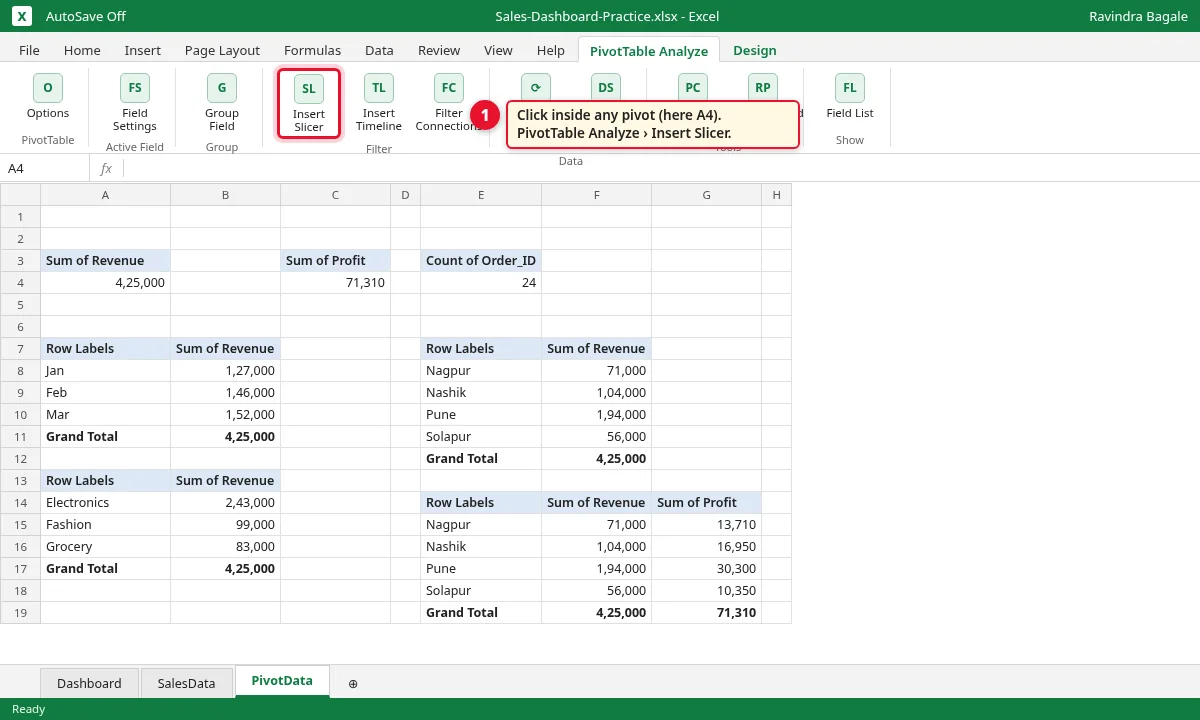
PivotData sheet वर कोणत्याही pivot मध्ये click करा (उदा. A4). PivotTable Analyze › Insert Slicer वर जा.
Step 4.1
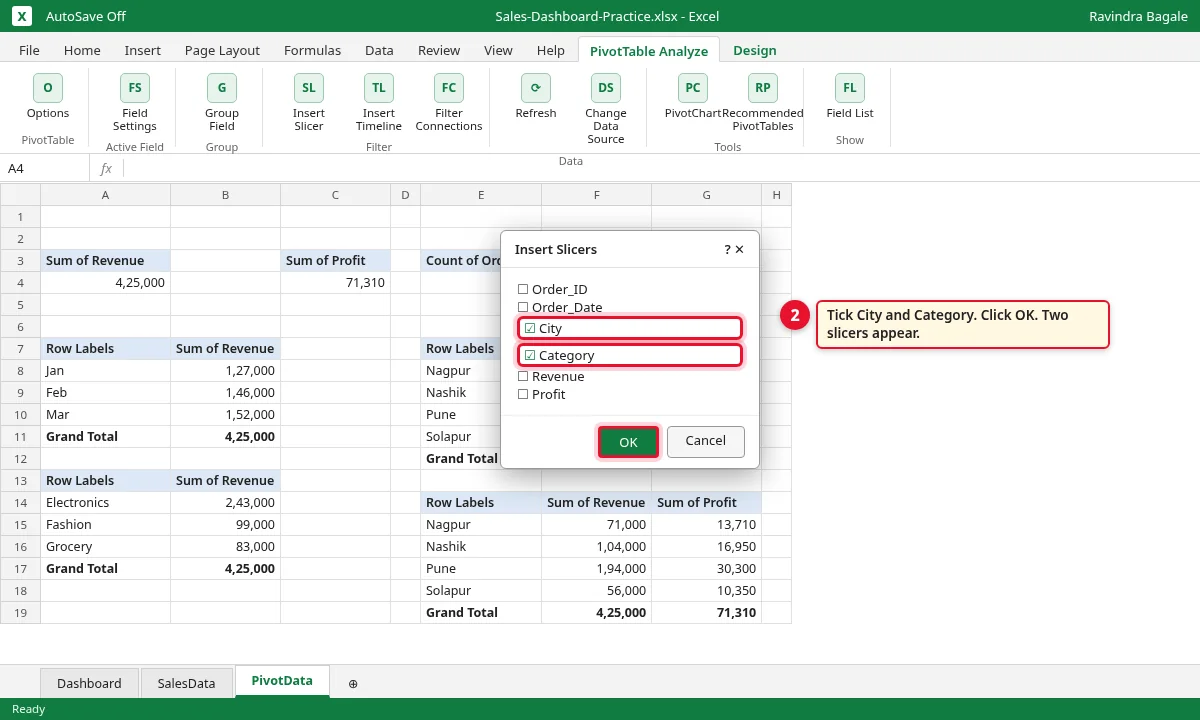
City आणि Category tick करा. OK करा. दोन slicer boxes दिसतील.
Step 4.2
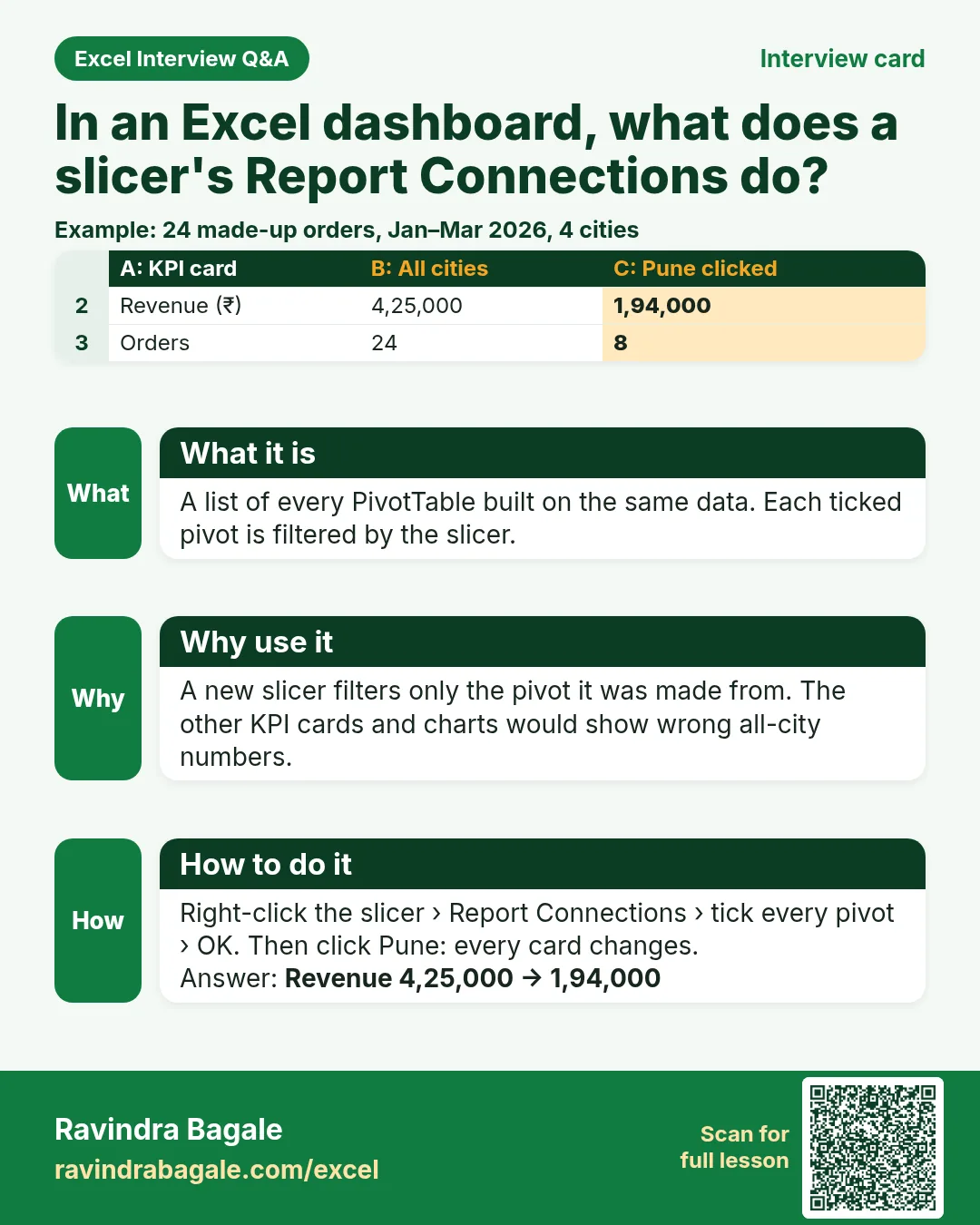
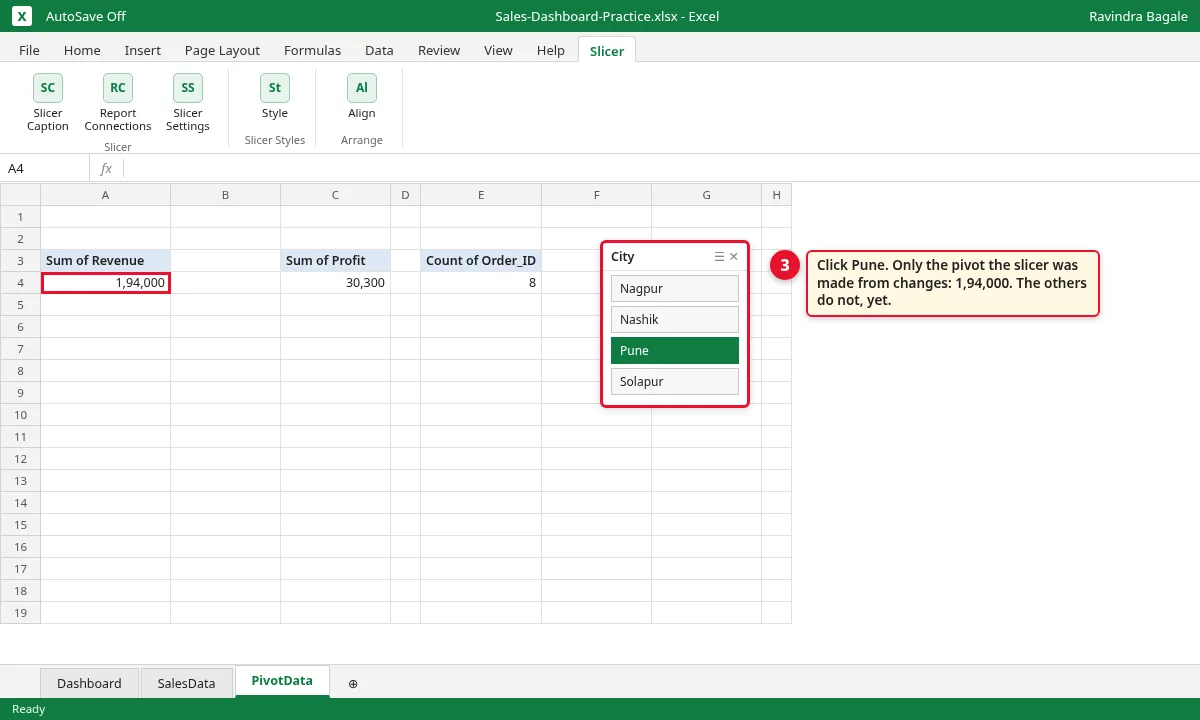
Pune वर click करा. A4 वाली pivot 1,94,000 होते. पण बाकीच्या pivots अजून बदलत नाहीत: नवीन slicer फक्त ज्या pivot मधून बनवला तीच control करतो.
Step 4.3
5. एक slicer सगळ्या pivots ला जोडा (Report Connections)
का (Why)
ही सगळ्यात महत्त्वाची step. ही नसेल तर Pune वर click केल्यावर एकच आकडा बदलतो आणि बाकी dashboard चुकीचे (सगळ्या cities चे) आकडे दाखवतो.
काय (What)
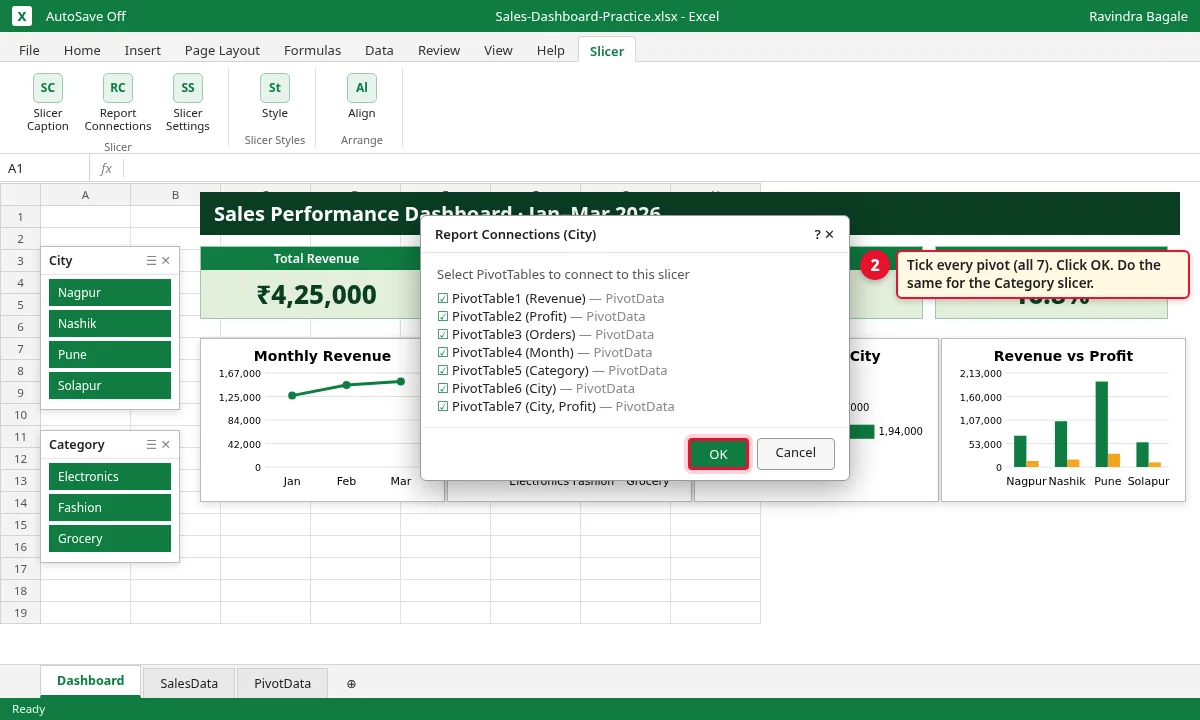
Report Connections म्हणजे एकाच data वरच्या सगळ्या pivots ची list. Pivot tick केली की slicer ती पण filter करतो. सातही pivots SalesData table मधून आल्या आहेत, म्हणून सातही tick करता येतात.
कसं (How)
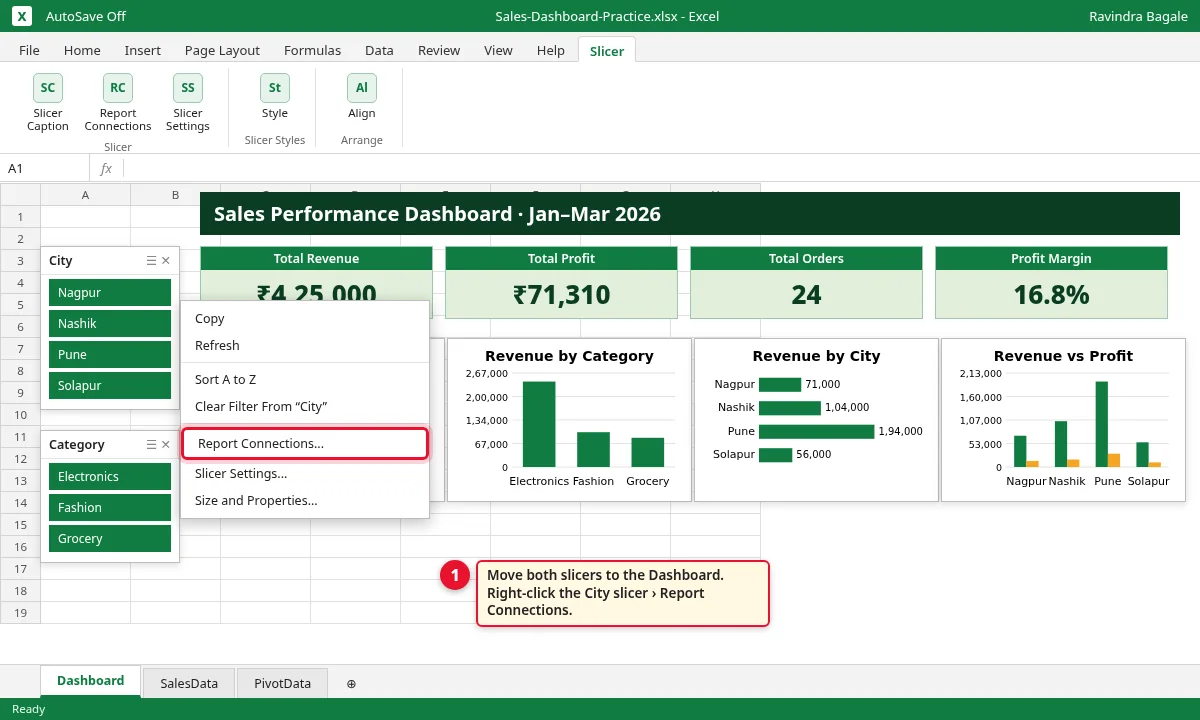
दोन्ही slicers cut (Ctrl+X) करून Dashboard sheet वर डावीकडे paste करा. City slicer वर right-click करून Report Connections निवडा.
Step 5.1
सातही pivots tick करा आणि OK करा. Category slicer साठी पण असंच करा.
Step 5.2
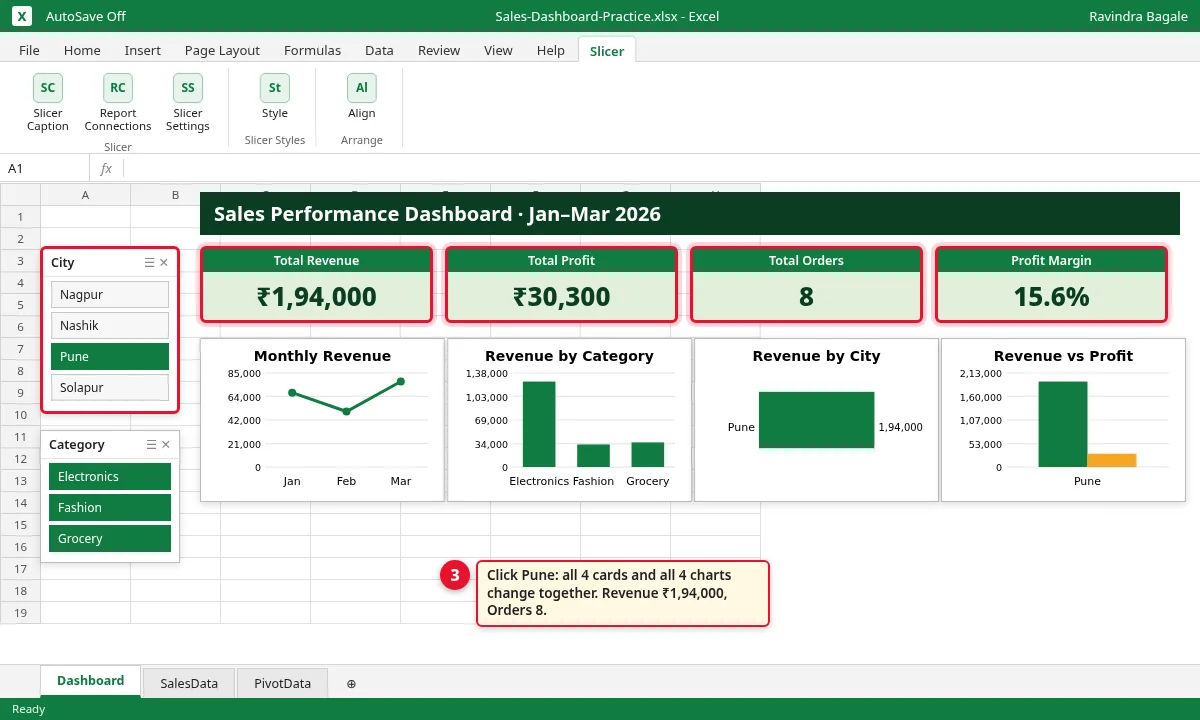
पुन्हा Pune वर click करा. आता चारही cards आणि चारही charts एकत्र बदलतात: Revenue ₹1,94,000, Profit ₹30,300, Orders 8, Margin 15.6%.
Step 5.3
6. Dates साठी Timeline जोडा
का (Why)
Manager विचारतो: February कसा गेला? Timeline एका महिन्यावर click करून उत्तर देते, कोणताही formula न बदलता.
काय (What)
Timeline म्हणजे dates साठीचा slicer. त्यात months ची पट्टी दिसते; click किंवा drag करून period निवडायचा. तो फक्त खऱ्या Excel dates असलेल्या column वर चालतो, जसा Order_Date.
कसं (How)
कोणत्याही pivot मध्ये click करा. PivotTable Analyze › Insert Timeline वर जा.
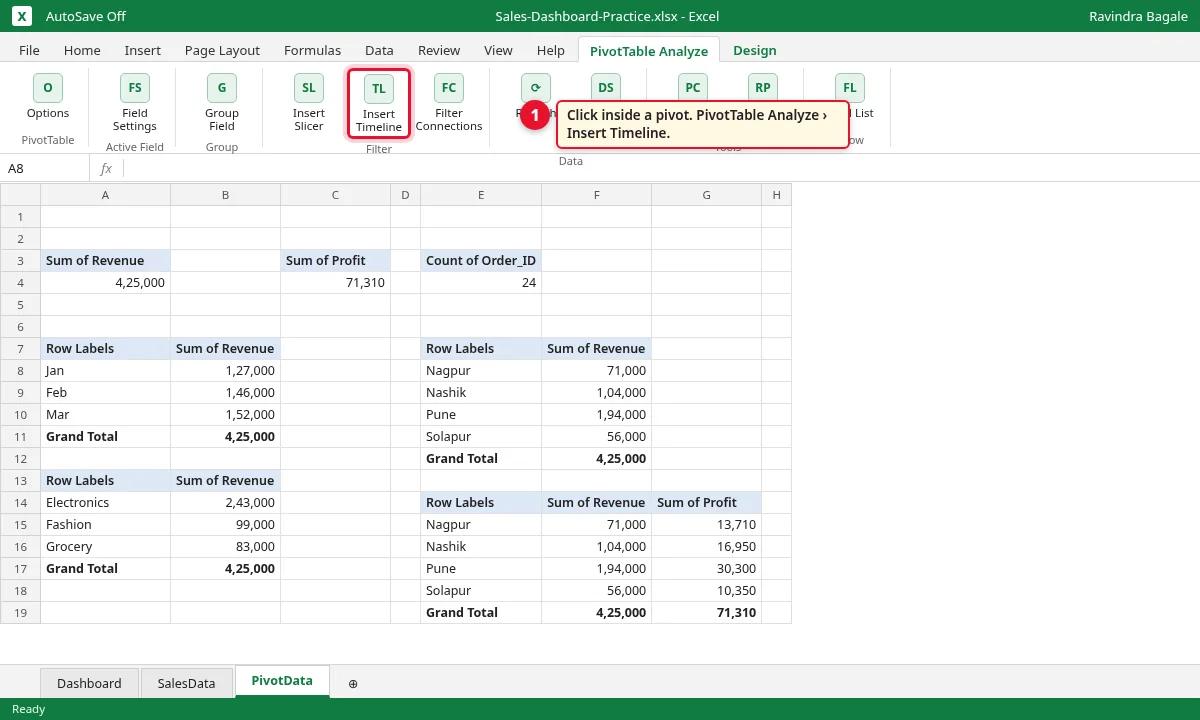
Step 6.1
फक्त date columns दिसतात. Order_Date tick करा आणि OK करा.
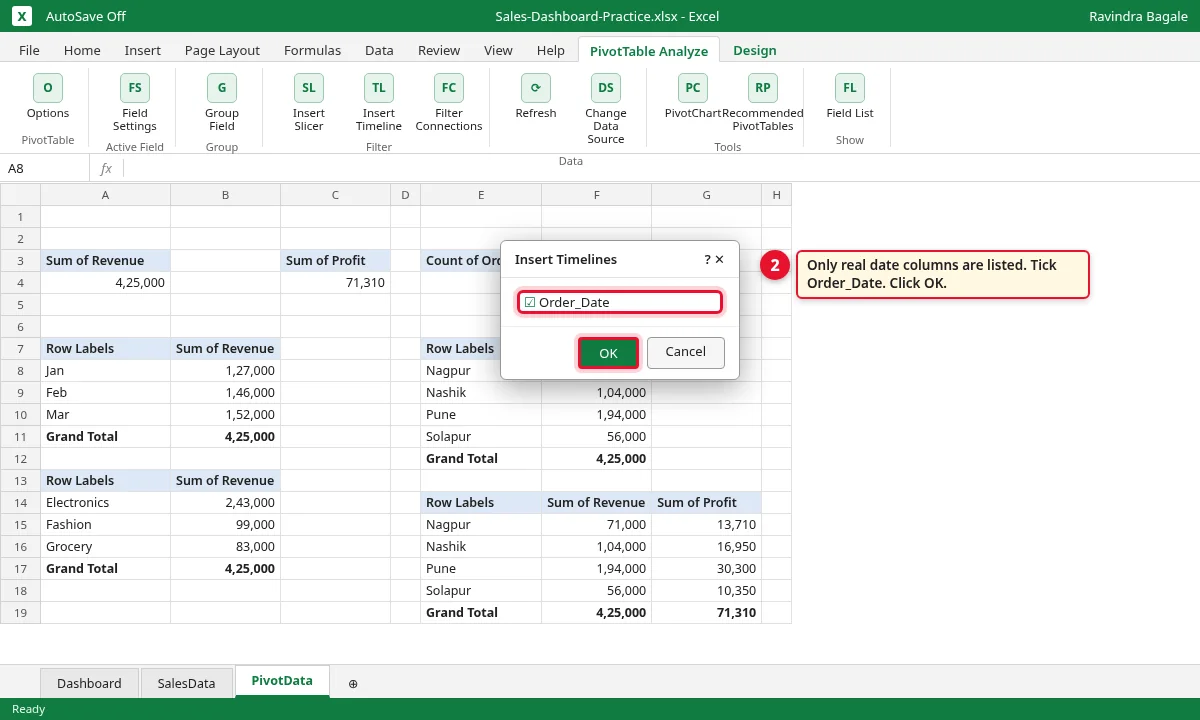
Step 6.2
Timeline Dashboard च्या वर हलवा. त्यावर right-click › Report Connections › सातही pivots tick › OK. FEB वर click करा: Revenue ₹1,46,000, Orders 8.
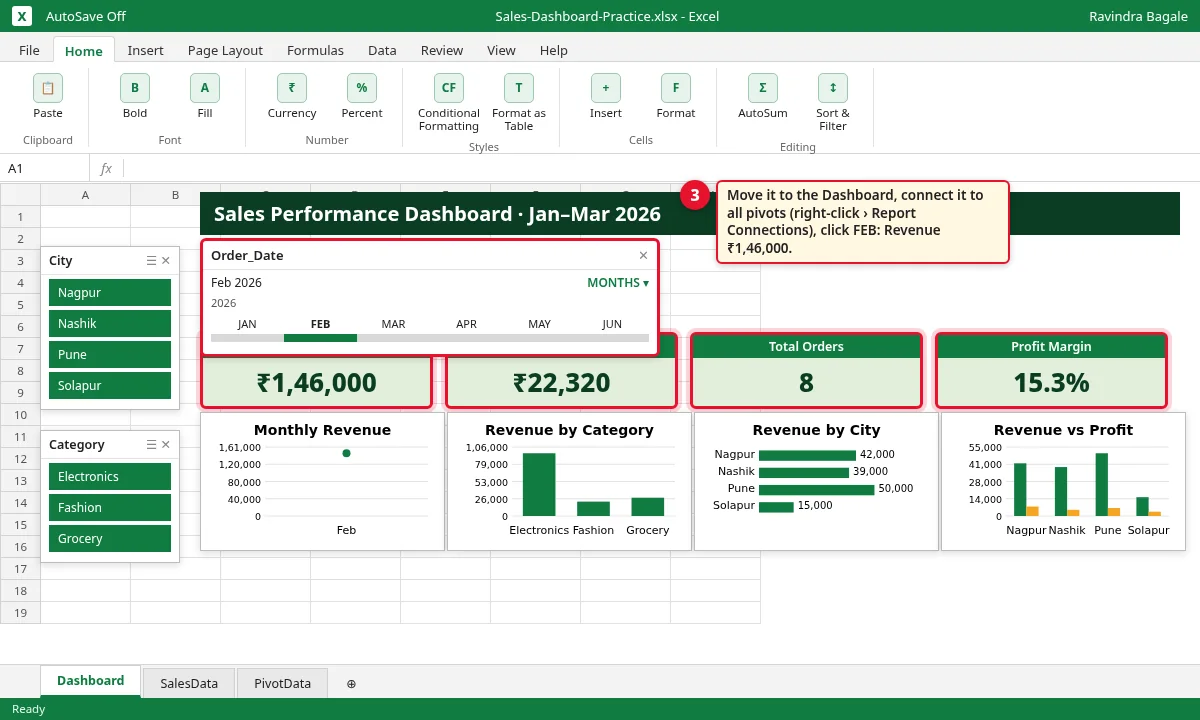
Step 6.3
7. Dashboard ची मांडणी करा
का (Why)
माणूस screen वरून-डावीकडून वाचतो. ठरलेल्या मांडणीत सगळ्यात महत्त्वाचे आकडे जिथे नजर आधी जाते तिथे येतात.
काय (What)
वर title. Title खाली timeline. डावीकडे slicers. एका row मध्ये 4 KPI cards. Cards खाली 4 charts. KPI cards म्हणजे PivotData वरच्या pivots ला link केलेल्या cells.
कसं (How)
Dashboard वर B4 मध्ये Total Revenue लिहा. B5 मध्ये
=PivotData!A4type करा (address type करा; pivot वर click केलं तर Excel लांब GETPIVOTDATA formula लिहितो). Font मोठा करा. Profit (=PivotData!C4), Orders (=PivotData!E4) आणि Margin (=PivotData!G4) साठी पण असंच.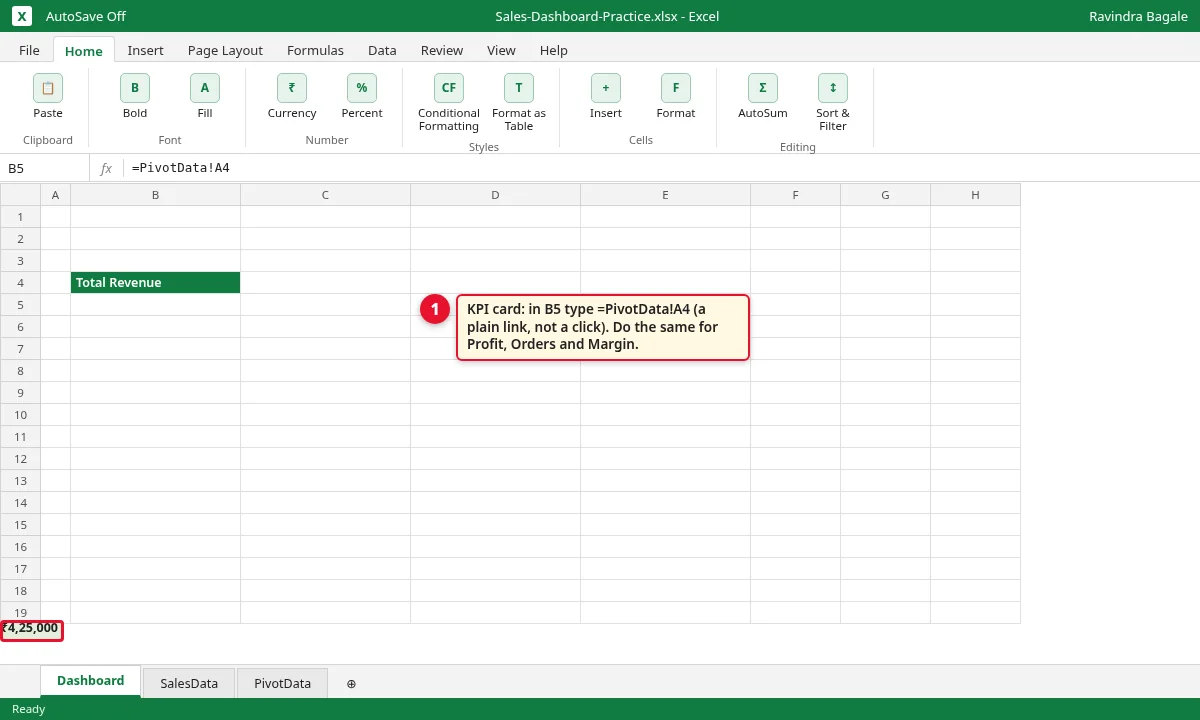
Step 7.1
मांडणी: वर title, त्याखाली timeline, डावीकडे slicers, एका row मध्ये 4 cards, खाली 4 charts.
Step 7.2

Figure 3. Pivot plan sheet: प्रत्येक pivot, तिचे fields आणि chart.
8. Dashboard professional दिसेल असा करा
का (Why)
स्वच्छ dashboard वर विश्वास बसतो. Grid lines, grey buttons आणि वाकडे charts असतील तर तो कच्च्या sheet सारखा दिसतो.
काय (What)
चार finishing touches: gridlines लपवा, charts वरचे grey field buttons लपवा, charts align करा, आणि data बदलला की refresh करा. 2–3 रंग आणि decimals शिवाय ₹ format वापरा.
कसं (How)
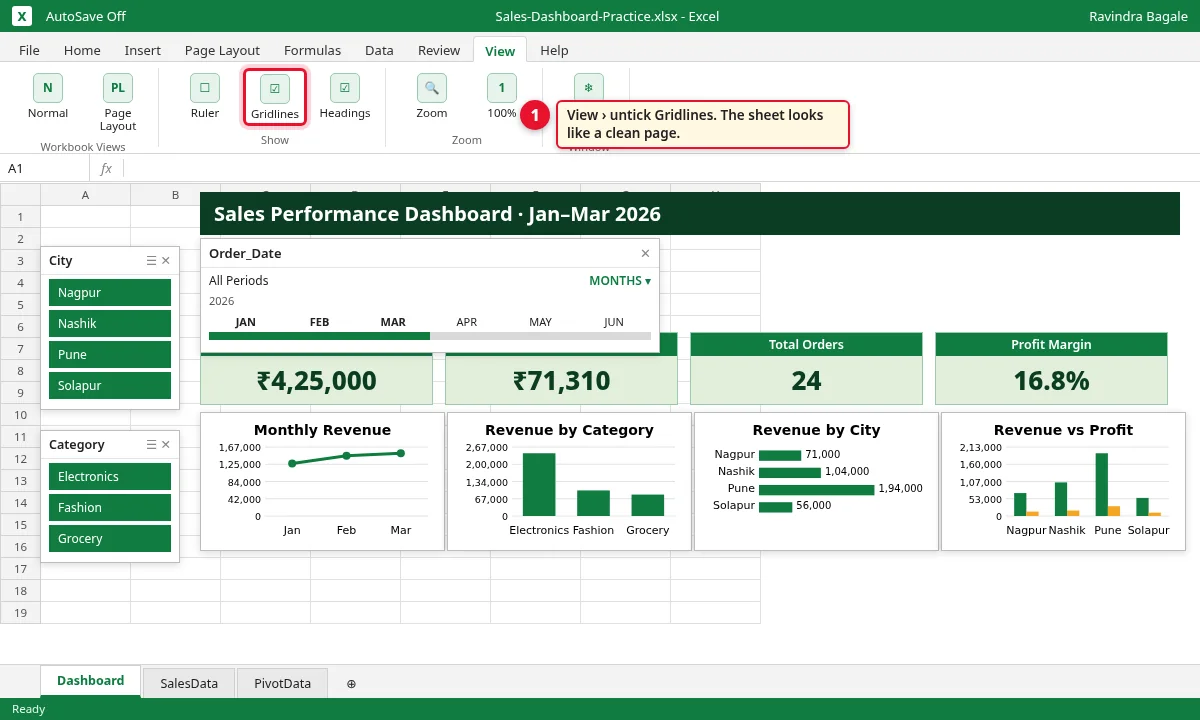
View वर जा आणि Gridlines untick करा.
Step 8.1
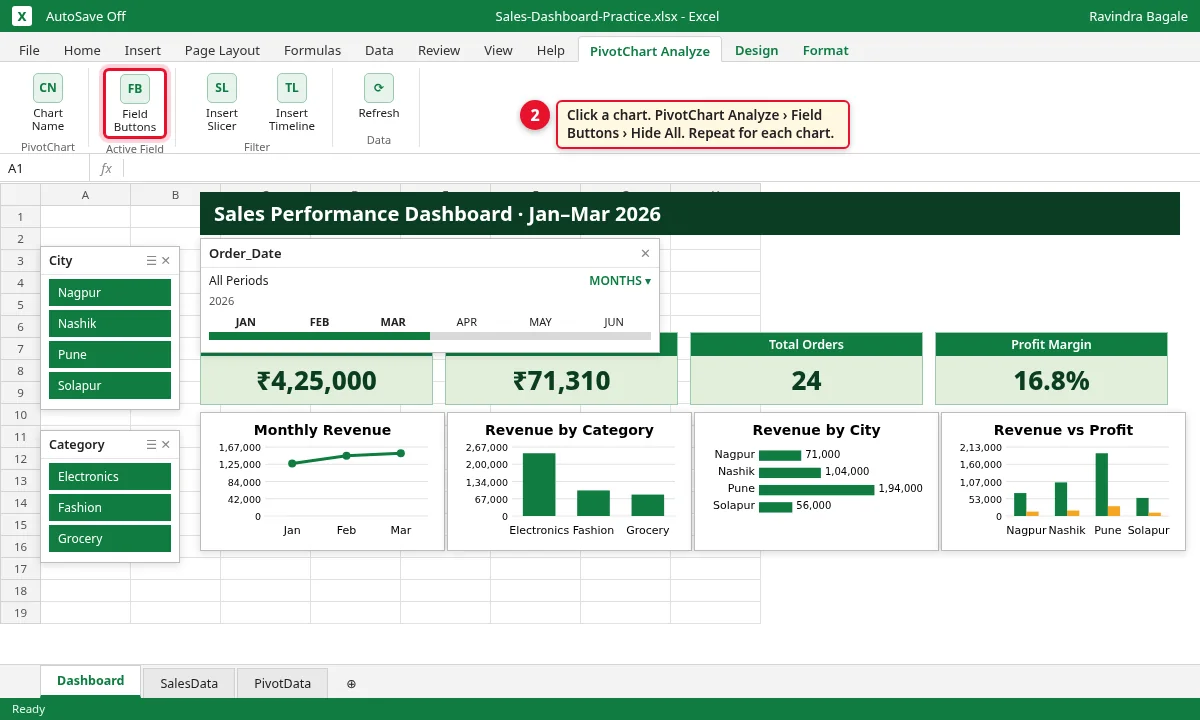
एका chart वर click करा. PivotChart Analyze › Field Buttons › Hide All. प्रत्येक chart साठी करा.
Step 8.2
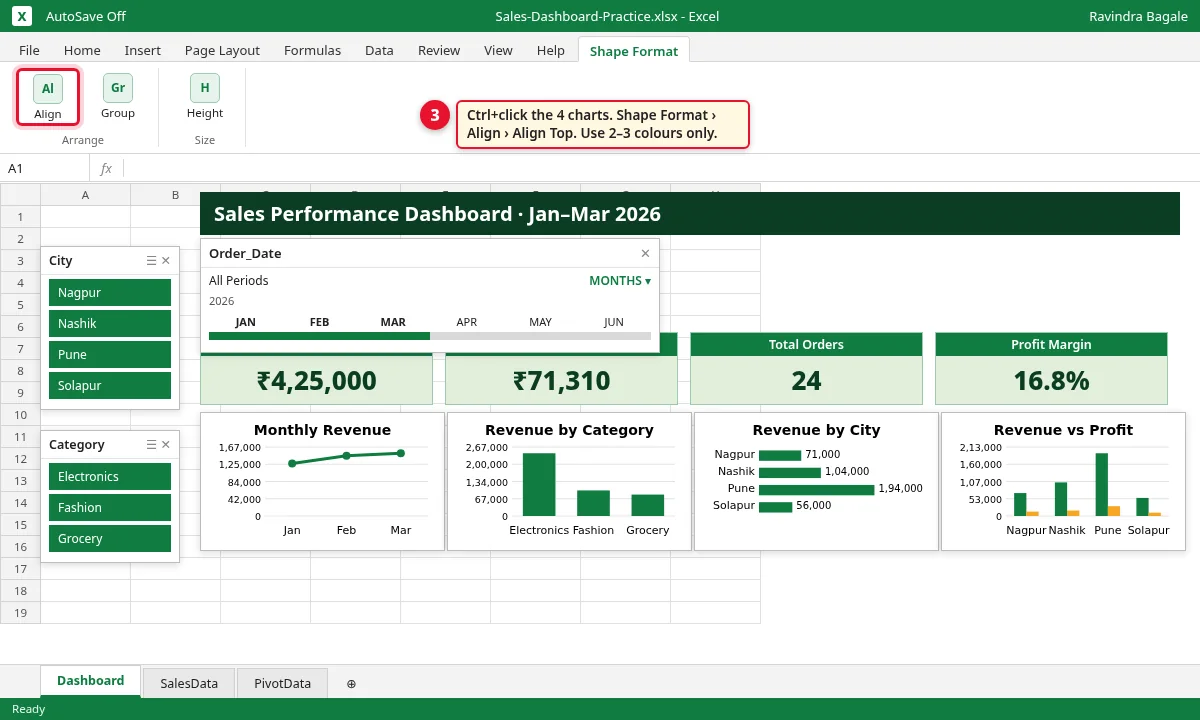
Ctrl धरून 4 charts वर click करा. Shape Format › Align › Align Top, मग Distribute Horizontally.
Step 8.3
SalesData खाली नवीन orders जोडल्या की Data › Refresh All करा. सगळ्या pivots, cards आणि charts update होतात.
Step 8.4
9. Fields आणि formulas
एखादा आकडा चुकीचा वाटला, तर तो कुठून आला ते ही table सांगते.
| कुठे | Rows | Values / formula | कशासाठी |
|---|---|---|---|
| PivotData A3 | (रिकामं) | Sum of Revenue | Total Revenue card |
| PivotData C3 | (रिकामं) | Sum of Profit | Total Profit card |
| PivotData E3 | (रिकामं) | Count of Order_ID | Total Orders card |
| PivotData G4 | - | =C4/A4 | Profit Margin card |
| PivotData A7 | Order_Date (Months) | Sum of Revenue | Line chart |
| PivotData A13 | Category | Sum of Revenue | Clustered Column chart |
| PivotData E7 | City | Sum of Revenue | Bar chart |
| PivotData E14 | City | Sum of Revenue, Sum of Profit | Clustered Column chart |
| Dashboard B5 | - | =PivotData!A4 | KPI card |
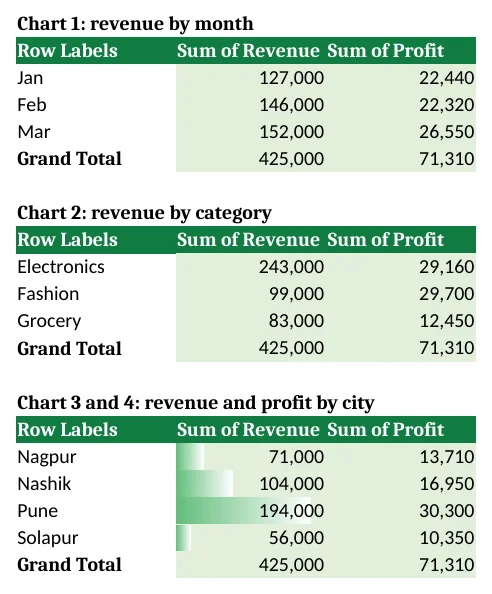
Figure 4. Finished file मध्ये हेच summaries SUMIFS formulas ने बनवले आहेत, म्हणून ती कोणत्याही Excel मध्ये आणि LibreOffice मध्ये उघडते. पिवळे City, Category आणि Month drop-downs slicers आणि timeline चं काम करतात.
10. आकडे तपासा
चुकीचा आकडा दाखवणारा dashboard नसलेल्यापेक्षा वाईट. माहीत असलेल्या उत्तरांनी तपासा:
| Click | Revenue | Profit | Orders | Margin |
|---|---|---|---|---|
| काहीच नाही (सगळं) | ₹4,25,000 | ₹71,310 | 24 | 16.8% |
| City = Pune | ₹1,94,000 | ₹30,300 | 8 | 15.6% |
| Timeline = FEB | ₹1,46,000 | ₹22,320 | 8 | 15.3% |
| Pune + FEB | ₹50,000 | ₹6,360 | 2 | 12.7% |
| Category = Fashion | ₹99,000 | ₹29,700 | 8 | 30.0% |
11. नेहमीच्या चुका
| चूक | काय बिघडतं | उपाय |
|---|---|---|
| Slicer सगळ्या pivots ला जोडला नाही | एकच card बदलतो, बाकी सगळ्या cities चे आकडे दाखवतात. | Slicer वर right-click › Report Connections › सगळ्या pivots tick. |
| Pivots वेगवेगळ्या ranges वरून | त्या Report Connections मध्ये दिसत नाहीत. | सगळ्या pivots एकाच SalesData table वरून बनवा. |
| Dates text म्हणून type केल्या | Insert Timeline मध्ये field दिसत नाही. | Order_Date खऱ्या dates मध्ये बदला. |
| Refresh विसरलात | नवीन orders dashboard मध्ये येत नाहीत. | Data › Refresh All. |
| Margins ची average घेतली | Margin चुकतो. | Margin = एकूण profit ÷ एकूण revenue (=C4/A4). |
| Filter लावून save केलं | पुढच्याला वाटतं Pune म्हणजेच पूर्ण business. | Save आधी सगळे slicers आणि timeline clear करा. |
12. अजून business उदाहरणं
प्रत्येक sale, visit किंवा bill साठी एक row ठेवणाऱ्या कोणत्याही business ला हेच 8 steps चालतात:
| Business | Data columns | KPI cards | Slicers | Timeline |
|---|---|---|---|---|
| Clinic (OPD) dashboard | Visit_Date, Doctor, Department, Fee, Patient_Type | एकूण fees, visits, नवीन patients %, सरासरी fee | Doctor, Department | Visit_Date |
| Coaching class fee dashboard | Receipt_Date, Batch, Course, Fee_Paid, Fee_Due | जमा fees, बाकी fees, fees भरलेले, collection % | Batch, Course | Receipt_Date |
| Restaurant dashboard | Bill_Date, Outlet (Pune/Nashik), Item_Group, Bill_Amount, Covers | Sales, bills, covers, सरासरी bill | Outlet, Item_Group | Bill_Date |
13. FAQ
Slicers आणि timeline साठी Microsoft 365 लागतो का?
नाही. PivotTable slicers Excel 2010 पासून आणि Timeline Excel 2013 पासून Windows आणि Mac वर चालतात. Excel for the web मध्ये file मध्ये आधीच असलेले slicers आणि timelines वापरता येतात.
माझा slicer एकच pivot का बदलतो?
नवीन slicer फक्त ज्या pivot मधून बनवला तिलाच जोडलेला असतो. Right-click › Report Connections › सगळ्या pivots tick करा.
Timeline insert का होत नाही?
Timeline ला खऱ्या Excel dates चा column लागतो. Order_Date text असेल तर आधी dates मध्ये बदला.
नवीन orders कशा जोडायच्या?
SalesData table खालच्या पहिल्या रिकाम्या row मध्ये type करा. Table आपोआप वाढतो. मग Data › Refresh All.
14. घरी करून पाहा
- Category slicer मध्ये Fashion वर click करा. Margin card काय दाखवतो? (30.0%.)
- Nashik वर click करा आणि timeline MAR ठेवा. Revenue किती? (₹48,000, 2 orders.)
- Filters clear करून timeline JAN ठेवा. Orders किती? (8, revenue ₹1,27,000.)
- SalesData खाली नवीन order जोडा: ORD2025, 31-03-2026, Solapur, Grocery, 5,000, 750. Refresh All करा. नवीन total revenue किती? (₹4,30,000.)
थोडक्यात उजळणी
- Data ला Excel Table (Ctrl+T) बनवा, नाव SalesData.
- 3 KPI pivots + 1 margin formula: ₹4,25,000, ₹71,310, 24 orders, 16.8%.
- अजून 4 pivots वरून 4 Pivot Charts; charts Dashboard वर हलवा.
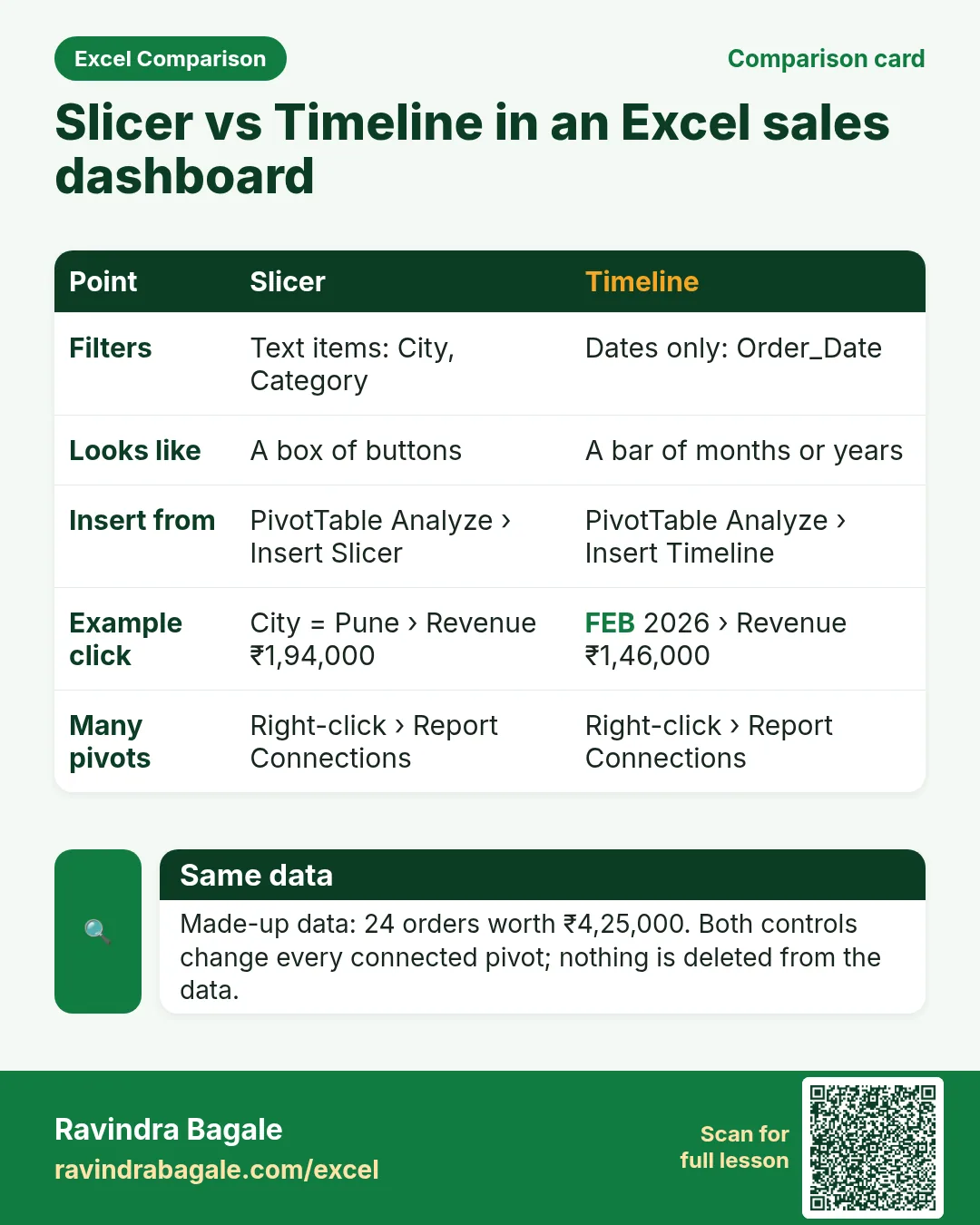
- Slicer text fields filter करतो; Timeline dates filter करते.
- Report Connections मुळे एक slicer किंवा timeline सातही pivots ला जोडला जातो.
- Gridlines आणि field buttons लपवा, charts align करा, नवीन data नंतर Refresh All.
झटपट उजळणी cards
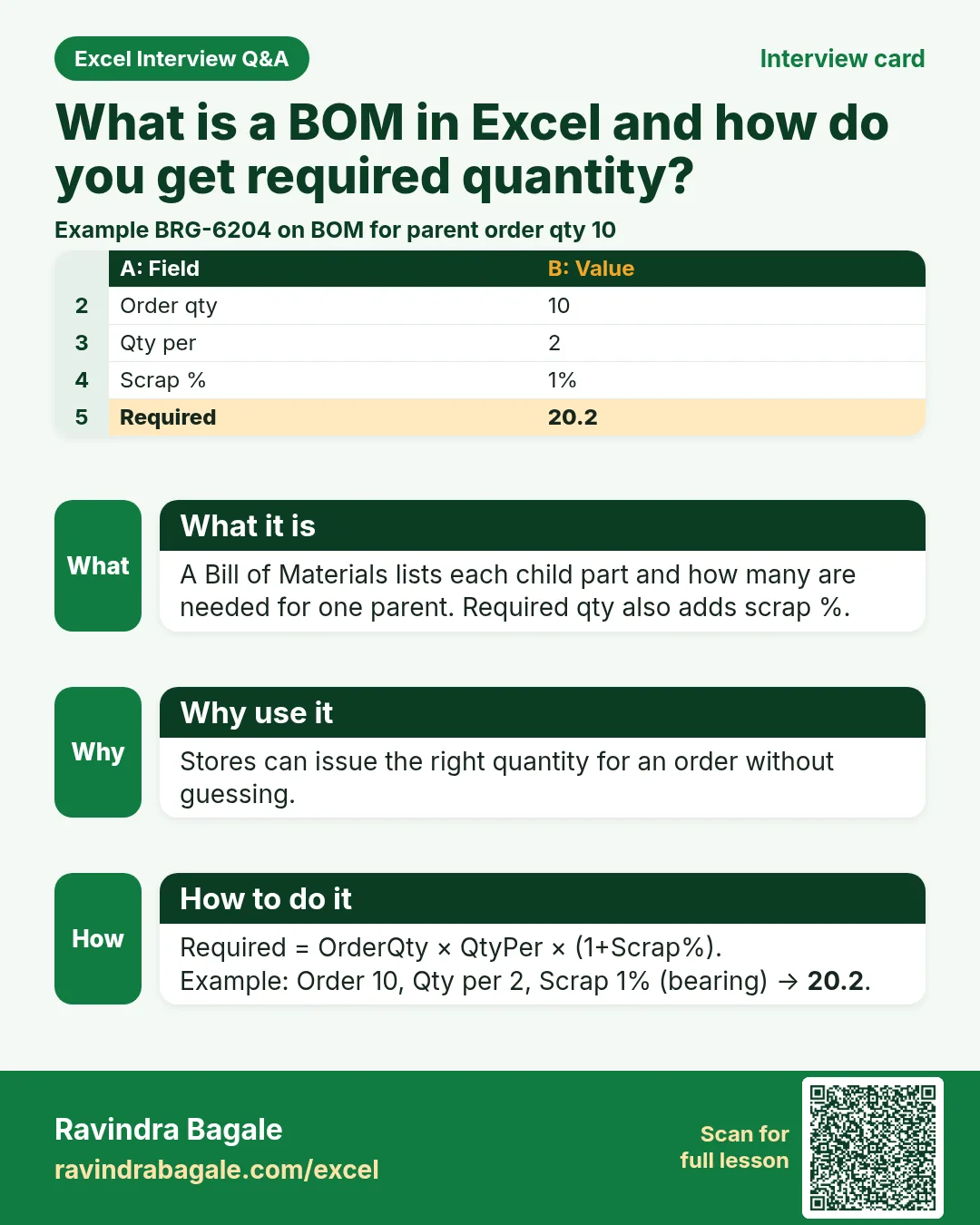
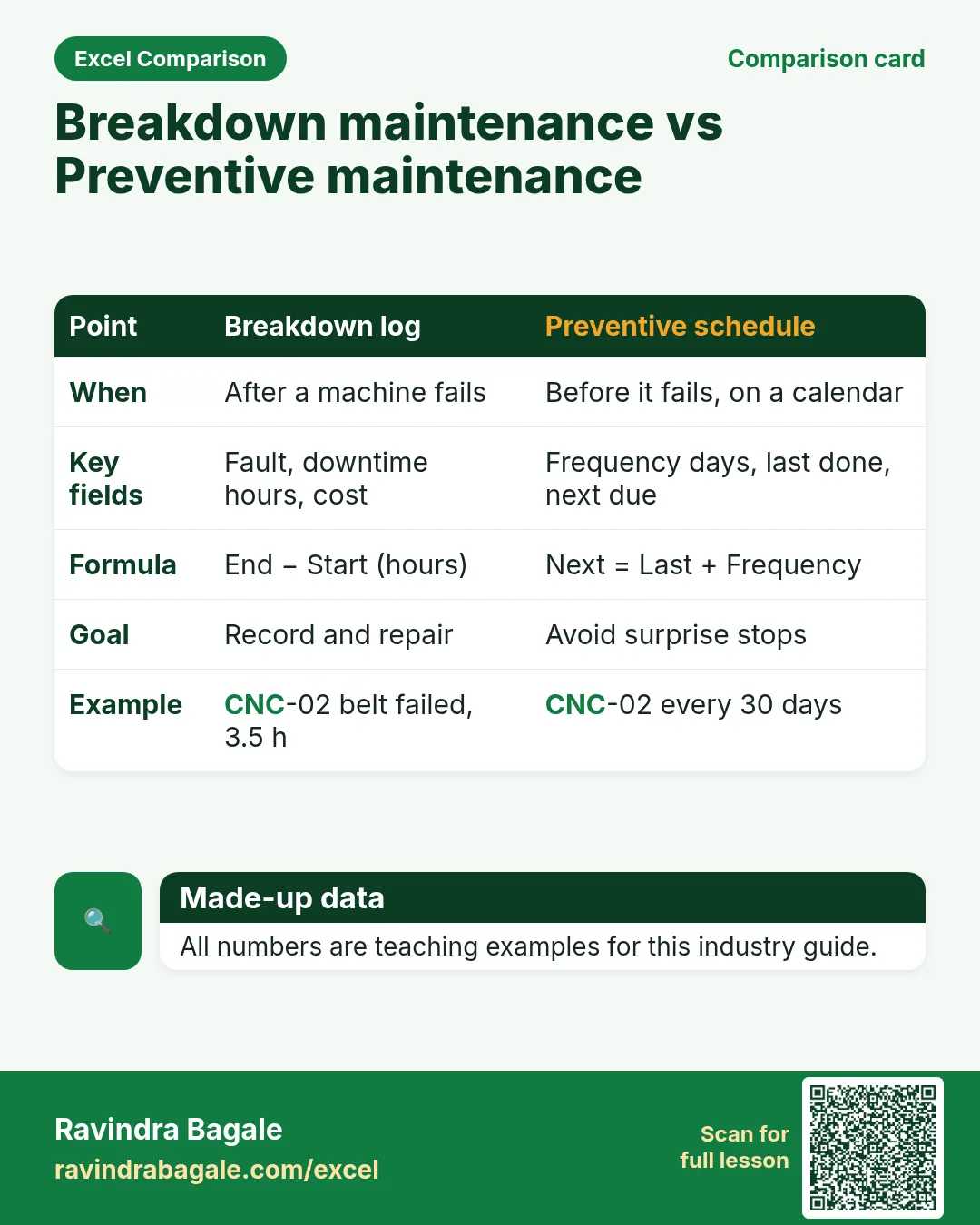
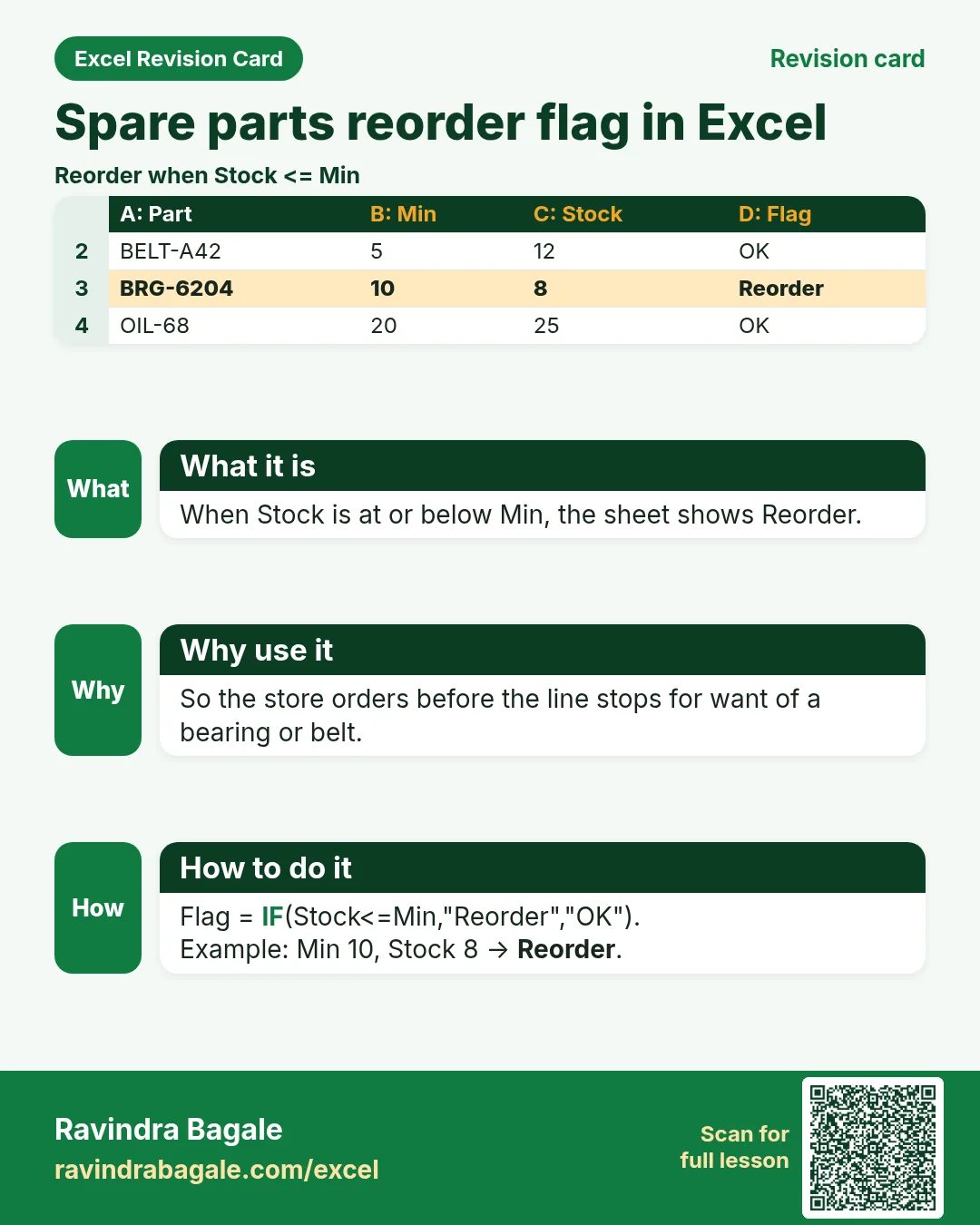
हा chapter दोन मिनिटांत revise करा: 1 interview card, 1 comparison card आणि 2 revision cards. Cards इंग्रजीत आहेत; phone वर save करा किंवा PNG download करा. सगळे आकडे सरावासाठी काल्पनिक.