Chapter 43: Terraform Interview Questions and Capstone Project
43.2 Interview round 2 — scenarios
Story. A Netflix-style platform interview moves quickly to real situations: something broke, what do you do first. The interviewer wants a calm order of steps, not a single command. Use the drill below: read the plan, protect state, find the cause, fix it in code, and apply through the pipeline.
terraform plan -no-color | tail -1
terraform state pull > before-fix.tfstate
terraform plan -refresh-only
git checkout -b fix/sg-drift
terraform plan -out=tfplan
What each line does
terraform plan -no-color | tail -1— Reads the summary line first.terraform state pull > before-fix.tfstate— Keeps a private backup before any change.terraform plan -refresh-only— Shows what changed outside Terraform.git checkout -b fix/sg-drift— Puts the fix on a branch for review.terraform plan -out=tfplan— Saves the reviewed fix plan for the pipeline.
Scenario questions and model answers
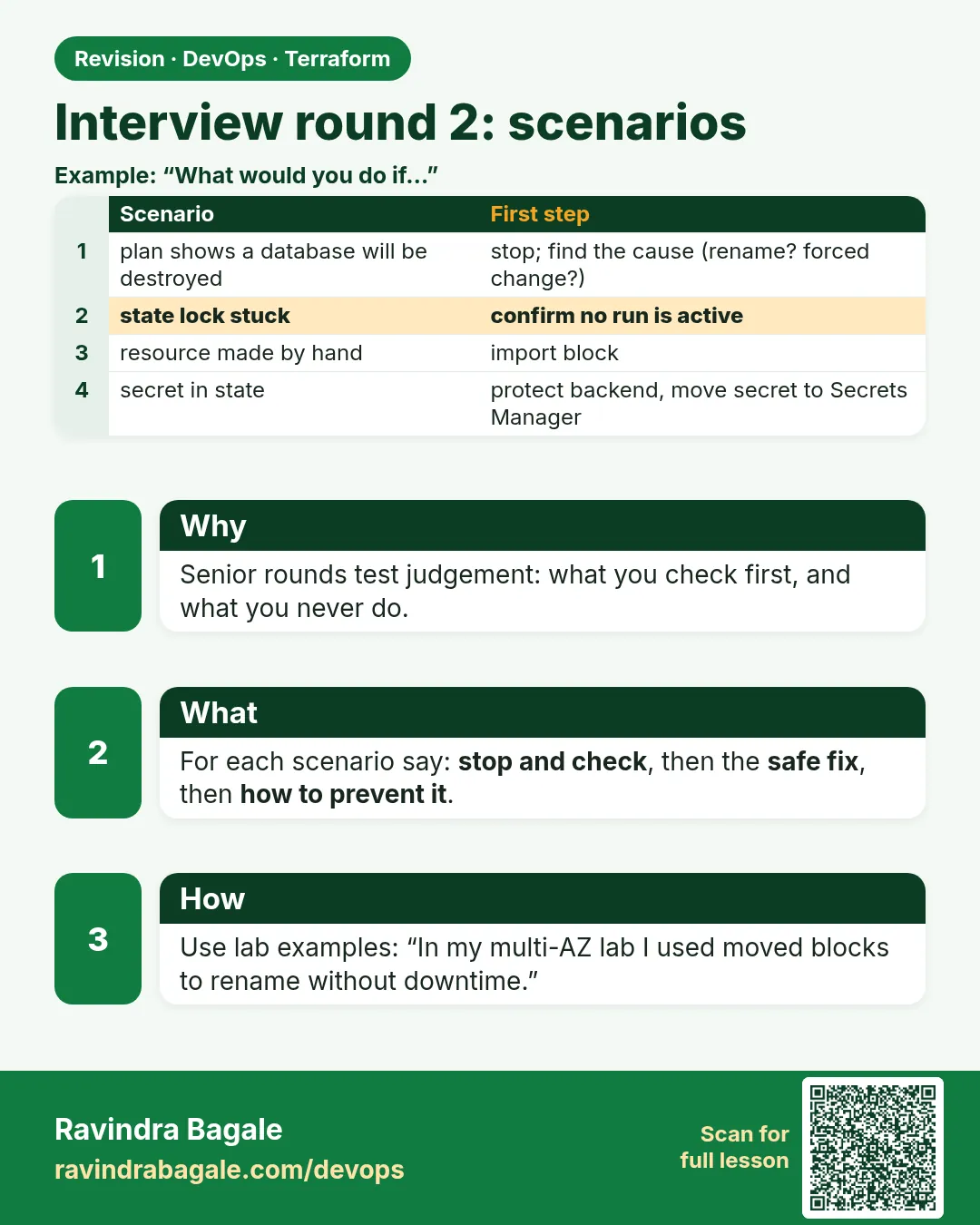
- Plan shows 1 to destroy you did not expect after a refactor. — Stop; add a moved block, plan again.
- Two engineers applied at once and state broke. — Restore the previous version from S3 versioning, enable use_lockfile, move applies into Jenkins.
- Someone changed a security group in the console. — That is drift; detect with plan -detailed-exitcode, then codify or revert.
- An access key is in a .tf file in Git. — Revoke and rotate it now, clean history, switch to roles.
- How do you promote a change dev to prod? — Same module version, separate state per environment, saved plan, approval, apply the saved plan.
- A provisioner failed and the instance is tainted. — Move the script to user_data or Ansible and remove the provisioner.
- How do you stop a public S3 bucket reaching prod? — Checkov and tfsec in the pipeline before approval, plus a public access block in the module.
When it is green.
Plan: 0 to add, 1 to change, 0 to destroy.
Note: Objects have changed outside of Terraform
When it is red.
Candidate answer: "I would run terraform apply -auto-approve to fix it."
(no plan reading, no backup, no review)
Fix. Always describe reading the plan and backing up state before any fix.
What: every term in plain English
- incident order — Stop, protect state, find the cause, fix in code, apply through the pipeline.
- state pull — Downloads the current remote state to your screen or a file.
- refresh-only plan — Shows only changes made outside Terraform.
- saved plan — A plan written with -out. Apply runs exactly that plan.
- S3 versioning — Keeps old copies of the state file so you can roll back.
- blast radius — How much breaks if one change goes wrong.
- break-glass — An emergency login used only when the pipeline cannot help.
Example 1: Scenario: an unexpected destroy after a refactor
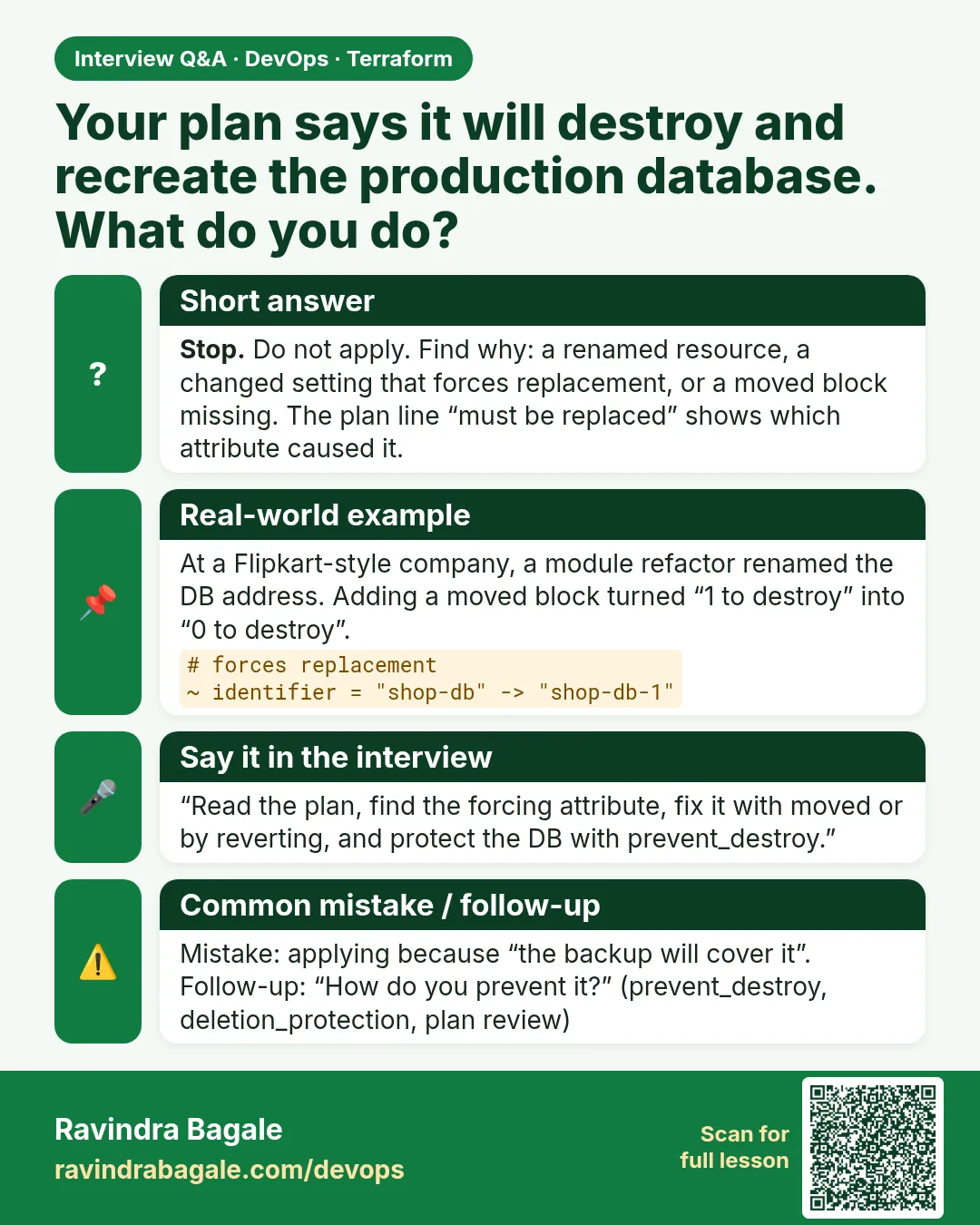
A Flipkart-style team moved a bucket into a module. Plan wanted to destroy prod data. The right answer is a moved block, shown live.
- Apply a bucket at the root.
- Move the code into a module.
- Read the scary plan.
- Add a moved block.
- Plan again.
# before: resource "random_pet" "data" {}
module "store" {
  source = "./modules/store"
}

moved {
  from = random_pet.data
  to   = module.store.random_pet.data
}
terraform plan | tail -3
Output
  # random_pet.data has moved to module.store.random_pet.data
    resource "random_pet" "data" {
        id = "fond-eagle"
    }

Plan: 0 to add, 0 to change, 0 to destroy.
What it shows: Without the moved block the summary was Plan: 1 to add, 0 to change, 1 to destroy.
Example 2: Scenario: two people applied and state broke
At an HDFC-style bank team two engineers ran apply together before locking was on. Show how you restore the last good state from S3 versions.
- List old versions of the state object.
- Download the last good one.
- Push it back carefully.
- Turn on use_lockfile.
aws s3api list-object-versions --bucket corp-tfstate \
  --prefix web/prod.tfstate --query 'Versions[0:3].[VersionId,LastModified]' --output text
aws s3api get-object --bucket corp-tfstate --key web/prod.tfstate \
  --version-id 3HL4kqtJlcpXroDTDmJ.rmSpXd3dIbrHY good.tfstate
terraform state push good.tfstate
terraform plan
Output
3HL4kqtJlcpXroDTDmJ.rmSpXd3dIbrHY   2026-10-24T09:12:00Z
Uo9Kq1n2B3c4D5e6F7g8H9i0J1k2L3m4    2026-10-24T09:11:58Z
...
Plan: 0 to add, 0 to change, 0 to destroy.
What it shows: state push refuses an older serial unless you add -force. Use -force only after a teammate checks the file with you.
Example 3: Scenario: someone opened a port in the console
A Zomato-style on-call engineer opened port 22 to the world to debug. Detect it, then revert through review.
terraform plan -refresh-only -no-color | sed -n '1,20p'
terraform plan -detailed-exitcode -out=tfplan; echo "exit=$?"
terraform apply tfplan
Output
Note: Objects have changed outside of Terraform
  # aws_security_group.web has changed
      + ingress {
          + cidr_blocks = ["0.0.0.0/0"]
          + from_port   = 22
        }
exit=2
Apply complete! Resources: 0 added, 1 changed, 0 destroyed.
What it shows: In a real team the apply runs from Jenkins after approval, not from your laptop.
Example 4: Scenario: an access key was committed
The worst one. A Paytm-style repo had a key in provider.tf. The first step is to revoke the key, not to clean Git.
- Deactivate the key in IAM now.
- Check CloudTrail for use.
- Remove it from code and history.
- Switch the provider to a role.
aws iam update-access-key --user-name ci-user --access-key-id AKIAEXAMPLEKEY --status Inactive
aws cloudtrail lookup-events --lookup-attributes AttributeKey=AccessKeyId,AttributeValue=AKIAEXAMPLEKEY \
  --max-results 5 --query 'Events[].[EventTime,EventName]' --output text
provider "aws" {
  region = "ap-south-1"
  assume_role {
    role_arn = "arn:aws:iam::111122223333:role/terraform-ci"
  }
}
Output
2026-10-24T08:01:12Z  GetCallerIdentity
2026-10-24T08:01:15Z  ListBuckets
What it shows: Only after the key is dead do you clean history and add a secret scanner to the pipeline.
Command cheat sheet
| Command | What it does | When to use it |
|---|---|---|
terraform state pull |
Read remote state | Backup before a fix |
terraform state push FILE |
Write state back | Restore after a bad apply |
terraform plan -refresh-only |
See outside changes | Drift questions |
terraform plan -out=tfplan |
Save a plan | Every prod change |
terraform force-unlock ID |
Remove a stuck lock | Only when no apply is running |
aws s3api list-object-versions |
See old state copies | State rollback |
Verify: did it work?
-
Backup exists
ls -l before-fix.tfstateOutput
-rw-r--r-- 1 ravi ravi 18233 Oct 25 09:10 before-fix.tfstate -
Clean after fix
terraform plan -detailed-exitcode; echo $?Output
No changes. Your infrastructure matches the configuration. 0 -
Lock is on
grep use_lockfile backend.tfOutput
use_lockfile = true
When it is red 1
Error: Error acquiring the state lock
Lock Info:
  ID:        6f1c2d3e-aaaa-bbbb-cccc-1234567890ab
  Operation: OperationTypeApply
  Who:       jenkins@build-17
Cause. Another apply holds the lock, or a crashed job left it.
Fix, step by step
- Check the Jenkins job is really dead.
- Run terraform force-unlock with the ID.
- Never force-unlock while a job is still running.
When it is red 2
Failed to write state: cannot overwrite existing state with serial 41 with a different state that has the same serial
Cause. You tried to push an older or copied state.
Fix, step by step
- Compare both files with a teammate.
- Use state push -force only after you agree.
When it is red 3
Error: Saved plan is stale
The given plan file can no longer be applied because the state was changed by another operation
Cause. Someone applied after your plan was saved.
Fix, step by step
- Run plan -out again.
- Get it reviewed again.
- Apply the new file.
Cleanup
rm -f before-fix.tfstate good.tfstate tfplan
Ravindra Bagale's Tip
In scenario rounds say the order out loud: stop, protect state, find the cause, fix in code, apply from the pipeline.
Practice tasks
Easy Say the order
Why: Calm order wins interviews.
What to do: Write the five steps from memory.
- Stop, protect, cause, code, pipeline.
Check: All five in the right order.
Medium moved block drill
Why: Most asked fix.
What to do: Refactor a resource into a module with no destroy.
- Use a moved block.
Check: Plan: 0 to add, 0 to change, 0 to destroy.
Medium Restore state
Why: Practise before you need it.
What to do: Restore an older state version in a lab bucket.
- list-object-versions, get-object, state push.
Check: plan shows the old picture.
Hard Seven scenarios
Why: Full mock.
What to do: Answer all seven scenarios aloud in ten minutes.
- Record and replay.
Check: Each answer names a real command.
Easy Say it in two lines
Why: If you can say it simply, you understand it.
What to do: Write two short lines about this lesson for a fresher.
- Write the problem it solves.
- Write the one command or file you use.
- Read it aloud.
Check: A fresher understands it without a question.
Easy Start a safe lab folder
Why: Practice needs a throwaway place.
What to do: Make a new folder with versions.tf and a random_pet resource, so no AWS cost.
- mkdir tf-lab and cd into it.
- Add the hashicorp/random provider and one random_pet.
- Run terraform init and terraform apply.
Check: Apply complete! with 1 added.
Medium Break it on purpose
Why: You must know the red output by face.
What to do: Cause one error from the red part of this lesson and fix it.
- Follow one red section.
- Copy the exact message to your notes.
- Write the fix in one line.
Check: You fixed it without searching the web.
Medium Run it twice
Why: A second run must be quiet.
What to do: Run the same plan two times with no edits.
- Run terraform plan.
- Run it again.
- Explain any change it still shows.
Check: The second plan says No changes, or you can explain each line.
Medium Write a runbook page
Why: At 2 a.m. nobody remembers flags.
What to do: Write a one-page runbook for this lesson.
- Title, when to use, exact commands, how to check, how to undo.
Check: A teammate can follow it alone.
Medium Run it from a pipeline
Why: Real teams run Terraform from CI, not from laptops.
What to do: Run the main command of this lesson inside a GitHub Actions or Jenkins job.
- Add a job with hashicorp/setup-terraform or a Terraform Docker image.
- Give it AWS access through an IAM role, never a key in the file.
- Run init, then the command from this lesson.
Check: The job log shows the same output you saw on your laptop.
Medium Check the cost
Why: Labs left running cost real money.
What to do: Find what this lesson would cost per day if you forgot to destroy it.
- Open the AWS Pricing Calculator.
- Add each resource from your plan.
- Write the daily cost in your notes.
Check: You know the daily cost and you ran terraform destroy.
Hard Draw the flow top to bottom
Why: A drawing shows the order of work.
What to do: Draw this lesson as boxes from top to bottom.
- Start at your code, go through plan and state, end at AWS.
- Mark where each command reads or writes.
Check: Each box matches a real step you ran.
Hard Explain it like an interview
Why: Interviewers want real stories.
What to do: Record a 60 second answer about this lesson.
- Say the problem, the command, and one error you hit.
Check: Your answer has a real command and a real error message.
Homework: try at home
Try at home
Write your own eighth scenario from a real mistake you have seen, with the five-step answer and the exact commands.
Recap
- Stop and read the plan before any fix.
- Back up state with state pull.
- Fix in code on a branch.
- Apply a saved plan from the pipeline.
- Revoke leaked keys first, clean Git second.
FAQ
Is force-unlock safe?
Only when you are sure no apply is running.
Can I edit state by hand?
Avoid it. Use state mv, state rm, moved, import and removed blocks.
What if the pipeline is down during an outage?
Use a documented break-glass role, then codify the change after.
Should I mention tools like Atlantis?
Yes, if you used them. Say what problem they solved.
How do I show seniority?
Talk about blast radius, review and rollback, not only commands.
Interview questions
-
Plan shows a destroy you did not expect. What now?
Stop. Find why, usually a rename or refactor. Add a moved block and plan again.
-
How do you recover a corrupted state?
Restore the last good version from S3 versioning, then plan to confirm.
-
Someone changed prod by hand. What do you do?
Detect with plan, find who with CloudTrail, then codify or revert through review.
-
A secret is in Git. First step?
Revoke and rotate it. Then clean history and switch to roles.
-
How do you promote dev to prod?
Same module version, separate state, saved plan, approval, apply that plan.
Quick quiz
Q1. First step in any incident?
Stop and read the plan.
Q2. Command to back up remote state?
terraform state pull
Q3. Fix for a refactor destroy?
A moved block.
Q4. First step for a leaked key?
Revoke it.
Q5. What makes apply run exactly the reviewed plan?
A saved plan file from -out.
Samajla ka?
 Revision card
 Interview card