Chapter 42: Terraform Drift and Troubleshooting
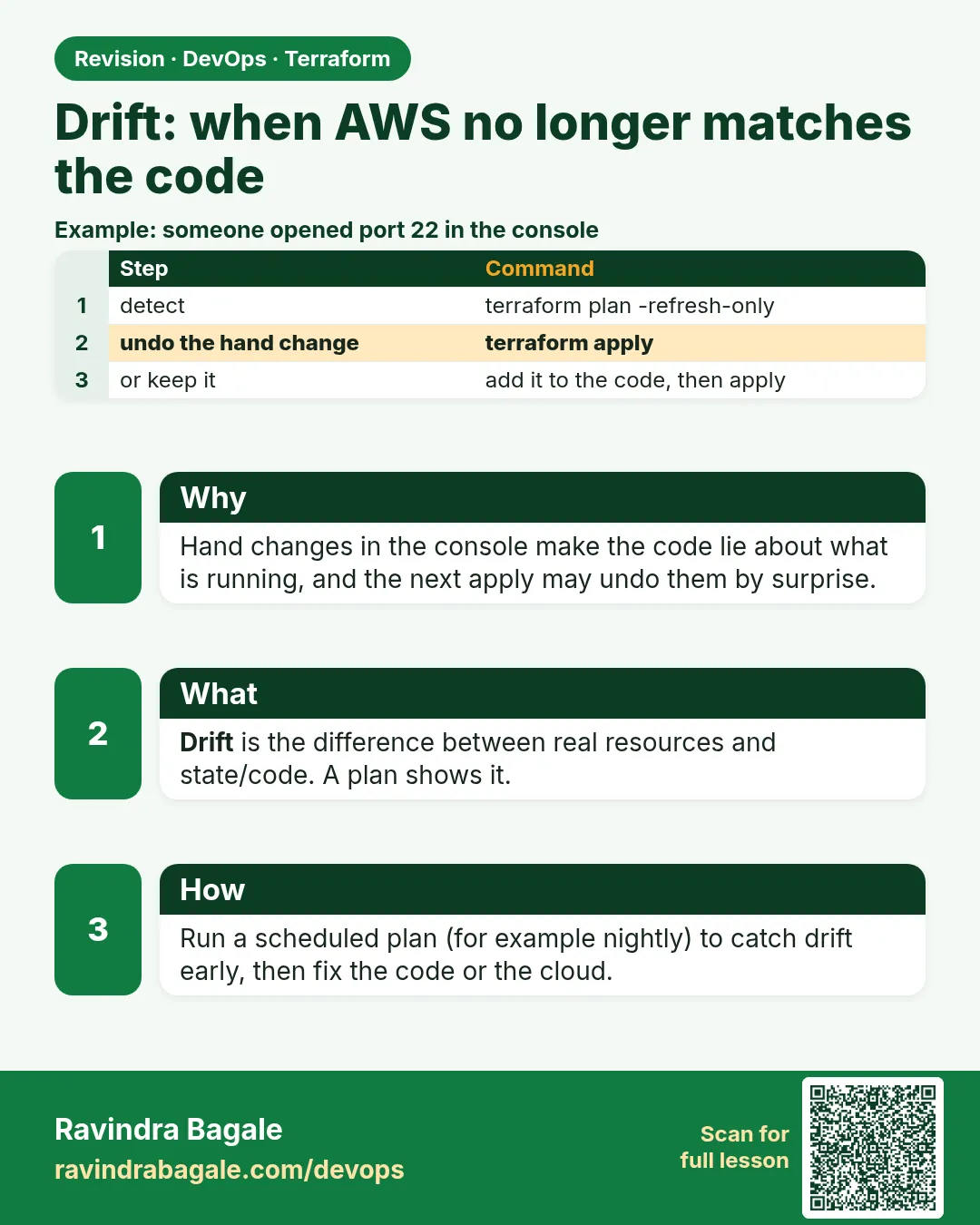
42.1 Drift — when AWS no longer matches the code
Story. During a Netflix-style incident, an on-call engineer opened port 8080 in the console to test a fix and went home. Nobody updated the code, so the real security group drifted from what Terraform believed. Drift is any difference between real infrastructure and the code plus state. A scheduled plan with -detailed-exitcode detects it, and then you choose: put the change into code, or let apply remove it.
#!/usr/bin/env bash
# drift-check.sh - run nightly from Jenkins with a read-only role
set -u
cd envs/prod
terraform init -input=false -no-color > /dev/null
terraform plan -detailed-exitcode -lock=false -no-color -var-file=prod.tfvars > drift.txt
rc=$?
if [ "$rc" -eq 2 ]; then
  echo "DRIFT FOUND in prod"; grep -E '^\s+[~+-]|Plan:' drift.txt
  exit 2
elif [ "$rc" -eq 1 ]; then
  echo "PLAN ERROR"; exit 1
fi
echo "No drift"
What each line does
set -u— Stops the script if it uses an undefined variable.cd envs/prod— Checks the prod environment.terraform init -input=false -no-color > /dev/null— Prepares providers and backend quietly.terraform plan -detailed-exitcode -lock=false ...— Plans without taking the lock, since a read-only check must not block real applies.rc=$?— Saves the exit code: 0 no changes, 1 error, 2 changes.if [ "$rc" -eq 2 ]; then— Drift found.grep -E '^\s+[~+-]|Plan:' drift.txt— Prints only the changed lines and the summary.exit 2— Marks the Jenkins build unstable or failed so someone is alerted.echo "No drift"— Everything matches.
When it is green.
No changes. Your infrastructure matches the configuration.
No drift
When it is red.
Note: Objects have changed outside of Terraform
  ~ resource "aws_security_group" "web" {
      - ingress { from_port = 8080 ... cidr_blocks = ["0.0.0.0/0"] }
    }
Plan: 0 to add, 1 to change, 0 to destroy.
DRIFT FOUND in prod
Fix. Ask who made the change. If it should stay, add it to code and open a pull request. If not, run the normal pipeline apply to remove it. Never fix drift with more console clicks.
What: every term in plain English
- drift — A difference between the real AWS object and what your code plus state say.
- refresh — Terraform reads real AWS values before it plans.
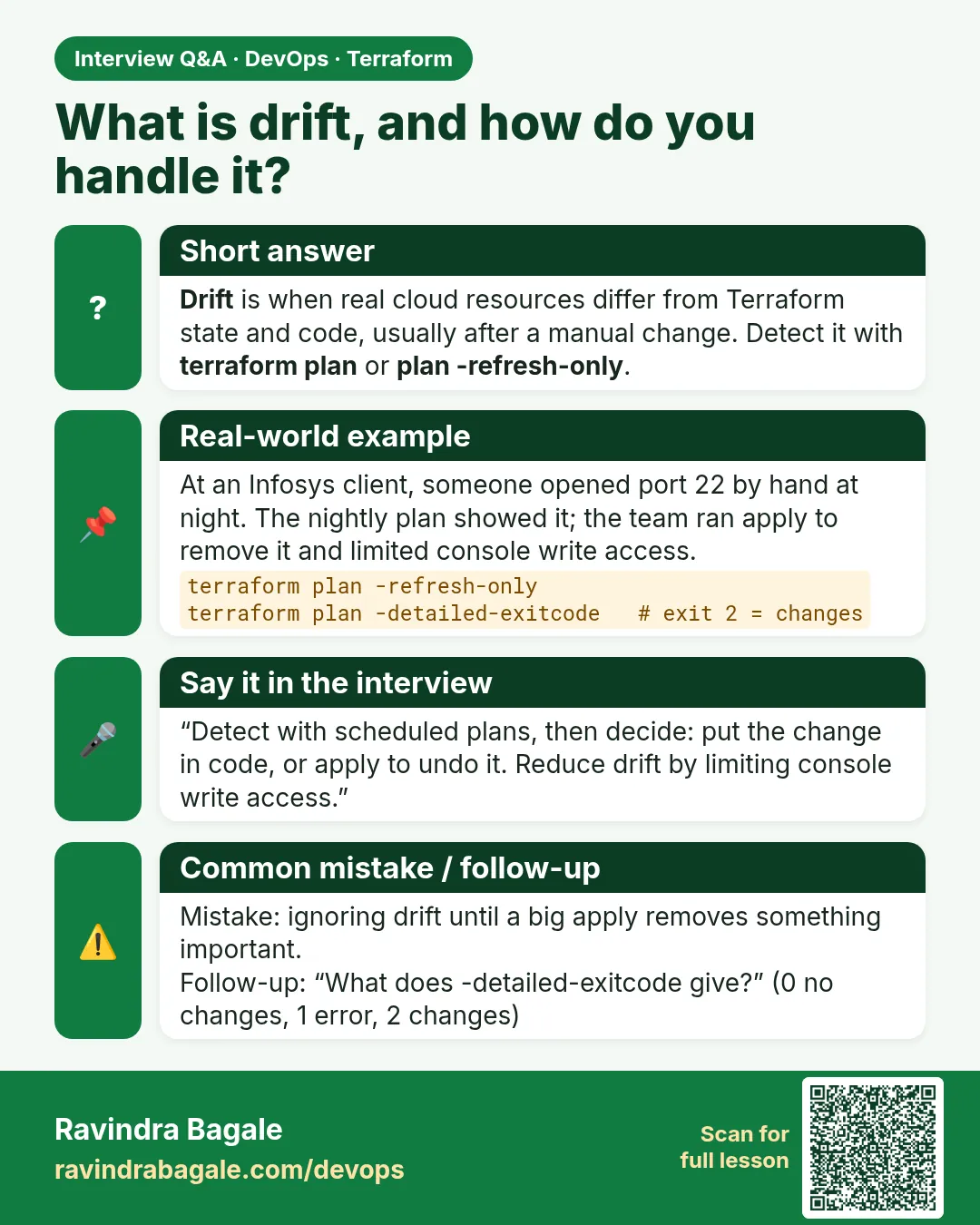
- -detailed-exitcode — A plan flag. Exit 0 means no changes, 1 means error, 2 means changes.
- -refresh-only — A plan or apply that only updates state to match AWS. It never changes AWS.
- codify — Put the console change into code, so code and AWS agree.
- revert — Run apply so Terraform puts AWS back the way the code says.
- read-only role — An IAM role that can describe and list, but not create or delete. Good for drift checks.
Example 1: Make drift on purpose and see it
You must know what drift looks like before it happens at 2 a.m. We tag a bucket by hand, then plan.
- Apply a small bucket with Terraform.
- Add a tag by hand with the AWS CLI.
- Run plan and read the Note block.
# main.tf
provider "aws" {
  region = "ap-south-1"
}

resource "aws_s3_bucket" "logs" {
  bucket = "drift-lab-logs-1234"
  tags = {
    Team = "platform"
  }
}
terraform init && terraform apply -auto-approve
aws s3api put-bucket-tagging --bucket drift-lab-logs-1234 \
  --tagging 'TagSet=[{Key=Team,Value=platform},{Key=Owner,Value=ravi}]'
terraform plan
Output
aws_s3_bucket.logs: Refreshing state... [id=drift-lab-logs-1234]

Note: Objects have changed outside of Terraform

  # aws_s3_bucket.logs has changed
  ~ resource "aws_s3_bucket" "logs" {
      ~ tags = {
          + "Owner" = "ravi"
            "Team"  = "platform"
        }
    }

  # aws_s3_bucket.logs will be updated in-place
  ~ resource "aws_s3_bucket" "logs" {
      ~ tags = {
          - "Owner" = "ravi" -> null
        }
    }

Plan: 0 to add, 1 to change, 0 to destroy.
What it shows: First block: what changed outside. Second block: what apply would do. Here apply would remove the hand-made tag.
Example 2: Codify the change (keep it)
At a Swiggy-style team, the Owner tag was a good idea. So we add it to code instead of removing it.
resource "aws_s3_bucket" "logs" {
  bucket = "drift-lab-logs-1234"
  tags = {
    Team  = "platform"
    Owner = "ravi"
  }
}
terraform plan -detailed-exitcode; echo "exit=$?"
Output
aws_s3_bucket.logs: Refreshing state... [id=drift-lab-logs-1234]

No changes. Your infrastructure matches the configuration.
exit=0
What it shows: Code now matches AWS. Commit this change with a pull request so everyone sees it.
Example 3: Revert the change (remove it)
An engineer opened SSH to the world on a Paytm-style prod group to debug. That must go away now.
SG=$(terraform output -raw web_sg_id)
aws ec2 authorize-security-group-ingress --group-id $SG \
  --protocol tcp --port 22 --cidr 0.0.0.0/0
terraform plan -detailed-exitcode; echo "exit=$?"
terraform apply -auto-approve
terraform plan -detailed-exitcode; echo "exit=$?"
Output
  ~ resource "aws_security_group" "web" {
      ~ ingress = [
          - {
              - cidr_blocks = ["0.0.0.0/0"]
              - from_port   = 22
              - to_port     = 22
              ...
            },
        ]
    }
Plan: 0 to add, 1 to change, 0 to destroy.
exit=2
Apply complete! Resources: 0 added, 1 changed, 0 destroyed.
No changes. Your infrastructure matches the configuration.
exit=0
What it shows: The hand-made SSH rule is gone. The code was right; AWS was wrong.
Example 4: Nightly drift check in GitHub Actions
A Zerodha-style team runs drift checks every night at 2 a.m. IST, which is 20:30 UTC, with a read-only OIDC role and no keys.
# .github/workflows/drift.yml
name: drift-check
on:
  schedule:
    - cron: "30 20 * * *"   # 02:00 IST
  workflow_dispatch:
permissions:
  id-token: write
  contents: read
jobs:
  drift:
    runs-on: ubuntu-latest
    steps:
      - uses: actions/checkout@v4
      - uses: aws-actions/configure-aws-credentials@v4
        with:
          role-to-assume: arn:aws:iam::111122223333:role/tf-readonly
          aws-region: ap-south-1
      - uses: hashicorp/setup-terraform@v3
        with:
          terraform_wrapper: false
      - run: terraform -chdir=envs/prod init -input=false
      - run: terraform -chdir=envs/prod plan -detailed-exitcode -lock=false -input=false
Output
Run terraform -chdir=envs/prod plan -detailed-exitcode -lock=false -input=false
Note: Objects have changed outside of Terraform
Plan: 0 to add, 1 to change, 0 to destroy.
Error: Process completed with exit code 2.
What it shows: Exit 2 turns the job red and GitHub sends an email. The account id is a sample. terraform_wrapper false keeps the real exit code.
Command cheat sheet
| Command | What it does | When to use it |
|---|---|---|
terraform plan |
Shows drift in the Note block | Any time |
terraform plan -detailed-exitcode |
Exit 2 if anything changed | Scripts and CI |
terraform plan -refresh-only |
Show only what changed outside | Before deciding codify or revert |
terraform apply -refresh-only |
Accept AWS values into state | When the change is right and you also update code |
-lock=false |
Do not take the state lock | Read-only drift checks only |
aws cloudtrail lookup-events |
Find who made the change | Every drift |
Verify: did it work?
-
No drift
terraform plan -detailed-exitcode; echo $?Output
No changes. Your infrastructure matches the configuration. 0 -
Who changed it
aws cloudtrail lookup-events --lookup-attributes AttributeKey=ResourceName,AttributeValue=drift-lab-logs-1234 --max-results 3 --query "Events[].[EventName,Username]" --output textOutput
PutBucketTagging ravi
When it is red 1
Error: Process completed with exit code 2.
Cause. The drift job found a change. This is the alert working.
Fix, step by step
- Open the job log.
- Read the Note block.
- Find who did it with CloudTrail.
- Codify with a pull request or revert with the normal pipeline.
When it is red 2
Error: Error acquiring the state lock
Lock Info:
  Operation: OperationTypePlan
  Who:       runner@fv-az123
Cause. The drift check took the lock and a real deploy waited.
Fix, step by step
- Add -lock=false to the drift plan.
- Never use -lock=false for apply.
When it is red 3
Error: reading S3 Bucket (drift-lab-logs-1234): AccessDenied
Cause. The read-only role is missing a read permission.
Fix, step by step
- Add the s3:Get or s3:List action for that bucket to the role.
- Run again.
Cleanup
terraform destroy -auto-approve
Ravindra Bagale's Tip
Drift is not a Terraform bug. It is a people problem. Lock the console for prod and let the nightly plan catch the rest.
Practice tasks
Easy Make drift
Why: See it once.
What to do: Add a tag by hand and run plan.
- Use put-bucket-tagging.
Check: Note: Objects have changed.
Medium Codify
Why: Keep a good change.
What to do: Add the tag to code.
- plan -detailed-exitcode.
Check: exit=0.
Medium Revert
Why: Remove a bad change.
What to do: Open port 22 by hand, then apply to remove it.
- plan, apply, plan.
Check: exit=0 at the end.
Hard Nightly job
Why: Catch it while you sleep.
What to do: Add a scheduled drift job with a read-only role.
- Use cron 30 20 * * *.
Check: The job turns red on drift.
Easy Say it in two lines
Why: If you can say it simply, you understand it.
What to do: Write two short lines about this lesson for a fresher.
- Write the problem it solves.
- Write the one command or file you use.
- Read it aloud.
Check: A fresher understands it without a question.
Easy Start a safe lab folder
Why: Practice needs a throwaway place.
What to do: Make a new folder with versions.tf and a random_pet resource, so no AWS cost.
- mkdir tf-lab and cd into it.
- Add the hashicorp/random provider and one random_pet.
- Run terraform init and terraform apply.
Check: Apply complete! with 1 added.
Medium Break it on purpose
Why: You must know the red output by face.
What to do: Cause one error from the red part of this lesson and fix it.
- Follow one red section.
- Copy the exact message to your notes.
- Write the fix in one line.
Check: You fixed it without searching the web.
Medium Run it twice
Why: A second run must be quiet.
What to do: Run the same plan two times with no edits.
- Run terraform plan.
- Run it again.
- Explain any change it still shows.
Check: The second plan says No changes, or you can explain each line.
Medium Write a runbook page
Why: At 2 a.m. nobody remembers flags.
What to do: Write a one-page runbook for this lesson.
- Title, when to use, exact commands, how to check, how to undo.
Check: A teammate can follow it alone.
Medium Run it from a pipeline
Why: Real teams run Terraform from CI, not from laptops.
What to do: Run the main command of this lesson inside a GitHub Actions or Jenkins job.
- Add a job with hashicorp/setup-terraform or a Terraform Docker image.
- Give it AWS access through an IAM role, never a key in the file.
- Run init, then the command from this lesson.
Check: The job log shows the same output you saw on your laptop.
Medium Check the cost
Why: Labs left running cost real money.
What to do: Find what this lesson would cost per day if you forgot to destroy it.
- Open the AWS Pricing Calculator.
- Add each resource from your plan.
- Write the daily cost in your notes.
Check: You know the daily cost and you ran terraform destroy.
Hard Draw the flow top to bottom
Why: A drawing shows the order of work.
What to do: Draw this lesson as boxes from top to bottom.
- Start at your code, go through plan and state, end at AWS.
- Mark where each command reads or writes.
Check: Each box matches a real step you ran.
Hard Explain it like an interview
Why: Interviewers want real stories.
What to do: Record a 60 second answer about this lesson.
- Say the problem, the command, and one error you hit.
Check: Your answer has a real command and a real error message.
Homework: try at home
Try at home
Ask your team which three resources get changed by hand most often. Write a drift check for that folder and run it once.
Recap
- Drift means AWS differs from code plus state.
- Plan shows drift in the Note block.
- -detailed-exitcode returns 2 on drift.
- Codify good changes, revert bad ones, both through the pipeline.
- Use a read-only role and -lock=false for checks.
FAQ
Does plan fix drift?
No. Plan only shows it. Apply or a code change fixes it.
What does apply -refresh-only do?
It writes AWS values into state without changing AWS.
Can Terraform see resources it never made?
No. Drift is only for resources in state.
How often should I check?
Nightly for prod is common. Hourly for very busy accounts.
How do I stop console changes?
Use IAM so only the pipeline role can change prod.
Interview questions
-
What is drift?
A difference between real infrastructure and Terraform code plus state, usually from manual changes.
-
How do you detect drift?
Run terraform plan -detailed-exitcode on a schedule and alert on exit code 2.
-
Codify or revert, how do you choose?
If the change is wanted, add it to code. If not, apply to remove it. Both through review.
-
Why -lock=false in drift checks?
A read-only plan should not block real deploys. Never use it for apply.
-
How do you find who caused drift?
CloudTrail lookup-events on the resource name.
Quick quiz
Q1. Plan exit code for changes with -detailed-exitcode?
2
Q2. Where does plan show drift?
In the Note: Objects have changed block.
Q3. Which plan only updates state?
-refresh-only
Q4. 2 a.m. IST is what time in UTC?
20:30 the day before.
Q5. Should drift be fixed by clicking?
No.
Samajla ka?
 Revision card
 Interview card