Chapter 41: Terraform Environments and Jenkins Plan Approval Apply Pipeline
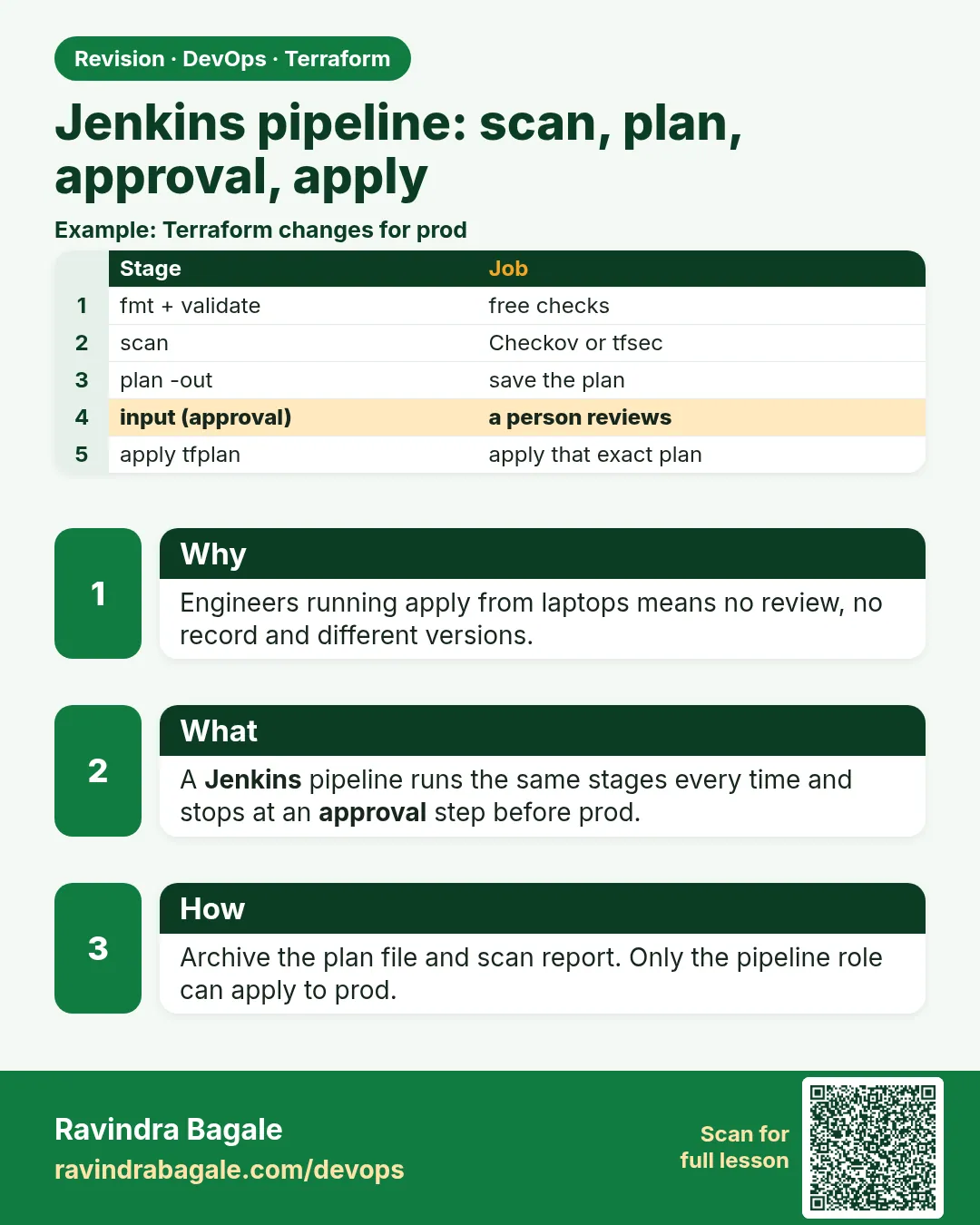
41.2 Jenkins pipeline — scan, plan, approval, apply
Story. A Netflix-style team allows no human to run apply against prod from a laptop. Jenkins runs every step, an engineer reviews the saved plan, a named approver clicks Proceed, and Jenkins applies exactly that plan. Checkov and tfsec scan the code before the plan, and Checkov scans the plan JSON again before approval, so a public bucket is stopped before anyone is even asked. The Jenkins agent uses an IAM role; no AWS keys are stored in Jenkins.
Steps
- Create a Jenkins agent with the label terraform, Terraform, Checkov and tfsec installed, and an IAM instance role.
- Create a Pipeline job from SCM pointing at the Terraform repository.
- Create a Jenkins group or role named release-approvers.
- Run the job with ENV = dev and confirm it applies without approval.
- Run it with ENV = stage, open plan.txt, and click Proceed.
- Run a destroy job or terraform destroy per environment after the lab to avoid cost.
pipeline {
  agent { label 'terraform' }
  parameters {
    choice(name: 'ENV', choices: ['dev', 'stage', 'prod'], description: 'Target environment')
  }
  options { timeout(time: 60, unit: 'MINUTES'); disableConcurrentBuilds() }
  environment {
    TF_IN_AUTOMATION = 'true'
    TF_INPUT         = '0'
  }
  stages {
    stage('Init and Validate') {
      steps {
        dir("envs/${params.ENV}") {
          sh 'terraform init -no-color'
          sh 'terraform fmt -check -recursive'
          sh 'terraform validate -no-color'
        }
      }
    }
    stage('Scan code') {
      steps {
        sh 'checkov -d . --framework terraform --quiet'
        sh 'tfsec .'
      }
    }
    stage('Plan') {
      steps {
        dir("envs/${params.ENV}") {
          sh "terraform plan -no-color -var-file=${params.ENV}.tfvars -out=tfplan"
          sh 'terraform show -no-color tfplan > plan.txt'
          sh 'terraform show -json tfplan > tfplan.json'
          sh 'checkov -f tfplan.json --framework terraform_plan --quiet'
          archiveArtifacts artifacts: 'plan.txt'
        }
      }
    }
    stage('Approval') {
      when { expression { params.ENV != 'dev' } }
      steps {
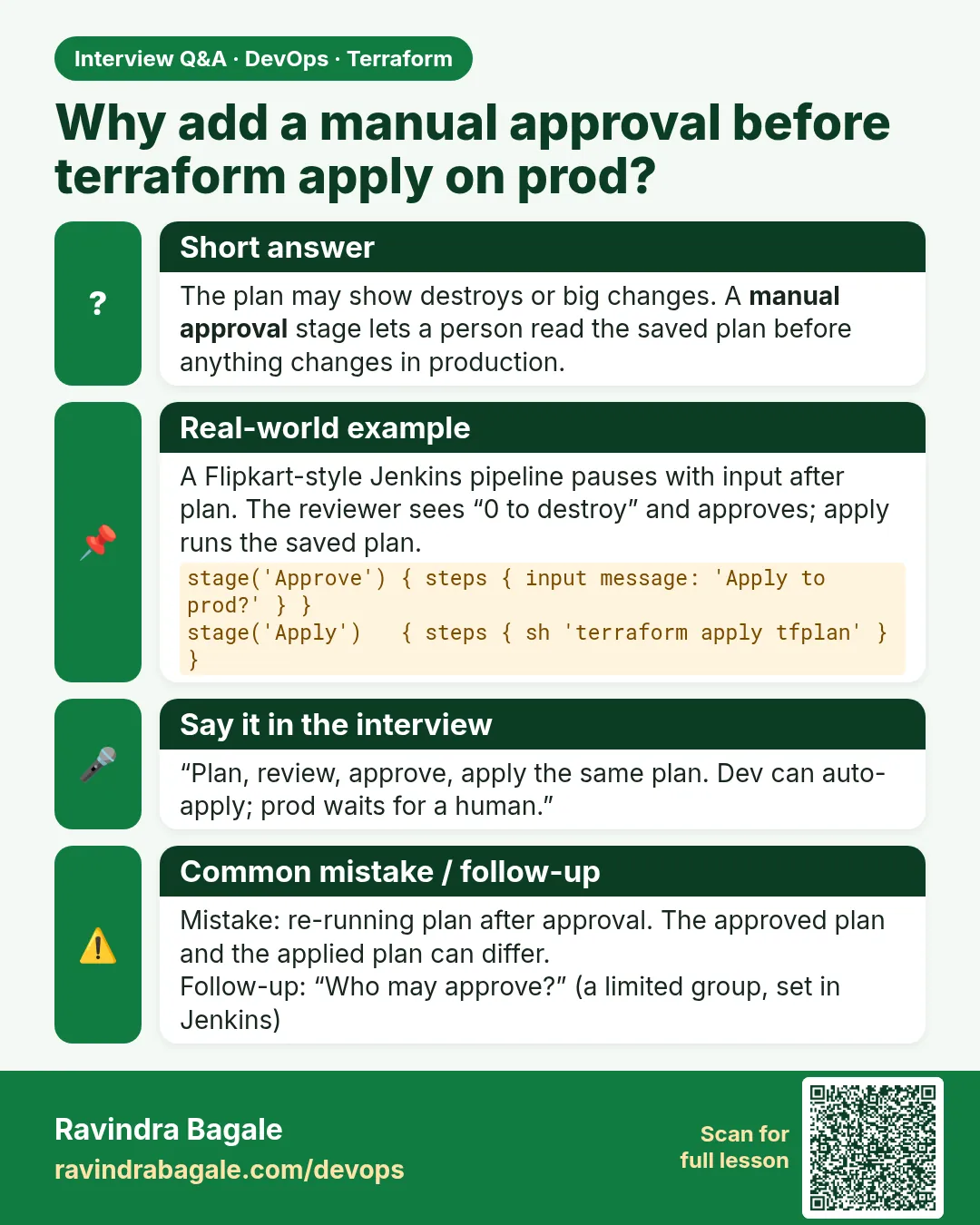
        input message: "Apply plan.txt to ${params.ENV}?", submitter: 'release-approvers'
      }
    }
    stage('Apply') {
      steps {
        dir("envs/${params.ENV}") {
          sh 'terraform apply -no-color tfplan'
        }
      }
    }
  }
  post {
    always { cleanWs() }
  }
}
What each line does
agent { label 'terraform' }— Runs on an agent that has Terraform, Checkov and tfsec and an IAM instance role.choice(name: 'ENV', ...)— The person starting the build picks dev, stage or prod.disableConcurrentBuilds()— Only one run at a time; state locking is the second safety net.TF_IN_AUTOMATION = 'true'— Tells Terraform it runs in CI, which trims hints meant for humans.TF_INPUT = '0'— Terraform fails instead of waiting for keyboard input.dir("envs/${params.ENV}")— Works inside the chosen environment folder.sh 'terraform fmt -check -recursive'— Fails the build on unformatted code.sh 'checkov -d . --framework terraform --quiet'— Scans all .tf files for misconfigurations and prints only failures.sh 'tfsec .'— A second scanner with its own rule set; any failure stops the build.sh "terraform plan ... -out=tfplan"— Saves the exact plan for later apply.sh 'terraform show -no-color tfplan > plan.txt'— A readable copy for the approver.sh 'checkov -f tfplan.json --framework terraform_plan --quiet'— Scans the resolved plan, catching values that come from variables.archiveArtifacts artifacts: 'plan.txt'— Attaches the plan to the build page.when { expression { params.ENV != 'dev' } }— Dev skips approval; stage and prod need it.input message: ..., submitter: 'release-approvers'— Pauses until someone in that group clicks Proceed.sh 'terraform apply -no-color tfplan'— Applies exactly the approved plan.always { cleanWs() }— Deletes the workspace, including the plan file, after every run.
When it is green.
[Pipeline] stage (Scan code)
Passed checks: 42, Failed checks: 0, Skipped checks: 0
No problems detected!
[Pipeline] stage (Plan)
Plan: 0 to add, 1 to change, 0 to destroy.
[Pipeline] input
Apply plan.txt to prod?  Proceed or Abort
Approved by ravindra
Apply complete! Resources: 0 added, 1 changed, 0 destroyed.
Finished: SUCCESS
When it is red.
Check: CKV2_AWS_6: "Ensure that S3 bucket has a Public Access block"
    FAILED for resource: aws_s3_bucket.assets
    File: /envs/prod/s3.tf:1-4
Passed checks: 41, Failed checks: 1, Skipped checks: 0
script returned exit code 1
Finished: FAILURE
Fix. The scan stopped the build before plan and approval. Add the aws_s3_bucket_public_access_block resource and push again. A skip is allowed only with a written reason in a checkov:skip comment.
What: every term in plain English
- Jenkinsfile — The pipeline written as code and stored with the Terraform code.
- plan -out=tfplan — Saves the exact plan to a file so apply does what was reviewed.
- input step — Pauses the pipeline until an allowed person clicks Proceed.
- submitter — The Jenkins user or group allowed to approve an input step.
- -detailed-exitcode — plan exits 0 for no changes, 2 for changes, 1 for errors. Useful to skip approval when nothing changed.
- archiveArtifacts — Keeps plan.txt with the build so reviewers and auditors can read it later.
- agent role — The IAM role of the Jenkins agent. Terraform uses it; no keys are stored in Jenkins.
Example 1: Run the pipeline steps on your laptop first
If the commands fail locally, they will fail in Jenkins. A Sapient team rule: run the exact script once by hand.
- cd to envs/dev.
- Run the same commands as the pipeline.
- Read the exit code of plan.
cd envs/dev
terraform fmt -check -recursive ../..
terraform init -input=false
terraform validate
terraform plan -input=false -out=tfplan -detailed-exitcode; echo "exit=$?"
terraform show -no-color tfplan > plan.txt
Output
Success! The configuration is valid.
Plan: 3 to add, 0 to change, 0 to destroy.
exit=2
What it shows: Exit 2 means changes are waiting. Jenkins uses this to decide whether to ask for approval at all.
Example 2: Skip the approval when nothing changed
Engineers at a Myntra-style team got tired of approving empty plans. This stage asks only when exit code is 2.
- Capture the exit code in a script step.
- Store it in an environment variable.
- Wrap approval and apply in a when block.
stage('Plan') {
  steps {
    dir("envs/${params.ENV}") {
      script {
        env.PLAN_RC = sh(returnStatus: true,
          script: 'terraform plan -input=false -no-color -out=tfplan -detailed-exitcode')
        if (env.PLAN_RC == '1') { error('plan failed') }
        sh 'terraform show -no-color tfplan > plan.txt'
      }
    }
  }
}
stage('Approve') {
  when { expression { env.PLAN_RC == '2' } }
  steps {
    input message: "Apply to ${params.ENV}?", submitter: 'platform-approvers'
  }
}
Output
[Pipeline] stage (Plan)
No changes. Your infrastructure matches the configuration.
[Pipeline] stage (Approve)
Stage "Approve" skipped due to when conditional
[Pipeline] stage (Apply)
Stage "Apply" skipped due to when conditional
What it shows: No changes, no approval, no apply. The build stays green and nobody is disturbed.
Example 3: Keep the plan with the build for audit
Auditors at a bank vendor asked "what exactly was applied on 12 October?". The archived plan.txt answers in seconds.
- Archive plan.txt after the plan.
- Open the build and click Build Artifacts.
post {
  always {
    archiveArtifacts artifacts: "envs/${params.ENV}/plan.txt", allowEmptyArchive: true
  }
}
Output
[Pipeline] archiveArtifacts
Archiving artifacts
Build Artifacts
  envs/prod/plan.txt   4.21 KiB
What it shows: Do not archive tfplan itself; the binary plan can include secrets. plan.txt shows sensitive values as hidden.
Example 4: Allow only prod approvers to approve prod
At an Airtel-style company, dev can be approved by any engineer, but prod needs the change-board group.
- Pick the submitter from the environment.
- Use it in the input step.
- Try to approve as a normal user.
stage('Approve') {
  when { expression { env.PLAN_RC == '2' } }
  steps {
    script {
      def who = (params.ENV == 'prod') ? 'prod-approvers' : 'platform-approvers'
      timeout(time: 30, unit: 'MINUTES') {
        input message: "Apply ${params.ENV}? Read plan.txt first.", submitter: who
      }
    }
  }
}
Output
Apply prod? Read plan.txt first.
Proceed or Abort
(ravi is not in prod-approvers: the Proceed button is not shown)
Approved by meera (prod-approvers)
What it shows: timeout stops a forgotten approval from holding the state lock for hours.
Command cheat sheet
| Command | What it does | When to use it |
|---|---|---|
terraform plan -out=tfplan |
Saves the plan | Before approval |
terraform show -no-color tfplan |
Readable plan text | Archive for review |
terraform apply -input=false tfplan |
Applies the saved plan only | After approval |
terraform plan -detailed-exitcode |
0 none, 2 changes, 1 error | Skip empty approvals |
terraform fmt -check -recursive |
Fails if code is not formatted | First stage |
terraform init -input=false |
Never waits for a prompt | Every CI run |
Verify: did it work?
-
Plan file used
grep -c "terraform apply -input=false tfplan" JenkinsfileOutput
1 -
No AWS keys in Jenkins
grep -c "AWS_SECRET_ACCESS_KEY" JenkinsfileOutput
0
When it is red 1
Error: Saved plan is stale
Cause. State changed between plan and apply, often from another run.
Fix, step by step
- Abort this build.
- Run the pipeline again for a fresh plan.
- Approve the new plan.
When it is red 2
Error: Error acquiring the state lock (Jenkins waited at approval)
Cause. A long approval wait with a lock held by another job, or two builds at once.
Fix, step by step
- Add disableConcurrentBuilds() to options.
- Add a timeout to the input step.
- Run again.
When it is red 3
Error: Inconsistent dependency lock file
Cause. The lock file in Git does not match the providers the code needs.
Fix, step by step
- Run terraform init -upgrade locally.
- Commit .terraform.lock.hcl.
- Run the pipeline again.
Cleanup
# in Jenkins: run the job with ENV=dev and ACTION=destroy, or locally:
terraform -chdir=envs/dev destroy -auto-approve
Ravindra Bagale's Tip
Apply the file you reviewed, never a new plan. That one rule makes the approval meaningful.
Practice tasks
Easy Local dry run
Why: Catch errors early.
What to do: Run the pipeline commands by hand.
- Read the exit code.
Check: exit=2 or 0.
Easy Archive
Why: Keep proof.
What to do: Archive plan.txt in Jenkins.
- Use post always.
Check: Artifact listed.
Medium Skip empty
Why: Respect people.
What to do: Skip approval when PLAN_RC is 0.
- Use when expression.
Check: Approve skipped.
Medium Prod approvers
Why: Control prod.
What to do: Use a separate submitter for prod.
- Use a ternary.
Check: Only prod group sees Proceed.
Easy Say it in two lines
Why: If you can say it simply, you understand it.
What to do: Write two short lines about this lesson for a fresher.
- Write the problem it solves.
- Write the one command or file you use.
- Read it aloud.
Check: A fresher understands it without a question.
Easy Start a safe lab folder
Why: Practice needs a throwaway place.
What to do: Make a new folder with versions.tf and a random_pet resource, so no AWS cost.
- mkdir tf-lab and cd into it.
- Add the hashicorp/random provider and one random_pet.
- Run terraform init and terraform apply.
Check: Apply complete! with 1 added.
Medium Break it on purpose
Why: You must know the red output by face.
What to do: Cause one error from the red part of this lesson and fix it.
- Follow one red section.
- Copy the exact message to your notes.
- Write the fix in one line.
Check: You fixed it without searching the web.
Medium Run it twice
Why: A second run must be quiet.
What to do: Run the same plan two times with no edits.
- Run terraform plan.
- Run it again.
- Explain any change it still shows.
Check: The second plan says No changes, or you can explain each line.
Medium Write a runbook page
Why: At 2 a.m. nobody remembers flags.
What to do: Write a one-page runbook for this lesson.
- Title, when to use, exact commands, how to check, how to undo.
Check: A teammate can follow it alone.
Medium Run it from a pipeline
Why: Real teams run Terraform from CI, not from laptops.
What to do: Run the main command of this lesson inside a GitHub Actions or Jenkins job.
- Add a job with hashicorp/setup-terraform or a Terraform Docker image.
- Give it AWS access through an IAM role, never a key in the file.
- Run init, then the command from this lesson.
Check: The job log shows the same output you saw on your laptop.
Medium Check the cost
Why: Labs left running cost real money.
What to do: Find what this lesson would cost per day if you forgot to destroy it.
- Open the AWS Pricing Calculator.
- Add each resource from your plan.
- Write the daily cost in your notes.
Check: You know the daily cost and you ran terraform destroy.
Hard Draw the flow top to bottom
Why: A drawing shows the order of work.
What to do: Draw this lesson as boxes from top to bottom.
- Start at your code, go through plan and state, end at AWS.
- Mark where each command reads or writes.
Check: Each box matches a real step you ran.
Hard Explain it like an interview
Why: Interviewers want real stories.
What to do: Record a 60 second answer about this lesson.
- Say the problem, the command, and one error you hit.
Check: Your answer has a real command and a real error message.
Homework: try at home
Try at home
Write the full Jenkinsfile for envs/dev with fmt, validate, scan, plan, approval and apply, and run it once.
Recap
- Jenkins runs every step; no laptop applies to prod.
- Save the plan and apply that file.
- Skip approval when the plan is empty.
- Archive plan.txt for audit, not the binary plan.
- Use agent roles, not stored keys.
FAQ
Why -input=false?
So Terraform never waits for a prompt that nobody can answer in CI.
Can I use parameters for environment?
Yes, a choice parameter ENV selects envs/dev, stage or prod.
How long is the saved plan valid?
Until state changes. Apply soon after approval.
Should apply run on every branch?
No. Plan on pull requests, apply only from main.
How do I stop two builds at once?
options { disableConcurrentBuilds() } plus state locking.
Interview questions
-
Describe a Terraform CI/CD pipeline.
fmt, validate, scan, plan -out, archive, approval, apply the saved plan.
-
Why save the plan?
So apply does exactly what was reviewed.
-
What does -detailed-exitcode return?
0 no changes, 1 error, 2 changes.
-
How do you control who approves prod?
input submitter set to a prod approver group.
-
How does Jenkins authenticate to AWS?
Through the agent IAM role or OIDC, not stored keys.
Quick quiz
Q1. Exit code for changes?
2
Q2. Jenkins step that waits for a human?
input
Q3. File to archive for review?
plan.txt
Q4. Option to stop parallel builds?
disableConcurrentBuilds()
Q5. Flag that stops prompts?
-input=false
Samajla ka?
 Revision card
 Interview card