Chapter 34: Terraform State Remote S3 Backend Locking and Workspaces
34.5 Workspaces — several states from one folder
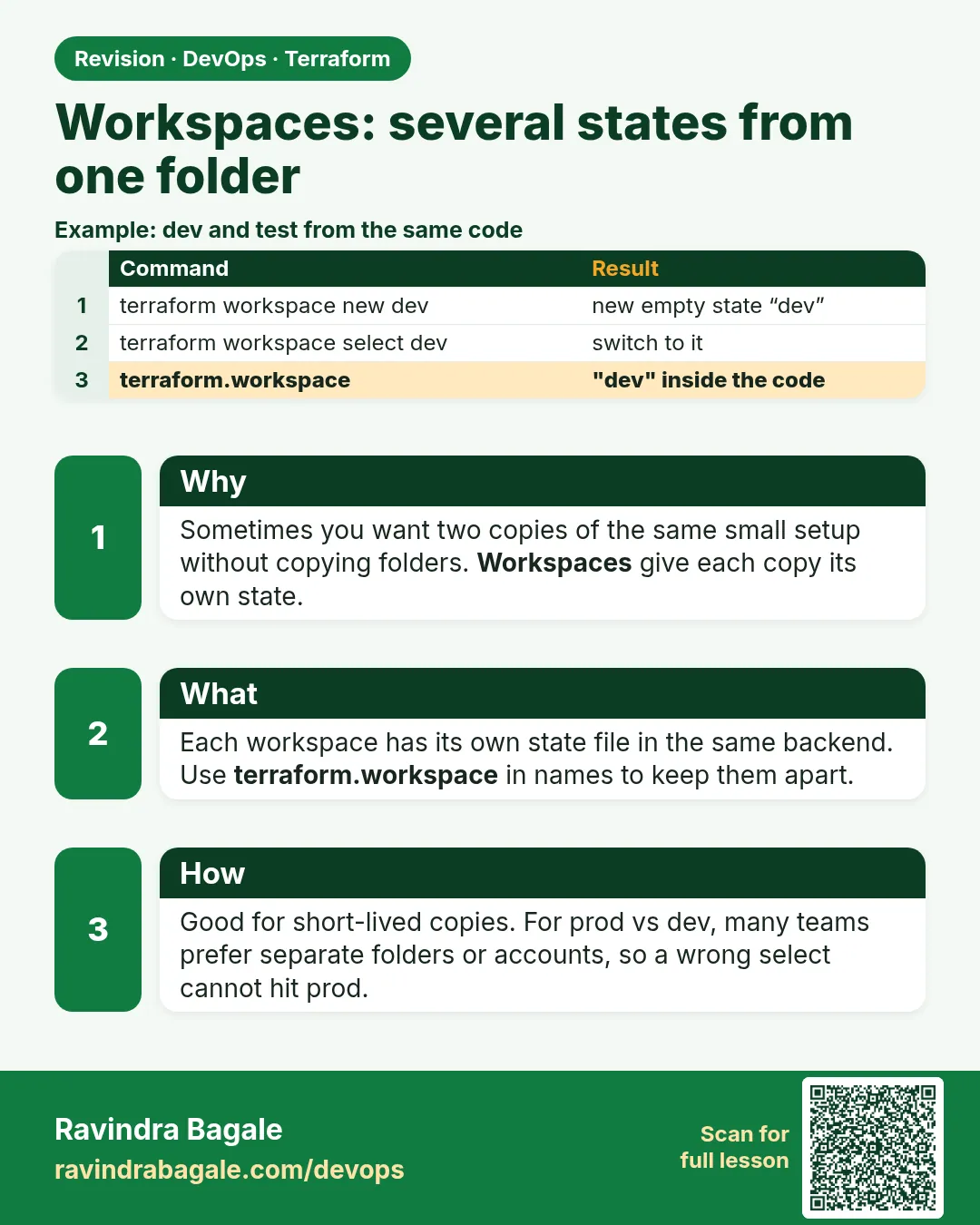
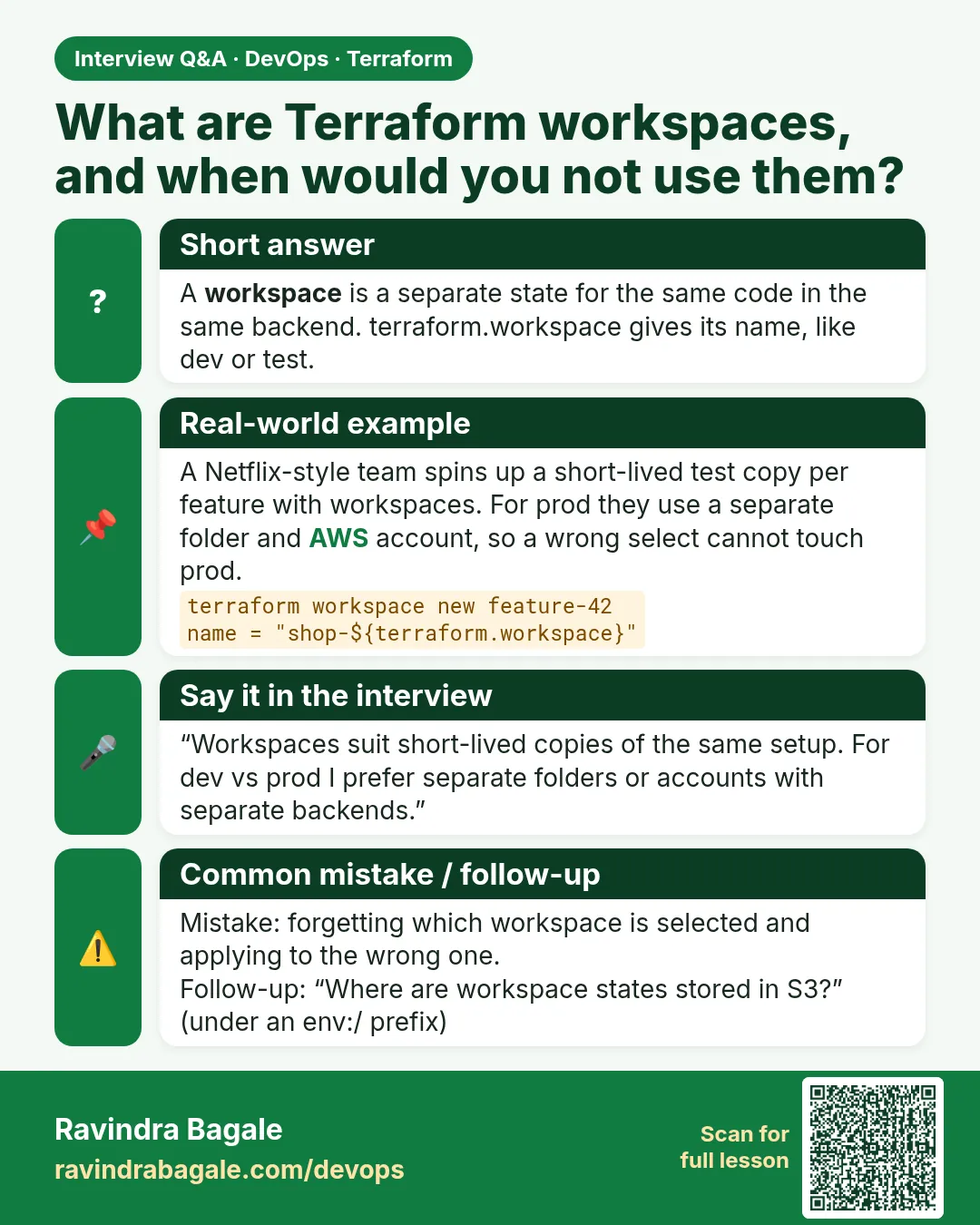
Story. A Netflix-style engineer wanted short-lived test stacks for each feature branch without copying folders. Workspaces give one configuration several separate state files. terraform.workspace returns the current name so you can vary names and sizes. For long-lived dev, stage and prod with different accounts, separate folders or backends are clearer, which Chapter 41 shows.
terraform workspace list
terraform workspace new feat-login
terraform workspace select feat-login

# main.tf
resource "aws_s3_bucket" "preview" {
  bucket = "badge-${terraform.workspace}-preview-<your-account-id>"
}

terraform apply
terraform destroy
terraform workspace select default
terraform workspace delete feat-login
What each line does
terraform workspace list— Shows all workspaces; the current one has a star.terraform workspace new feat-login— Creates a workspace with an empty state and switches to it.terraform workspace select feat-login— Switches to an existing workspace.bucket = "badge-${terraform.workspace}-preview-..."— Puts the workspace name into the bucket name so stacks do not collide.terraform apply— Creates resources tracked only in this workspace state.terraform destroy— Removes this workspace's resources to avoid cost.terraform workspace select default— Moves back to the default workspace.terraform workspace delete feat-login— Deletes the now-empty workspace.
When it is green.
  default
* feat-login

Plan: 1 to add, 0 to change, 0 to destroy.
Deleted workspace "feat-login"!
When it is red.
Error: Workspace is not empty
Workspace "feat-login" is currently tracking the following resource instances:
  - aws_s3_bucket.preview
Fix. You tried to delete a workspace before destroying its resources. Select it, run terraform destroy, then delete it.
What: every term in plain English
- workspace — A named state inside one backend. Each workspace has its own state file but shares the code.
- default workspace — The workspace you are in when you never create one. It cannot be deleted.
- terraform.workspace — A value you can use in code that holds the current workspace name.
- env:/ prefix — Where S3 stores non-default workspace states, such as env:/stage/badge-api/terraform.tfstate.
- workspace_key_prefix — Backend option that changes the env:/ folder name.
- directory per environment — The other pattern: envs/dev and envs/prod folders with their own backend keys.
- blast radius — How much breaks if one command goes wrong. Separate folders keep it small.
Example 1: Create and switch workspaces
A startup team in Bengaluru wanted quick test copies of a stack for each feature branch. Workspaces are perfect for short-lived copies.
- Show the current workspace.
- Create feature-login.
- List workspaces.
- Switch back to default.
terraform workspace show
terraform workspace new feature-login
terraform workspace list
terraform workspace select default
Output
default
Created and switched to workspace "feature-login"!
  default
* feature-login
Switched to workspace "default".
What it shows: The star marks where you are. Every plan and apply uses that workspace's state.
Example 2: Use terraform.workspace in names and sizes
Two copies in one account need different names, or AWS will refuse the second bucket. Use the workspace name in every name.
- Add a locals block with sizes per workspace.
- Use the name in the bucket and the size in the instance.
- Plan in two workspaces.
locals {
  size = {
    default = "t3.micro"
    stage   = "t3.small"
    prod    = "t3.medium"
  }
}

resource "aws_s3_bucket" "logs" {
  bucket = "badge-logs-${terraform.workspace}-123456789012"
}

resource "aws_instance" "web" {
  ami           = data.aws_ami.al2023.id
  instance_type = lookup(local.size, terraform.workspace, "t3.micro")
  tags = { Name = "badge-web-${terraform.workspace}" }
}
terraform workspace select stage
terraform plan | grep -E "bucket |instance_type"
Output
+ bucket        = "badge-logs-stage-123456789012"
+ instance_type = "t3.small"
What it shows: lookup with a default keeps new feature workspaces small and cheap.
Example 3: See where workspace states live in S3
During an audit at an ICICI vendor, nobody could find the stage state. It was under env:/. Know the path before you need it.
- Apply in stage.
- List the bucket recursively.
terraform apply -auto-approve
aws s3 ls s3://badge-tfstate-123456789012/ --recursive | grep badge-api
Output
2026-10-25 11:40:02       4980 badge-api/dev/terraform.tfstate
2026-10-25 11:52:19       4990 env:/stage/badge-api/dev/terraform.tfstate
What it shows: The default workspace uses the key as written. Others get env:/NAME/ in front.
Example 4: Delete a feature workspace cleanly
Leftover workspaces cost money because their resources keep running. Destroy first, then delete.
- Select the workspace.
- Destroy.
- Select default.
- Delete the workspace.
terraform workspace select feature-login
terraform destroy -auto-approve
terraform workspace select default
terraform workspace delete feature-login
Output
Destroy complete! Resources: 2 destroyed.
Switched to workspace "default".
Deleted workspace "feature-login"!
What it shows: Terraform refuses to delete a workspace whose state still has resources unless you add -force. Do not use -force; destroy first.
Command cheat sheet
| Command | What it does | When to use it |
|---|---|---|
terraform workspace show |
Prints current workspace | Before every apply |
terraform workspace new NAME |
Creates and selects | New test copy |
terraform workspace select NAME |
Switches | Change copy |
terraform workspace list |
Lists all | Find leftovers |
terraform workspace delete NAME |
Deletes an empty workspace | After destroy |
terraform workspace select -or-create NAME |
Selects or creates | CI pipelines |
Verify: did it work?
-
Right workspace
terraform workspace showOutput
stage -
State path
aws s3 ls s3://badge-tfstate-123456789012/env:/stage/ --recursiveOutput
2026-10-25 11:52:19 4990 env:/stage/badge-api/dev/terraform.tfstate
When it is red 1
Error: creating S3 Bucket (badge-logs-123456789012): BucketAlreadyOwnedByYou
Cause. The name does not include terraform.workspace, so two workspaces want the same bucket.
Fix, step by step
- Add ${terraform.workspace} to every unique name.
- Plan again in both workspaces.
When it is red 2
Workspace "feature-login" is not empty.
Cause. You tried to delete a workspace that still has resources.
Fix, step by step
- Select the workspace.
- Run terraform destroy.
- Delete it again.
When it is red 3
Plan: 0 to add, 1 to change, 0 to destroy. (instance_type t3.medium -> t3.micro, you meant prod)
Cause. You are in the wrong workspace.
Fix, step by step
- Stop. Do not apply.
- Run terraform workspace show.
- Select the right workspace and plan again.
Cleanup
for w in $(terraform workspace list | tr -d '* ' | grep -v default); do
  terraform workspace select $w && terraform destroy -auto-approve
  terraform workspace select default && terraform workspace delete $w
done
Ravindra Bagale's Tip
Use workspaces for short test copies. For dev, stage and prod, use separate folders with separate backend keys and separate IAM roles; Chapter 41 shows this.
Practice tasks
Easy Two copies
Why: Try workspaces.
What to do: Create stage and apply the bucket.
- Use terraform.workspace in the name.
Check: Two buckets with different names.
Easy Find the state
Why: Know the env:/ path.
What to do: List the bucket recursively.
- Use grep.
Check: env:/stage/ path listed.
Medium Sizes per workspace
Why: Use lookup.
What to do: Give stage t3.small and default t3.micro.
- Use a locals map.
Check: Plan shows different types.
Medium Clean up
Why: Avoid cost.
What to do: Destroy and delete every non-default workspace.
- Destroy before delete.
Check: Only default listed.
Easy Say it in two lines
Why: If you can say it simply, you understand it.
What to do: Write two short lines about this lesson for a fresher.
- Write the problem it solves.
- Write the one command or file you use.
- Read it aloud.
Check: A fresher understands it without a question.
Easy Start a safe lab folder
Why: Practice needs a throwaway place.
What to do: Make a new folder with versions.tf and a random_pet resource, so no AWS cost.
- mkdir tf-lab and cd into it.
- Add the hashicorp/random provider and one random_pet.
- Run terraform init and terraform apply.
Check: Apply complete! with 1 added.
Medium Break it on purpose
Why: You must know the red output by face.
What to do: Cause one error from the red part of this lesson and fix it.
- Follow one red section.
- Copy the exact message to your notes.
- Write the fix in one line.
Check: You fixed it without searching the web.
Medium Run it twice
Why: A second run must be quiet.
What to do: Run the same plan two times with no edits.
- Run terraform plan.
- Run it again.
- Explain any change it still shows.
Check: The second plan says No changes, or you can explain each line.
Medium Write a runbook page
Why: At 2 a.m. nobody remembers flags.
What to do: Write a one-page runbook for this lesson.
- Title, when to use, exact commands, how to check, how to undo.
Check: A teammate can follow it alone.
Medium Run it from a pipeline
Why: Real teams run Terraform from CI, not from laptops.
What to do: Run the main command of this lesson inside a GitHub Actions or Jenkins job.
- Add a job with hashicorp/setup-terraform or a Terraform Docker image.
- Give it AWS access through an IAM role, never a key in the file.
- Run init, then the command from this lesson.
Check: The job log shows the same output you saw on your laptop.
Medium Check the cost
Why: Labs left running cost real money.
What to do: Find what this lesson would cost per day if you forgot to destroy it.
- Open the AWS Pricing Calculator.
- Add each resource from your plan.
- Write the daily cost in your notes.
Check: You know the daily cost and you ran terraform destroy.
Hard Draw the flow top to bottom
Why: A drawing shows the order of work.
What to do: Draw this lesson as boxes from top to bottom.
- Start at your code, go through plan and state, end at AWS.
- Mark where each command reads or writes.
Check: Each box matches a real step you ran.
Hard Explain it like an interview
Why: Interviewers want real stories.
What to do: Record a 60 second answer about this lesson.
- Say the problem, the command, and one error you hit.
Check: Your answer has a real command and a real error message.
Homework: try at home
Try at home
Write two lines on when you would pick workspaces and two lines on when you would pick separate folders, with one real company example each.
Recap
- A workspace is a separate state for the same code.
- terraform.workspace makes names unique.
- S3 stores them under env:/NAME/.
- Destroy before deleting a workspace.
- Prefer folders for real dev, stage and prod.
FAQ
Are workspaces the same as environments?
Not quite. They share code, backend and credentials, so a mistake can hit prod. Folders separate more.
Can I delete the default workspace?
No.
Do workspaces share variables?
Yes. Use terraform.workspace or a tfvars file per workspace to change values.
Does Jenkins support workspaces?
Yes, use terraform workspace select -or-create NAME in the pipeline.
Can I rename a workspace?
No. Create a new one and move state with state mv or a pull and push.
Interview questions
-
What is a Terraform workspace?
A separate named state for the same configuration and backend.
-
Workspaces or folders for prod?
Folders with separate backends and roles, to reduce blast radius.
-
How do you use the workspace name in code?
With terraform.workspace.
-
Where are workspace states stored in S3?
Under env:/NAME/ followed by the key.
-
How do you safely remove a workspace?
Destroy its resources, select default, then delete it.
Quick quiz
Q1. Command to see the current workspace?
terraform workspace show
Q2. Value that holds the workspace name?
terraform.workspace
Q3. Can default be deleted?
No
Q4. S3 prefix for workspace states?
env:/
Q5. Destroy or delete first?
Destroy first
Lab
- Create a bootstrap project with the state bucket from 34.2 and apply it.
- In an app project with local state, apply one small resource.
- Add backend.tf and run terraform init -migrate-state.
- Open the S3 console and find the state object under your key.
- Run terraform plan in two terminals at once and watch the lock.
- Run terraform destroy in the app project, then in the bootstrap project, to avoid cost.
Practice task
Explain in five lines why backend blocks cannot use variables and how terraform init -backend-config solves it.
Ravindra Bagale's Tip
Version the state bucket. A bad write then costs you one restore, not a rebuild.
In short
- State maps code to real ids and can hold secrets; keep it out of Git.
- Use S3 with versioning, encryption, public access blocked and use_lockfile = true.
- DynamoDB locking is the older pattern; migrate by enabling both, then dropping the table.
- init -migrate-state moves local state safely.
- Workspaces suit short-lived stacks; long-lived environments get separate state keys.
Samajla ka?
 Revision card
 Interview card