Chapter 34: Terraform State Remote S3 Backend Locking and Workspaces
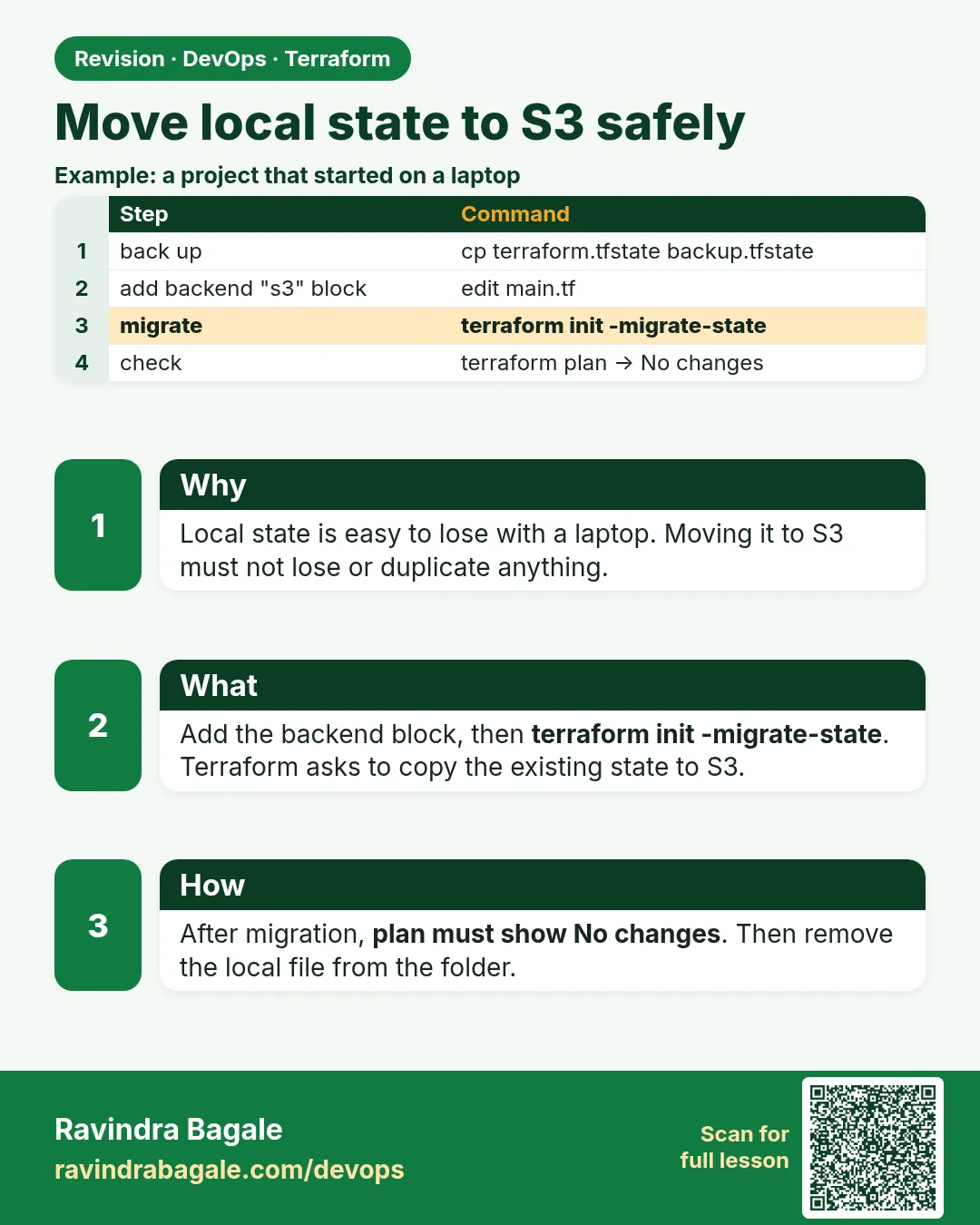
34.4 Move local state to S3 safely
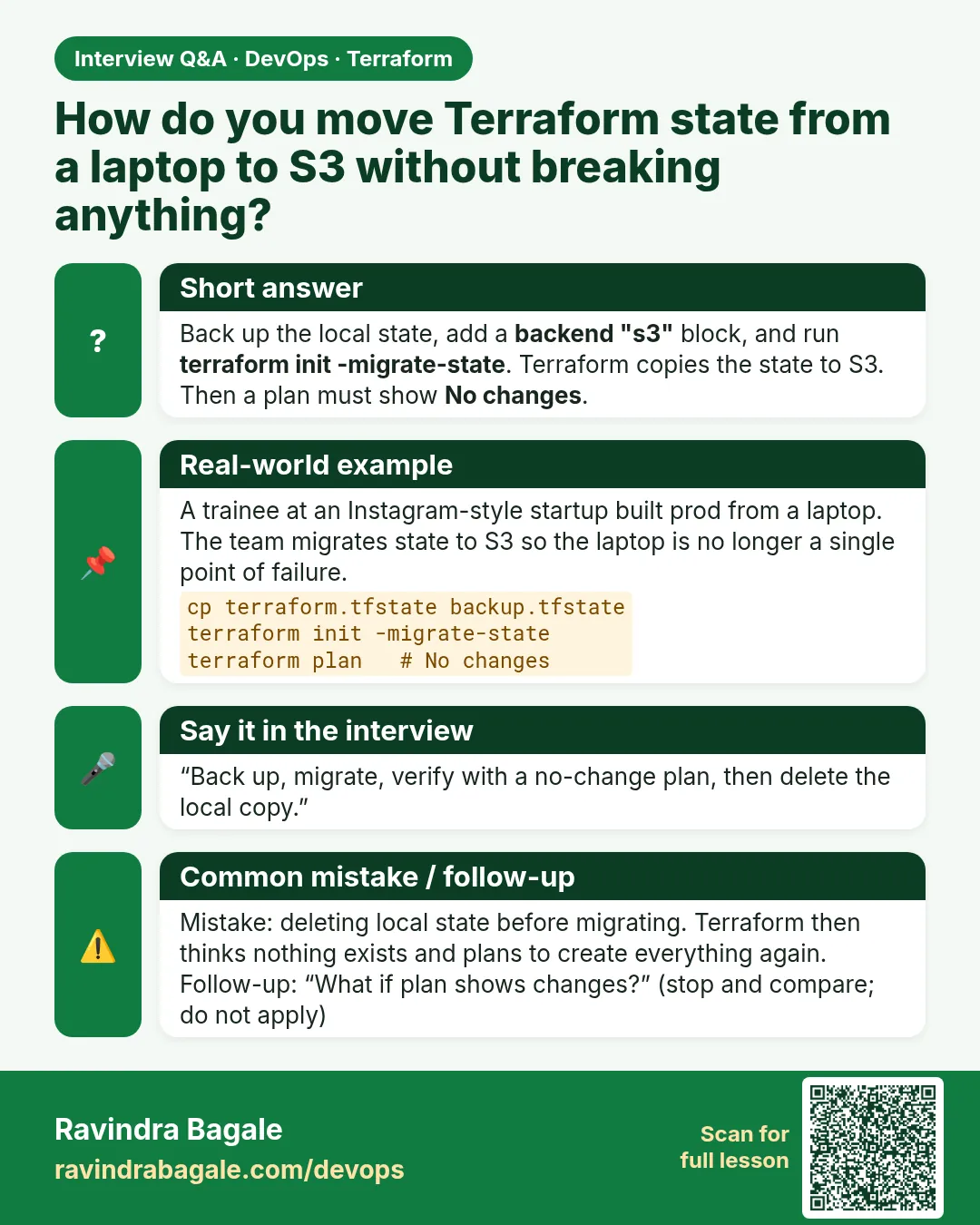
Story. An Instagram-style feature team started a prototype with local state and then needed to share it. Copying the file into S3 by hand risks overwriting someone's newer copy. Terraform can migrate it for you: add the backend block and run init with -migrate-state. Terraform copies the state and checks that nothing is lost.
Steps
- Save the current resource list.
- Add backend.tf.
- Run terraform init -migrate-state and answer yes.
- Compare the lists.
- Run terraform plan and expect No changes.
- Delete the local terraform.tfstate files.
terraform state list > before.txt
terraform init -migrate-state
terraform state list > after.txt
diff before.txt after.txt
terraform plan
What each line does
terraform state list > before.txt— Saves the list of tracked resources before the move.terraform init -migrate-state— Reads the new backend block and copies the local state into S3.terraform state list > after.txt— Lists resources again, now read from S3.diff before.txt after.txt— Shows nothing if the move kept every resource.terraform plan— Must show no changes, which proves state and AWS still agree.
When it is green.
Do you want to copy existing state to the new backend?
  Enter a value: yes
Successfully configured the backend "s3"!
No changes. Your infrastructure matches the configuration.
When it is red.
Error: Failed to get existing workspaces: S3 bucket "badge-tfstate-..." does not exist.
Fix. The bootstrap bucket was not created yet or is in another region. Apply the bootstrap project first and match the region in backend.tf.
What: every term in plain English
- migrate-state — The init flag that copies existing state from the old backend to the new one.
- state backup before migration — A dated copy of terraform.tfstate taken just before you change backends.
- reconfigure — The init flag that ignores the old backend without copying state. Wrong choice for a live project.
- backend change detection — Terraform notices backend.tf changed and refuses to plan until you run init.
- state mv — Moves one address inside state or into another state file.
- state push — Uploads a local file as the remote state. A last-resort tool.
- freeze window — A short time when nobody runs apply, so the move happens on a quiet state.
Example 1: Move a local project to S3 in five commands
A Freshworks-style team had one engineer applying from his laptop for months. The day he went on leave, they moved state to S3. This is the exact order.
- Tell the team: no applies for 15 minutes.
- Plan and confirm zero changes.
- Copy the local state with the date.
- Add backend.tf.
- Run init -migrate-state and answer yes.
terraform plan | tail -1
cp terraform.tfstate state-backup-2026-10-25.tfstate
# add backend.tf now
terraform init -migrate-state
Output
No changes. Your infrastructure matches the configuration.
Initializing the backend...
Do you want to copy existing state to the new backend?
  Pre-existing state was found while migrating the previous "local" backend to the
  newly configured "s3" backend. No existing state was found in the newly
  configured "s3" backend. Do you want to copy this state to the new "s3"
  backend? Enter "yes" to copy and "no" to start with an empty state.

  Enter a value: yes

Successfully configured the backend "s3"!
What it shows: Starting from zero changes means any change you see later is caused by the move, not by old work.
Example 2: Prove the move worked
Never trust a migration without proof. Compare resource counts and plan again.
- Count addresses from the backup.
- Count addresses from remote state.
- Plan.
- Rename the local file so nobody uses it by mistake.
jq '.resources | length' state-backup-2026-10-25.tfstate
terraform state list | wc -l
terraform plan | tail -1
mv terraform.tfstate terraform.tfstate.migrated-do-not-use
Output
7
7
No changes. Your infrastructure matches the configuration.
What it shows: Same count, zero changes. Keep the backup in a private, encrypted place for a few weeks, then delete it.
Example 3: Move state between two keys in the same bucket
A Myntra project was renamed from shop-api to catalog-api. The key path had to change without touching AWS.
- Change the key in backend.tf.
- Run init -migrate-state.
- Check both keys in S3.
- Delete the old object after a week.
terraform {
  backend "s3" {
    bucket       = "badge-tfstate-123456789012"
    key          = "catalog-api/dev/terraform.tfstate"   # was shop-api/dev
    region       = "ap-south-1"
    encrypt      = true
    use_lockfile = true
  }
}
terraform init -migrate-state
aws s3 ls s3://badge-tfstate-123456789012/ --recursive | grep tfstate
Output
Successfully configured the backend "s3"!
2026-10-25 11:02:10       5120 catalog-api/dev/terraform.tfstate
2026-10-24 18:40:55       5120 shop-api/dev/terraform.tfstate
What it shows: The old object stays until you remove it. Leave it for a week as an extra safety copy.
Example 4: Move state back to local for a training lab
Sometimes you want to stop paying for a test project or hand it over. Removing the backend block and migrating brings state home.
- Delete backend.tf.
- Run init -migrate-state.
- Check that terraform.tfstate exists locally.
rm backend.tf
terraform init -migrate-state
ls -l terraform.tfstate
Output
Do you want to copy existing state to the new backend?
  Enter a value: yes
Successfully unset the backend "s3". Terraform will now operate locally.
-rw-r--r-- 1 ravi ravi 5120 Oct 25 11:10 terraform.tfstate
What it shows: The same flag works in both directions. Use local state only for labs.
Command cheat sheet
| Command | What it does | When to use it |
|---|---|---|
terraform init -migrate-state |
Copies state to the new backend | Any backend change on a live project |
terraform init -reconfigure |
Ignores old backend, no copy | Fresh start only |
cp terraform.tfstate state-backup-DATE.tfstate |
Dated backup | Before every migration |
terraform state list | wc -l |
Counts addresses | Compare before and after |
terraform state pull |
Reads current state | Backup of remote state |
terraform state push FILE |
Overwrites remote state | Last resort recovery only |
Verify: did it work?
-
Counts match
jq '.resources | length' state-backup-2026-10-25.tfstate; terraform state list | wc -lOutput
7 7 -
Plan is clean
terraform plan -detailed-exitcode; echo $?Output
No changes. Your infrastructure matches the configuration.
0
When it is red 1
Error: Backend initialization required, please run "terraform init"
Cause. You changed backend.tf and ran plan before init.
Fix, step by step
- Run terraform init -migrate-state.
- Answer yes to copy state.
- Plan again.
When it is red 2
Plan: 7 to add, 0 to change, 0 to destroy. (right after migration)
Cause. You ran init -reconfigure or answered no, so remote state is empty.
Fix, step by step
- Do not apply.
- Run terraform state push state-backup-2026-10-25.tfstate.
- Plan and confirm zero changes.
When it is red 3
Error: Error acquiring the state lock (during migrate)
Cause. Someone else ran plan or apply during your freeze window.
Fix, step by step
- Ask the team to stop.
- Wait for their run to finish.
- Run init -migrate-state again.
Cleanup
# after two to four weeks of clean plans
shred -u state-backup-2026-10-25.tfstate terraform.tfstate.migrated-do-not-use
Ravindra Bagale's Tip
Always migrate from a zero-change plan. If the plan is not clean before the move, finish or revert that work first.
Practice tasks
Easy Back up first
Why: Build the habit.
What to do: Copy local state with the date in the name.
- Use cp.
Check: Backup file exists.
Easy Migrate
Why: Do the move.
What to do: Add backend.tf and run init -migrate-state.
- Answer yes.
Check: Backend s3 configured.
Medium Prove it
Why: Trust only proof.
What to do: Compare counts and plan.
- Use jq and wc -l.
Check: Same counts, no changes.
Medium Rename key
Why: Handle a project rename.
What to do: Change the key and migrate again.
- List the bucket.
Check: Both keys listed.
Easy Say it in two lines
Why: If you can say it simply, you understand it.
What to do: Write two short lines about this lesson for a fresher.
- Write the problem it solves.
- Write the one command or file you use.
- Read it aloud.
Check: A fresher understands it without a question.
Easy Start a safe lab folder
Why: Practice needs a throwaway place.
What to do: Make a new folder with versions.tf and a random_pet resource, so no AWS cost.
- mkdir tf-lab and cd into it.
- Add the hashicorp/random provider and one random_pet.
- Run terraform init and terraform apply.
Check: Apply complete! with 1 added.
Medium Break it on purpose
Why: You must know the red output by face.
What to do: Cause one error from the red part of this lesson and fix it.
- Follow one red section.
- Copy the exact message to your notes.
- Write the fix in one line.
Check: You fixed it without searching the web.
Medium Run it twice
Why: A second run must be quiet.
What to do: Run the same plan two times with no edits.
- Run terraform plan.
- Run it again.
- Explain any change it still shows.
Check: The second plan says No changes, or you can explain each line.
Medium Write a runbook page
Why: At 2 a.m. nobody remembers flags.
What to do: Write a one-page runbook for this lesson.
- Title, when to use, exact commands, how to check, how to undo.
Check: A teammate can follow it alone.
Medium Run it from a pipeline
Why: Real teams run Terraform from CI, not from laptops.
What to do: Run the main command of this lesson inside a GitHub Actions or Jenkins job.
- Add a job with hashicorp/setup-terraform or a Terraform Docker image.
- Give it AWS access through an IAM role, never a key in the file.
- Run init, then the command from this lesson.
Check: The job log shows the same output you saw on your laptop.
Medium Check the cost
Why: Labs left running cost real money.
What to do: Find what this lesson would cost per day if you forgot to destroy it.
- Open the AWS Pricing Calculator.
- Add each resource from your plan.
- Write the daily cost in your notes.
Check: You know the daily cost and you ran terraform destroy.
Hard Draw the flow top to bottom
Why: A drawing shows the order of work.
What to do: Draw this lesson as boxes from top to bottom.
- Start at your code, go through plan and state, end at AWS.
- Mark where each command reads or writes.
Check: Each box matches a real step you ran.
Hard Explain it like an interview
Why: Interviewers want real stories.
What to do: Record a 60 second answer about this lesson.
- Say the problem, the command, and one error you hit.
Check: Your answer has a real command and a real error message.
Homework: try at home
Try at home
Write a migration checklist with eight lines, from "announce freeze" to "delete local backup", and keep it in your notes.
Recap
- Start from a zero-change plan.
- Take a dated backup of local state.
- Use init -migrate-state, never -reconfigure, on live projects.
- Prove with counts and a clean plan.
- Old copies stay for a while, then are deleted safely.
FAQ
What if I answered no by mistake?
Remote state is empty. Push your backup with terraform state push and plan again.
Does migration touch AWS resources?
No. Only the state file moves.
Can I migrate while Jenkins runs?
No. Pause the pipelines during the freeze window.
Can I move from one bucket to another?
Yes, change bucket in backend.tf and use -migrate-state.
Why rename the old local file?
So nobody runs Terraform against the outdated copy.
Interview questions
-
How do you move local state to S3?
Clean plan, backup, add backend, init -migrate-state, then verify.
-
Difference between -migrate-state and -reconfigure?
migrate-state copies state; reconfigure starts with whatever is in the new backend.
-
How do you prove a migration?
Same resource count and a zero-change plan.
-
How do you recover if remote state is empty after a move?
terraform state push with the backup file.
-
Why a freeze window?
To avoid a lock clash or a half-moved state.
Quick quiz
Q1. Which init flag copies state?
-migrate-state
Q2. First check before migration?
A zero-change plan
Q3. Does migration change AWS resources?
No
Q4. Command to upload a backup as remote state?
terraform state push
Q5. What should you do with the old local file?
Rename it, then delete it later.
Samajla ka?
 Revision card
 Interview card