Chapter 34: Terraform State Remote S3 Backend Locking and Workspaces
34.3 DynamoDB locking — the older pattern you will still meet
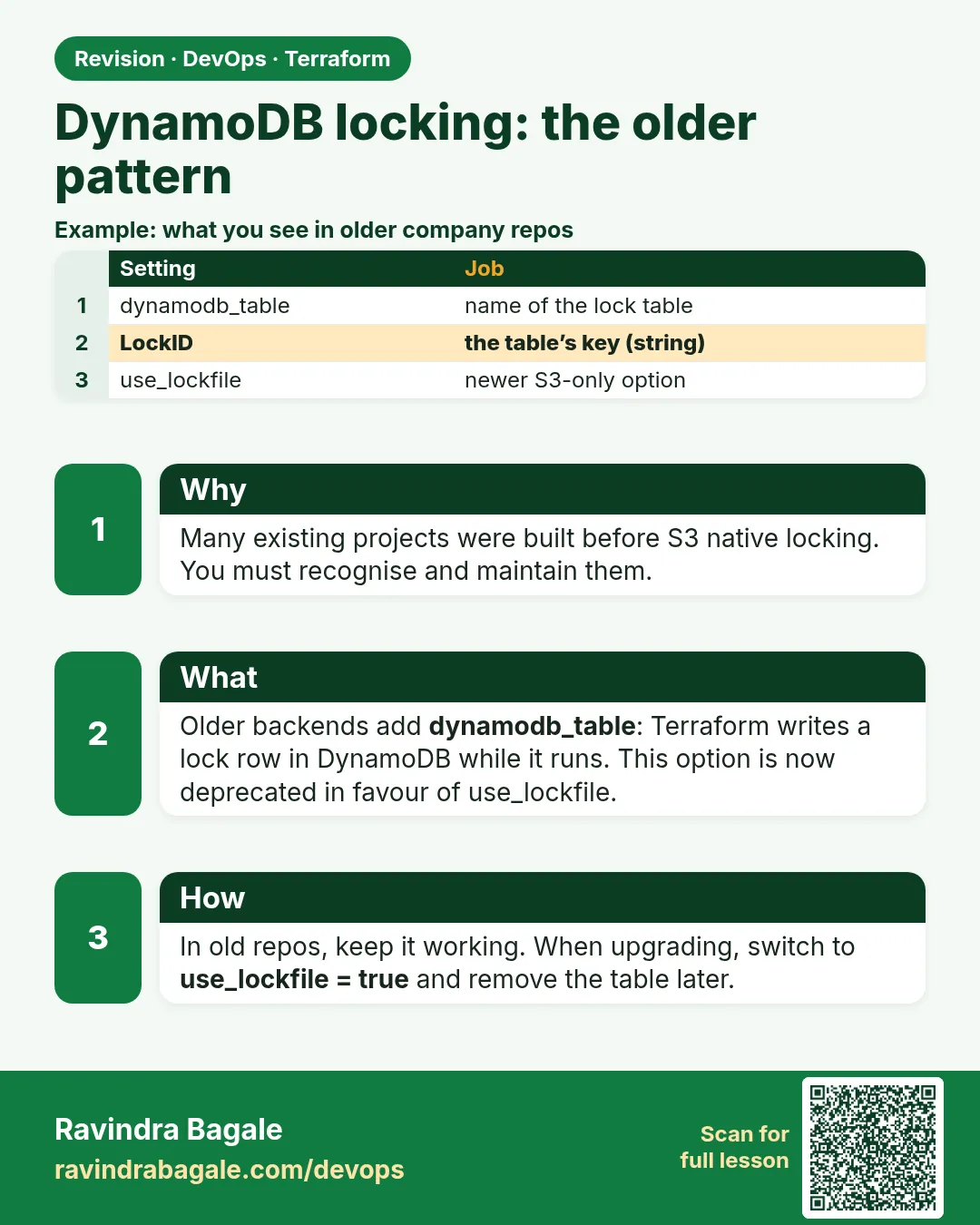
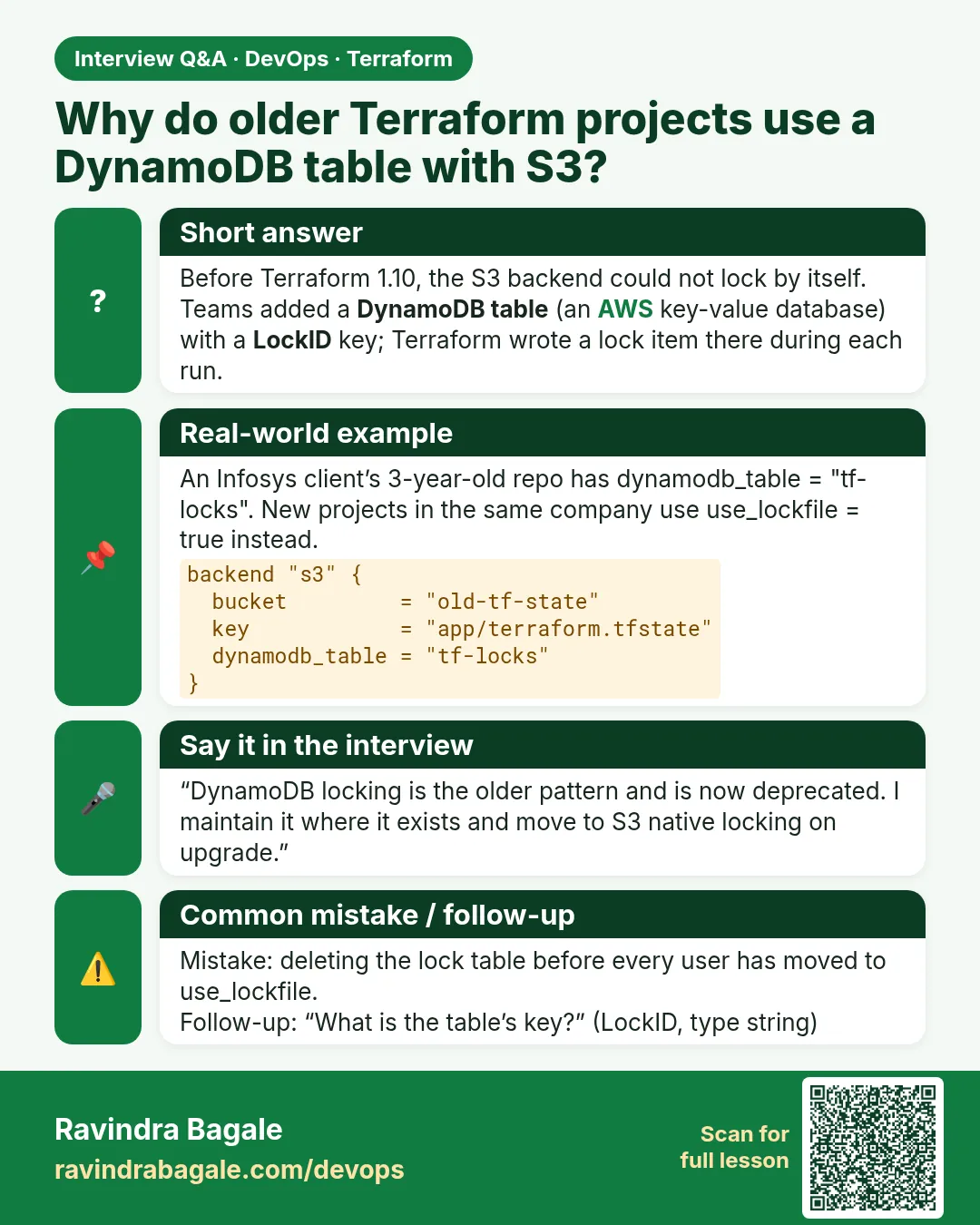
Story. Many existing Infosys client repositories were written before S3 native locking existed, so they lock with a DynamoDB table. You must be able to read that setup and migrate it. The table needs a string partition key named LockID. During a migration you can set both dynamodb_table and use_lockfile, then remove the DynamoDB setting once every pipeline uses the new Terraform.
resource "aws_dynamodb_table" "tflock" {
  name         = "badge-tf-locks"
  billing_mode = "PAY_PER_REQUEST"
  hash_key     = "LockID"
  attribute {
    name = "LockID"
    type = "S"
  }
}

terraform {
  backend "s3" {
    bucket         = "badge-tfstate-<your-account-id>"
    key            = "badge-api/dev/terraform.tfstate"
    region         = "ap-south-1"
    dynamodb_table = "badge-tf-locks"
    use_lockfile   = true
  }
}
What each line does
resource "aws_dynamodb_table" "tflock" {— Creates the lock table used by the older pattern.billing_mode = "PAY_PER_REQUEST"— Bills only per request, so an idle table costs very little.hash_key = "LockID"— Terraform requires the partition key to be exactly LockID.type = "S"— The key is a string.dynamodb_table = "badge-tf-locks"— The old way: lock by writing a row in this table.use_lockfile = true— The new way, enabled at the same time during migration; later delete the dynamodb_table line.
When it is green.
Terraform has been successfully initialized!
Acquiring state lock. This may take a few moments...
Releasing state lock. This may take a few moments...
When it is red.
Error: Error acquiring the state lock
AccessDeniedException: User: arn:aws:sts::...:assumed-role/JenkinsRole is not authorized
to perform: dynamodb:PutItem on resource: table/badge-tf-locks
Fix. The pipeline role lacks DynamoDB permissions. Add dynamodb:GetItem, PutItem and DeleteItem on that table, or finish the move to use_lockfile and grant S3 access only.
What: every term in plain English
- DynamoDB lock table — A table with one key, LockID. Terraform writes an item there while it runs.
- LockID — The partition key name Terraform expects. It must be spelled exactly like this, type String.
- dynamodb_table — The old S3 backend setting that names the lock table. It is deprecated in favour of use_lockfile.
- PAY_PER_REQUEST — A DynamoDB billing mode with no fixed capacity. A lock table costs almost nothing.
- force-unlock — A command that removes a stuck lock. Use it only when you are sure nobody is running.
- digest item — A second item Terraform stores with an md5 of the state, used to catch a stale read.
- migration — Moving a project from DynamoDB locking to use_lockfile without losing state.
Example 1: Create the lock table the classic way
Most Terraform projects written before 2025 at HDFC, Airtel and many service companies still use a DynamoDB table. You will meet it on day one of a support job.
- Add the table to your bootstrap project.
- Apply.
- Describe the table to check the key.
resource "aws_dynamodb_table" "tflock" {
  name         = "badge-tf-locks"
  billing_mode = "PAY_PER_REQUEST"
  hash_key     = "LockID"

  attribute {
    name = "LockID"
    type = "S"
  }
}
terraform apply -auto-approve
aws dynamodb describe-table --table-name badge-tf-locks --query "Table.KeySchema"
Output
Apply complete! Resources: 1 added, 0 changed, 0 destroyed.
[
    {
        "AttributeName": "LockID",
        "KeyType": "HASH"
    }
]
What it shows: The key name LockID is fixed by Terraform. Any other name and locking fails.
Example 2: Use the table from the backend block
This is the backend block you will see in older repos. Read every line so you can support it.
- Add dynamodb_table to backend.tf.
- Run init -reconfigure.
- Start a slow apply and scan the table from another terminal.
terraform {
  backend "s3" {
    bucket         = "badge-tfstate-123456789012"
    key            = "legacy-app/dev/terraform.tfstate"
    region         = "ap-south-1"
    encrypt        = true
    dynamodb_table = "badge-tf-locks"
  }
}
terraform init -reconfigure
aws dynamodb scan --table-name badge-tf-locks --query "Items[].LockID.S"
Output
Warning: Deprecated Parameter
  The parameter "dynamodb_table" is deprecated. Use parameter "use_lockfile" instead.
[
    "badge-tfstate-123456789012/legacy-app/dev/terraform.tfstate",
    "badge-tfstate-123456789012/legacy-app/dev/terraform.tfstate-md5"
]
What it shows: One item is the lock, the other is the md5 digest. The warning tells you this pattern is on its way out.
Example 3: Clear a stuck lock safely
A Jenkins agent at a Capgemini client was killed mid-apply. The lock stayed and every pipeline failed. Here is the calm way out.
- Read the lock id from the error.
- Confirm in Jenkins that no job is running.
- Run force-unlock with the id.
- Plan again.
terraform plan
# copy the ID from the Lock Info block
terraform force-unlock 9db3a1f2-4c6e-8b7d-a0e1-2f3c4d5e6f70
terraform plan | tail -1
Output
Error: Error acquiring the state lock
Lock Info:
  ID:        9db3a1f2-4c6e-8b7d-a0e1-2f3c4d5e6f70
  Who:       jenkins@agent-3
Do you really want to force-unlock?
  Enter a value: yes
Terraform state has been successfully unlocked!
No changes. Your infrastructure matches the configuration.
What it shows: Force-unlock while a real apply runs can corrupt state. Always check who holds the lock first.
Example 4: Move from DynamoDB to use_lockfile
Many teams are doing this upgrade right now. You can turn on both for one release, then remove the table.
- Upgrade Terraform to a version that supports use_lockfile.
- Add use_lockfile = true and keep dynamodb_table for one week.
- Run init -reconfigure and test a plan.
- Remove dynamodb_table, init again, and delete the table later.
terraform {
  backend "s3" {
    bucket         = "badge-tfstate-123456789012"
    key            = "legacy-app/dev/terraform.tfstate"
    region         = "ap-south-1"
    encrypt        = true
    use_lockfile   = true
    dynamodb_table = "badge-tf-locks"   # remove after one week
  }
}
terraform init -reconfigure
terraform plan | tail -1
Output
Successfully configured the backend "s3"!
No changes. Your infrastructure matches the configuration.
What it shows: With both set, Terraform takes both locks. Old pipelines and new ones stay safe during the change.
Command cheat sheet
| Command | What it does | When to use it |
|---|---|---|
aws dynamodb describe-table --table-name T |
Shows the key schema | Check LockID spelling |
aws dynamodb scan --table-name T |
Lists current lock items | See who holds a lock |
terraform force-unlock ID |
Removes a stuck lock | Only when no run is active |
terraform init -reconfigure |
Reloads backend settings | After editing the lock settings |
terraform plan -lock-timeout=5m |
Waits up to five minutes for a lock | Busy shared pipelines |
terraform version |
Prints the CLI version | Check use_lockfile support |
Verify: did it work?
-
Table key is LockID
aws dynamodb describe-table --table-name badge-tf-locks --query "Table.KeySchema[0].AttributeName"Output
"LockID" -
No lock left after apply
aws dynamodb scan --table-name badge-tf-locks --query "Count"Output
1
When it is red 1
Error: ValidationException: One of the required keys was not given a value
Cause. The table key is not named LockID, or its type is not String.
Fix, step by step
- Describe the table.
- If the key is wrong, create a new table with hash_key LockID.
- Update dynamodb_table and run init -reconfigure.
When it is red 2
Error: AccessDeniedException: ... is not authorized to perform: dynamodb:PutItem
Cause. The IAM policy has S3 rights but no DynamoDB rights.
Fix, step by step
- Add dynamodb:GetItem, PutItem and DeleteItem on the table ARN.
- Run plan again.
When it is red 3
Error: state data in S3 does not have the expected content. Checksum ... does not match
Cause. The md5 digest item does not match the state, often after a manual upload.
Fix, step by step
- Pull state and check it is correct.
- Update the digest value shown in the error in the table, or remove the digest item.
- Run plan and confirm.
Cleanup
# after the migration week only
terraform -chdir=bootstrap destroy -target=aws_dynamodb_table.tflock
Ravindra Bagale's Tip
When you join a project, grep for dynamodb_table. If you find it, plan the move to use_lockfile as a small, safe win for the team.
Practice tasks
Easy Make the table
Why: Know the classic setup.
What to do: Create badge-tf-locks with PAY_PER_REQUEST.
- Key must be LockID.
Check: Key schema shows LockID HASH.
Easy Read the warning
Why: Recognise old code.
What to do: Use dynamodb_table and run init.
- Look for Deprecated Parameter.
Check: Warning printed.
Medium Stuck lock drill
Why: Stay calm in an outage.
What to do: Kill a running apply with Ctrl+C twice, then force-unlock.
- Copy the ID from the error.
Check: Successfully unlocked.
Medium Migrate
Why: Do the real upgrade.
What to do: Set both options, test, then remove dynamodb_table.
- Use init -reconfigure.
Check: No changes after each step.
Easy Say it in two lines
Why: If you can say it simply, you understand it.
What to do: Write two short lines about this lesson for a fresher.
- Write the problem it solves.
- Write the one command or file you use.
- Read it aloud.
Check: A fresher understands it without a question.
Easy Start a safe lab folder
Why: Practice needs a throwaway place.
What to do: Make a new folder with versions.tf and a random_pet resource, so no AWS cost.
- mkdir tf-lab and cd into it.
- Add the hashicorp/random provider and one random_pet.
- Run terraform init and terraform apply.
Check: Apply complete! with 1 added.
Medium Break it on purpose
Why: You must know the red output by face.
What to do: Cause one error from the red part of this lesson and fix it.
- Follow one red section.
- Copy the exact message to your notes.
- Write the fix in one line.
Check: You fixed it without searching the web.
Medium Run it twice
Why: A second run must be quiet.
What to do: Run the same plan two times with no edits.
- Run terraform plan.
- Run it again.
- Explain any change it still shows.
Check: The second plan says No changes, or you can explain each line.
Medium Write a runbook page
Why: At 2 a.m. nobody remembers flags.
What to do: Write a one-page runbook for this lesson.
- Title, when to use, exact commands, how to check, how to undo.
Check: A teammate can follow it alone.
Medium Run it from a pipeline
Why: Real teams run Terraform from CI, not from laptops.
What to do: Run the main command of this lesson inside a GitHub Actions or Jenkins job.
- Add a job with hashicorp/setup-terraform or a Terraform Docker image.
- Give it AWS access through an IAM role, never a key in the file.
- Run init, then the command from this lesson.
Check: The job log shows the same output you saw on your laptop.
Medium Check the cost
Why: Labs left running cost real money.
What to do: Find what this lesson would cost per day if you forgot to destroy it.
- Open the AWS Pricing Calculator.
- Add each resource from your plan.
- Write the daily cost in your notes.
Check: You know the daily cost and you ran terraform destroy.
Hard Draw the flow top to bottom
Why: A drawing shows the order of work.
What to do: Draw this lesson as boxes from top to bottom.
- Start at your code, go through plan and state, end at AWS.
- Mark where each command reads or writes.
Check: Each box matches a real step you ran.
Hard Explain it like an interview
Why: Interviewers want real stories.
What to do: Record a 60 second answer about this lesson.
- Say the problem, the command, and one error you hit.
Check: Your answer has a real command and a real error message.
Homework: try at home
Try at home
Write a five-line runbook titled "Stuck Terraform lock" that a junior on night shift can follow.
Recap
- Older projects lock with a DynamoDB table keyed LockID.
- dynamodb_table is deprecated; use_lockfile replaces it.
- force-unlock only after checking no run is active.
- Both options can run together during migration.
- IAM needs DynamoDB item rights for the old pattern.
FAQ
Does the DynamoDB table cost money?
With PAY_PER_REQUEST it costs a few paise a month for a normal team.
Can one table serve many projects?
Yes. Each state path is a separate LockID item.
Is DynamoDB locking broken?
No, it works. It is just deprecated, so new projects should use use_lockfile.
What is the -md5 item?
A checksum of the state used to catch an out-of-date read.
When is force-unlock dangerous?
When another apply is really running. Two writers can corrupt state.
Interview questions
-
How did Terraform lock S3 state before use_lockfile?
With a DynamoDB table keyed LockID named in dynamodb_table.
-
What is the required key for the lock table?
LockID of type String.
-
How do you clear a stale lock?
Confirm nothing runs, then terraform force-unlock with the lock id.
-
How would you migrate to native S3 locking?
Upgrade Terraform, set both options for a while, then remove dynamodb_table.
-
What does -lock-timeout do?
Makes Terraform wait for a lock instead of failing at once.
Quick quiz
Q1. Exact key name for the lock table?
LockID
Q2. Which backend parameter is deprecated?
dynamodb_table
Q3. Command to remove a stuck lock?
terraform force-unlock ID
Q4. Billing mode used for the lock table?
PAY_PER_REQUEST
Q5. Can both locks be on at once?
Yes
Samajla ka?
 Revision card
 Interview card