Chapter 12: Terraform Introduction
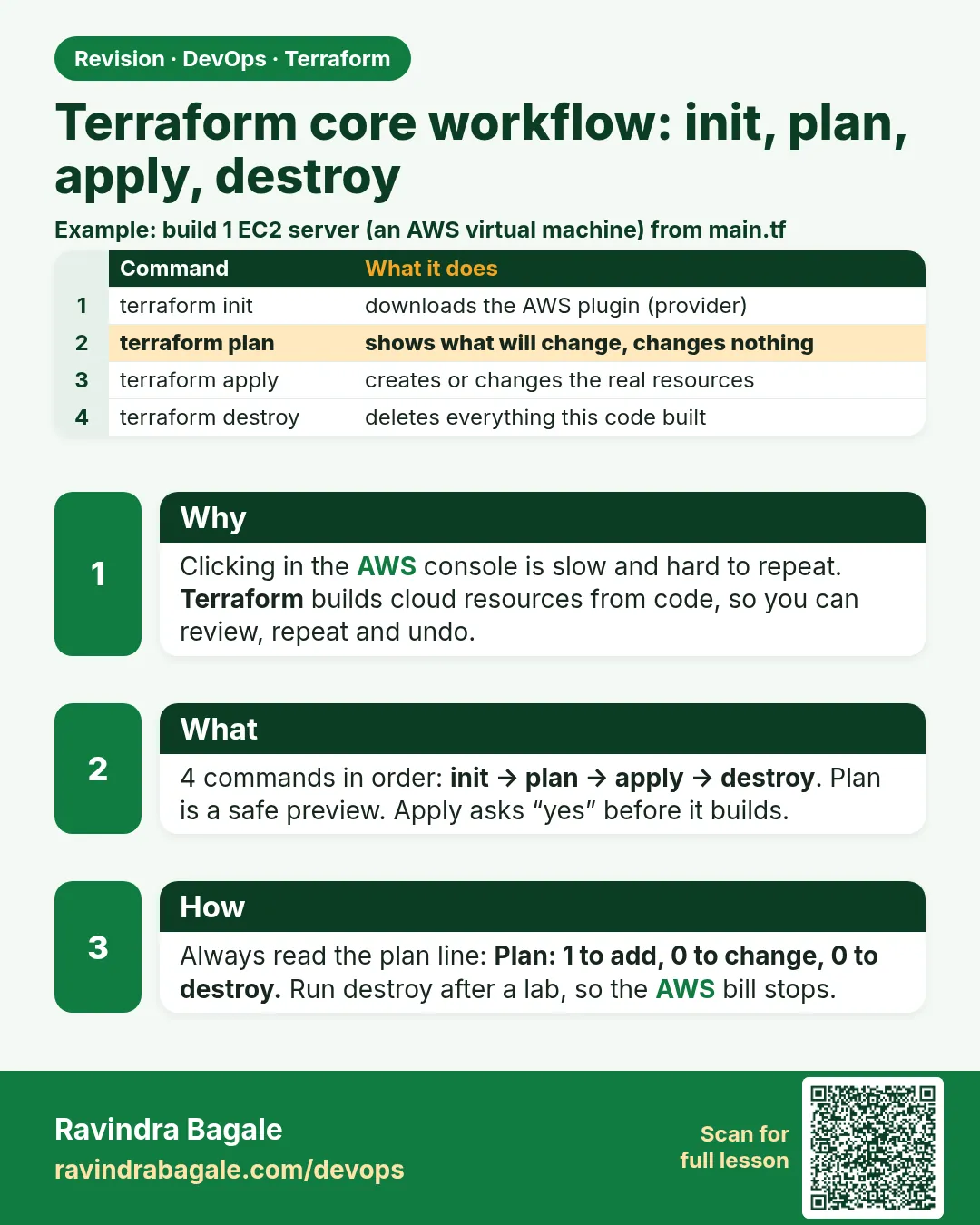
12.3 The core workflow — init, plan, apply, destroy
Story. On an Instagram-style feature team, nobody runs apply on a hunch. Every infrastructure change follows the same four beats: download the provider, read the plan, apply exactly that plan, and destroy the lab when class is over. The habit that saves money and outages is reading the last line of the plan before typing yes.
Steps
- Write or change .tf files.
- Run terraform init once per folder.
- Run terraform fmt and terraform validate.
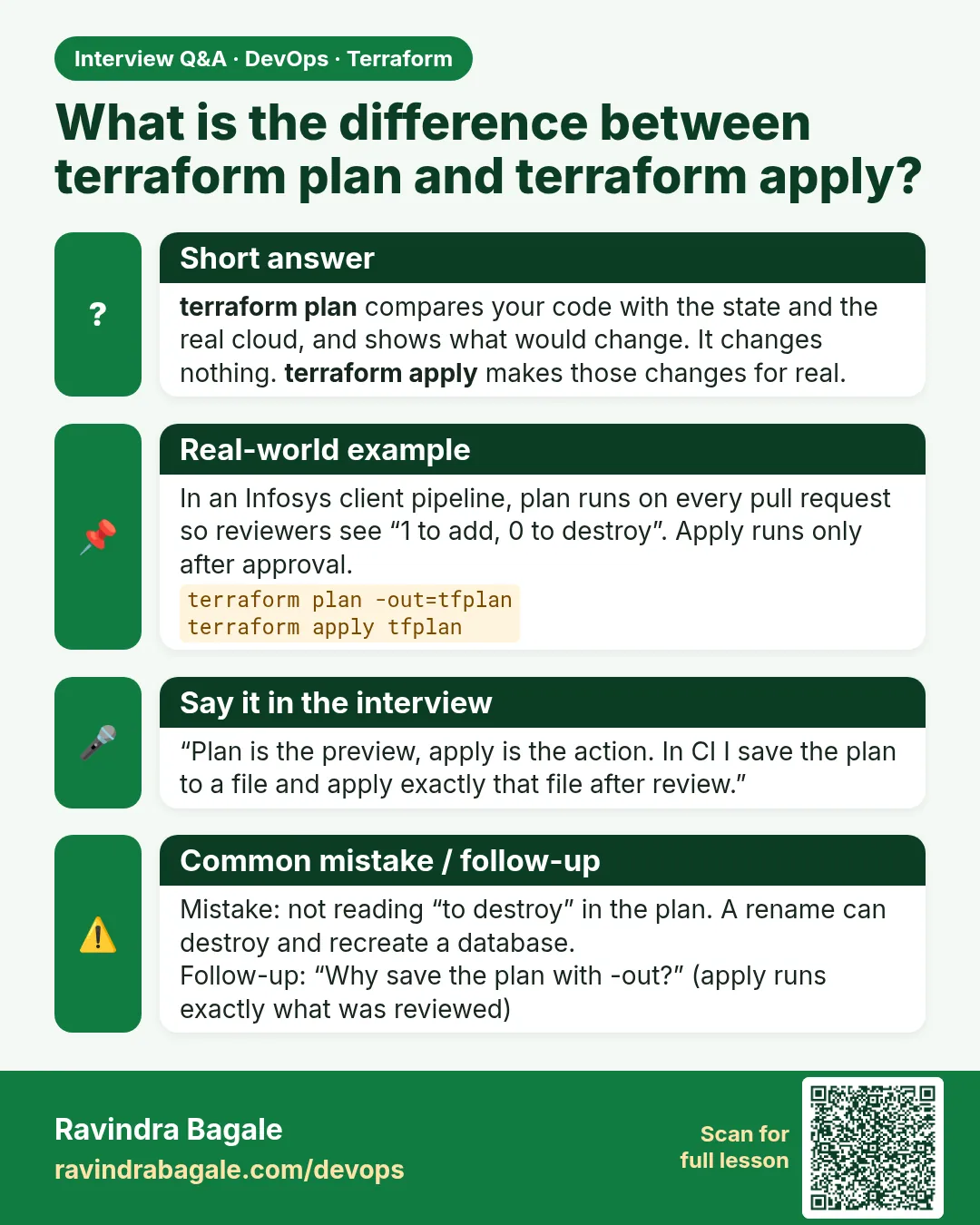
- Run terraform plan -out=tfplan and read the summary line.
- Run terraform apply tfplan.
- Run terraform destroy when the lab is done.
terraform init
terraform fmt
terraform validate
terraform plan -out=tfplan
terraform apply tfplan
terraform destroy
What each line does
terraform init— Downloads the AWS provider and prepares the working folder and backend.terraform fmt— Rewrites .tf files into the standard formatting so diffs stay clean.terraform validate— Checks syntax and references without calling AWS.terraform plan -out=tfplan— Compares code with real infrastructure and saves the exact proposed change to a file.terraform apply tfplan— Applies only the saved plan, so nothing different sneaks in.terraform destroy— Deletes everything this project created; run it at the end of every lab to avoid cost.
When it is green.
Terraform has been successfully initialized!
Success! The configuration is valid.
Plan: 1 to add, 0 to change, 0 to destroy.
Apply complete! Resources: 1 added, 0 changed, 0 destroyed.
Destroy complete! Resources: 1 destroyed.
When it is red.
Error: Inconsistent dependency lock file
  provider registry.terraform.io/hashicorp/aws: required by this configuration but no version is selected
Run "terraform init" to install all modules and providers.
Fix. You skipped init or changed the provider block. Run terraform init (or terraform init -upgrade when you intentionally changed the version range) and plan again.
What: every term in plain English
- init — Downloads providers and sets up the backend. Run once per folder, and after provider changes.
- validate — Checks syntax and references without touching AWS.
- plan — Compares code, state and real AWS, then shows the changes.
- apply — Makes the changes and updates state.
- destroy — Deletes everything in state for this folder.
- state file — terraform.tfstate. Terraform's memory of what it built.
- saved plan — plan -out=tfplan. Apply then runs exactly that plan.
Example 1: The full loop on one S3 bucket
A Flipkart-style intern needed a bucket for test reports. Run every step and read every output.
- Write main.tf.
- init.
- fmt and validate.
- plan.
- apply.
- destroy.
provider "aws" {
  region = "ap-south-1"
}

data "aws_caller_identity" "me" {}

resource "aws_s3_bucket" "reports" {
  bucket = "test-reports-${data.aws_caller_identity.me.account_id}"
  tags = {
    Owner = "intern"
  }
}

output "bucket" {
  value = aws_s3_bucket.reports.bucket
}
terraform init
terraform fmt
terraform validate
terraform plan
terraform apply
Output
Terraform has been successfully initialized!
Success! The configuration is valid.

  # aws_s3_bucket.reports will be created
  + resource "aws_s3_bucket" "reports" {
      + bucket = "test-reports-111122223333"
      + tags   = { "Owner" = "intern" }
    }

Plan: 1 to add, 0 to change, 0 to destroy.

Do you want to perform these actions?
  Enter a value: yes

aws_s3_bucket.reports: Creation complete after 1s [id=test-reports-111122223333]
Apply complete! Resources: 1 added, 0 changed, 0 destroyed.

Outputs:
bucket = "test-reports-111122223333"
What it shows: apply asks for yes. Type it only after you read the Plan line.
Example 2: Look inside state
State is how Terraform remembers. See what it stored for the bucket.
ls
terraform state list
terraform state show aws_s3_bucket.reports | head -8
Output
main.tf  terraform.tfstate  .terraform.lock.hcl
aws_s3_bucket.reports
# aws_s3_bucket.reports:
resource "aws_s3_bucket" "reports" {
    arn    = "arn:aws:s3:::test-reports-111122223333"
    bucket = "test-reports-111122223333"
    id     = "test-reports-111122223333"
    region = "ap-south-1"
What it shows: Never edit terraform.tfstate by hand and never commit it to Git. Chapter 34 moves it to S3.
Example 3: Change, plan, apply
Change one tag and see an in-place update, not a rebuild.
sed -i 's/intern/qa-team/' main.tf
terraform plan -out=tfplan
terraform apply tfplan
Output
  # aws_s3_bucket.reports will be updated in-place
  ~ resource "aws_s3_bucket" "reports" {
      ~ tags = {
          ~ "Owner" = "intern" -> "qa-team"
        }
    }
Plan: 0 to add, 1 to change, 0 to destroy.
Saved the plan to: tfplan

Apply complete! Resources: 0 added, 1 changed, 0 destroyed.
What it shows: ~ means update in place. -/+ would mean destroy and recreate. Always look for these symbols.
Example 4: Read the plan symbols
The symbols tell you how risky a change is. Learn them before your first prod change.
+    create
-    destroy
~    update in-place
-/+  destroy, then create (replace)
+/-  create, then destroy (create_before_destroy)
Output
Plan: 1 to add, 1 to change, 1 to destroy.
What it shows: If the destroy number is not zero and you did not expect it, stop and ask.
Example 5: Destroy and confirm
End every lab clean. Then prove it with the CLI.
terraform destroy
aws s3 ls | grep test-reports || echo "bucket gone"
terraform state list | wc -l
Output
Plan: 0 to add, 0 to change, 1 to destroy.
  Enter a value: yes
aws_s3_bucket.reports: Destruction complete after 1s
Destroy complete! Resources: 1 destroyed.
bucket gone
0
What it shows: State is now empty. The folder is ready for the next lab.
Example 6: Preview a destroy before you run it
At a Paytm-style team, nobody runs destroy blind. plan -destroy shows exactly what will be deleted, and you can save it for review just like a normal plan.
- Run plan -destroy with -out.
- Read the list of deletions.
- Apply the saved destroy plan.
terraform plan -destroy -out=destroy.tfplan
terraform show destroy.tfplan | grep -E "will be destroyed|Plan:"
terraform apply destroy.tfplan
Output
  # aws_s3_bucket.reports will be destroyed
Plan: 0 to add, 0 to change, 1 to destroy.

aws_s3_bucket.reports: Destroying... [id=test-reports-111122223333]
aws_s3_bucket.reports: Destruction complete after 1s
Apply complete! Resources: 0 added, 0 changed, 1 destroyed.
What it shows: terraform show reads a saved plan without running it. This is how reviewers check a plan file in a pipeline.
Example 7: Format and validate as a pre-commit check
Small mistakes waste review time. Run fmt and validate before every commit so the reviewer only reads real changes.
terraform fmt -check -recursive; echo "fmt=$?"
terraform fmt -recursive
terraform validate
Output
main.tf
fmt=3
main.tf
Success! The configuration is valid.
What it shows: fmt -check prints the files that need formatting and exits non-zero. Pipelines use this to fail badly formatted code.
Command cheat sheet
| Command | What it does | When to use it |
|---|---|---|
terraform init |
Set up the folder | First run |
terraform fmt |
Fix formatting | Before commit |
terraform validate |
Check code | Before plan |
terraform plan -out=tfplan |
Save the plan | Team changes |
terraform apply tfplan |
Apply the saved plan | After review |
terraform destroy |
Delete all | End of lab |
Verify: did it work?
-
Valid
terraform validateOutput
Success! The configuration is valid. -
In state
terraform state listOutput
aws_s3_bucket.reports -
Clean
terraform plan -detailed-exitcode; echo $?Output
No changes. Your infrastructure matches the configuration.
0
When it is red 1
Error: creating S3 Bucket (test-reports): BucketAlreadyExists
Cause. Bucket names are global. Someone else has that name.
Fix, step by step
- Add your account id to the name.
- Plan again.
When it is red 2
Error: Inconsistent dependency lock file
Cause. A provider changed and init was not run.
Fix, step by step
- Run terraform init.
When it is red 3
Error: Saved plan is stale
Cause. State changed after you saved the plan.
Fix, step by step
- Run plan -out=tfplan again.
- Apply the new file.
Cleanup
terraform destroy -auto-approve
rm -f tfplan
Ravindra Bagale's Tip
Read the last line of every plan out loud before you type yes.
Practice tasks
Easy Full loop
Why: Muscle memory.
What to do: Run init, validate, plan, apply, destroy.
- On the S3 example.
Check: Destroy complete at the end.
Medium State tour
Why: Know the memory.
What to do: Run state list and state show.
- Write what each shows.
Check: You can explain the id.
Medium Saved plan
Why: Team habit.
What to do: Change a tag with plan -out and apply tfplan.
- Read the symbol.
Check: 1 changed.
Hard Symbols
Why: Read risk.
What to do: Make a change that shows -/+.
- Rename the bucket.
Check: Plan shows must be replaced.
Easy Say it in two lines
Why: If you can say it simply, you understand it.
What to do: Write two short lines about this lesson for a fresher.
- Write the problem it solves.
- Write the one command or file you use.
- Read it aloud.
Check: A fresher understands it without a question.
Easy Start a safe lab folder
Why: Practice needs a throwaway place.
What to do: Make a new folder with versions.tf and a random_pet resource, so no AWS cost.
- mkdir tf-lab and cd into it.
- Add the hashicorp/random provider and one random_pet.
- Run terraform init and terraform apply.
Check: Apply complete! with 1 added.
Medium Break it on purpose
Why: You must know the red output by face.
What to do: Cause one error from the red part of this lesson and fix it.
- Follow one red section.
- Copy the exact message to your notes.
- Write the fix in one line.
Check: You fixed it without searching the web.
Medium Run it twice
Why: A second run must be quiet.
What to do: Run the same plan two times with no edits.
- Run terraform plan.
- Run it again.
- Explain any change it still shows.
Check: The second plan says No changes, or you can explain each line.
Medium Write a runbook page
Why: At 2 a.m. nobody remembers flags.
What to do: Write a one-page runbook for this lesson.
- Title, when to use, exact commands, how to check, how to undo.
Check: A teammate can follow it alone.
Medium Run it from a pipeline
Why: Real teams run Terraform from CI, not from laptops.
What to do: Run the main command of this lesson inside a GitHub Actions or Jenkins job.
- Add a job with hashicorp/setup-terraform or a Terraform Docker image.
- Give it AWS access through an IAM role, never a key in the file.
- Run init, then the command from this lesson.
Check: The job log shows the same output you saw on your laptop.
Medium Check the cost
Why: Labs left running cost real money.
What to do: Find what this lesson would cost per day if you forgot to destroy it.
- Open the AWS Pricing Calculator.
- Add each resource from your plan.
- Write the daily cost in your notes.
Check: You know the daily cost and you ran terraform destroy.
Hard Draw the flow top to bottom
Why: A drawing shows the order of work.
What to do: Draw this lesson as boxes from top to bottom.
- Start at your code, go through plan and state, end at AWS.
- Mark where each command reads or writes.
Check: Each box matches a real step you ran.
Hard Explain it like an interview
Why: Interviewers want real stories.
What to do: Record a 60 second answer about this lesson.
- Say the problem, the command, and one error you hit.
Check: Your answer has a real command and a real error message.
Homework: try at home
Try at home
Do the full loop three times on three days without notes. Time yourself each time.
Recap
- init, validate, plan, apply, destroy is the loop.
- State remembers what was built.
- Plan symbols show risk.
- Saved plans apply exactly what was reviewed.
- Every lab ends with destroy.
FAQ
Do I run init every time?
Only the first time and after provider or backend changes.
Does plan change anything?
No. It only reads.
What if I lose the state file?
Terraform forgets what it built. Use a remote backend to avoid this.
Is -auto-approve safe?
For labs, yes. For prod, use a saved plan and review.
Why is renaming a bucket a replace?
S3 cannot rename buckets, so it must delete and create.
Interview questions
-
Explain the Terraform workflow.
init, validate, plan, apply, and destroy when done.
-
What does plan compare?
Code, state and the real infrastructure.
-
What is in state?
The mapping from resource addresses to real ids and attributes.
-
Why save a plan?
So apply runs exactly what was reviewed.
-
What does -/+ mean?
Destroy then create: a replace.
Quick quiz
Q1. Command that only checks code?
terraform validate
Q2. Symbol for update in place?
~
Q3. Flag to save a plan?
-out
Q4. State file name?
terraform.tfstate
Q5. Should state go in Git?
No.
Samajla ka?
 Revision card
 Interview card