Chapter 10: Jenkins Introduction
10.5 Credentials store (high level)
Why: the problem
Suppose a PhonePe developer needs Jenkins to push a Docker image to a registry and to SSH into a server. He types the registry password straight into the Jenkinsfile. The file is in Git. Now every person with repo access has the password, forever, even after it is deleted. This leak happens in real companies. Jenkins gives a Credentials store to stop it. You save the secret once in Jenkins. The Jenkinsfile only uses its id. Jenkins gives the value to the build at run time and hides it in the log with stars.
What we will build
You will add three credentials to the lab Jenkins: a username and password for a registry, an SSH key for a server and a secret text API token. Then you will use each one in a Jenkinsfile with withCredentials and see the value masked as ****.
What: every term in plain English
- Credential — A secret saved inside Jenkins, like a password, token or SSH key.
- Credential ID — The name you use in the Jenkinsfile, like registry-creds. The value is never in the file.
- Username with password — A pair, often for a registry or a Git server.
- Secret text — One secret string, like an API token.
- SSH Username with private key — A key to log in to servers.
- withCredentials — A Jenkinsfile step that gives the secret to a few lines only.
- Masking — Jenkins replaces the secret with **** in the Console Output.
- Scope — Where a credential can be used: Global (jobs) or System (Jenkins itself).
How: step by step
-
Open the store
Manage Jenkins > Credentials > System > Global credentials > Add CredentialsWhat it does: The default place for lab credentials.
Output
(Add form opens) -
Add a registry login
Kind: Username with password, ID: registry-creds, Username: ravi, Password: (from your registry, a token not your real password)What it does: Use an access token, not your login password.
Output
registry-creds ravi/****** -
Add a server key
Kind: SSH Username with private key, ID: staging-ssh, Username: ubuntu, paste a deploy-only keyWhat it does: Make a separate key just for Jenkins.
Output
staging-ssh ubuntu -
Add an API token
Kind: Secret text, ID: slack-webhook, Secret: (the webhook URL)What it does: One string secret.
Output
slack-webhook -
Check the list
Manage Jenkins > CredentialsWhat it does: Only ids and names are shown, never values.
Output
registry-creds | staging-ssh | slack-webhook
Example 1: Docker login with username and password
Stack. Docker, Credentials Binding plugin
Goal. Docker login with username and password.
Jenkinsfile
pipeline {
    agent any
    environment { IMAGE = 'registry.example.com/ravi/badge-api' }
    stages {
        stage('Push image') {
            steps {
                withCredentials([usernamePassword(credentialsId: 'registry-creds',
                                 usernameVariable: 'REG_USER', passwordVariable: 'REG_PASS')]) {
                    sh 'echo "$REG_PASS" | docker login registry.example.com -u "$REG_USER" --password-stdin'
                    sh 'docker build -t $IMAGE:$BUILD_NUMBER . && docker push $IMAGE:$BUILD_NUMBER'
                }
            }
        }
    }
    post { always { sh 'docker logout registry.example.com || true' } }
}
What each line does
usernamePassword(credentialsId: 'registry-creds'— Looks up the saved pair by id.usernameVariable / passwordVariable— Names of the shell variables that hold the values.--password-stdin— Gives the password through a pipe, so it is not in the process list.single quotes in sh '...'— The shell reads $REG_PASS. Groovy never puts the secret into the script text.docker logout— Removes the saved login from the agent after the build.
Green output
[Pipeline] withCredentials
Masking supported pattern matches of $REG_PASS
+ echo ****
+ docker login registry.example.com -u ravi --password-stdin
Login Succeeded
+ docker push registry.example.com/ravi/badge-api:12
12: digest: sha256:4c1f... size: 1782
Finished: SUCCESS
Expected result. The password shows as ****. The username can show; it is not a secret.
Example 2: SSH deploy with a private key
Stack. SSH Agent plugin, systemd
Goal. SSH deploy with a private key.
Jenkinsfile
pipeline {
    agent any
    stages {
        stage('Deploy') {
            steps {
                sshagent(credentials: ['staging-ssh']) {
                    sh 'ssh -o StrictHostKeyChecking=accept-new ubuntu@10.0.1.20 "sudo systemctl restart badge-api && systemctl is-active badge-api"'
                }
            }
        }
    }
}
What each line does
sshagent(credentials: ['staging-ssh'])— Loads the key into an SSH agent only for this block. Needs the SSH Agent plugin.StrictHostKeyChecking=accept-new— Accept the server key the first time, refuse if it changes later.systemctl restart badge-api— Restarts the app on the server.systemctl is-active— Prints active if the app came back.
Green output
[ssh-agent] Using credentials ubuntu (staging-ssh)
$ ssh-agent
Identity added: /var/jenkins_home/workspace/deploy@tmp/private_key_123.key
+ ssh -o StrictHostKeyChecking=accept-new ubuntu@10.0.1.20 ...
active
Finished: SUCCESS
Expected result. The key file exists only during the block and is deleted afterwards.
Example 3: Secret text: send a Slack message on failure
Stack. Slack incoming webhook, curl
Goal. Secret text: send a Slack message on failure.
Jenkinsfile
pipeline {
    agent any
    stages {
        stage('Test') { steps { sh 'npm test' } }
    }
    post {
        failure {
            withCredentials([string(credentialsId: 'slack-webhook', variable: 'HOOK')]) {
                sh 'curl -s -X POST -H "Content-type: application/json" --data "{\"text\":\"badge-api build $BUILD_NUMBER failed\"}" "$HOOK"'
            }
        }
    }
}
What each line does
string(credentialsId: 'slack-webhook', variable: 'HOOK')— Gives the secret text as $HOOK.post { failure { } }— Only runs when the build is red.curl -X POST --data— Sends a small JSON message to the webhook.
Green output
[Pipeline] { (Declarative: Post Actions)
[Pipeline] withCredentials
+ curl -s -X POST -H Content-type: application/json --data {"text":"badge-api build 15 failed"} ****
ok
Finished: FAILURE
Expected result. The team gets a Slack message. The webhook URL is masked.
Verify: did it work?
-
Check masking
Open Console Output and search for your passwordWhat it does: You must find only ****.
Output
+ echo **** -
Check who can see credentials
Manage Jenkins > Security > AuthorizationWhat it does: Only admins should manage credentials.
Output
Matrix-based security: ravi = Administer
When it is red 1
ERROR: Could not find credentials entry with ID 'registry-cred'
Cause. A typo in the id, or the credential is in a folder the job cannot see.
Fix, step by step
- Copy the exact id from Manage Jenkins > Credentials.
- Check the scope and folder.
- Build again.
When it is red 2
Warning: A secret was passed to "sh" using Groovy String interpolation, which is insecure.
Cause. You used double quotes: sh "docker login -p ${REG_PASS}".
Fix, step by step
- Use single quotes so the shell reads the variable.
- Or pass it with --password-stdin.
- Rotate the secret if it reached a log.
When it is red 3
Permission denied (publickey).
Cause. The public key is not on the server, or the user is wrong.
Fix, step by step
- Add the public key to /home/ubuntu/.ssh/authorized_keys on the server.
- Check the username in the credential.
- Test from the agent: ssh -v ubuntu@10.0.1.20.
Cleanup
-
Delete lab credentials you no longer need
Manage Jenkins > Credentials > registry-creds > DeleteWhat it does: Old secrets are a risk. Also revoke the token in the registry.
Output
(credential deleted)
Ravindra Bagale's Tip
Never write a password in the Jenkinsfile. Keep it in Credentials and use only the ID. If it leaks, rotate at once!
Password Jenkinsfile मध्ये कधीही लिहू नका. Credentials मध्ये ठेवा, फक्त ID वापरा. Leak झाला तर लगेच rotate करा!
Password Jenkinsfile में कभी मत लिखो. Credentials में रखो, सिर्फ ID इस्तेमाल करो. Leak हो तो तुरंत rotate करो!
Practice tasks
Easy Add a fake secret
Why: Practice safely.
What to do: Add secret text demo-token with value abc123.
- Use it with withCredentials.
Check: The log shows ****.
Medium Use a folder credential
Why: Limit who uses a secret.
What to do: Create a folder and add a credential only inside it.
- Use it from a job in the folder.
Check: Jobs outside cannot find it.
Hard Rotate a secret
Why: Leaks happen.
What to do: Change the registry token and update Jenkins.
- Revoke old, add new, build.
Check: Build green with the new token.
Easy Say Jenkins credentials in two lines
Why: If you can say it simply, you understand it. Juniors and interviewers both want the short version first.
What to do: Write two short lines about Jenkins credentials for a fresher who knows only Linux, Git and Docker basics.
- Write the problem it solves.
- Write the one Jenkins screen, Jenkinsfile line or command you use for it.
- Read it aloud to a friend.
Check: A fresher understands it without asking a question.
Easy Keep a throwaway lab Jenkins
Why: Practice needs a Jenkins you can break. If the lab gets messy, you delete the container and volume and start again.
What to do: Run a lab Jenkins in Docker on your laptop with a named volume jenkins_home.
- docker volume create jenkins_home
- docker run -d --name jenkins -p 8080:8080 -v jenkins_home:/var/jenkins_home jenkins/jenkins:lts-jdk17
- Open http://localhost:8080 and finish the setup wizard.
Check: The Jenkins dashboard opens and shows "Welcome to Jenkins!".
Medium Do it on a second stack
Why: A pipeline idea must work for Node.js, Python and Java. Only the build and test lines should change.
What to do: Repeat this lesson with a different language than the one you used first.
- If you used Python, use Node.js or Maven now.
- Change only the sh lines for build and test.
- Keep the same stage names.
Check: Same green result, and the stage names did not change.
Medium Break it on purpose
Why: You must know the red console log by face. In a real outage there is no time to read slowly.
What to do: Cause one error from the "When it is red" part of this lesson and fix it.
- Follow the error section.
- Copy the exact message from Console Output into your notes.
- Write the fix in one line.
Check: You fixed it using only the steps, without searching the web.
Medium Write a one-page runbook
Why: At 2 a.m. nobody remembers Jenkins menus. A short page saves the on-call person.
What to do: Write a one-page runbook for this lesson.
- Title, when to use, exact clicks or Jenkinsfile lines, how to check, how to undo.
Check: A teammate can follow it alone.
Hard Explain it like an interview
Why: Interviewers want real stories, not definitions.
What to do: Record a 60 second answer about this lesson.
- Say the problem, the Jenkinsfile lines you wrote, and one error you hit.
Check: Your answer has a real Jenkinsfile line and a real error message.
Hard Draw the flow top to bottom
Why: A drawing shows the order of work and which stage waits for which.
What to do: Draw this lesson as boxes from top to bottom.
- Start at git push or Build Now, go through each stage, end at the green build or the deployed app.
Check: Each box matches a real line in your Console Output.
Homework: try at home
Try at home
At home, add a secret text credential with a fake value, print it in a pipeline with echo, and confirm the log shows ****.
Recap
- Never write secrets in a Jenkinsfile.
- Save them in Credentials and use the id.
- withCredentials gives the value to a few lines only.
- Use single quotes in sh with secrets.
- Masking hides values, but rotate any leaked secret.
FAQ
Are Jenkins credentials encrypted?
Yes, on disk, with a key in JENKINS_HOME. Protect that folder and its backups.
Can I use HashiCorp Vault?
Yes, with a plugin, for bigger teams.
Can I see a saved password again?
Not from the UI. Treat it as write-only.
Is masking perfect?
No. A script can still print a changed form of it. Keep logs private.
Global or System scope?
Global for jobs. System only for Jenkins itself, like agent connections.
Interview questions
-
How do you manage secrets in Jenkins?
Store them in the Credentials store and bind them in pipelines with withCredentials or sshagent, by id.
-
Why avoid Groovy string interpolation of secrets?
The secret becomes part of the script text and can leak into logs or process lists.
-
What credential types do you use?
Username with password, secret text, secret file, SSH key and certificate.
-
How do you scope credentials?
Use folder credentials so only jobs in that folder can use them.
-
What do you do if a secret leaks?
Revoke and rotate it at the source, update Jenkins, and check logs.
Quick quiz
Q1. Where do secrets go in Jenkins?
In the Credentials store, used by id.
Q2. Which step gives a secret to a block?
withCredentials.
Q3. Why single quotes in sh?
So Groovy does not put the secret into the script text.
Q4. What does masking do?
Shows **** instead of the secret in the log.
Q5. Which plugin loads SSH keys?
SSH Agent.
Did you understand? Let us try it once more.
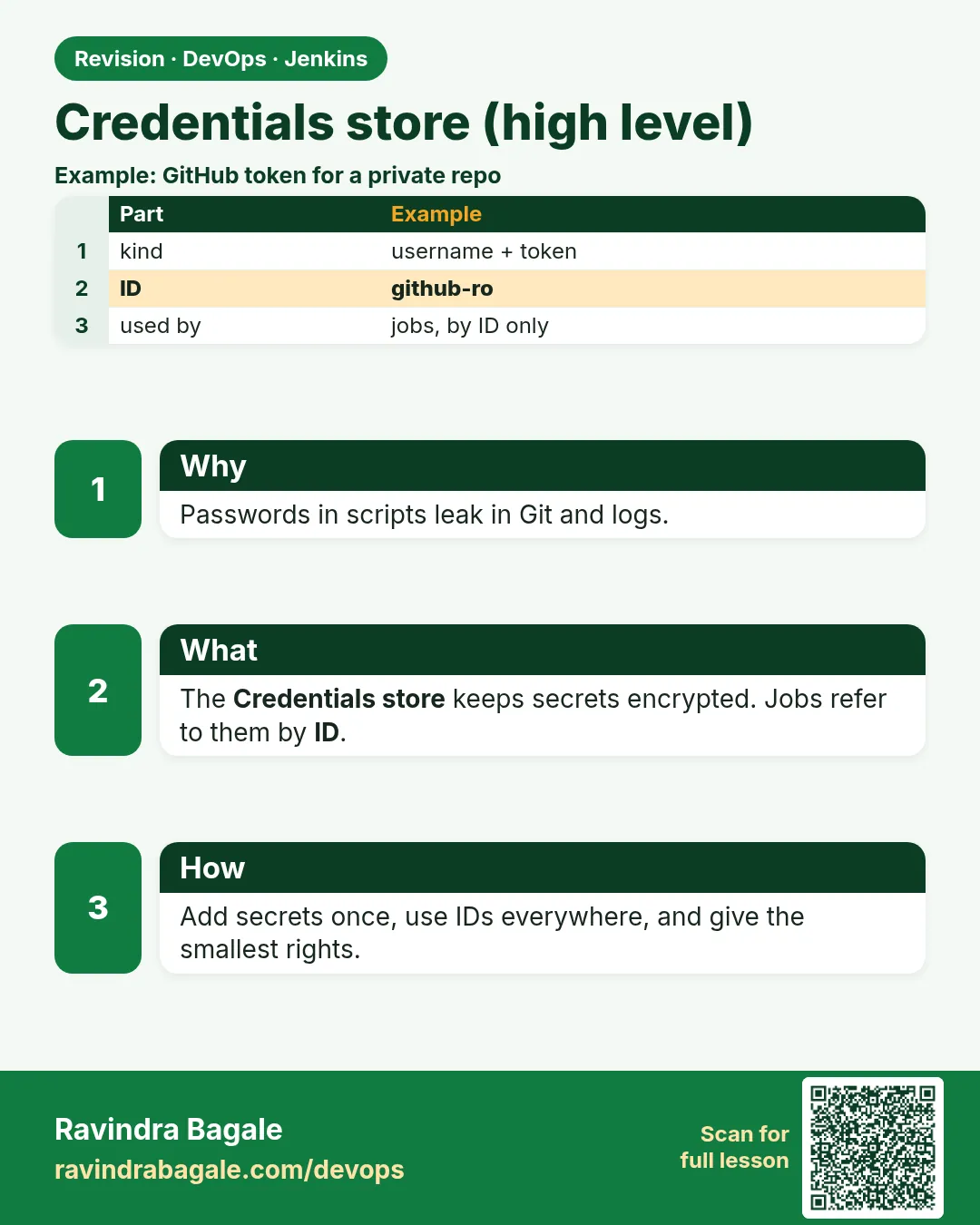 Revision card
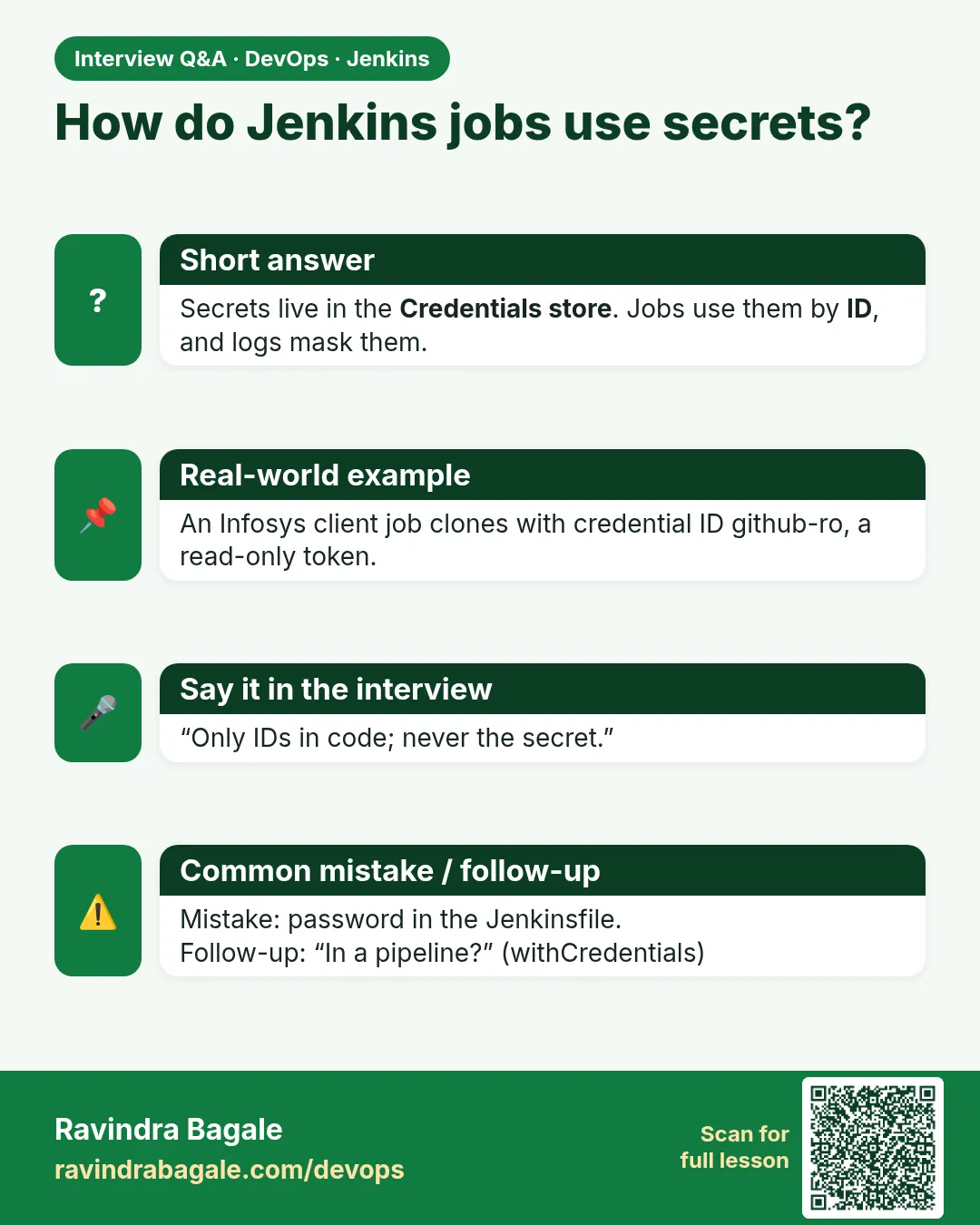 Interview card