Chapter 10: Jenkins Introduction
10.10 Safety for lab Jenkins
Why: the problem
Suppose a student starts Jenkins on a cloud VM to practice. He opens port 8080 to the whole internet and skips the admin user. Within hours, bots that scan the internet find it. Jenkins can run any shell command, so an open Jenkins is a free computer for attackers. They use it to mine crypto, and the student gets a big cloud bill. This has happened to real companies too. A lab Jenkins must be safe from day one: run it on your laptop or a private network, always have login on, allow only your IP, keep it updated and use only fake lab secrets.
What we will build
You will harden a lab Jenkins: bind it only to localhost, turn on security and disable sign-up, put it behind nginx with HTTPS on a VM, restrict the cloud firewall to your IP, keep the controller at 0 executors, and keep plugins updated. We only harden; we do not show attacks.
What: every term in plain English
- Bind to localhost — Publish the port only on 127.0.0.1, so other machines cannot reach it.
- Security realm — How users log in. Jenkins own user database is fine for a lab.
- Authorization — What logged-in users can do. Never "Anyone can do anything".
- Sign up — Letting strangers create accounts. Turn it off.
- Reverse proxy — nginx in front of Jenkins, giving HTTPS.
- Security group — The cloud firewall. Allow 443 only from your IP.
- CSRF protection — Stops other sites from sending actions with your login. Keep it on.
- Security advisory — A notice from the Jenkins project about a bug and its fixed version.
How: step by step
-
Bind only to your laptop
docker run -d --name jenkins -p 127.0.0.1:8080:8080 -v jenkins_home:/var/jenkins_home jenkins/jenkins:lts-jdk17What it does: Other machines on Wi-Fi cannot open it.
Output
0.0.0.0 is not used -
Check the bind
sudo ss -ltnp | grep 8080What it does: Must show 127.0.0.1, not 0.0.0.0.
Output
LISTEN 0 4096 127.0.0.1:8080 -
Check security settings
Manage Jenkins > SecurityWhat it does: Security realm: Jenkins own user database; Allow users to sign up: off; Authorization: Logged-in users can do anything (lab) or Matrix.
Output
(saved) -
Set controller executors to 0
Manage Jenkins > Nodes > Built-In Node > Configure > 0What it does: Builds cannot run on the controller.
Output
0 executors -
Check for updates
Manage Jenkins > Plugins > UpdatesWhat it does: Install security fixes first.
Output
3 updates, 1 security fix
Example 1: Safe Compose file for a laptop lab
Stack. Docker Compose
Goal. Safe Compose file for a laptop lab.
docker-compose.yml
services:
  jenkins:
    image: jenkins/jenkins:lts-jdk17
    restart: unless-stopped
    ports:
      - "127.0.0.1:8080:8080"
    volumes:
      - jenkins_home:/var/jenkins_home
    environment:
      - JAVA_OPTS=-Djenkins.install.runSetupWizard=true -Xmx1g
volumes:
  jenkins_home:
What each line does
"127.0.0.1:8080:8080"— Only this laptop can open Jenkins.No 50000 port— No inbound agents needed in a laptop lab, so do not publish it.runSetupWizard=true— Forces the wizard so an admin user is created.
Green output
$ docker compose up -d
$ sudo ss -ltnp | grep 8080
LISTEN 0 4096 127.0.0.1:8080 0.0.0.0:*
$ curl -sI http://192.168.1.20:8080/login
curl: (7) Failed to connect to 192.168.1.20 port 8080: Connection refused
Expected result. From another machine it is refused. From the laptop it opens.
Example 2: Cloud VM: nginx with HTTPS in front of Jenkins
Stack. nginx, certbot, Ubuntu 24.04
Goal. Cloud VM: nginx with HTTPS in front of Jenkins.
/etc/nginx/conf.d/jenkins.conf
server {
    listen 443 ssl;
    server_name jenkins.example.com;
    ssl_certificate     /etc/letsencrypt/live/jenkins.example.com/fullchain.pem;
    ssl_certificate_key /etc/letsencrypt/live/jenkins.example.com/privkey.pem;

    location / {
        proxy_pass         http://127.0.0.1:8080;
        proxy_set_header   Host $host;
        proxy_set_header   X-Forwarded-Proto https;
        proxy_set_header   X-Forwarded-For $proxy_add_x_forwarded_for;
        proxy_read_timeout 90s;
    }
}
server {
    listen 80;
    server_name jenkins.example.com;
    return 301 https://$host$request_uri;
}
What each line does
listen 443 ssl— HTTPS only for users.ssl_certificate ...— Free certificate from Let's Encrypt, made with certbot.proxy_pass http://127.0.0.1:8080— Jenkins listens only on localhost; nginx forwards.X-Forwarded-Proto https— Tells Jenkins the user came over HTTPS, so links are right.return 301 https://...— Sends plain HTTP users to HTTPS.
Green output
$ sudo nginx -t
nginx: configuration file /etc/nginx/nginx.conf test is successful
$ sudo systemctl reload nginx
$ curl -sI https://jenkins.example.com/login | head -2
HTTP/2 200
x-jenkins: 2.462.3
Expected result. Then set Manage Jenkins > System > Jenkins URL to https://jenkins.example.com/.
Example 3: Cloud firewall: only your IP
Stack. AWS CLI v2
Goal. Cloud firewall: only your IP.
allow-my-ip.sh
#!/usr/bin/env bash
set -euo pipefail
SG=sg-0abc1234example
MYIP=$(curl -s https://checkip.amazonaws.com)
aws ec2 authorize-security-group-ingress --group-id "$SG" --protocol tcp --port 443 --cidr "$MYIP/32"
aws ec2 describe-security-groups --group-ids "$SG" \
  --query 'SecurityGroups[0].IpPermissions[].{port:FromPort,cidr:IpRanges[0].CidrIp}' --output table
What each line does
checkip.amazonaws.com— Returns your public IP.--port 443 --cidr MYIP/32— Allow HTTPS only from your one IP.describe-security-groups— Shows the rules so you can check there is no 0.0.0.0/0 on 8080.
Green output
--------------------------------
|    DescribeSecurityGroups    |
+-------------------+----------+
|       cidr        |  port    |
+-------------------+----------+
|  49.36.120.15/32  |  443     |
|  49.36.120.15/32  |  22      |
+-------------------+----------+
Expected result. No rule opens 8080 or 443 to the world.
Verify: did it work?
-
Check sign-up is off
Open http://localhost:8080/signup in a private windowWhat it does: Must say sign up is not allowed.
Output
This is not supported in the current configuration. -
Check anonymous access
curl -sI http://localhost:8080/manage | head -1What it does: Anonymous users must be refused.
Output
HTTP/1.1 403 Forbidden
When it is red 1
Jenkins logs: unknown IPs trying /script many times
Cause. Jenkins was reachable from the internet.
Fix, step by step
- Stop the VM or block the port now.
- Assume lab secrets leaked; rotate them.
- Rebuild Jenkins from a clean image, restore jobs only.
When it is red 2
It appears that your reverse proxy set up is broken
Cause. Jenkins URL or proxy headers are wrong.
Fix, step by step
- Set Jenkins URL to the https address.
- Add Host and X-Forwarded-Proto headers.
- Reload nginx.
When it is red 3
Warnings have been published for the following currently installed components
Cause. A plugin has a known security bug.
Fix, step by step
- Open Manage Jenkins > Plugins > Updates.
- Install the fixed version.
- If none exists, disable the plugin.
Cleanup
-
Close the VM when not practicing
aws ec2 stop-instances --instance-ids i-0abc123exampleWhat it does: No running VM, no attack surface and no bill.
Output
"CurrentState": {"Name": "stopping"}
Ravindra Bagale's Tip
Leaving Jenkins open on the internet is leaving your house key on the street. Bind to 127.0.0.1 and keep login on!
Jenkins internet वर उघडं ठेवणं म्हणजे घरची चावी रस्त्यावर ठेवणं. 127.0.0.1 वर bind करा, login चालू ठेवा!
Jenkins को internet पर खुला छोड़ना यानी घर की चाबी सड़क पर रखना. 127.0.0.1 पर bind करो, login चालू रखो!
Practice tasks
Easy Check the bind
Why: Easy safety win.
What to do: Run ss and confirm 127.0.0.1.
- sudo ss -ltnp | grep 8080
Check: Not 0.0.0.0.
Medium Matrix security
Why: Least privilege.
What to do: Switch to Matrix-based security and give a test user only Read.
- Log in as that user.
Check: No Configure buttons.
Hard Advisory habit
Why: Stay patched.
What to do: Subscribe to Jenkins security advisories and note the last one.
- Read the advisory page.
Check: You know the fixed version.
Easy Say lab Jenkins safety in two lines
Why: If you can say it simply, you understand it. Juniors and interviewers both want the short version first.
What to do: Write two short lines about lab Jenkins safety for a fresher who knows only Linux, Git and Docker basics.
- Write the problem it solves.
- Write the one Jenkins screen, Jenkinsfile line or command you use for it.
- Read it aloud to a friend.
Check: A fresher understands it without asking a question.
Easy Keep a throwaway lab Jenkins
Why: Practice needs a Jenkins you can break. If the lab gets messy, you delete the container and volume and start again.
What to do: Run a lab Jenkins in Docker on your laptop with a named volume jenkins_home.
- docker volume create jenkins_home
- docker run -d --name jenkins -p 8080:8080 -v jenkins_home:/var/jenkins_home jenkins/jenkins:lts-jdk17
- Open http://localhost:8080 and finish the setup wizard.
Check: The Jenkins dashboard opens and shows "Welcome to Jenkins!".
Medium Do it on a second stack
Why: A pipeline idea must work for Node.js, Python and Java. Only the build and test lines should change.
What to do: Repeat this lesson with a different language than the one you used first.
- If you used Python, use Node.js or Maven now.
- Change only the sh lines for build and test.
- Keep the same stage names.
Check: Same green result, and the stage names did not change.
Medium Break it on purpose
Why: You must know the red console log by face. In a real outage there is no time to read slowly.
What to do: Cause one error from the "When it is red" part of this lesson and fix it.
- Follow the error section.
- Copy the exact message from Console Output into your notes.
- Write the fix in one line.
Check: You fixed it using only the steps, without searching the web.
Medium Write a one-page runbook
Why: At 2 a.m. nobody remembers Jenkins menus. A short page saves the on-call person.
What to do: Write a one-page runbook for this lesson.
- Title, when to use, exact clicks or Jenkinsfile lines, how to check, how to undo.
Check: A teammate can follow it alone.
Hard Explain it like an interview
Why: Interviewers want real stories, not definitions.
What to do: Record a 60 second answer about this lesson.
- Say the problem, the Jenkinsfile lines you wrote, and one error you hit.
Check: Your answer has a real Jenkinsfile line and a real error message.
Hard Draw the flow top to bottom
Why: A drawing shows the order of work and which stage waits for which.
What to do: Draw this lesson as boxes from top to bottom.
- Start at git push or Build Now, go through each stage, end at the green build or the deployed app.
Check: Each box matches a real line in your Console Output.
Homework: try at home
Try at home
At home, bind your lab Jenkins to 127.0.0.1, prove another device cannot reach it, and check sign-up is off.
Recap
- An open Jenkins is a free computer for attackers.
- Bind to localhost, keep login on, sign-up off.
- Use nginx with HTTPS and an IP-limited firewall on VMs.
- Controller executors 0, plugins updated.
- Use fake lab secrets and stop VMs when idle.
FAQ
Can I use ngrok to share my lab?
Avoid it. It puts Jenkins on the internet.
Is the default admin password safe?
Only for setup. Create your own admin and keep it strong.
Do I need HTTPS on my laptop?
No, localhost is enough.
Should I use SSO?
In companies, yes, with LDAP or OIDC.
How often to update?
Check LTS and plugin updates weekly.
Interview questions
-
How do you secure Jenkins?
Auth on, sign-up off, Matrix or Role authorization, HTTPS proxy, firewall, 0 executors on controller, updated plugins, credentials store.
-
Why is an open Jenkins dangerous?
It can run any command, so attackers get code execution and secrets.
-
Why keep CSRF protection on?
It stops cross-site requests using a logged-in session.
-
How do you expose Jenkins safely?
Behind a reverse proxy with HTTPS and restricted source IPs or a VPN.
-
How do you track plugin vulnerabilities?
Jenkins security advisories and the update center warnings.
Quick quiz
Q1. Why bind to 127.0.0.1?
So only your laptop can reach Jenkins.
Q2. Should sign-up be on?
No.
Q3. Why controller executors 0?
Builds cannot run code on the controller.
Q4. What does nginx add?
HTTPS in front of Jenkins.
Q5. What should the firewall allow?
Only your IP, only needed ports.
Did you understand? Let us try it once more.
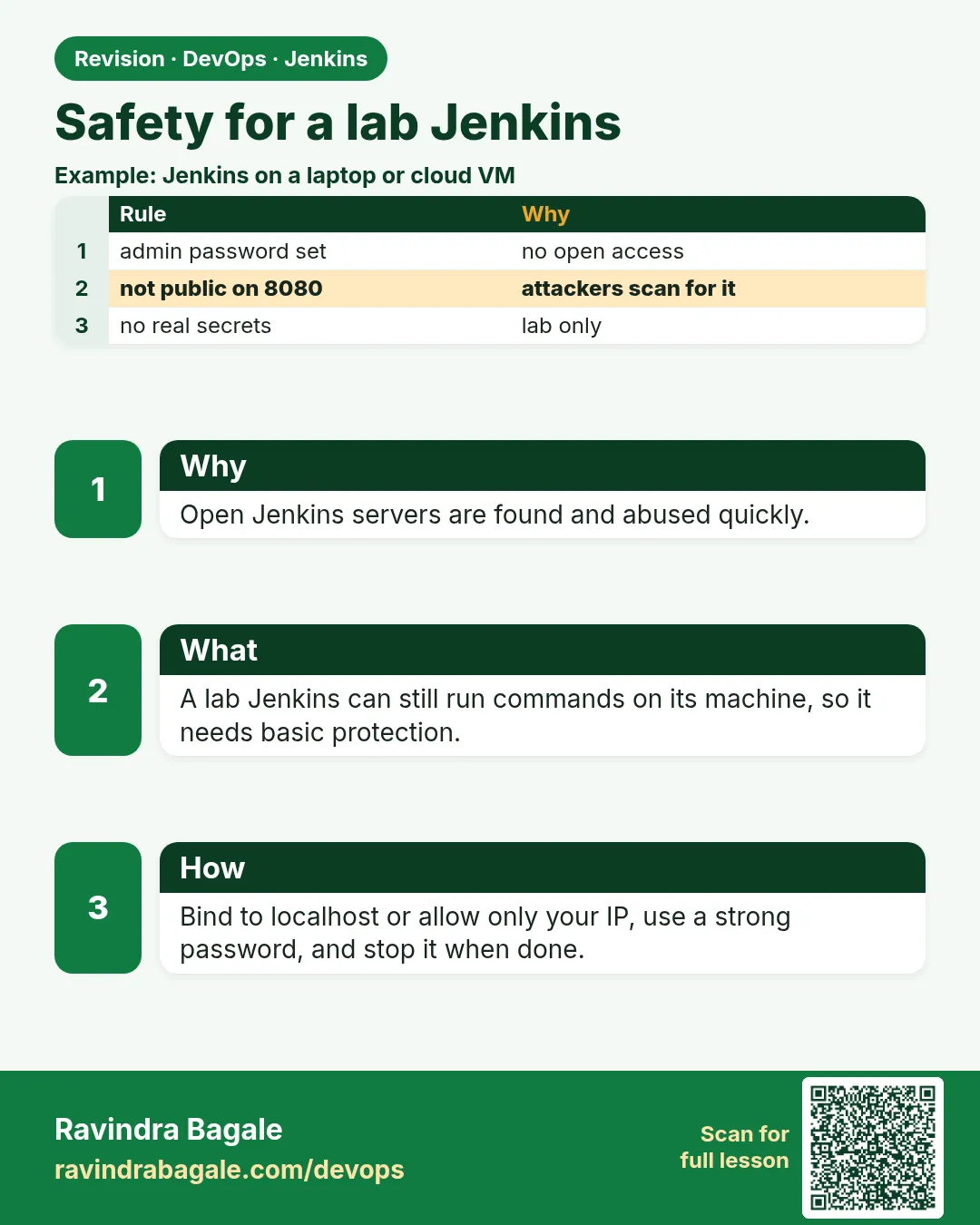 Revision card
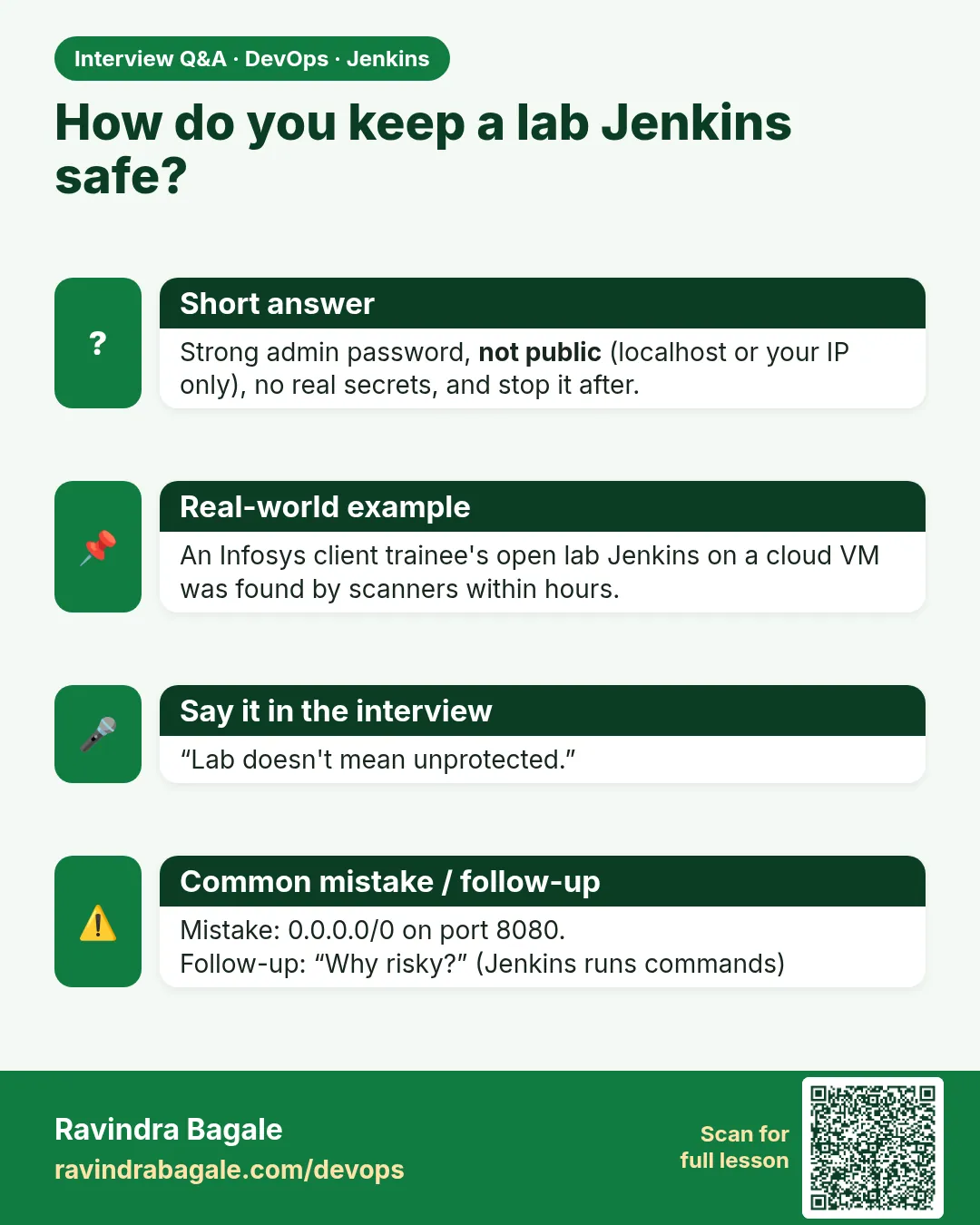 Interview card