1.7 Tools beginners learn first
Why: the problem
A fresher opens a DevOps job post and sees thirty tools: Git, Linux, Bash, Docker, Kubernetes, Jenkins, GitHub Actions, Terraform, Ansible, Prometheus, Grafana, AWS and more. It feels impossible. But each tool fixes one step of the loop from lesson 1.4. Git keeps history. Linux and Bash run everything. Docker packages. CI tools test and deploy. Terraform builds servers. Ansible configures them. Kubernetes runs many containers. Prometheus and Grafana watch them. At TCS and Wipro DevOps projects, almost every team uses some mix of these. In this lesson you will not just read the list. You will set up a starter toolbox on Ubuntu, check every tool with one script, and map each one to the step of the loop it helps. You will finish with a working laptop and a clear learning order.
What we will build
You will install the beginner toolbox (git, curl, make, docker, python3, jq, kubectl, kind) on Ubuntu 24.04 or in a container, write a check-tools.sh that prints a green or red line for each tool, and fill a tool map that links each tool to a stage of the DevOps loop.
What: every term in plain English
- Toolchain — The set of tools a team uses together, from code to monitoring.
- Git — Saves the history of code. Chapter 2.
- Bash — The shell and script language of Linux servers. Chapter 5.
- Docker — Packages an app with everything it needs. Chapter 6.
- CI server — Runs tests and deploys on every change: GitHub Actions, GitLab CI, Jenkins.
- Terraform — Creates cloud servers and networks from code.
- Ansible — Configures many servers from one playbook.
- kubectl and kind — kubectl talks to Kubernetes; kind runs a small Kubernetes inside Docker.
How: step by step
-
Update packages
sudo apt updateWhat it does: Gets the latest package lists.
Output
Reading package lists... Done -
Install basics
sudo apt install -y git curl make jq python3What it does: Small tools used every day.
Output
Setting up jq (1.7.1-3build1) ... -
Install Docker
curl -fsSL https://get.docker.com | sudo sh && sudo usermod -aG docker $USERWhat it does: The official convenience script. Log out and in after.
Output
Client: Docker Engine - Community Version: 27.3.1 -
Install kubectl
curl -LO "https://dl.k8s.io/release/$(curl -Ls https://dl.k8s.io/release/stable.txt)/bin/linux/amd64/kubectl" && sudo install kubectl /usr/local/bin/What it does: The Kubernetes command line.
Output
(no output) -
Install kind
curl -Lo kind https://kind.sigs.k8s.io/dl/v0.24.0/kind-linux-amd64 && sudo install kind /usr/local/bin/What it does: Kubernetes in Docker, for labs.
Output
(no output) -
Check everything
./check-tools.shWhat it does: Example 1.
Output
OK git 2.43.0 OK docker 27.3.1 ... -
Save the tool map
nano TOOLMAP.mdWhat it does: Example 3.
Output
(file saved)
Example 1: Check your whole toolbox with one script
Stack. Ubuntu 24.04, Bash
Goal. Check your whole toolbox with one script.
check-tools.sh
#!/usr/bin/env bash
check() {
  name=$1; shift
  if out=$("$@" 2>/dev/null | head -1); then
    printf "OK   %-8s %s\n" "$name" "$out"
  else
    printf "MISS %-8s install it first\n" "$name"; missing=$((missing+1))
  fi
}
missing=0
check git     git --version
check curl    curl --version
check make    make --version
check python3 python3 --version
check jq      jq --version
check docker  docker version --format "{{.Server.Version}}"
check kubectl kubectl version --client
check kind    kind version
echo "missing: $missing"
exit $missing
What each line does
check() { ... }— A small function: run a command, print OK or MISS.shift— Removes the name, leaving only the command to run."$@"— Runs the rest of the arguments as the command.printf "OK %-8s %s"— Prints neat columns.docker version --format "{{.Server.Version}}"— Fails if the Docker engine is not running, not only if the CLI is missing.exit $missing— Exit code is the number of missing tools. 0 means all good.
Green output
OK   git      git version 2.43.0
OK   curl     curl 8.5.0 (x86_64-pc-linux-gnu)
OK   make     GNU Make 4.3
OK   python3  Python 3.12.3
OK   jq       jq-1.7.1
OK   docker   27.3.1
OK   kubectl  Client Version: v1.31.1
OK   kind     kind v0.24.0 go1.22.6 linux/amd64
missing: 0
Expected result. Your laptop is ready for every chapter in this course. Run this script again on any new machine.
Example 2: Try the toolbox in a throwaway container first
Stack. Docker, ubuntu:24.04
Goal. Try the toolbox in a throwaway container first.
try-in-container.sh
#!/usr/bin/env bash
docker run --rm -v "$PWD":/lab -w /lab ubuntu:24.04 bash -c "
  apt-get update -qq &&
  apt-get install -y -qq git curl make jq python3 > /dev/null &&
  ./check-tools.sh
"
What each line does
docker run --rm— A fresh Ubuntu that is deleted after.apt-get install -y -qq— Installs quietly without questions../check-tools.sh— Same script, so you see which tools a bare server lacks.
Green output
OK   git      git version 2.43.0
OK   curl     curl 8.5.0 (x86_64-pc-linux-gnu)
OK   make     GNU Make 4.3
OK   python3  Python 3.12.3
OK   jq       jq-1.7.1
MISS docker   install it first
MISS kubectl  install it first
MISS kind     install it first
missing: 3
Expected result. A fresh server never has everything. This is why later chapters use Ansible and Dockerfiles to install tools automatically.
Example 3: Map each tool to a step of the loop and use three of them together
Stack. Git, Docker, curl, jq
Goal. Map each tool to a step of the loop and use three of them together.
TOOLMAP.md
| Loop step | Tool we learn | Chapter |
|-----------|---------------|---------|
| Code + history | Git | 2, 3 |
| Run + script | Linux, Bash | 4, 5 |
| Package | Docker, Compose | 6, 7 |
| Test + deploy (CI/CD) | GitHub Actions, Jenkins | 8, 9, 10 |
| Configure servers | Ansible | 11 |
| Create servers | Terraform | 12 |
| Watch | Prometheus, Grafana, logs | 13, 14 |
| Run many containers | Kubernetes | 15, 18, 19 |
three-tools.sh
#!/usr/bin/env bash
git log -1 --format=%h                                    # Git: which commit
docker run -d --rm --name t -p 8000:8000 hello-shop:$(git log -1 --format=%h) > /dev/null
sleep 2
curl -s localhost:8000/health && echo                     # curl: is it alive
docker inspect t | jq -r '.[0].Config.Image, .[0].State.Status'   # jq: read JSON
docker stop t > /dev/null
What each line does
TOOLMAP.md— One table that turns thirty tool names into eight steps.git log -1 --format=%h— The short ID of the latest commit.docker run ... hello-shop:TAG— Runs the packaged app.jq -r '.[0].Config.Image'— jq pulls one value out of big JSON output. Used daily with AWS CLI and kubectl.
Green output
4e2d1aa
ok
hello-shop:4e2d1aa
running
Expected result. Git, Docker, curl and jq worked together in five lines. Real pipelines are just longer versions of this.
Verify: did it work?
-
Run the check again
./check-tools.sh; echo "exit=$?"What it does: exit=0 means all tools are present.
Output
missing: 0 exit=0 -
Check Docker without sudo
docker psWhat it does: Works only after you log out and in following usermod.
Output
CONTAINER ID IMAGE COMMAND CREATED STATUS PORTS NAMES
When it is red 1
permission denied while trying to connect to the Docker daemon socket at unix:///var/run/docker.sock
Cause. Your user was added to the docker group but the session is old.
Fix, step by step
- Log out and log in again, or run: newgrp docker
- docker ps should now work.
When it is red 2
kubectl: command not found
Cause. The binary was downloaded but not installed in PATH.
Fix, step by step
- sudo install kubectl /usr/local/bin/
- which kubectl
When it is red 3
E: Unable to locate package jq
Cause. The package list is old.
Fix, step by step
- sudo apt update
- sudo apt install -y jq
Cleanup
-
Remove the downloaded files
rm -f kubectl kindWhat it does: The installed copies stay in /usr/local/bin.
Output
(no output) -
Keep the scripts
git add check-tools.sh TOOLMAP.md && git commit -m "toolbox check"What it does: Useful on every new machine.
Output
[main 5aa01b2] toolbox check
Ravindra Bagale's Tip
Do not fear the long list of tools. Each tool covers only one step of the loop. Learn them one by one.
Tools ची list पाहून घाबरू नका. प्रत्येक tool loop च्या एकाच step साठी आहे. एक एक करून शिका.
Tools की लंबी list देखकर घबराओ मत. हर tool loop के एक ही step के लिए है. एक-एक करके सीखो.
Practice tasks
Easy Run check-tools.sh
Why: Know what you have before you start.
What to do: Run it and install anything MISS.
- Re-run until missing: 0.
Check: missing: 0
Medium Fill TOOLMAP.md
Why: A map stops tool overload.
What to do: Add one more column: one command per tool.
- Example: docker ps.
Check: Every row has a real command.
Hard Make a setup script
Why: New laptops should take minutes, not days.
What to do: Write setup.sh that installs everything and then runs check-tools.sh.
- Test it in an ubuntu:24.04 container.
Check: A fresh container reaches missing: 0 except Docker.
Easy Say the beginner toolbox in two lines
Why: If you can say it simply, you understand it. Interviewers want the short version first.
What to do: Write two short lines about the beginner toolbox for a fresher who knows only basic Linux.
- Write the problem it solves.
- Write one real command or file that shows it.
- Read it aloud to a friend.
Check: A fresher understands it without asking a question.
Easy Make a safe lab folder
Why: Practice needs a place you can throw away. Then mistakes cost nothing.
What to do: Create a lab folder for this chapter and work only inside it.
- mkdir -p ~/devops-lab && cd ~/devops-lab
- Run every command of this lesson from here.
- Check with pwd before you delete anything.
Check: All lab files live in ~/devops-lab.
Medium Repeat it in a container
Why: Your laptop is not the server. A clean Ubuntu container shows what a fresh server needs.
What to do: Run the main steps of this lesson again inside an Ubuntu container.
- docker run --rm -it -v "$PWD":/lab -w /lab ubuntu:24.04 bash
- apt update and install what is missing.
- Note every missing tool.
Check: Same result inside the container, or a list of what you had to install.
Medium Break it on purpose
Why: You must know the red message by face. In an outage there is no time to read slowly.
What to do: Cause one error from the "When it is red" part of this lesson and fix it.
- Follow the error section.
- Copy the exact message into your notes.
- Write the fix in one line.
Check: You fixed it using only the steps, without searching the web.
Medium Write a one-page runbook
Why: At 2 a.m. nobody remembers the right command. A short page saves the on-call person.
What to do: Write a runbook page for this lesson.
- Title, when to use, exact command, how to check, how to undo.
Check: A teammate can follow it alone.
Hard Explain it like an interview
Why: Interviewers want real stories, not definitions.
What to do: Record a 60 second answer about this lesson.
- Say the problem, the command or file you used, and one error you hit.
Check: Your answer has a real command and a real error message.
Hard Draw the flow top to bottom
Why: A drawing shows who does what and in which order.
What to do: Draw this lesson as boxes from top to bottom.
- Start at the developer laptop, end at the user on the website.
Check: Each box matches a real thing you ran.
Homework: try at home
Try at home
At home, open three DevOps job posts on Naukri or LinkedIn. Mark each tool they ask for on your TOOLMAP.md. Count which tools appear in all three. Those are your first priority.
Recap
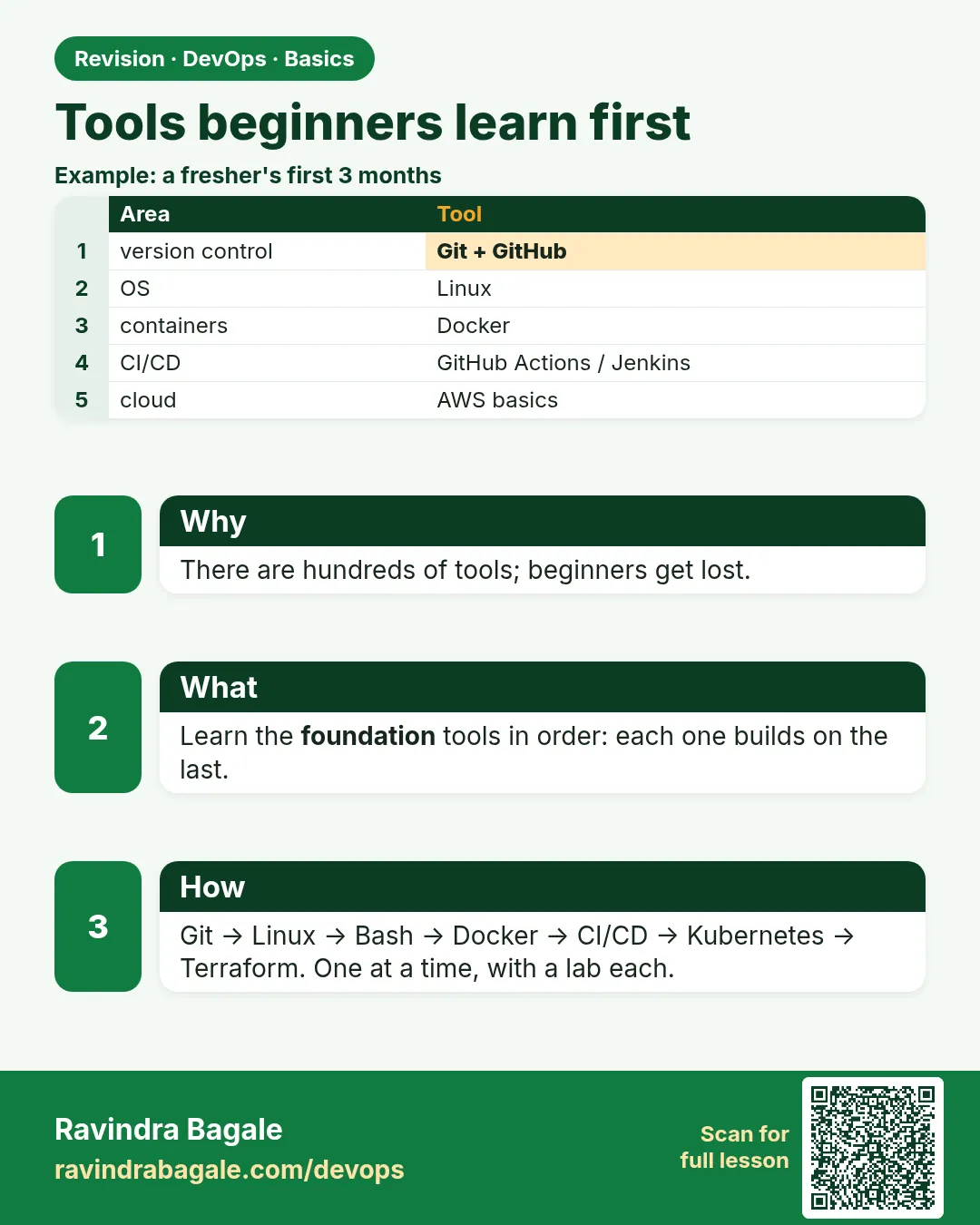
- Each DevOps tool fixes one step of the loop.
- Start with Linux, Bash, Git and Docker; then CI, Ansible, Terraform, Kubernetes, monitoring.
- check-tools.sh proves your setup.
- Fresh servers miss tools, so we automate installs.
- Tools change; the loop does not.
FAQ
Do I need to learn all tools?
No. Learn one tool per step first. Switching later is easy.
Jenkins or GitHub Actions first?
This course teaches both. GitHub Actions is quicker to start; Jenkins is common in Indian service companies.
Mac or Windows?
Use WSL2 Ubuntu on Windows. On Mac, Docker Desktop or Colima plus Homebrew.
Is AWS a DevOps tool?
It is a cloud platform where DevOps tools run. The AWS course covers it.
Why is jq in the list?
Most tools print JSON. jq makes it readable in scripts.
Interview questions
-
Which tools do you use for each DevOps stage?
Git for code, GitHub Actions or Jenkins for CI/CD, Docker for packaging, Terraform and Ansible for infrastructure, Kubernetes to run, Prometheus and Grafana to watch.
-
What is the difference between Terraform and Ansible?
Terraform creates infrastructure; Ansible configures software on existing servers.
-
Why containers?
Same package everywhere, fast start, easy rollback by image tag.
-
How do you set up a new engineer laptop?
A setup script or dev container, then a check script to confirm.
-
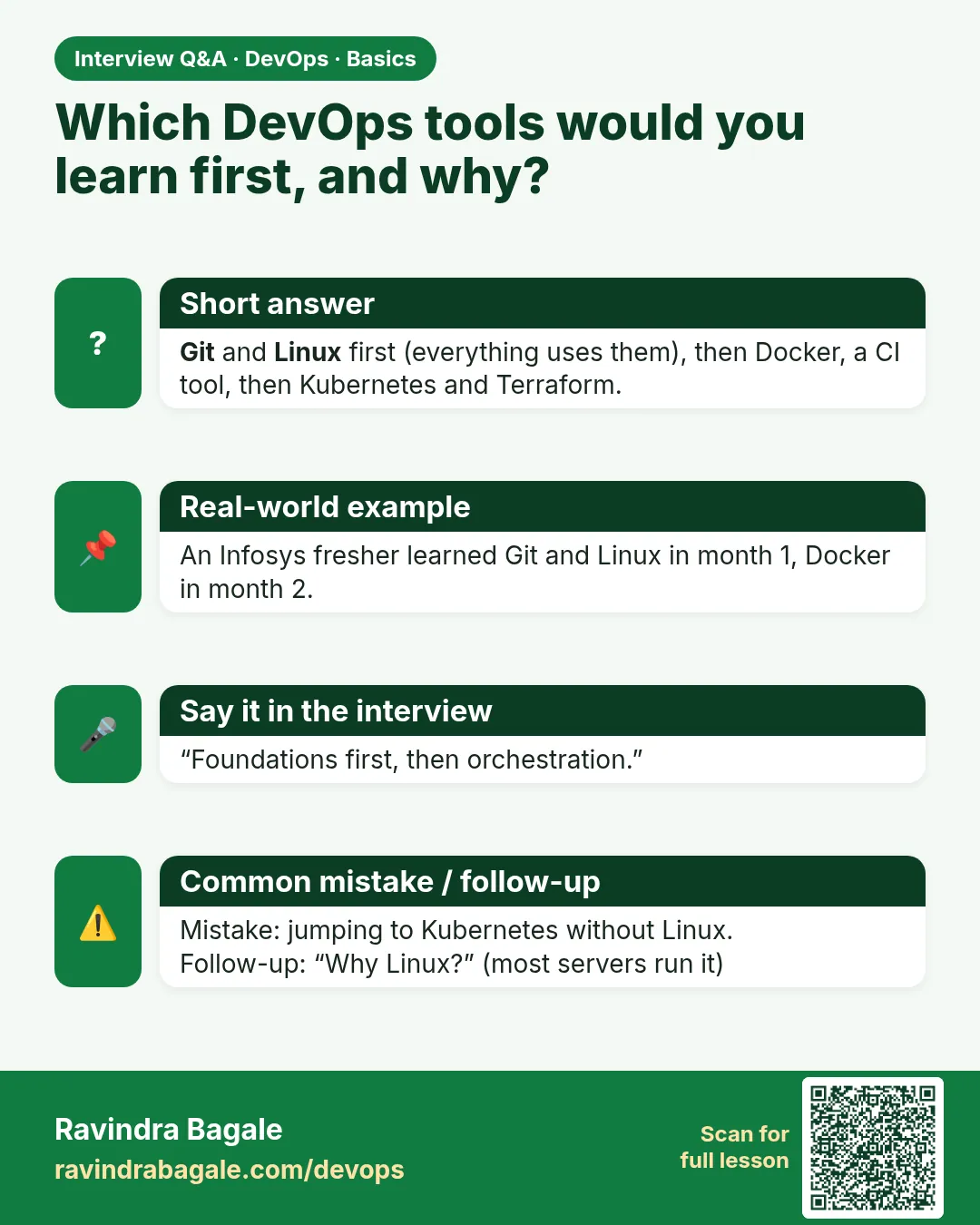
Which tool would you learn first and why?
Linux and Git, because every other tool depends on them.
Quick quiz
Q1. Which tool keeps code history?
Git.
Q2. Which tool packages an app with its needs?
Docker.
Q3. What does jq do?
Reads and filters JSON on the command line.
Q4. Why use a container to test the install?
It is a clean machine you can throw away.
Q5. What is kind?
Kubernetes running inside Docker, for labs.
Did you understand? Let us try it once more.
 Revision card
 Interview card