1.11 Where this course fits beside AWS
Why: the problem
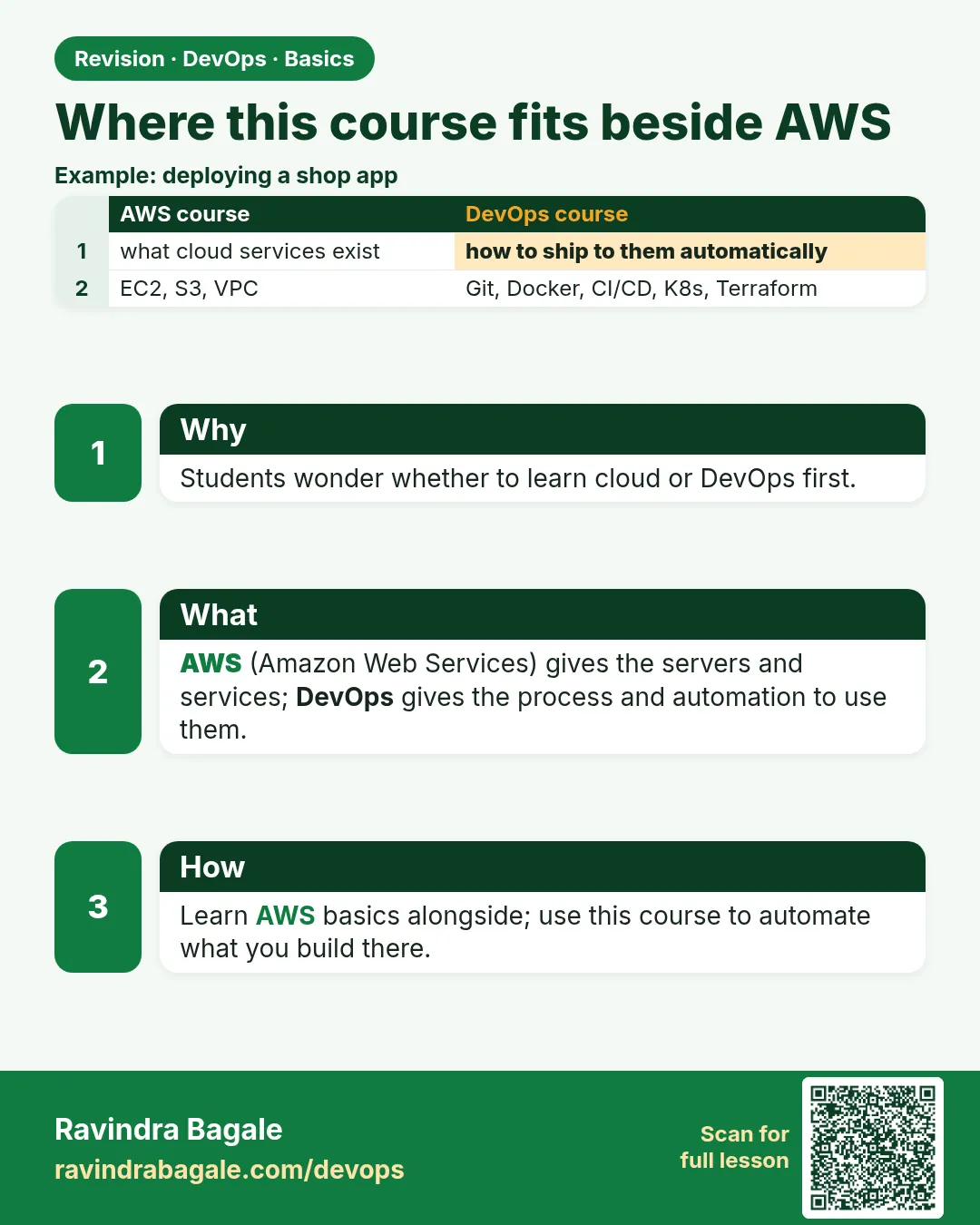
This course sits next to the AWS course on the same site. Students often ask: should I finish all of AWS before starting DevOps? No. Think of it like learning to drive and learning roads. AWS teaches the roads: EC2 servers, security groups, VPC networks, IAM and S3. DevOps teaches driving: Git, scripts, Docker, pipelines, Terraform, Ansible and Kubernetes. You can start DevOps today with only a laptop. When a lab needs a cloud server, you reuse what the AWS course taught. At Infosys and Accenture cloud projects, people with both skills get picked first. In this lesson you will prove the link: run hello-shop on your laptop, then on a real EC2 server using only what AWS taught (launch, security group, SSH), and see that the DevOps steps are exactly the same. You will also check your AWS CLI works, because later chapters need it for Terraform and ECR.
What we will build
You will check the AWS CLI on your laptop, launch or reuse one small EC2 instance, copy hello-shop there over SSH, run the same pipeline, and open it in the browser. Then you will stop the instance so it costs nothing. If you do not have AWS yet, you will do the same steps on a local Ubuntu container acting as the server.
What: every term in plain English
- AWS — Amazon Web Services, the cloud platform taught in the AWS course.
- EC2 — A virtual server on AWS.
- Security group — A firewall for EC2 that says which ports are open.
- Key pair — The SSH key file used to log in to EC2. Keep it private.
- AWS CLI — The aws command that talks to AWS from your terminal.
- Region — The AWS location, like ap-south-1 in Mumbai.
- Free tier — A small amount of AWS you can use free for 12 months.
- Stop vs terminate — Stop pauses the server and keeps its disk; terminate deletes it.
How: step by step
-
Check the AWS CLI
aws --version && aws sts get-caller-identityWhat it does: Shows the CLI works and who you are logged in as.
Output
aws-cli/2.17.50 Python/3.12.6 Linux/6.8.0 { "Account": "123456789012", "Arn": "arn:aws:iam::123456789012:user/ravi-lab" } -
Find your instance
aws ec2 describe-instances --region ap-south-1 --filters Name=tag:Name,Values=devops-lab --query "Reservations[].Instances[].[InstanceId,State.Name,PublicIpAddress]" --output textWhat it does: Reuse the lab server from the AWS course.
Output
i-0a1b2c3d4e5f67890 running 13.233.10.20 -
Open port 8000 for your IP only
aws ec2 authorize-security-group-ingress --group-id sg-0abc1234 --protocol tcp --port 8000 --cidr $(curl -s https://checkip.amazonaws.com)/32What it does: Never open to 0.0.0.0/0 for a lab app.
Output
{ "Return": true } -
Copy the app
scp -i ~/.ssh/devops-lab.pem app.py test.sh Dockerfile ubuntu@13.233.10.20:~/What it does: Same files as on the laptop.
Output
app.py 100% 612 12.1KB/s 00:00 -
Install Docker on the server
ssh -i ~/.ssh/devops-lab.pem ubuntu@13.233.10.20 "curl -fsSL https://get.docker.com | sudo sh"What it does: One time only.
Output
Client: Docker Engine - Community -
Run it on EC2
ssh -i ~/.ssh/devops-lab.pem ubuntu@13.233.10.20 "sudo docker build -q -t hello-shop . && sudo docker run -d -p 8000:8000 hello-shop"What it does: Exactly the same commands.
Output
sha256:41c0... 7e2a90c1... -
Stop the server
aws ec2 stop-instances --region ap-south-1 --instance-ids i-0a1b2c3d4e5f67890What it does: Stops billing for compute.
Output
"CurrentState": {"Name": "stopping"}
Example 1: Laptop and EC2 run the same steps: a remote deploy script
Stack. AWS EC2 t3.micro, Ubuntu 24.04, Docker
Goal. Laptop and EC2 run the same steps: a remote deploy script.
deploy-remote.sh
#!/usr/bin/env bash
set -euo pipefail
HOST="${1:?usage: ./deploy-remote.sh ubuntu@IP}"
KEY="$HOME/.ssh/devops-lab.pem"
TAG=$(git rev-parse --short HEAD)

./test.sh
scp -q -i "$KEY" app.py Dockerfile "$HOST":~/
ssh -i "$KEY" "$HOST" "
  sudo docker build -q -t hello-shop:$TAG . > /dev/null &&
  (sudo docker rm -f shop > /dev/null 2>&1 || true) &&
  sudo docker run -d --name shop --restart unless-stopped -p 8000:8000 hello-shop:$TAG > /dev/null &&
  sleep 2 && curl -fsS localhost:8000
"
echo; echo "[remote] deployed $TAG to $HOST"
What each line does
HOST="${1:?...}"— The server address is the first argument.KEY=...pem— Your private key. Never commit it to Git../test.sh— Test on the laptop before touching the server.scp -q -i "$KEY" ...— Copy the code to the server.ssh ... "docker build ... docker run ..."— The same package and run steps, on EC2.--restart unless-stopped— Docker restarts the app after a crash or reboot.
Green output
$ ./deploy-remote.sh ubuntu@13.233.10.20
[test] PASS
hello-shop v1: cart is fast
[remote] deployed 6c1d0f4 to ubuntu@13.233.10.20
$ curl -s http://13.233.10.20:8000
hello-shop v1: cart is fast
Expected result. AWS gave you the server; DevOps gave you the repeatable way to ship to it. Same script for one server or ten.
Example 2: No AWS yet? Use a local "server" container with SSH
Stack. Docker-in-Docker, OpenSSH
Goal. No AWS yet? Use a local "server" container with SSH.
fake-server.sh
#!/usr/bin/env bash
docker rm -f fake-ec2 > /dev/null 2>&1
docker run -d --name fake-ec2 --privileged -p 2222:22 -p 8100:8000 \
  docker:27-dind > /dev/null
sleep 5
docker exec fake-ec2 sh -c "apk add -q openssh curl && ssh-keygen -A && \
  adduser -D ubuntu && echo ubuntu:lab | chpasswd && addgroup ubuntu docker && /usr/sbin/sshd"
echo "server ready: ssh -p 2222 ubuntu@localhost (password lab, lab only)"
What each line does
docker:27-dind— Docker-in-Docker: a container that can run Docker inside, like a server.--privileged— Needed for Docker-in-Docker. Lab only.-p 2222:22— SSH to it on your port 2222.-p 8100:8000— The app inside will show on your port 8100.adduser ubuntu ... chpasswd— A test user with a simple password. Never do this on a real server.
Green output
server ready: ssh -p 2222 ubuntu@localhost (password lab, lab only)
$ ssh -p 2222 ubuntu@localhost docker version --format '{{.Server.Version}}'
27.3.1
Expected result. You have a practice "EC2" on your laptop. The deploy steps are the same; only the address changes.
Example 3: Check cost safety before you walk away
Stack. AWS CLI v2
Goal. Check cost safety before you walk away.
cost-check.sh
#!/usr/bin/env bash
R=ap-south-1
echo "== running instances"
aws ec2 describe-instances --region $R --filters Name=instance-state-name,Values=running \
  --query "Reservations[].Instances[].[InstanceId,InstanceType,Tags[?Key=='Name']|[0].Value]" --output text
echo "== unattached volumes (still cost money)"
aws ec2 describe-volumes --region $R --filters Name=status,Values=available \
  --query "Volumes[].[VolumeId,Size]" --output text
echo "== elastic IPs not in use (cost money)"
aws ec2 describe-addresses --region $R --query "Addresses[?AssociationId==null].PublicIp" --output text
What each line does
instance-state-name=running— Only servers that are on and billing.--query "...Tags[?Key=='Name']..."— Shows the Name tag so you know which is which.status=available volumes— Disks not attached to any server. They still cost.AssociationId==null— Elastic IPs not attached. AWS charges for these.
Green output
== running instances
i-0a1b2c3d4e5f67890  t3.micro  devops-lab
== unattached volumes (still cost money)
== elastic IPs not in use (cost money)
Expected result. Run this at the end of every lab session. Surprise bills are the top complaint of AWS learners.
Verify: did it work?
-
Is the app reachable from your browser?
curl -s -m 3 http://13.233.10.20:8000What it does: Works only from your IP because of the /32 rule.
Output
hello-shop v1: cart is fast -
Is the instance stopped at the end?
aws ec2 describe-instances --region ap-south-1 --instance-ids i-0a1b2c3d4e5f67890 --query "Reservations[].Instances[].State.Name" --output textWhat it does: Should say stopped.
Output
stopped
When it is red 1
Unable to locate credentials. You can configure credentials by running "aws configure".
Cause. The AWS CLI has no login.
Fix, step by step
- Run aws configure with a lab IAM user key, or use aws sso login.
- Never paste keys into Git or chat.
When it is red 2
ssh: connect to host 13.233.10.20 port 22: Connection timed out
Cause. The security group does not allow SSH from your IP, or the IP changed after a stop and start.
Fix, step by step
- Check the current public IP with describe-instances.
- Allow port 22 from your IP /32 only.
When it is red 3
WARNING: UNPROTECTED PRIVATE KEY FILE! Permissions 0644 for devops-lab.pem are too open.
Cause. SSH refuses keys others can read.
Fix, step by step
- chmod 400 ~/.ssh/devops-lab.pem
- Try again.
Cleanup
-
Stop the EC2 instance
aws ec2 stop-instances --region ap-south-1 --instance-ids i-0a1b2c3d4e5f67890What it does: Pauses billing for compute.
Output
"Name": "stopping" -
Remove the port 8000 rule
aws ec2 revoke-security-group-ingress --group-id sg-0abc1234 --protocol tcp --port 8000 --cidr YOUR_IP/32What it does: Close what you opened.
Output
{ "Return": true } -
Remove the fake server
docker rm -f fake-ec2What it does: If you used the local option.
Output
fake-ec2
Ravindra Bagale's Tip
AWS is the road. DevOps is driving the car. Start on your laptop. When the lab ends, do not forget to stop the server.
AWS म्हणजे रस्ता, DevOps म्हणजे गाडी चालवणं. Laptop वरून सुरु करा. Lab संपली की server stop करायला विसरू नका.
AWS यानी सड़क, DevOps यानी गाड़ी चलाना. Laptop से शुरू करो. Lab खत्म हो तो server stop करना मत भूलो.
Practice tasks
Easy Check aws CLI
Why: Later chapters need it.
What to do: Run aws sts get-caller-identity.
- Use a lab IAM user, not root.
Check: Your lab user ARN appears.
Medium Deploy to a server
Why: The same script on a real host proves portability.
What to do: Run deploy-remote.sh to EC2 or fake-ec2.
- Open the URL.
Check: The page loads from the server.
Hard Zero-cost exit
Why: Good engineers clean up.
What to do: Run cost-check.sh and remove anything extra.
- Stop instances, delete unused volumes and IPs.
Check: Nothing running or unattached.
Easy Say DevOps beside AWS in two lines
Why: If you can say it simply, you understand it. Interviewers want the short version first.
What to do: Write two short lines about DevOps beside AWS for a fresher who knows only basic Linux.
- Write the problem it solves.
- Write one real command or file that shows it.
- Read it aloud to a friend.
Check: A fresher understands it without asking a question.
Easy Make a safe lab folder
Why: Practice needs a place you can throw away. Then mistakes cost nothing.
What to do: Create a lab folder for this chapter and work only inside it.
- mkdir -p ~/devops-lab && cd ~/devops-lab
- Run every command of this lesson from here.
- Check with pwd before you delete anything.
Check: All lab files live in ~/devops-lab.
Medium Repeat it in a container
Why: Your laptop is not the server. A clean Ubuntu container shows what a fresh server needs.
What to do: Run the main steps of this lesson again inside an Ubuntu container.
- docker run --rm -it -v "$PWD":/lab -w /lab ubuntu:24.04 bash
- apt update and install what is missing.
- Note every missing tool.
Check: Same result inside the container, or a list of what you had to install.
Medium Break it on purpose
Why: You must know the red message by face. In an outage there is no time to read slowly.
What to do: Cause one error from the "When it is red" part of this lesson and fix it.
- Follow the error section.
- Copy the exact message into your notes.
- Write the fix in one line.
Check: You fixed it using only the steps, without searching the web.
Medium Write a one-page runbook
Why: At 2 a.m. nobody remembers the right command. A short page saves the on-call person.
What to do: Write a runbook page for this lesson.
- Title, when to use, exact command, how to check, how to undo.
Check: A teammate can follow it alone.
Hard Explain it like an interview
Why: Interviewers want real stories, not definitions.
What to do: Record a 60 second answer about this lesson.
- Say the problem, the command or file you used, and one error you hit.
Check: Your answer has a real command and a real error message.
Hard Draw the flow top to bottom
Why: A drawing shows who does what and in which order.
What to do: Draw this lesson as boxes from top to bottom.
- Start at the developer laptop, end at the user on the website.
Check: Each box matches a real thing you ran.
Homework: try at home
Try at home
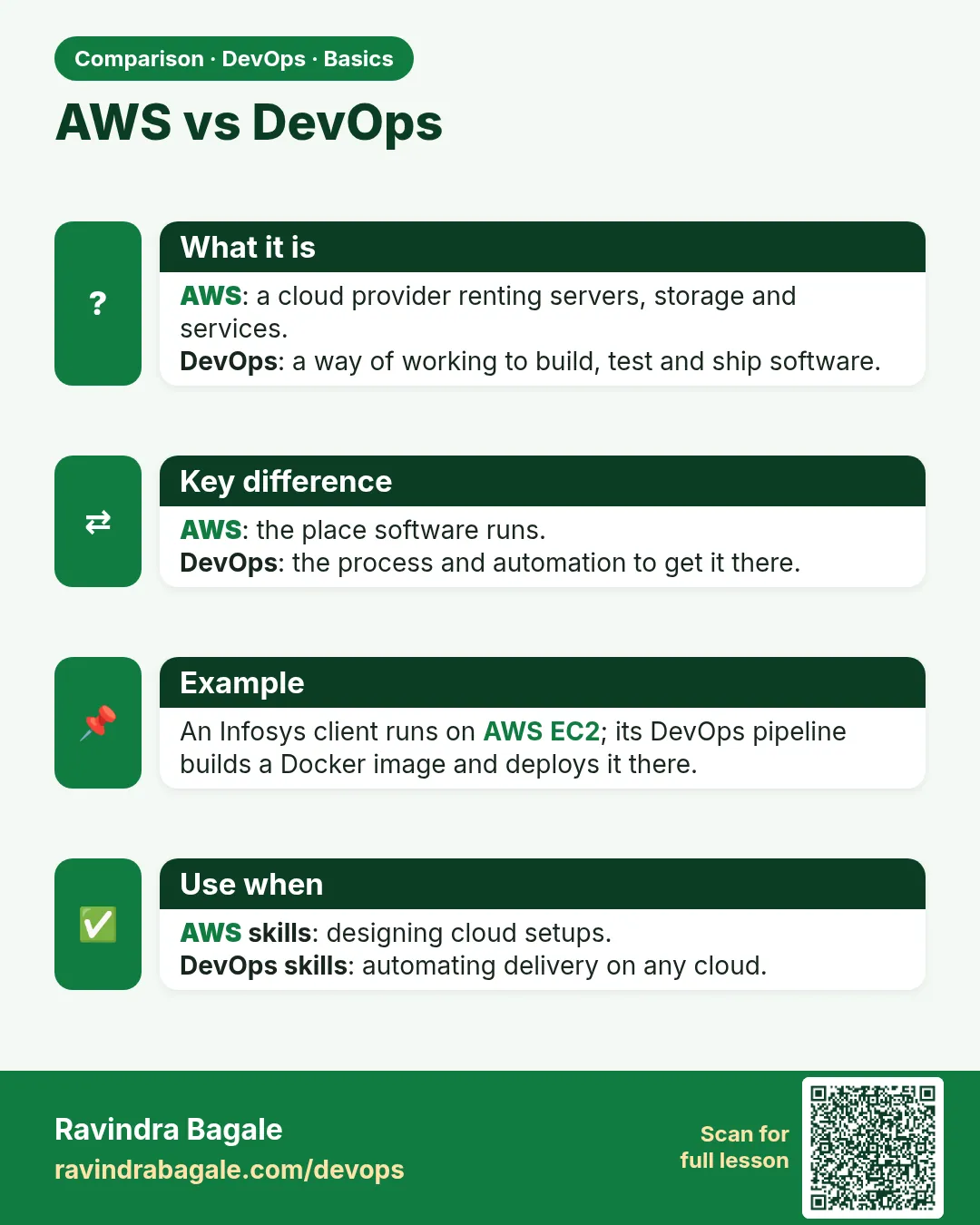
At home, draw two columns: AWS skills and DevOps skills. Put every chapter of both courses in the right column. Circle three places where they meet, like Terraform creating EC2 or Jenkins pushing to ECR.
Recap
- AWS teaches servers and networks; DevOps teaches shipping to them.
- Start DevOps on a laptop; reuse AWS skills when needed.
- The deploy steps are the same on a laptop, a container or EC2.
- Open ports to your IP only.
- Stop servers and check costs after every lab.
FAQ
Can I use Azure or GCP instead?
Yes. The DevOps steps are the same; only the cloud commands differ.
Is the free tier enough?
For this course, mostly yes, if you stop servers after labs.
Should I use the root account?
Never for daily work. Use an IAM user or SSO with limited rights.
Where do Terraform and AWS meet?
Chapter 12 creates EC2 and networks with Terraform instead of clicking.
What about the ethical hacking course?
That is a separate Cyber Security course on this site.
Interview questions
-
How do DevOps and cloud relate?
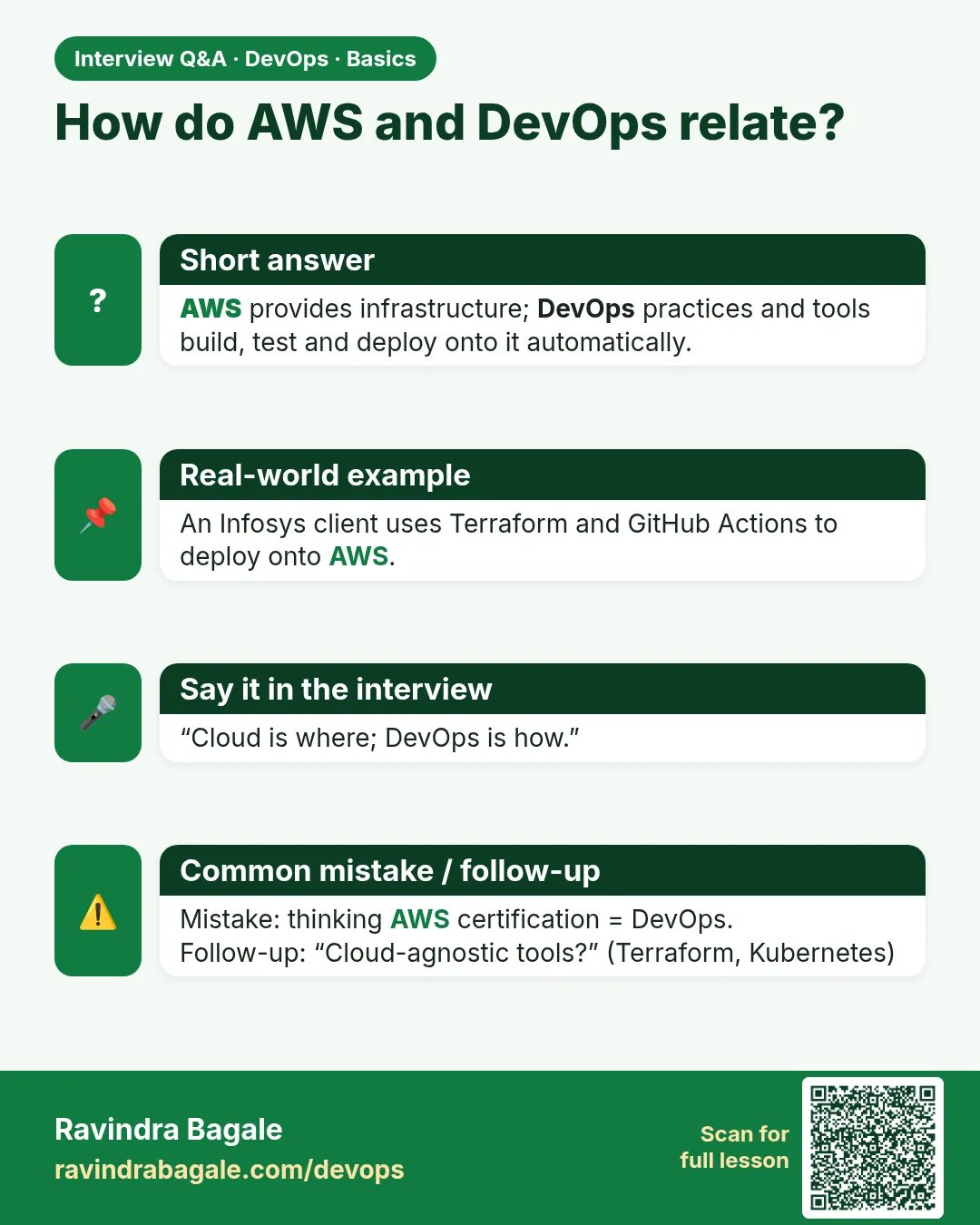
Cloud provides on-demand infrastructure; DevOps practices automate building, deploying and running software on it.
-
How do you deploy a container to EC2?
Install Docker, copy or pull the image, run it with a restart policy, open the port in the security group.
-
How do you control AWS costs in labs?
Stop or terminate unused resources, remove unattached volumes and IPs, set budgets and alerts.
-
How do you secure SSH to EC2?
Key-based login, port 22 open only to your IP, no root login, or use SSM Session Manager.
-
Why test before copying to the server?
To catch bugs early and keep the server stable.
Quick quiz
Q1. Do you need to finish AWS before DevOps?
No. Start DevOps on a laptop; use AWS when a lab needs a server.
Q2. Which command shows who you are in AWS?
aws sts get-caller-identity
Q3. Why open port 8000 to /32 only?
So only your IP can reach the lab app.
Q4. What is the difference between stop and terminate?
Stop keeps the disk; terminate deletes the server.
Q5. What changed between laptop and EC2 deploy?
Only the address; the steps were the same.
Thodkyaat sangaycha tar
- Why DevOps: developers vs operations wall; operations = server-side person.
- Suppose stories: Instagram-style badge, Netflix frequent updates, Infosys client handoff.
- Loop: plan → code → CI → package → deploy → operate + feedback.
- CALMS + CI/CD words with examples; titles overlap; this course sits beside AWS.
Did you understand? Let us try it once more.
 Revision card
 Interview card
 Comparison card