Chapter 46: Terraform 3-Tier Architecture Multi-AZ with ALBs Auto Scaling Bastion NAT and RDS
46.4 Bastion jump server in the public subnet
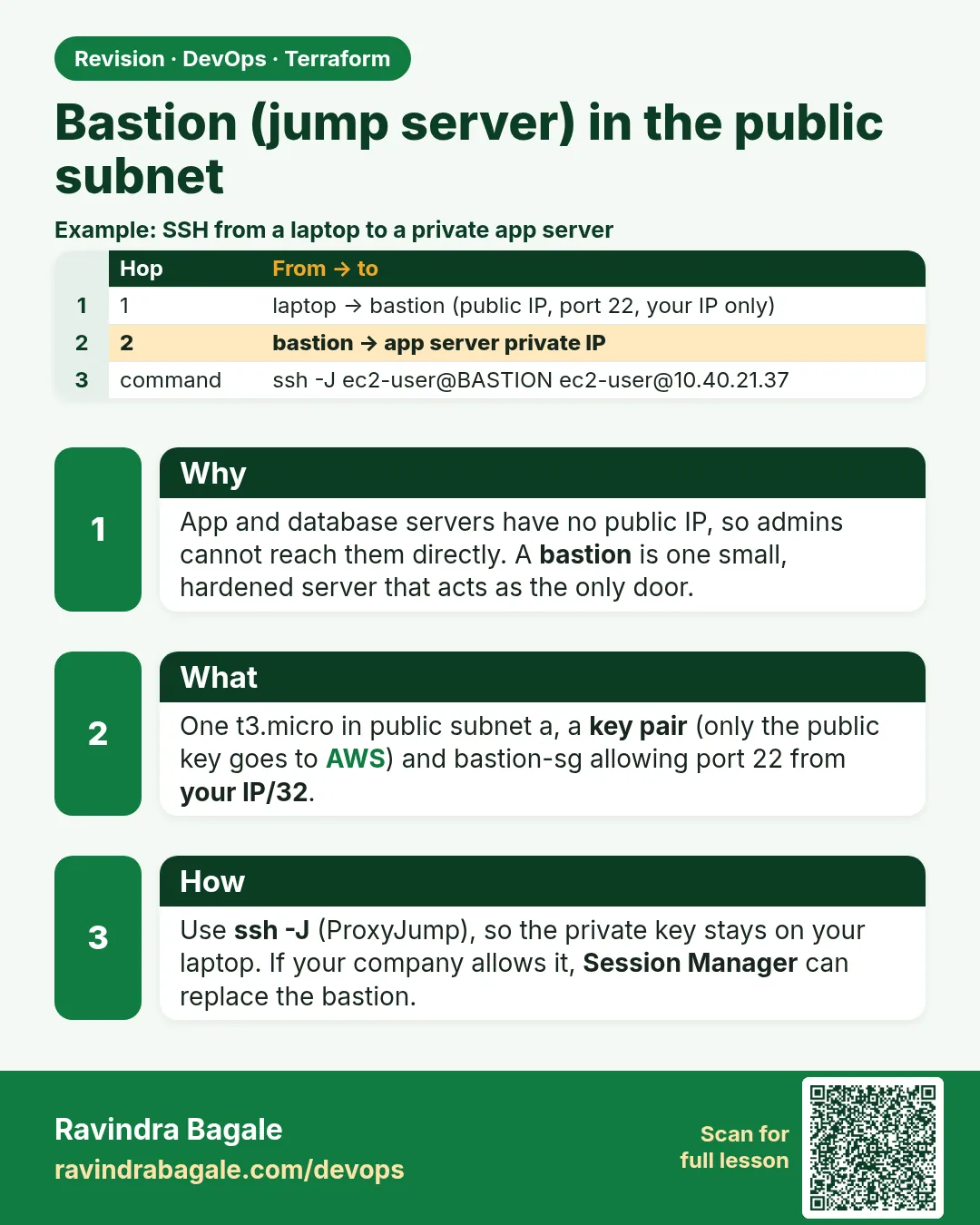
Story. Suppose we are the on-call engineer for the shop at night and an app server is misbehaving. App servers have no public IP, so we enter through one hardened jump server in public subnet a, then hop to the private server. Only our IP can reach the bastion, the key pair holds only the public key, and the private key stays on our laptop. If your company allows it, Session Manager can replace the bastion entirely; here we build the bastion because interviews ask about it.
Steps
- Write bastion.tf.
- After apply, add your key with ssh-add.
- SSH to the bastion, then jump to a private IP with ssh -J.
- Exit when done; never copy the private key onto the bastion.
# ---- bastion.tf ----
data "aws_ami" "al2023" {
  most_recent = true
  owners      = ["amazon"]
  filter {
    name   = "name"
    values = ["al2023-ami-2023.*-x86_64"]
  }
}

resource "aws_key_pair" "ops" {
  key_name   = "${var.project}-ops"
  public_key = file(pathexpand(var.public_key_path))
}

resource "aws_instance" "bastion" {
  ami                    = data.aws_ami.al2023.id
  instance_type          = "t3.micro"
  subnet_id              = aws_subnet.public["a"].id
  vpc_security_group_ids = [aws_security_group.bastion.id]
  key_name               = aws_key_pair.ops.key_name
  metadata_options {
    http_tokens = "required"
  }
  tags = {
    Name = "${var.project}-bastion"
  }
}
What each line does
data "aws_ami" "al2023"— The AMI shared by the bastion and both launch templates.resource "aws_key_pair" "ops"— Uploads only your public key to AWS.file(pathexpand(var.public_key_path))— Reads ~/.ssh/shop3t.pub from your laptop.subnet_id = aws_subnet.public["a"].id— The bastion lives in public subnet a.vpc_security_group_ids = [bastion]— Port 22 from your IP only.key_name = aws_key_pair.ops.key_name— Lets your key log in as ec2-user.http_tokens = "required"— IMDSv2.
When it is green.
$ ssh-add ~/.ssh/shop3t
$ ssh -J ec2-user@<bastion_public_ip> ec2-user@10.40.21.37
[ec2-user@ip-10-40-21-37 ~]$ systemctl is-active app
active
When it is red.
ec2-user@<bastion_public_ip>: Permission denied (publickey).
  -- or --
ssh: connect to host <bastion_public_ip> port 22: Operation timed out
Fix. Permission denied: wrong key, or the key file is too open; run chmod 400 ~/.ssh/shop3t and ssh-add it. Timed out: your IP changed; update my_ip_cidr and apply again.
What: every term in plain English
- bastion (jump server) — A small hardened server in a public subnet that admins SSH into before hopping to private servers.
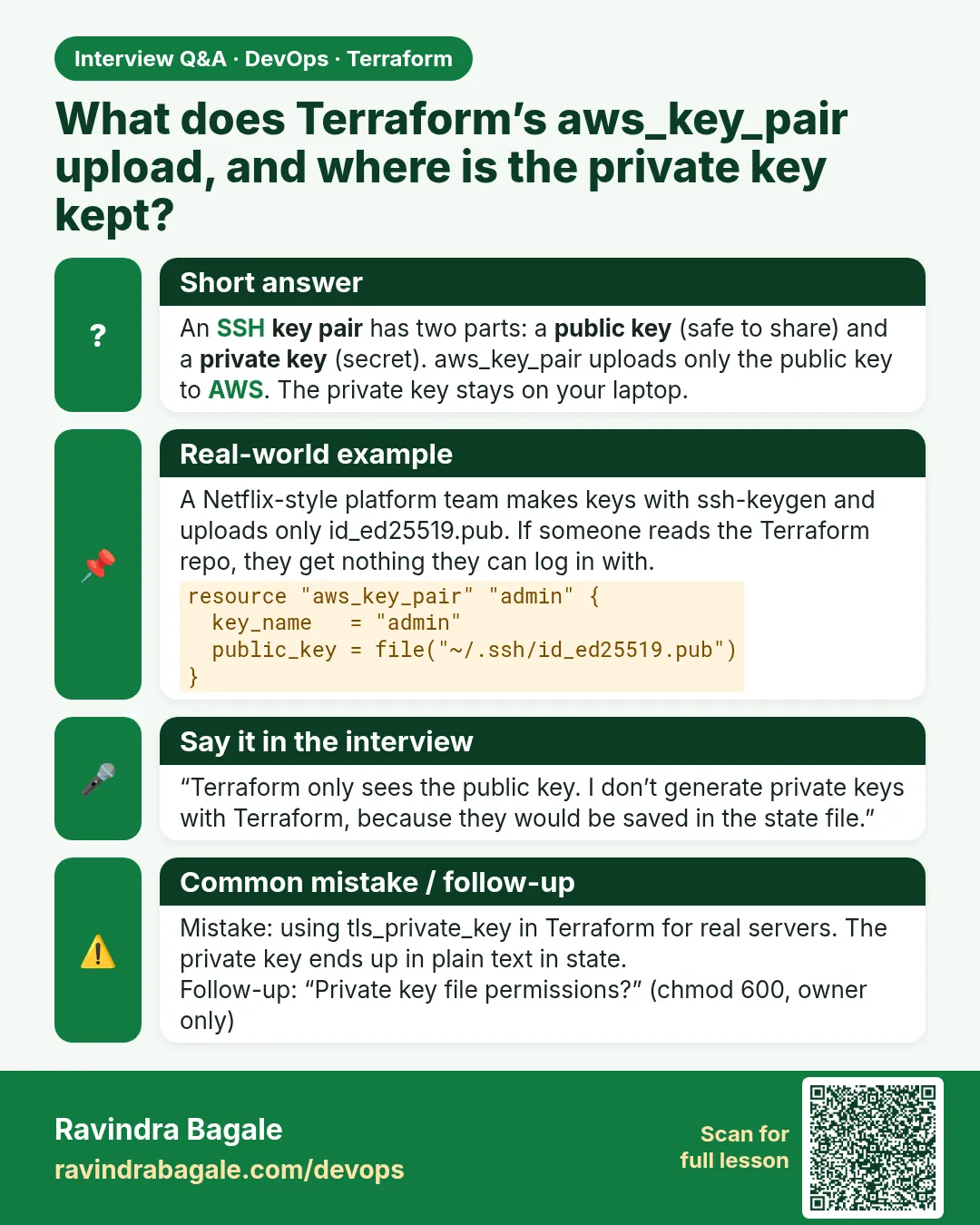
- aws_key_pair — Uploads your public key to AWS so EC2 can put it on the server.
- ProxyJump (-J) — An SSH option that connects through one server to reach another in a single command.
- agent forwarding — Lets the bastion use your laptop key without copying it. Prefer ProxyJump, which needs no forwarding.
- Elastic IP for bastion — Optional fixed address so your SSH config does not change after a restart.
- Session Manager — AWS Systems Manager feature that opens a shell without SSH or open ports. The modern replacement for bastions.
- hardening — Removing everything an attacker could use: password login off, small instance, updates on, only port 22 from one IP.
- IMDSv2 — Token-based metadata service; http_tokens = "required" blocks a common credential-stealing attack.
Example 1: Upload the public key and create the bastion
At Tech Mahindra every lab VPC gets one bastion. Terraform reads only the .pub file, so no private key ever enters state.
- Create aws_key_pair from the .pub file.
- Launch a t3.micro in public subnet a.
- Output its public IP.
resource "aws_key_pair" "ops" {
  key_name   = "${var.project}-ops"
  public_key = file(pathexpand(var.public_key_path))
}

resource "aws_instance" "bastion" {
  ami                         = data.aws_ami.al2023.id
  instance_type               = "t3.micro"
  subnet_id                   = aws_subnet.public["a"].id
  vpc_security_group_ids      = [aws_security_group.bastion.id]
  key_name                    = aws_key_pair.ops.key_name
  associate_public_ip_address = true
  metadata_options {
    http_tokens = "required"
  }
  tags = { Name = "${var.project}-bastion" }
}

output "bastion_ip" {
  value = aws_instance.bastion.public_ip
}
Output
aws_key_pair.ops: Creation complete after 0s [id=shop3t-ops]
aws_instance.bastion: Creation complete after 12s [id=i-0bastion12345678a]
Outputs:
bastion_ip = "13.233.10.20"
What it shows: pathexpand turns ~/.ssh/shop3t.pub into a full path, so the code works for every user.
Example 2: Hop to a private server with one command
Copying private keys onto the bastion is a classic mistake. ProxyJump keeps the key on your laptop and still reaches the private web server.
- Get the bastion IP and a web private IP.
- Run ssh with -J.
- Check the hostname.
B=$(terraform output -raw bastion_ip)
WEB=$(aws ec2 describe-instances --filters Name=tag:Name,Values=shop3t-web Name=instance-state-name,Values=running \
  --query "Reservations[0].Instances[0].PrivateIpAddress" --output text)
ssh -i ~/.ssh/shop3t -J ec2-user@$B ec2-user@$WEB hostname
Output
ip-10-40-11-57.ap-south-1.compute.internal
What it shows: 10.40.11.x is web subnet a. You reached a private server without it having a public IP.
Example 3: Save the hop in ~/.ssh/config
Typing -J every time is slow. An SSH config entry lets the whole team at Razorpay type ssh shop-web-a and be done.
- Write the config with printf.
- Set safe permission 600.
- Connect by short name.
printf '%s\n' 'Host shop-bastion' '  HostName 13.233.10.20' '  User ec2-user' '  IdentityFile ~/.ssh/shop3t' \
  'Host 10.40.*' '  User ec2-user' '  IdentityFile ~/.ssh/shop3t' '  ProxyJump shop-bastion' >> ~/.ssh/config
chmod 600 ~/.ssh/config
ssh 10.40.21.34 hostname
Output
ip-10-40-21-34.ap-south-1.compute.internal
What it shows: Any 10.40 address now goes through the bastion automatically. 600 means only you can read or write the file.
Example 4: Confirm SSH is open only to you
Auditors at Deloitte check the bastion rule first. It must show your single /32 and nothing else.
- Read the bastion ingress rule.
- Try SSH from another network (mobile hotspot).
- See it time out.
aws ec2 describe-security-group-rules \
  --filters Name=group-id,Values=$(terraform output -raw bastion_sg_id) \
  --query "SecurityGroupRules[?!IsEgress].[FromPort,CidrIpv4]"
Output
[
    [
        22,
        "203.0.113.10/32"
    ]
]
What it shows: From a different IP the ssh command just hangs, then times out. That is the rule doing its job.
Example 5: Update your IP when it changes
Home broadband IPs change. Instead of editing the console, change the variable and let Terraform update only the one rule.
- Get the new IP.
- Rewrite lab.auto.tfvars.
- Plan and see one in-place or replace.
echo "my_ip_cidr = \"$(curl -s https://checkip.amazonaws.com)/32\"" > lab.auto.tfvars
terraform plan -out tfplan | grep -E "bastion|Plan:"
terraform apply tfplan
Output
  # aws_vpc_security_group_ingress_rule.bastion_ssh must be replaced
Plan: 1 to add, 0 to change, 1 to destroy.
Apply complete! Resources: 1 added, 0 changed, 1 destroyed.
What it shows: Only the rule changes. The bastion server is untouched.
Example 6: Replace the bastion with Session Manager
Many companies such as Atlassian removed bastions completely. An instance role plus Session Manager means no port 22 and no keys at all.
- Attach AmazonSSMManagedInstanceCore to a role.
- Give the private servers that instance profile.
- Start a session by instance id.
resource "aws_iam_role" "ssm" {
  name = "${var.project}-ssm"
  assume_role_policy = jsonencode({
    Version   = "2012-10-17"
    Statement = [{ Effect = "Allow", Action = "sts:AssumeRole", Principal = { Service = "ec2.amazonaws.com" } }]
  })
}

resource "aws_iam_role_policy_attachment" "ssm" {
  role       = aws_iam_role.ssm.name
  policy_arn = "arn:aws:iam::aws:policy/AmazonSSMManagedInstanceCore"
}

resource "aws_iam_instance_profile" "ssm" {
  name = "${var.project}-ssm"
  role = aws_iam_role.ssm.name
}
aws ssm start-session --target i-0web0123456789abc
Output
Starting session with SessionId: ravi-0a1b2c3d4e5f6a7b8
sh-5.2$
What it shows: Add iam_instance_profile to the launch templates to use it. The NAT gives the agent its route to the SSM endpoint.
Command cheat sheet
| Command | What it does | When to use it |
|---|---|---|
aws_key_pair |
Uploads public key | Before EC2 |
file(pathexpand(path)) |
Reads ~/ paths | Key file |
ssh -J user@bastion user@private |
One-hop SSH | Reach private servers |
ProxyJump in ~/.ssh/config |
Saved hop | Daily work |
chmod 600 ~/.ssh/config |
Owner only | SSH config |
aws ssm start-session --target ID |
Shell without SSH | Bastion-free |
Verify: did it work?
-
Bastion has a public IP
terraform output -raw bastion_ipOutput
13.233.10.20 -
Hop works
ssh -J ec2-user@$B ec2-user@$WEB hostnameOutput
ip-10-40-11-57... -
SSH rule is /32
terraform state show aws_vpc_security_group_ingress_rule.bastion_ssh | grep cidr_ipv4Output
cidr_ipv4 = "203.0.113.10/32"
When it is red 1
ssh: connect to host 13.233.10.20 port 22: Connection timed out
Cause. Your IP changed or the rule has a different address.
Fix, step by step
- Update lab.auto.tfvars with your current IP.
- Plan and apply.
When it is red 2
ec2-user@10.40.11.57: Permission denied (publickey,gssapi-keyex,gssapi-with-mic).
Cause. The private server was launched with a different key or no key.
Fix, step by step
- Check key_name in the launch template.
- Run an instance refresh.
When it is red 3
Error: Invalid function argument: no file exists at "~/.ssh/shop3t.pub"
Cause. The ~ was not expanded.
Fix, step by step
- Wrap the path in pathexpand().
- Or give a full path.
Cleanup
terraform destroy -auto-approve
Ravindra Bagale's Tip
Never copy your private key onto the bastion. If the bastion is broken into, the attacker gets the key to every server. ProxyJump avoids that completely.
Practice tasks
Easy Connect to the bastion
Why: First hop.
What to do: SSH to the bastion and run uptime.
- ssh -i key ec2-user@IP.
Check: An uptime line.
Easy Hop to an app server
Why: Use -J.
What to do: Reach an app server in 10.40.21.x.
- Find its private IP.
Check: App hostname.
Medium Add an EIP to the bastion
Why: Stable address.
What to do: Add aws_eip with instance = bastion id.
- Output the EIP.
Check: IP survives stop/start.
Hard Go bastion-free
Why: Modern access.
What to do: Add the SSM profile to web servers and connect with SSM.
- Instance refresh after change.
Check: Shell with no port 22.
Easy Say it in two lines
Why: If you can say it simply, you understand it.
What to do: Write two short lines about this lesson for a fresher.
- Write the problem it solves.
- Write the one command or file you use.
- Read it aloud.
Check: A fresher understands it without a question.
Easy Start a safe lab folder
Why: Practice needs a throwaway place.
What to do: Make a new folder with versions.tf and a random_pet resource, so no AWS cost.
- mkdir tf-lab and cd into it.
- Add the hashicorp/random provider and one random_pet.
- Run terraform init and terraform apply.
Check: Apply complete! with 1 added.
Medium Break it on purpose
Why: You must know the red output by face.
What to do: Cause one error from the red part of this lesson and fix it.
- Follow one red section.
- Copy the exact message to your notes.
- Write the fix in one line.
Check: You fixed it without searching the web.
Medium Run it twice
Why: A second run must be quiet.
What to do: Run the same plan two times with no edits.
- Run terraform plan.
- Run it again.
- Explain any change it still shows.
Check: The second plan says No changes, or you can explain each line.
Medium Write a runbook page
Why: At 2 a.m. nobody remembers flags.
What to do: Write a one-page runbook for this lesson.
- Title, when to use, exact commands, how to check, how to undo.
Check: A teammate can follow it alone.
Medium Run it from a pipeline
Why: Real teams run Terraform from CI, not from laptops.
What to do: Run the main command of this lesson inside a GitHub Actions or Jenkins job.
- Add a job with hashicorp/setup-terraform or a Terraform Docker image.
- Give it AWS access through an IAM role, never a key in the file.
- Run init, then the command from this lesson.
Check: The job log shows the same output you saw on your laptop.
Medium Check the cost
Why: Labs left running cost real money.
What to do: Find what this lesson would cost per day if you forgot to destroy it.
- Open the AWS Pricing Calculator.
- Add each resource from your plan.
- Write the daily cost in your notes.
Check: You know the daily cost and you ran terraform destroy.
Hard Draw the flow top to bottom
Why: A drawing shows the order of work.
What to do: Draw this lesson as boxes from top to bottom.
- Start at your code, go through plan and state, end at AWS.
- Mark where each command reads or writes.
Check: Each box matches a real step you ran.
Hard Explain it like an interview
Why: Interviewers want real stories.
What to do: Record a 60 second answer about this lesson.
- Say the problem, the command, and one error you hit.
Check: Your answer has a real command and a real error message.
Homework: try at home
Try at home
Write an SSH config that reaches every private server of the lab through the bastion with ProxyJump, and test it on one web and one app server.
Recap
- Bastion in a public subnet, SSH from one /32.
- Only the public key goes to AWS.
- ProxyJump keeps the private key on your laptop.
- Changing your IP changes only one rule.
- Session Manager can replace the bastion.
FAQ
Why t3.micro for the bastion?
It only forwards SSH; it needs no power.
Should the bastion run 24x7?
No. Stop it or destroy it when not needed.
Is agent forwarding safe?
Less safe than ProxyJump; avoid it.
Can I log bastion sessions?
Yes, with Session Manager logging to S3 or CloudWatch.
Interview questions
-
What is a bastion host?
A hardened jump server in a public subnet used to reach private servers.
-
How do you SSH through a bastion without copying keys?
Use ssh -J or ProxyJump.
-
How do you restrict bastion access?
Allow port 22 only from known admin /32 addresses.
-
What is the alternative to a bastion?
AWS Systems Manager Session Manager.
Quick quiz
Q1. SSH flag for jump host?
-J
Q2. Permission for ~/.ssh/config?
600
Q3. Function that expands ~?
pathexpand
Q4. Policy for Session Manager?
AmazonSSMManagedInstanceCore
Q5. Port the bastion opens?
22
Samajla ka?
 Revision card
 Interview card