Chapter 37: Terraform Import Moved and Removed Blocks
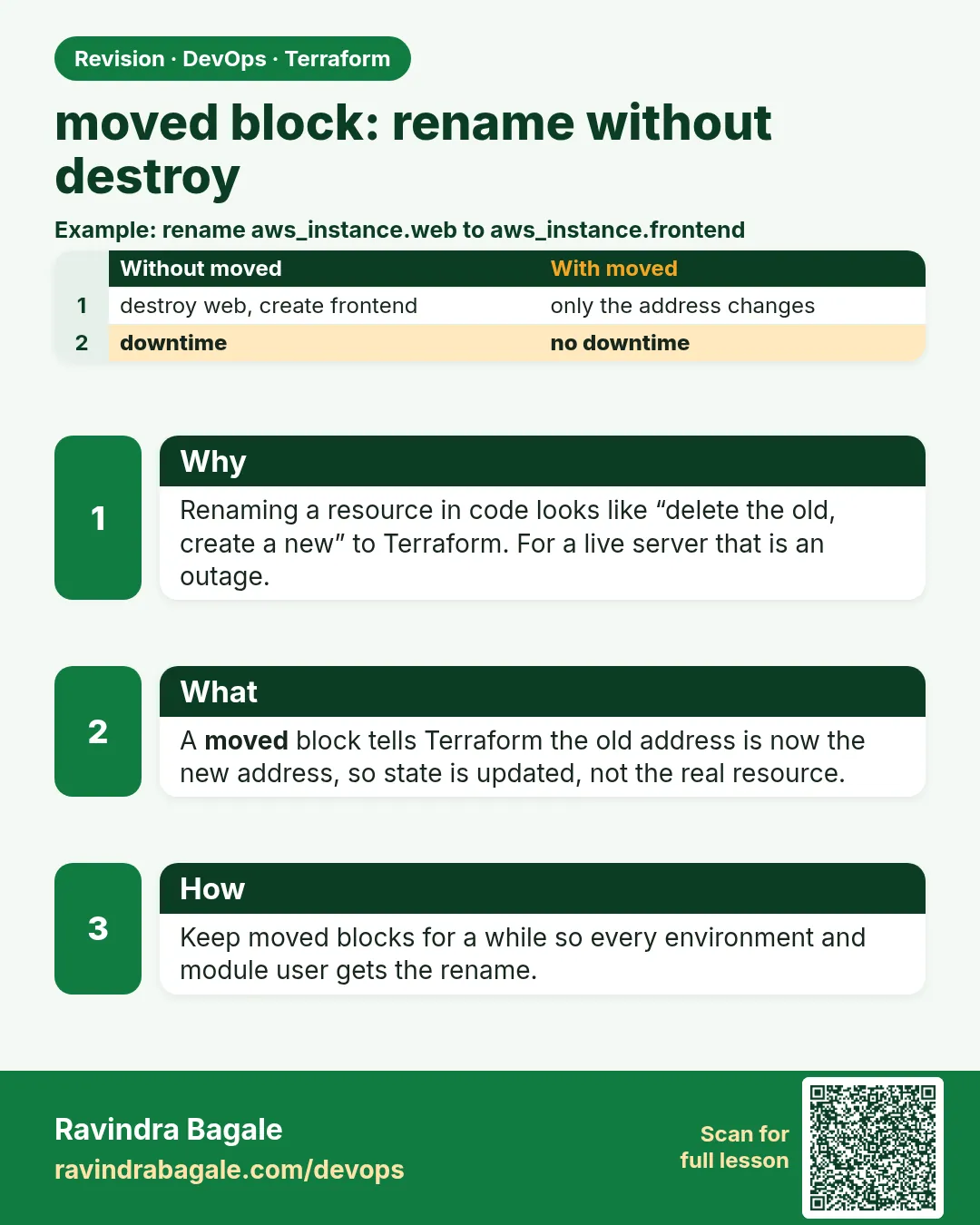
37.2 moved block — rename without destroy
Story. A Netflix-style team renamed aws_instance.server to aws_instance.web for clarity, and the plan wanted to destroy one server and create another. The code changed, not the cloud. A moved block tells Terraform the old address and the new one are the same object. It works for renames, for moving a resource into a module, and for switching count to for_each.
moved {
  from = aws_instance.server
  to   = aws_instance.web
}

moved {
  from = aws_instance.web
  to   = module.web.aws_instance.this
}

moved {
  from = aws_s3_bucket.svc[0]
  to   = aws_s3_bucket.svc["auth"]
}
What each line does
moved {— Declares a refactor that Terraform should apply to state.from = aws_instance.server— The old address still recorded in state.to = aws_instance.web— The new address in your code.to = module.web.aws_instance.this— Moves a root resource into a child module.from = aws_s3_bucket.svc[0]— A count-based address.to = aws_s3_bucket.svc["auth"]— The matching for_each key after switching to for_each.
When it is green.
  # aws_instance.server has moved to aws_instance.web
    resource "aws_instance" "web" { id = "i-0abc..." }

Plan: 0 to add, 0 to change, 0 to destroy.
When it is red.
Error: Moved object still exists
  on moved.tf line 1: moved {
This statement declares a move from aws_instance.server, but that resource is still declared in main.tf.
Fix. You renamed by copying. Delete the old resource block so only the new one remains. Keep moved blocks for a release or two so every environment picks them up.
What: every term in plain English
- address — The name of a resource inside Terraform, such as aws_instance.web or module.app.aws_instance.this.
- refactor — Changing how code is organised without changing what is built.
- moved block — Tells Terraform an object at the old address is now at the new address.
- from — The old address still in state.
- to — The new address in code.
- count index — A number key like [0]. It shifts when you remove an item from the middle.
- for_each key — A string key like ["auth"]. It stays stable when other items change.
Example 1: Rename a resource with no downtime
A Netflix-style team renamed aws_instance.server to aws_instance.web. Without a moved block, plan destroys the live server.
- Apply a server named aws_instance.server.
- Rename it to web in main.tf.
- Run plan and see the destroy.
- Add the moved block and plan again.
resource "aws_instance" "web" {
  ami           = "ami-0123456789abcdef0"
  instance_type = "t3.micro"
  tags = {
    Name = "web-1"
  }
}

moved {
  from = aws_instance.server
  to   = aws_instance.web
}
terraform plan
terraform apply
terraform state list
Output
  # aws_instance.server has moved to aws_instance.web
    resource "aws_instance" "web" {
        id = "i-0123456789abcdef0"
    }

Plan: 0 to add, 0 to change, 0 to destroy.
Apply complete! Resources: 0 added, 0 changed, 0 destroyed.
aws_instance.web
What it shows: Same server id, new name. No downtime and no new IP address.
Example 2: Move a resource into a module
A Flipkart-style team turned the web server into a reusable module. The address now has a module prefix.
- Create modules/web/main.tf with resource aws_instance.this.
- Call the module from root.
- Add a moved block from the root address to the module address.
# modules/web/main.tf
variable "ami" { type = string }
resource "aws_instance" "this" {
  ami           = var.ami
  instance_type = "t3.micro"
}
# main.tf
module "web" {
  source = "./modules/web"
  ami    = "ami-0123456789abcdef0"
}

moved {
  from = aws_instance.web
  to   = module.web.aws_instance.this
}
terraform init
terraform plan
Output
  # aws_instance.web has moved to module.web.aws_instance.this

Plan: 0 to add, 0 to change, 0 to destroy.
What it shows: init is needed because a new module was added. The server itself is untouched.
Example 3: Switch count to for_each safely
With count, removing item 0 shifts every other item and Terraform recreates them. for_each keys stay stable. Moved blocks make the switch free.
- Old code used count = 2 on aws_s3_bucket.svc.
- New code uses for_each with keys auth and billing.
- Add one moved block per item.
resource "aws_s3_bucket" "svc" {
  for_each = toset(["auth", "billing"])
  bucket   = "demo-${each.key}-1234"
}

moved {
  from = aws_s3_bucket.svc[0]
  to   = aws_s3_bucket.svc["auth"]
}

moved {
  from = aws_s3_bucket.svc[1]
  to   = aws_s3_bucket.svc["billing"]
}
terraform plan
Output
  # aws_s3_bucket.svc[0] has moved to aws_s3_bucket.svc["auth"]
  # aws_s3_bucket.svc[1] has moved to aws_s3_bucket.svc["billing"]

Plan: 0 to add, 0 to change, 0 to destroy.
What it shows: Make sure index 0 really was auth. Check with terraform state show before you write the blocks.
Example 4: Rename a whole module
Module web was renamed to frontend. Every resource inside moves at once with one block.
- Rename module "web" to module "frontend".
- Add one moved block for the module.
- Plan.
module "frontend" {
  source = "./modules/web"
  ami    = "ami-0123456789abcdef0"
}

moved {
  from = module.web
  to   = module.frontend
}
terraform init
terraform plan
Output
  # module.web.aws_instance.this has moved to module.frontend.aws_instance.this

Plan: 0 to add, 0 to change, 0 to destroy.
What it shows: One block moved everything inside the module.
Command cheat sheet
| Command | What it does | When to use it |
|---|---|---|
moved { from = A to = B } |
Rename or relocate in state | Any refactor |
terraform state list |
See current addresses | Before writing moved blocks |
terraform state show 'aws_s3_bucket.svc[0]' |
See which object sits at an index | Before count to for_each |
terraform plan |
Confirm 0 to destroy | After adding moved |
terraform state mv A B |
Old CLI rename, no review | Emergency only |
Verify: did it work?
-
New address in state
terraform state listOutput
aws_instance.web -
Nothing destroyed
terraform planOutput
No changes. Your infrastructure matches the configuration.
When it is red 1
  # aws_instance.server will be destroyed
  # aws_instance.web will be created
Plan: 1 to add, 0 to change, 1 to destroy.
Cause. You renamed the resource but did not add a moved block.
Fix, step by step
- Do not apply.
- Add moved from the old to the new address.
- Plan again and expect 0 to destroy.
When it is red 2
Error: Moved object still exists
This statement declares a move from aws_instance.server, but that resource is still declared in main.tf.
Cause. Both the old and the new resource blocks are in code.
Fix, step by step
- Delete the old block.
- Keep only the new one plus the moved block.
When it is red 3
Error: Ambiguous move statements
A statement at moved.tf:5 declared that aws_instance.web moved to module.web.aws_instance.this, but this statement instead declares that it moved to aws_instance.app.
Cause. Two moved blocks send the same address to two places.
Fix, step by step
- Keep one destination.
- Chain moves in order: A to B, then B to C.
Cleanup
terraform destroy
Practice tasks
Easy Rename one bucket resource
Why: Practise the basic move.
What to do: Rename aws_s3_bucket.a to aws_s3_bucket.logs with a moved block.
- Apply first.
- Rename, add moved, plan.
Check: 0 to destroy.
Medium Move into a module
Why: Real refactors do this.
What to do: Move a root instance into a local module.
- Create the module.
- Write the module address in to.
Check: Same instance id after apply.
Medium count to for_each
Why: Stable keys.
What to do: Convert a count = 3 bucket list into for_each keys.
- Check each index with state show.
- Write three moved blocks.
Check: plan shows 3 moved, 0 to destroy.
Hard Chained moves
Why: History of renames.
What to do: Move A to B in one commit, then B to C in the next.
- Keep both moved blocks.
- Apply each step.
Check: An old workspace still upgrades cleanly.
Easy Say it in two lines
Why: If you can say it simply, you understand it.
What to do: Write two short lines about this lesson for a fresher.
- Write the problem it solves.
- Write the one command or file you use.
- Read it aloud.
Check: A fresher understands it without a question.
Easy Start a safe lab folder
Why: Practice needs a throwaway place.
What to do: Make a new folder with versions.tf and a random_pet resource, so no AWS cost.
- mkdir tf-lab and cd into it.
- Add the hashicorp/random provider and one random_pet.
- Run terraform init and terraform apply.
Check: Apply complete! with 1 added.
Medium Break it on purpose
Why: You must know the red output by face.
What to do: Cause one error from the red part of this lesson and fix it.
- Follow one red section.
- Copy the exact message to your notes.
- Write the fix in one line.
Check: You fixed it without searching the web.
Medium Run it twice
Why: A second run must be quiet.
What to do: Run the same plan two times with no edits.
- Run terraform plan.
- Run it again.
- Explain any change it still shows.
Check: The second plan says No changes, or you can explain each line.
Medium Write a runbook page
Why: At 2 a.m. nobody remembers flags.
What to do: Write a one-page runbook for this lesson.
- Title, when to use, exact commands, how to check, how to undo.
Check: A teammate can follow it alone.
Medium Run it from a pipeline
Why: Real teams run Terraform from CI, not from laptops.
What to do: Run the main command of this lesson inside a GitHub Actions or Jenkins job.
- Add a job with hashicorp/setup-terraform or a Terraform Docker image.
- Give it AWS access through an IAM role, never a key in the file.
- Run init, then the command from this lesson.
Check: The job log shows the same output you saw on your laptop.
Medium Check the cost
Why: Labs left running cost real money.
What to do: Find what this lesson would cost per day if you forgot to destroy it.
- Open the AWS Pricing Calculator.
- Add each resource from your plan.
- Write the daily cost in your notes.
Check: You know the daily cost and you ran terraform destroy.
Hard Draw the flow top to bottom
Why: A drawing shows the order of work.
What to do: Draw this lesson as boxes from top to bottom.
- Start at your code, go through plan and state, end at AWS.
- Mark where each command reads or writes.
Check: Each box matches a real step you ran.
Hard Explain it like an interview
Why: Interviewers want real stories.
What to do: Record a 60 second answer about this lesson.
- Say the problem, the command, and one error you hit.
Check: Your answer has a real command and a real error message.
Homework: try at home
Try at home
Find one resource in your own code with a bad name. Rename it with a moved block and show that plan has 0 to destroy before you apply.
Recap
- A rename without moved means destroy and create.
- moved changes state only, never AWS.
- It works for renames, modules and count to for_each.
- Check index mapping with state show before writing blocks.
- Keep moved blocks for a while so every environment catches up.
FAQ
When can I delete a moved block?
After every workspace and environment has applied it. Many teams keep them for one or two releases.
Does moved work across state files?
No. It works inside one state. For moving between states, use removed in one and import in the other.
Is moved better than terraform state mv?
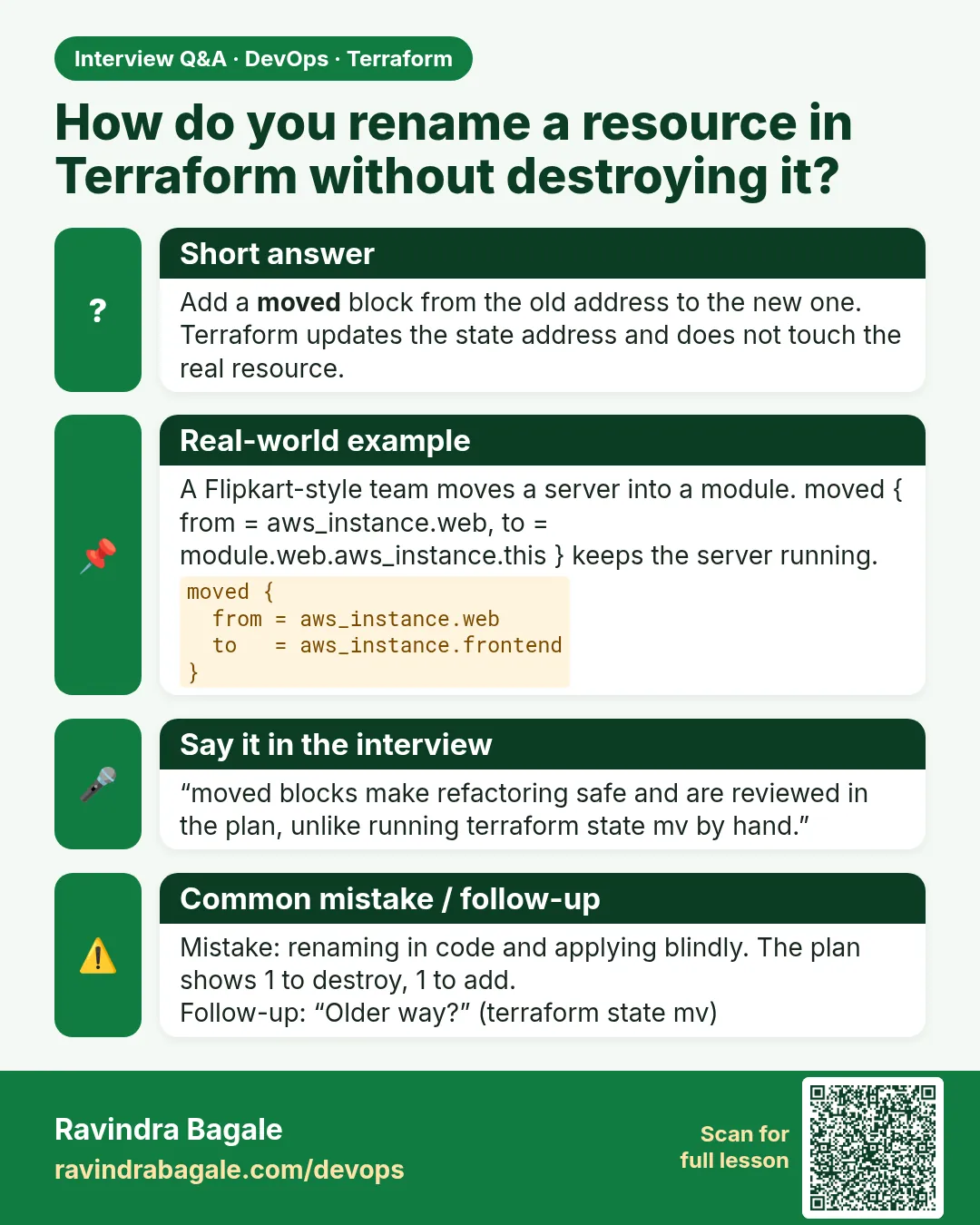
Yes. It is code, it is reviewed, and it runs the same in every environment.
Can I move to a different resource type?
Only for a few types the provider supports. Usually no.
Which version do I need?
Terraform 1.1 or later.
Interview questions
-
You renamed a resource and plan wants to destroy it. What do you do?
Add a moved block from the old address to the new one and plan again.
-
How do you move a resource into a module without downtime?
A moved block with to = module.NAME.TYPE.NAME, then init and plan.
-
Why is count risky for lists?
Removing a middle item shifts indexes and Terraform replaces the later items. for_each keys avoid this.
-
moved vs state mv?
moved is declarative and reviewed in a pull request. state mv changes state at once on one machine.
-
How do you check the moved worked?
plan shows has moved to and 0 to destroy; state list shows the new address.
Quick quiz
Q1. What does a rename without moved cause?
Destroy and create.
Q2. Does moved change AWS?
No.
Q3. Can one block move a whole module?
Yes.
Q4. Which key type is stable, count or for_each?
for_each.
Q5. Minimum version for moved?
Terraform 1.1.
Samajla ka?
 Revision card
 Interview card