Chapter 37: Terraform Import Moved and Removed Blocks
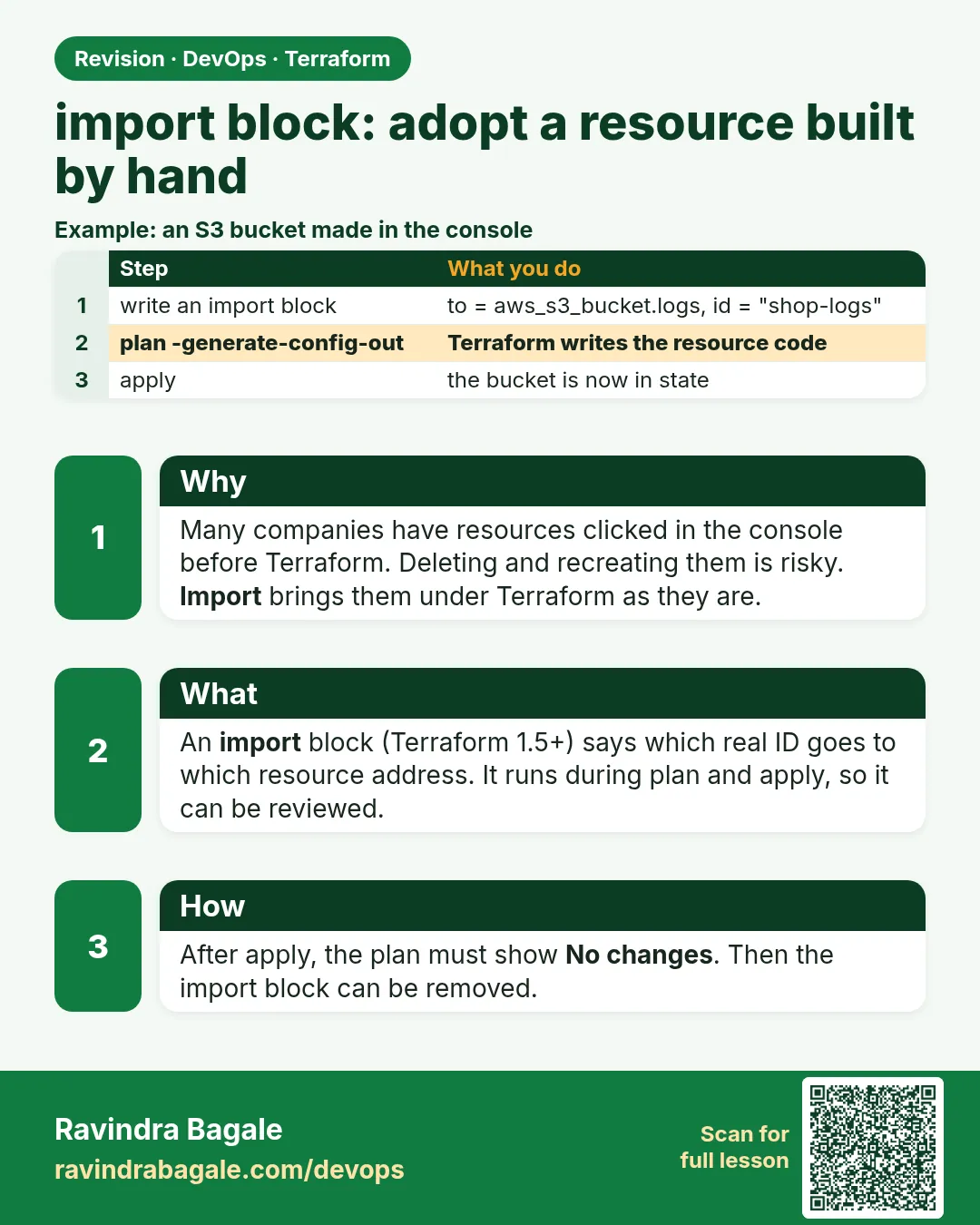
37.1 import block — adopt a resource built by hand
Story. An Infosys client had a production S3 bucket clicked together years ago, and the new rule said every resource must be in Terraform. Deleting and recreating the bucket was not an option. An import block tells Terraform to adopt an existing object into state at a given address. With -generate-config-out, Terraform even drafts the resource block for you to clean up.
# imports.tf
import {
  to = aws_s3_bucket.legacy
  id = "infosys-client-legacy-reports"
}

terraform plan -generate-config-out=generated.tf
terraform plan
terraform apply

# older CLI form, still valid
terraform import aws_s3_bucket.legacy infosys-client-legacy-reports
What each line does
import {— Declares an import to run as part of the next apply.to = aws_s3_bucket.legacy— The address in your code that the existing bucket will map to.id = "infosys-client-legacy-reports"— The real AWS id; for buckets it is the bucket name.terraform plan -generate-config-out=generated.tf— Writes a draft resource block for any import that has no config yet.terraform plan— After you tidy generated.tf, plan should show only the import.terraform apply— Records the bucket in state without changing it.terraform import aws_s3_bucket.legacy ...— The older one-off CLI command; it changes state immediately with no plan, so prefer the block.
When it is green.
  # aws_s3_bucket.legacy will be imported
    resource "aws_s3_bucket" "legacy" { bucket = "infosys-client-legacy-reports" ... }

Plan: 1 to import, 0 to add, 0 to change, 0 to destroy.
Apply complete! Resources: 1 imported, 0 added, 0 changed, 0 destroyed.
When it is red.
Error: Cannot import non-existent remote object
While attempting to import an existing object to "aws_s3_bucket.legacy", the provider detected
that no object exists with the given id.
Fix. Wrong id or wrong region. Check the name and the provider region. After a successful import, you may delete the import block; it is harmless if left.
What: every term in plain English
- import block — A block in code that says: this real AWS object already exists, put it in state at this address.
- to — The Terraform address the object will live at, such as aws_s3_bucket.legacy.
- id — The real id AWS uses. For a bucket it is the name. For an EC2 instance it is i-0abc... For a security group it is sg-0abc...
- -generate-config-out — A plan flag. Terraform writes a draft resource block for every import that has no code yet.
- terraform import (CLI) — The old one-off command. It writes state at once, with no plan and no review.
- state — The file where Terraform remembers which real object belongs to which address.
- 1 to import — The plan line that shows an import will happen. Nothing in AWS changes.
Example 1: Adopt a console-made S3 bucket
A Swiggy-style team made a reports bucket by hand two years ago. Now it must be in Terraform, without deleting it.
- Make a folder called import-lab with a versions.tf for AWS provider 5.x in ap-south-1.
- Create a bucket by hand in the S3 console, for example demo-legacy-reports-1234.
- Save imports.tf below.
- Run plan with -generate-config-out.
- Open generated.tf, keep only the bucket and tags lines.
- Run plan again, then apply.
# imports.tf
import {
  to = aws_s3_bucket.legacy
  id = "demo-legacy-reports-1234"
}
terraform init
terraform plan -generate-config-out=generated.tf
cat generated.tf
terraform plan
terraform apply
terraform state list
Output
Terraform will perform the following actions:

  # aws_s3_bucket.legacy will be imported
  # (config will be generated)
    resource "aws_s3_bucket" "legacy" {
        bucket = "demo-legacy-reports-1234"
        ...
    }

Plan: 1 to import, 0 to add, 0 to change, 0 to destroy.

Apply complete! Resources: 1 imported, 0 added, 0 changed, 0 destroyed.
aws_s3_bucket.legacy
What it shows: The bucket is now in state. AWS was not changed at all. From now on, changes go through code.
Example 2: Clean up the generated file
Generated code lists every setting, even defaults. Long noisy code is hard to review. Keep only what you care about.
- Look at the draft below.
- Delete lines that are null or are only defaults.
- Move the block into main.tf.
- Run plan. It must show 0 to change.
# generated.tf (draft, before cleanup)
resource "aws_s3_bucket" "legacy" {
  bucket              = "demo-legacy-reports-1234"
  bucket_prefix       = null
  force_destroy       = null
  object_lock_enabled = false
  tags                = {}
  tags_all            = {}
}
# main.tf (after cleanup)
resource "aws_s3_bucket" "legacy" {
  bucket = "demo-legacy-reports-1234"
  tags = {
    Team = "reports"
  }
}
rm generated.tf
terraform fmt
terraform plan
Output
aws_s3_bucket.legacy: Refreshing state... [id=demo-legacy-reports-1234]

  # aws_s3_bucket.legacy will be updated in-place
  ~ resource "aws_s3_bucket" "legacy" {
      ~ tags = {
          + "Team" = "reports"
        }
    }

Plan: 0 to add, 1 to change, 0 to destroy.
What it shows: Only the new tag shows up. That is the change you meant to make. If you see a replace, your code differs from AWS on a setting that cannot change in place.
Example 3: Import an EC2 instance and its security group
A Zomato-style team had one web server built by hand. They want both the server and its firewall in code.
- Find the ids in the console or with the AWS CLI.
- Write two import blocks.
- Generate config, clean it, apply.
aws ec2 describe-instances --filters Name=tag:Name,Values=web-old --query "Reservations[].Instances[].[InstanceId,SecurityGroups[0].GroupId]" --output text
import {
  to = aws_instance.web
  id = "i-0123456789abcdef0"
}

import {
  to = aws_security_group.web
  id = "sg-0123456789abcdef0"
}
terraform plan -generate-config-out=generated.tf
terraform plan
terraform apply
Output
i-0123456789abcdef0    sg-0123456789abcdef0

Plan: 2 to import, 0 to add, 0 to change, 0 to destroy.
Apply complete! Resources: 2 imported, 0 added, 0 changed, 0 destroyed.
What it shows: Two objects adopted in one reviewed plan. The ids here are placeholders; use your own.
Example 4: Import many buckets with for_each
An Infosys client had five console buckets, one per team. Writing five blocks is slow. import supports for_each in Terraform 1.7 and later.
- Put the names in a map.
- Use for_each in both the import block and the resource.
- Plan and apply.
locals {
  team_buckets = {
    auth    = "demo-auth-logs-1234"
    billing = "demo-billing-logs-1234"
    search  = "demo-search-logs-1234"
  }
}

import {
  for_each = local.team_buckets
  to       = aws_s3_bucket.team[each.key]
  id       = each.value
}

resource "aws_s3_bucket" "team" {
  for_each = local.team_buckets
  bucket   = each.value
}
terraform plan
terraform apply
terraform state list
Output
Plan: 3 to import, 0 to add, 0 to change, 0 to destroy.
Apply complete! Resources: 3 imported, 0 added, 0 changed, 0 destroyed.
aws_s3_bucket.team["auth"]
aws_s3_bucket.team["billing"]
aws_s3_bucket.team["search"]
What it shows: One map drives both import and resource, so names never get out of step.
Command cheat sheet
| Command | What it does | When to use it |
|---|---|---|
import { to = ... id = ... } |
Adopt an existing object through plan | Always, in reviewed code |
terraform plan -generate-config-out=generated.tf |
Write draft code for imports | When you have no resource block yet |
terraform import ADDR ID |
Old one-off import, no plan | Only for a quick local test |
terraform state list |
Show addresses in state | After apply, to confirm |
terraform state show ADDR |
Show what state holds for one object | To compare with AWS |
aws s3api list-buckets --query "Buckets[].Name" |
Find bucket names | Before writing import blocks |
Verify: did it work?
-
Object is in state
terraform state listOutput
aws_s3_bucket.legacy -
Code matches AWS
terraform planOutput
No changes. Your infrastructure matches the configuration.
When it is red 1
Error: Cannot import non-existent remote object
While attempting to import an existing object to "aws_s3_bucket.legacy", the provider detected that no object exists with the given id.
Cause. The id is wrong or the provider points to a different region or account.
Fix, step by step
- Check the exact name or id in the console.
- Check region in the provider block.
- Run aws sts get-caller-identity to confirm the account.
When it is red 2
Error: Resource already managed by Terraform
Terraform is already managing a remote object for aws_s3_bucket.legacy.
Cause. The object is already in state, maybe from an earlier apply.
Fix, step by step
- Run terraform state list.
- If it is there, delete the import block; the job is done.
When it is red 3
Error: Configuration for import target does not exist
The configuration for the given import target aws_s3_bucket.legacy does not exist.
Cause. You have an import block but no resource block, and you did not pass -generate-config-out.
Fix, step by step
- Run terraform plan -generate-config-out=generated.tf.
- Or write the resource block yourself.
Cleanup
# remove from state first if you want to keep the bucket, else destroy
terraform destroy
aws s3 rb s3://demo-legacy-reports-1234 --force
Practice tasks
Easy Import one bucket
Why: First import by hand.
What to do: Create a bucket in the console and import it with a block.
- Write the import block.
- Use -generate-config-out.
- Apply.
Check: state list shows the bucket.
Medium Reach zero diff
Why: Clean code is reviewable code.
What to do: Clean generated.tf until plan shows no changes.
- Remove null lines.
- Run plan after each edit.
Check: plan says No changes.
Medium Import a security group
Why: Groups have rules too.
What to do: Import an existing sg-... and its rules.
- Import aws_security_group.
- Check if rules come as separate resources.
Check: plan shows 0 to change.
Hard for_each import
Why: Bulk adoption.
What to do: Import three buckets with one for_each import block.
- Use a locals map.
- Use each.key in to and each.value in id.
Check: 3 imported.
Easy Say it in two lines
Why: If you can say it simply, you understand it.
What to do: Write two short lines about this lesson for a fresher.
- Write the problem it solves.
- Write the one command or file you use.
- Read it aloud.
Check: A fresher understands it without a question.
Easy Start a safe lab folder
Why: Practice needs a throwaway place.
What to do: Make a new folder with versions.tf and a random_pet resource, so no AWS cost.
- mkdir tf-lab and cd into it.
- Add the hashicorp/random provider and one random_pet.
- Run terraform init and terraform apply.
Check: Apply complete! with 1 added.
Medium Break it on purpose
Why: You must know the red output by face.
What to do: Cause one error from the red part of this lesson and fix it.
- Follow one red section.
- Copy the exact message to your notes.
- Write the fix in one line.
Check: You fixed it without searching the web.
Medium Run it twice
Why: A second run must be quiet.
What to do: Run the same plan two times with no edits.
- Run terraform plan.
- Run it again.
- Explain any change it still shows.
Check: The second plan says No changes, or you can explain each line.
Medium Write a runbook page
Why: At 2 a.m. nobody remembers flags.
What to do: Write a one-page runbook for this lesson.
- Title, when to use, exact commands, how to check, how to undo.
Check: A teammate can follow it alone.
Medium Run it from a pipeline
Why: Real teams run Terraform from CI, not from laptops.
What to do: Run the main command of this lesson inside a GitHub Actions or Jenkins job.
- Add a job with hashicorp/setup-terraform or a Terraform Docker image.
- Give it AWS access through an IAM role, never a key in the file.
- Run init, then the command from this lesson.
Check: The job log shows the same output you saw on your laptop.
Medium Check the cost
Why: Labs left running cost real money.
What to do: Find what this lesson would cost per day if you forgot to destroy it.
- Open the AWS Pricing Calculator.
- Add each resource from your plan.
- Write the daily cost in your notes.
Check: You know the daily cost and you ran terraform destroy.
Hard Draw the flow top to bottom
Why: A drawing shows the order of work.
What to do: Draw this lesson as boxes from top to bottom.
- Start at your code, go through plan and state, end at AWS.
- Mark where each command reads or writes.
Check: Each box matches a real step you ran.
Hard Explain it like an interview
Why: Interviewers want real stories.
What to do: Record a 60 second answer about this lesson.
- Say the problem, the command, and one error you hit.
Check: Your answer has a real command and a real error message.
Homework: try at home
Try at home
List every bucket in your AWS account with aws s3api list-buckets. Pick two that are not in Terraform and write import blocks for them. Stop at plan if you are not sure.
Recap
- import blocks adopt real objects through a normal plan.
- to is the code address; id is the AWS id.
- -generate-config-out writes a draft; always clean it.
- Aim for plan with 0 to change after the import.
- Prefer the block to the old terraform import command.
FAQ
Does import change my AWS resource?
No. It only writes state. Changes happen only if your code differs from AWS.
Can I delete the import block after apply?
Yes. It is safe to delete. It is also harmless if you leave it.
Which version do I need?
import blocks need Terraform 1.5 or later. for_each in import needs 1.7 or later.
Is generated code ready for production?
No. It is a draft. Remove nulls, add variables and tags, then review.
Can I import into a module?
Yes. Use the full address, such as module.logs.aws_s3_bucket.this.
Interview questions
-
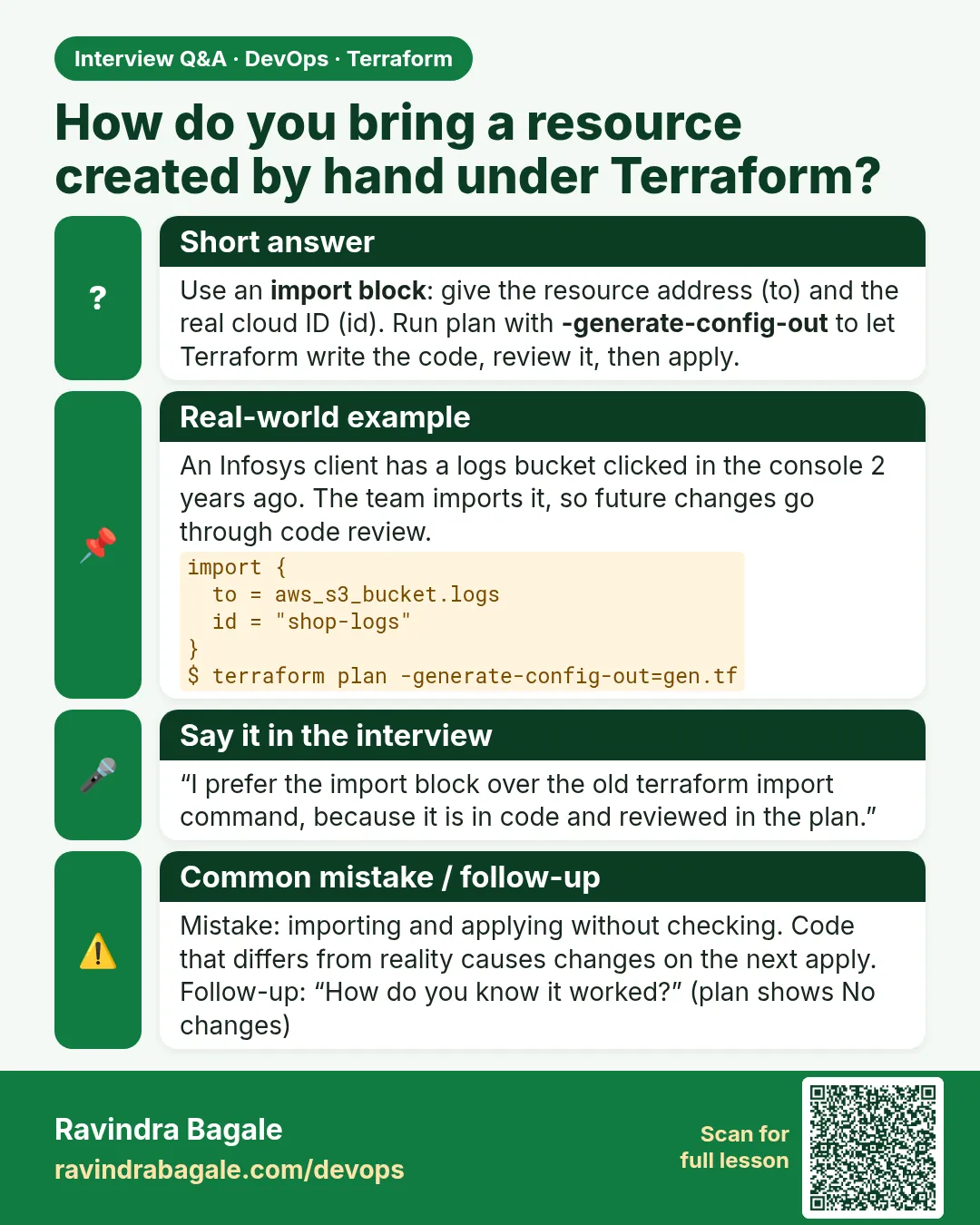
How do you bring a console-made resource under Terraform?
Write an import block with to and id, run plan with -generate-config-out, clean the draft, and apply.
-
Import block vs terraform import command?
The block goes through plan and review and can run in CI. The command writes state at once with no plan.
-
What does the id look like for different resources?
Bucket name for S3, i-... for EC2, sg-... for security groups, the role name for IAM roles. Check the provider docs Import section.
-
After import, plan shows a replace. Why?
Your code differs from AWS on a setting that forces replacement, such as an AMI or subnet. Make the code match first.
-
How do you import fifty resources?
Use for_each on the import block with a map, or generate the blocks with a script from the AWS CLI output.
Quick quiz
Q1. Which flag drafts code for imports?
-generate-config-out.
Q2. Does import change AWS?
No, only state.
Q3. What is the id for an S3 bucket?
The bucket name.
Q4. Minimum version for import blocks?
Terraform 1.5.
Q5. What should plan show after a clean import?
No changes.
Samajla ka?
 Revision card
 Interview card