Chapter 5: Bash Scripting for Automation
5.1 Why script — the morning ten commands
Why: the problem
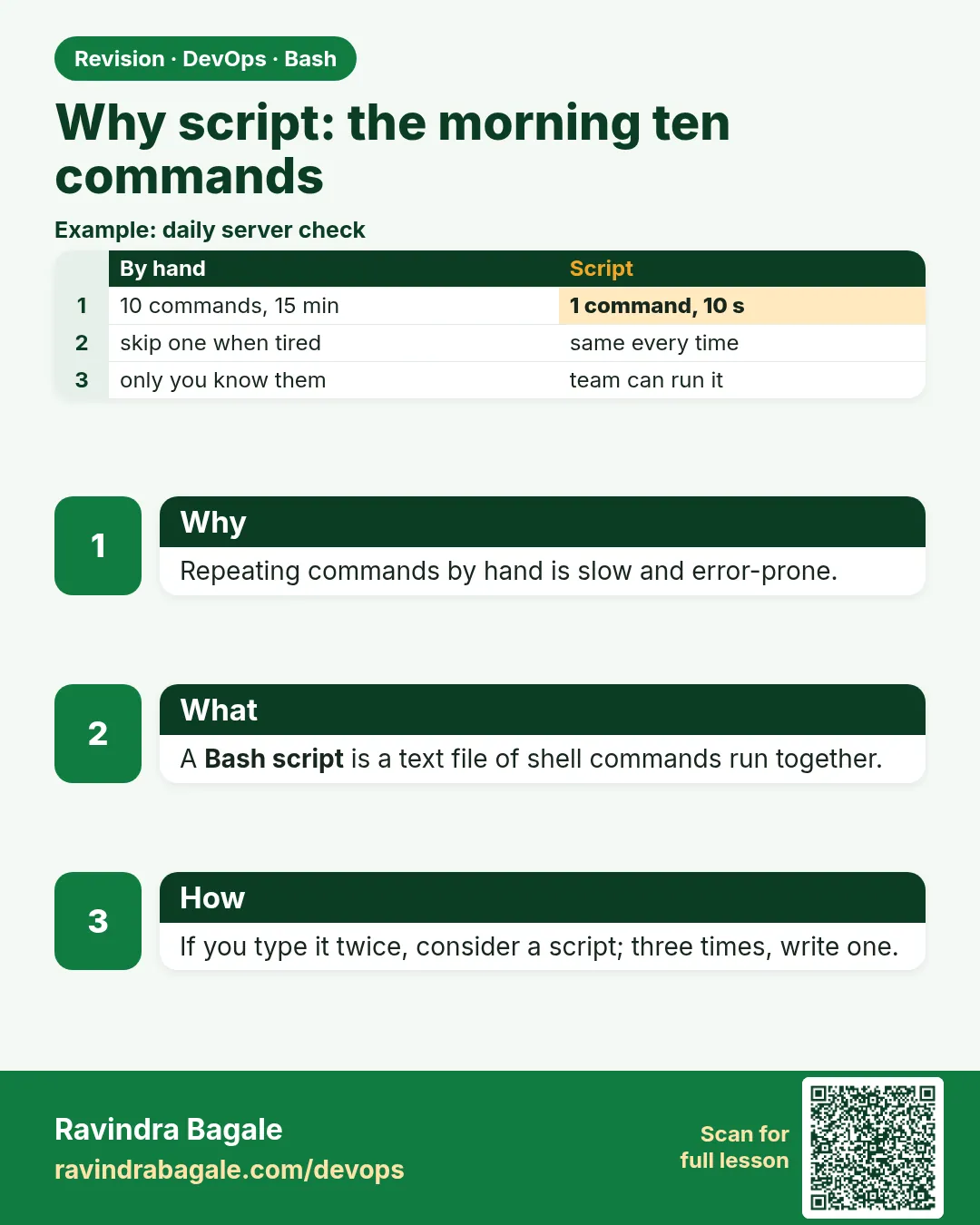
Think of Swiggy at 9 a.m. A support engineer logs in to a server. Every morning she types the same ten commands. Check disk space. Check memory. Check that nginx is running. Check that the app answers on its health URL. Look at the last errors in the log. Pull the latest code. Restart the app if needed. Ten commands, five minutes, every day, on twenty servers. That is more than an hour a day of typing. And people make mistakes when they are tired. One day she types restart on the wrong server. A Bash script fixes this. A script is just a text file with those commands in order. You run one file instead of typing ten lines. It runs the same way every time, on every server. It can also check results and stop if something is wrong. In this lesson you will take the morning ten commands, put them in a file, and run it. That is your first step from typing to automation.
What we will build
You will type the morning checks by hand once and time yourself. Then you will put the same commands in a file called morning.sh and run it with bash. Then you will make the output neat with headings, and save it to a dated report file. At the end you will run the same script on a second machine, an Ubuntu container, and see it work there too.
What: every term in plain English
- Shell — The program that reads your commands and runs them. Bash is the most common shell on Linux servers.
- Bash — Bourne Again SHell. The default shell on Ubuntu, Amazon Linux and most servers.
- Script — A text file with commands, one after another. Bash reads it from top to bottom.
- Command — One instruction, like df -h or uptime.
- Output — The text a command prints on the screen.
- Automation — Letting a script do repeated work so a person does not have to type it.
- Report file — A file where the script saves its output, so you can read it later.
- Exit code — A number every command returns. 0 means success. Anything else means a problem.
How: step by step
-
Make a lab folder
mkdir -p ~/bash-lab && cd ~/bash-lab && pwdWhat it does: All lab work stays here.
Output
/home/ravi/bash-lab -
Type the checks by hand once
uptime; df -h /; free -m; systemctl is-active nginxWhat it does: See what each check prints.
Output
10:02:11 up 3 days, 1 user, load average: 0.08, 0.05, 0.01 /dev/root 30G 12G 18G 40% / Mem: 3911 1210 1820 active -
Create the script file
nano morning.shWhat it does: Paste the script from Example 1 and save with Ctrl+O, Enter, Ctrl+X.
Output
(file saved) -
Run it with bash
bash morning.shWhat it does: Bash reads the file and runs every line.
Output
== uptime 10:02:30 up 3 days ... -
Time it
time bash morning.shWhat it does: The script finishes in under a second.
Output
real 0m0.214s -
Save to a report
bash morning.sh > report-$(date +%F).txt && lsWhat it does: The output goes into a file with today date.
Output
morning.sh report-2026-10-25.txt -
Run on another machine
docker run --rm -v "$PWD":/lab -w /lab ubuntu:24.04 bash morning.shWhat it does: Same file, different machine.
Output
== uptime
04:33:01 up 3 days ...
Example 1: Put the morning checks in one file
Stack. Bash 5, Ubuntu 24.04
Goal. Put the morning checks in one file.
morning.sh
#!/usr/bin/env bash
# Morning checks for one server
echo "== uptime"
uptime
echo "== disk"
df -h /
echo "== memory (MB)"
free -m
echo "== nginx"
systemctl is-active nginx || echo "nginx is not running"
echo "== last 5 errors in syslog"
sudo grep -i error /var/log/syslog | tail -5
What each line does
#!/usr/bin/env bash— The shebang. It says: run this file with bash. Lesson 5.2 explains it.# Morning checks...— A comment. Bash ignores lines that start with #.echo "== uptime"— Prints a heading so the output is easy to read.df -h /— Disk use of the root disk in human sizes like 12G.systemctl is-active nginx || echo ...— If nginx is not active, print a clear message instead of only "inactive".grep -i error ... | tail -5— Find lines with error in any case and show only the last five.
Green output
== uptime
 10:02:30 up 3 days,  2:11,  1 user,  load average: 0.08, 0.05, 0.01
== disk
Filesystem      Size  Used Avail Use% Mounted on
/dev/root        30G   12G   18G  40% /
== memory (MB)
               total        used        free      shared  buff/cache   available
Mem:            3911        1210        1820           2         880        2450
== nginx
active
== last 5 errors in syslog
Oct 25 09:58:01 web1 app[912]: error: db timeout after 5s
Expected result. One command now does five checks. The headings make it easy to read on a phone too.
Example 2: Add an app health check and a simple OK or PROBLEM summary
Stack. Bash, curl
Goal. Add an app health check and a simple OK or PROBLEM summary.
morning.sh (v2)
#!/usr/bin/env bash
APP_URL="http://localhost:3000/health"
problems=0

echo "== disk"
used=$(df --output=pcent / | tail -1 | tr -d ' %')
echo "root disk used: ${used}%"
if [ "$used" -ge 80 ]; then echo "PROBLEM: disk above 80%"; problems=$((problems+1)); fi

echo "== app health"
if curl -fsS --max-time 3 "$APP_URL" -o /dev/null; then
  echo "app OK"
else
  echo "PROBLEM: app did not answer on $APP_URL"
  problems=$((problems+1))
fi

echo "== summary"
if [ "$problems" -eq 0 ]; then echo "ALL OK"; else echo "$problems problem(s)"; fi
What each line does
APP_URL="..."— A variable for the health URL. Change it in one place.df --output=pcent / | tail -1 | tr -d ' %'— Gets only the percent number, like 40.[ "$used" -ge 80 ]— Is the number greater than or equal to 80?problems=$((problems+1))— Adds one to the counter. $(( )) does maths.curl -fsS --max-time 3— f: fail on HTTP errors, s: silent, S: still show errors, wait max 3 seconds.-o /dev/null— Throw away the page body; we only care if it worked.
Green output
== disk
root disk used: 40%
== app health
curl: (7) Failed to connect to localhost port 3000 after 0 ms: Couldn't connect to server
PROBLEM: app did not answer on http://localhost:3000/health
== summary
1 problem(s)
Expected result. The script now tells you what is wrong in one line. Start the app and run again to see ALL OK.
Example 3: Run the same script on many servers over SSH
Stack. Bash, OpenSSH
Goal. Run the same script on many servers over SSH.
servers.txt
web1.shop-lab.in
web2.shop-lab.in
web3.shop-lab.in
run-all.sh
#!/usr/bin/env bash
for host in $(cat servers.txt); do
  echo "######## $host"
  ssh -o ConnectTimeout=5 "ubuntu@$host" 'bash -s' -- "$(cat morning.sh)" 2>&1 | grep -E "PROBLEM|ALL OK|problem"
done
What each line does
$(cat servers.txt)— Reads the server names, one per line.for host in ...; do ... done— Repeat the block for each server.ssh -o ConnectTimeout=5— Give up on a server after 5 seconds instead of hanging.'bash -s' -- "$(cat morning.sh)"— Sends the script text and runs it on the remote server. No copy needed.grep -E "PROBLEM|ALL OK|problem"— Shows only the summary lines from each server.
Green output
######## web1.shop-lab.in
ALL OK
######## web2.shop-lab.in
PROBLEM: disk above 80%
1 problem(s)
######## web3.shop-lab.in
ALL OK
Expected result. Twenty servers are checked in seconds. You only open the one that has a PROBLEM. In later chapters Ansible does this at scale.
Verify: did it work?
-
Run and check the exit code
bash morning.sh; echo "exit code: $?"What it does: $? holds the exit code of the last command.
Output
exit code: 0 -
Read the saved report
cat report-$(date +%F).txt | head -3What it does: The report has the same output.
Output
== uptime
 10:02:30 up 3 days ...
When it is red 1
bash: morning.sh: No such file or directory
Cause. You are in a different folder from the script.
Fix, step by step
- Run pwd.
- cd ~/bash-lab.
- Or give the full path: bash ~/bash-lab/morning.sh.
When it is red 2
systemctl: command not found (inside Docker)
Cause. Containers usually have no systemd.
Fix, step by step
- Skip that check in containers.
- Use pgrep nginx instead.
When it is red 3
grep: /var/log/syslog: Permission denied
Cause. Normal users cannot read syslog.
Fix, step by step
- Use sudo grep.
- Or add your user to the adm group: sudo usermod -aG adm $USER, then log in again.
Cleanup
-
Remove old reports
find ~/bash-lab -name "report-*.txt" -mtime +7 -deleteWhat it does: Keeps only one week of reports.
Output
(no output) -
List what is left
ls ~/bash-labWhat it does: Only scripts and recent reports remain.
Output
morning.sh report-2026-10-25.txt run-all.sh
Ravindra Bagale's Tip
Do you type the same commands every day? Put them in one file. That is the first step of automation. Keep that in mind!
रोज तेच commands टाइप करता? ते एक file मध्ये टाका. हाच automation चा पहिला step. लक्षात ठेवा!
रोज़ वही commands टाइप करते हो? उन्हें एक file में डालो. यही automation का पहला step है. याद रखो!
Practice tasks
Easy Write morning.sh
Why: Your first script should solve a real daily job.
What to do: Put five checks in a file and run it.
- Use echo headings.
Check: One command shows all five checks.
Medium Add a summary
Why: People read the last line first.
What to do: Count problems and print ALL OK or the count.
- Use a problems counter.
Check: Last line is ALL OK or N problem(s).
Hard Check three machines
Why: Real work is many servers.
What to do: Run the script on three machines with run-all.sh.
- Use Docker containers if you have no servers.
Check: You see one summary per machine.
Easy Say why we script in two lines
Why: If you can say it simply, you understand it. Juniors and interviewers both want the short version first.
What to do: Write two short lines about why we script for a fresher who knows only basic Linux commands.
- Write the problem it solves.
- Write the one command or line of script you use for it.
- Read it aloud to a friend.
Check: A fresher understands it without asking a question.
Easy Make a safe lab folder
Why: Scripts can delete or overwrite files. Practice in a folder you can throw away.
What to do: Create a lab folder and work only inside it.
- mkdir -p ~/bash-lab && cd ~/bash-lab
- Run every script in this lesson from here with bash name.sh
- When done, rm -rf ~/bash-lab only after checking the path with pwd.
Check: All lab files live in ~/bash-lab and nothing else changed.
Medium Run it on a second machine
Why: A script that works only on your laptop is not finished. Servers have a different PATH, user and shell.
What to do: Copy the script to an Ubuntu EC2 or a Docker ubuntu container and run it there.
- docker run --rm -it -v "$PWD":/lab -w /lab ubuntu:24.04 bash
- Run the script.
- Note anything that changed.
Check: Same output on both machines, or you fixed the difference.
Medium Break it on purpose
Why: You must know the red message by face. In a real outage there is no time to read slowly.
What to do: Cause one error from the "When it is red" part of this lesson and fix it.
- Follow the error section.
- Copy the exact message into your notes.
- Write the fix in one line.
Check: You fixed it using only the steps, without searching the web.
Medium Check it with ShellCheck
Why: ShellCheck finds quoting bugs and mistakes before they hit a server.
What to do: Run ShellCheck on every script from this lesson.
- sudo apt install -y shellcheck
- shellcheck name.sh
- Fix each warning and run again.
Check: ShellCheck prints nothing.
Hard Explain it like an interview
Why: Interviewers want real stories, not definitions.
What to do: Record a 60 second answer about this lesson.
- Say the problem, the script line, and one error you hit.
Check: Your answer has a real command and a real error message.
Hard Draw the flow top to bottom
Why: A drawing shows the order of checks and what happens on failure.
What to do: Draw this lesson script as boxes from top to bottom.
- Start at the first line, show each if as a split, end at the exit code.
Check: Each box matches a real line in the script.
Homework: try at home
Try at home
At home, write down the commands you type every day on your laptop or server. Put at least five of them in a script with headings and run it each morning for a week.
Recap
- A script is a file of commands that runs the same way every time.
- Run it with bash file.sh.
- Use echo headings and a summary line.
- Save output to dated report files.
- The same script can run on many servers over SSH.
FAQ
Do I need to be a programmer?
No. If you can type commands, you can write a script.
Bash or Python for this?
Bash for gluing commands. Python when logic and data get big.
Does a script work on Mac?
Mostly. Some commands like free differ. Test on the target system.
Where do I keep scripts?
In a Git repo, so changes are tracked.
Can scripts be dangerous?
Yes. Test in a lab folder first and read before you run.
Interview questions
-
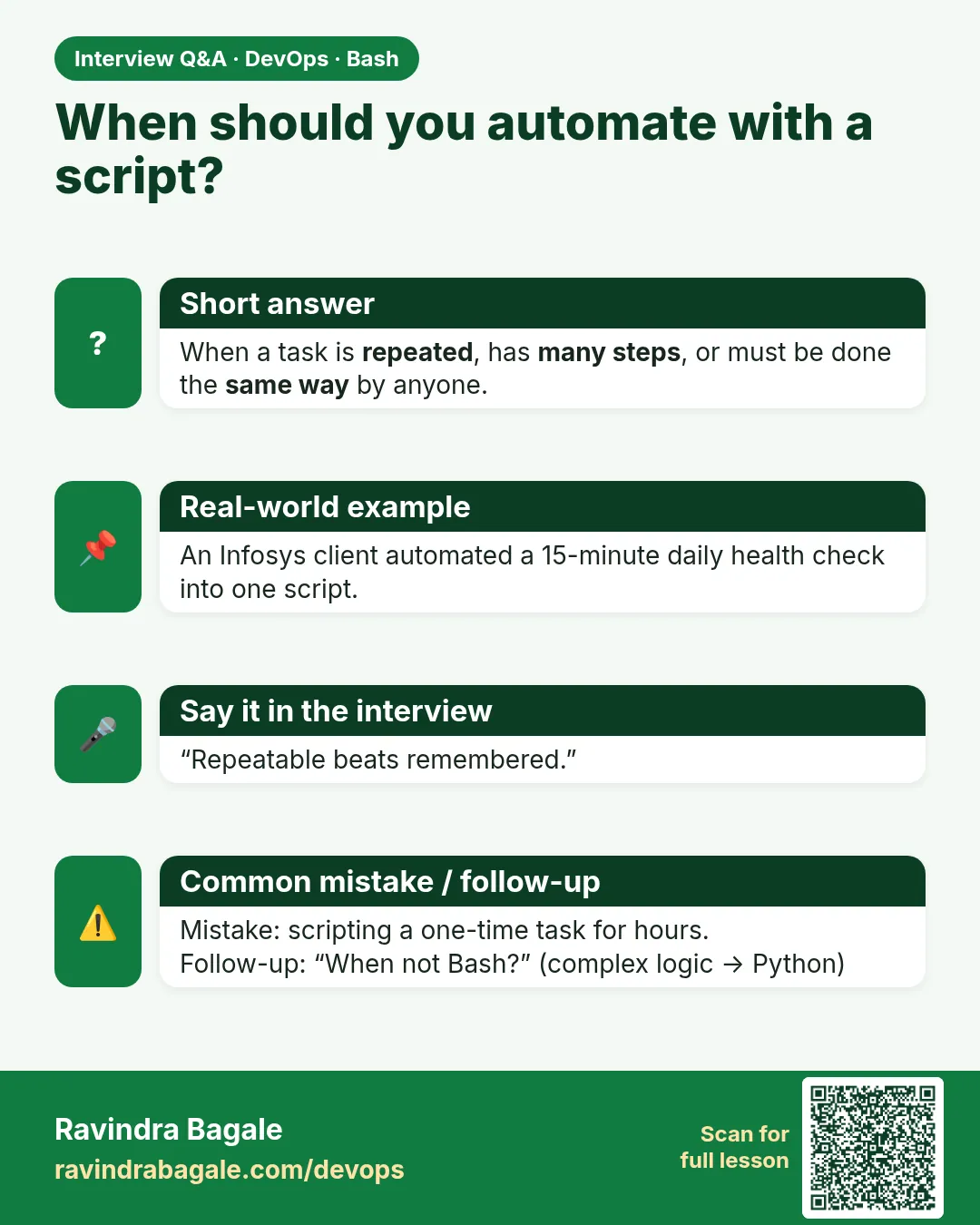
Why do DevOps engineers write Bash scripts?
To automate repeated server tasks so they run the same way every time and faster.
-
How do you run a script?
bash script.sh, or ./script.sh if it has execute permission and a shebang.
-
What is an exit code?
A number a command returns. 0 is success, non-zero is failure.
-
How do you check a URL in a script?
curl -fsS with a timeout and check its exit code with if.
-
How would you run a check on many servers?
A loop with ssh for a few servers, or Ansible for many.
Quick quiz
Q1. What is a Bash script?
A text file of commands that Bash runs from top to bottom.
Q2. How do you run a script without changing permissions?
bash script.sh
Q3. What does $? show?
The exit code of the last command.
Q4. Why add echo headings?
To make output easy to read.
Q5. What does curl -f do?
Makes curl fail on HTTP errors like 500.
Did you understand? Let us try it once more.
 Revision card
 Interview card