37.1 Workspaces, Roles and Publishing
Chala mitrano — today we stop emailing .pbix files. We publish once to a shared workspace, then give each person the smallest role they need.
चला मित्रांनो — आज आपण .pbix email करणे थांबवतो. Shared workspace मध्ये एकदा publish करून प्रत्येकाला लागेल तितकीच छोटी role देतो.
चला मित्रों — आज हम .pbix email करना बंद करते हैं। Shared workspace में एक बार publish करके हर व्यक्ति को जितनी ज़रूरत हो उतनी छोटी role देते हैं।
- Explain why a team needs the Power BI Service, not only Desktop.
- Pick My workspace or a shared workspace for a real case.
- Assign Admin, Member, Contributor or Viewer correctly.
- Publish from Desktop and check the semantic model + report.
- Open Access and apply least privilege.
Start with a problem (fictional). Priya Sharma builds a Blinkit-style dark-store sales report in Power BI Desktop in Pune. Every Monday she emails Blinkit_MH_Sales_FY26.pbix (18 MB) to Raja Patil in Nashik, Aisha Khan in Dubai, and James Okonkwo in London. By Wednesday three people open three different versions. Raja sees last week's numbers. The CFO in Mumbai asks, “Which file is true?”
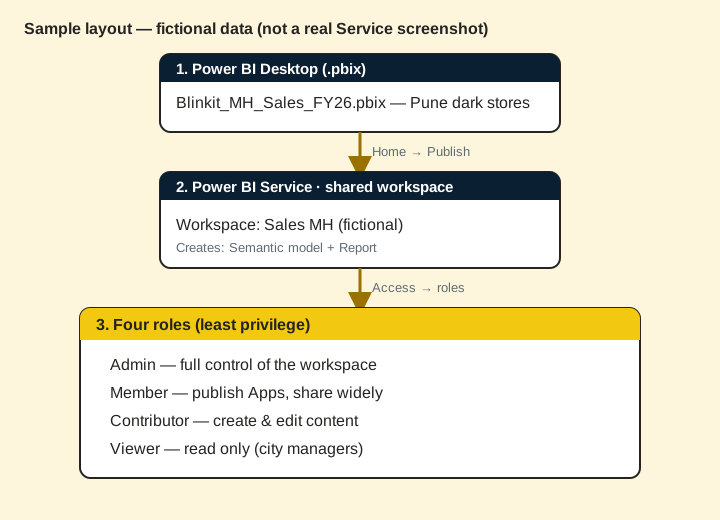
1. Why Desktop alone is not enough for a team
Why: Desktop is for building. A team needs one live copy, controlled access, and scheduled refresh.
What: The Power BI Service is the cloud home for shared reports and semantic models (datasets). You open it in a browser at app.powerbi.com (sign-in required at work).
How — think in three layers:
Vertical steps (one under another)
- Build and test in Power BI Desktop on your laptop.
- Publish to a shared workspace in the Power BI Service.
- Give people roles (or an App) so they open the same live report.
Tiny example right after the idea: Priya stops emailing the file. She publishes once. Raja opens the Service on his phone at 9:05 IST and sees the same numbers as James in London (£ and ₹ views can differ later — here both see ₹).
Ravindra Bagale's Tip
Friends, if two managers argue about different totals, first ask: are they looking at the same published report, or at two emailed .pbix files? The Service fixes that argument.
Ravindra Bagale's Tip – मराठी
मित्रांनो, दोन managers वेगवेगळ्या totals वर भांडत असतील तर आधी विचारा: ते एकच published report पाहतायत का, की दोन emailed .pbix? Service हा वाद मिटवते.
Ravindra Bagale's Tip – हिंदी
दोस्तों, अगर दो managers अलग totals पर बहस करें तो पहले पूछें: क्या वे एक ही published report देख रहे हैं, या दो emailed .pbix? Service यह बहस खत्म करती है.
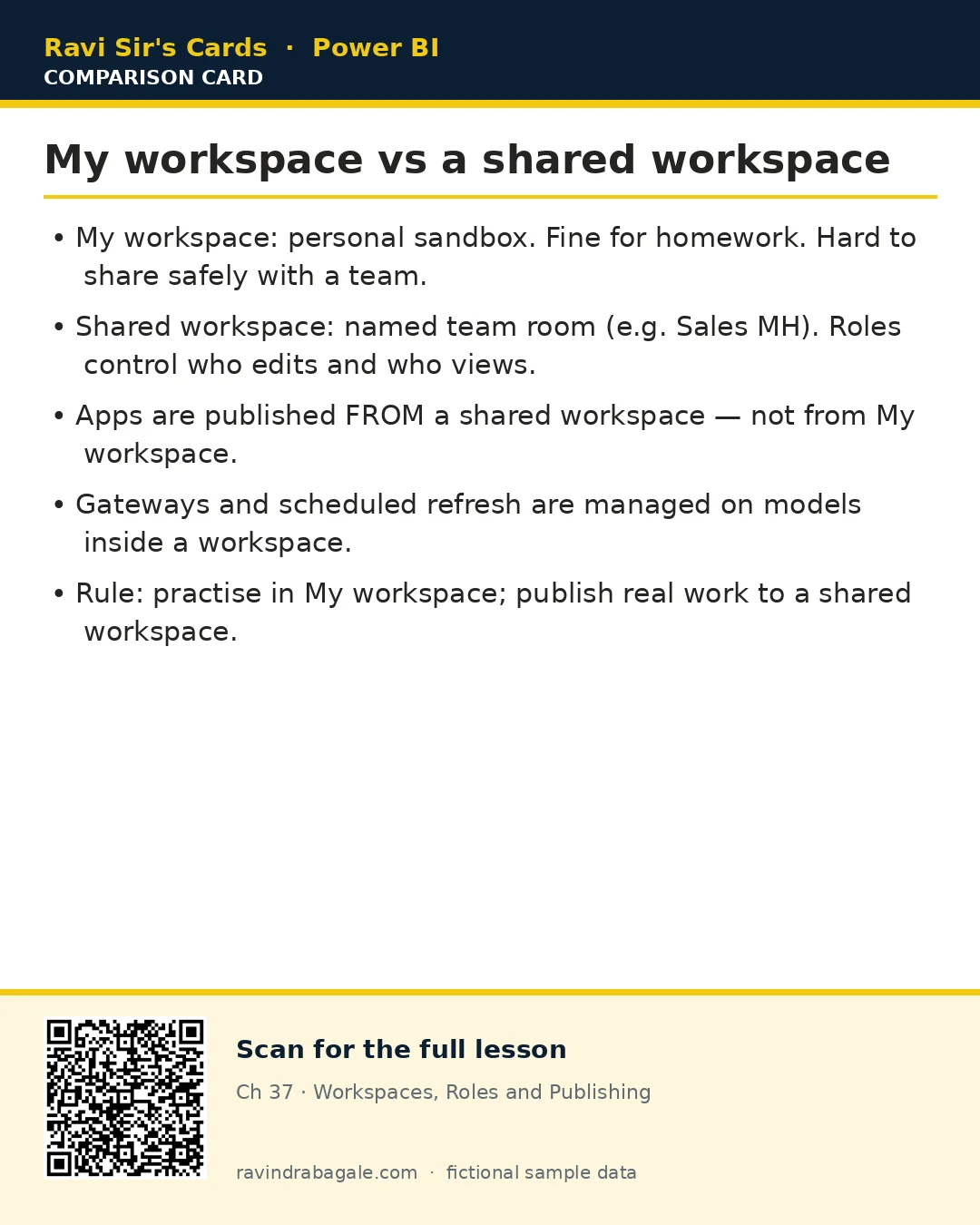
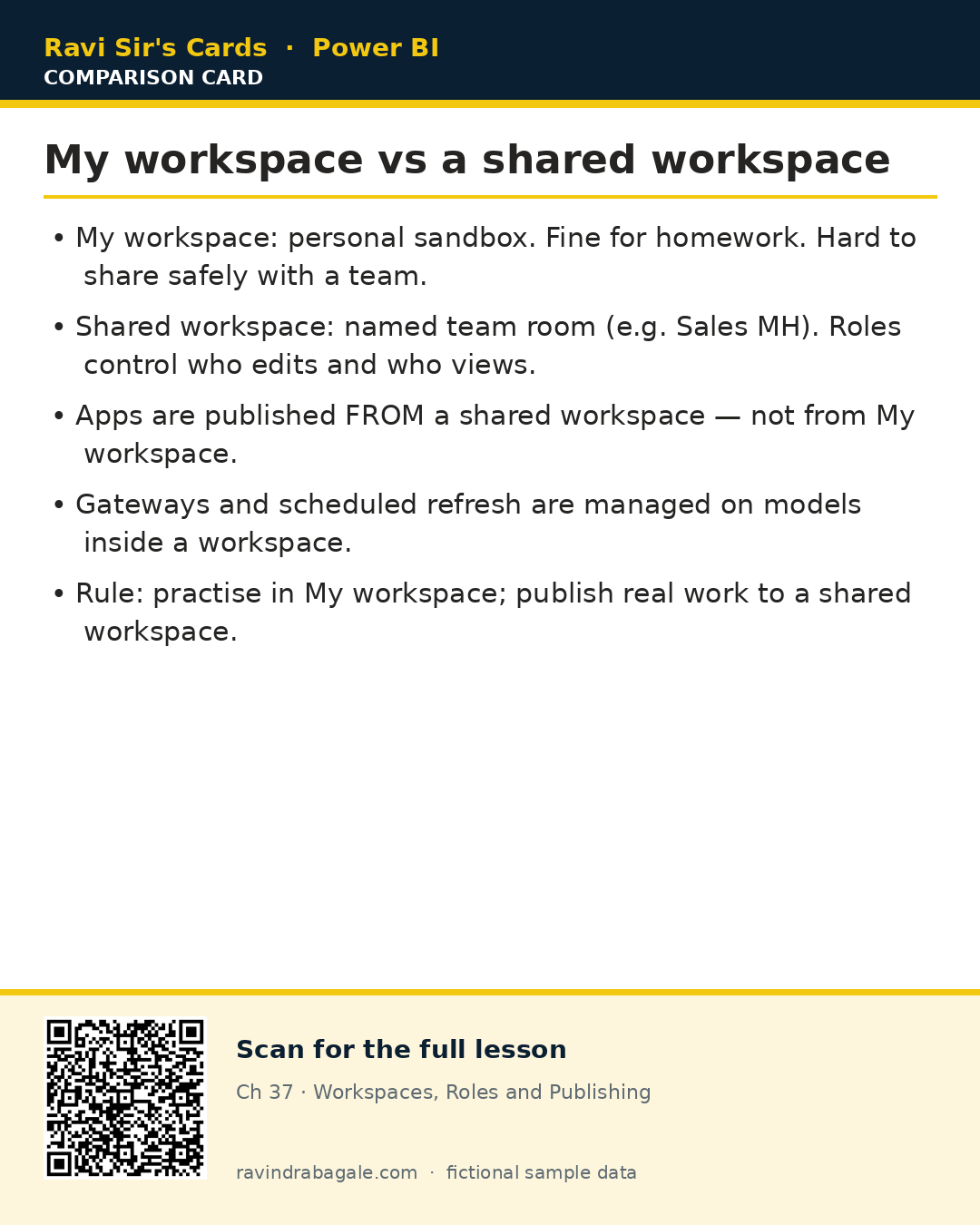
2. My workspace vs a shared workspace
Why: My workspace is your private desk. A shared workspace is the team room with a lock and a guest list.
What:
| Place | Good for | Not good for |
|---|---|---|
| My workspace | Homework, experiments, personal drafts | Team Apps, clear roles, production refresh owned by a group |
| Shared workspace (e.g. Sales MH) | Team reports, Apps, gateways, roles | Secret personal files you never want anyone to see |
About this data: This table uses columns: Place, Good for, Not good for. This table uses columns: Role, Can roughly…, Fictional person. This table uses columns: City, Orders (fictional), GMV ₹ (fictional). This table uses columns: Wrong, Better. Values shown are the lesson examples already on this page (not a new dataset).
How — create a shared workspace (concept steps):
- Sign in to the Power BI Service in your browser.
- Open Workspaces, then Create a workspace (your organisation must allow this).
- Name it clearly:
Sales MHorFinance FY26 Lab— not “test1”. - Add a short description: “Maharashtra dark-store sales — fictional training model.”
- Save. You become Admin of that workspace.
Example: Priya creates workspace Sales MH. She keeps broken drafts in My workspace. Only finished models go to Sales MH.
Ravindra Bagale's Tip
Friends, practise publish to My workspace first if you are nervous. When the report looks right, publish again to the shared workspace. Don't worry — publishing twice is normal.
Ravindra Bagale's Tip – मराठी
मित्रांनो, घाबरत असाल तर आधी My workspace मध्ये publish करून बघा. Report बरोबर वाटली की shared workspace मध्ये पुन्हा publish करा. दोनदा publish करणे सामान्य आहे.
Ravindra Bagale's Tip – हिंदी
दोस्तों, घबराहट हो तो पहले My workspace में publish करके देखें। Report सही लगे तो shared workspace में फिर publish करें। दो बार publish करना सामान्य है।
3. The four roles (Admin, Member, Contributor, Viewer)
Why: Not everyone should delete the workspace. Not everyone should edit the model. Readers need a safe seat.
What: Four built-in roles, from most power to least.
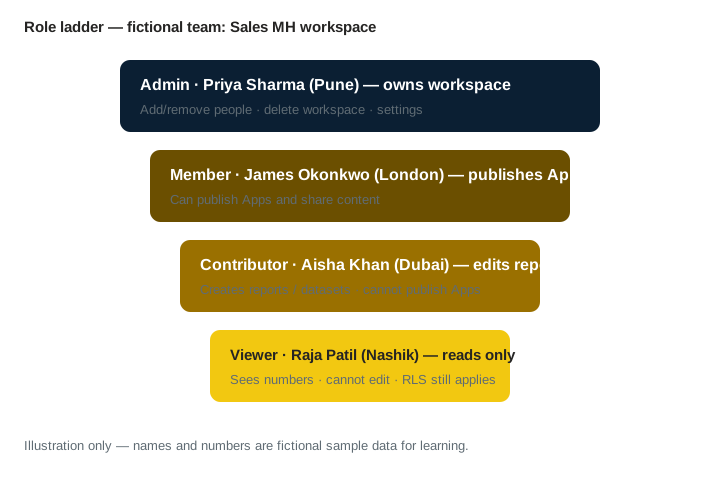
| Role | Can roughly… | Fictional person |
|---|---|---|
| Admin | Everything, including delete workspace and manage access | Priya Sharma (Pune) |
| Member | Publish Apps, share widely, edit content | James Okonkwo (London) |
| Contributor | Create and edit reports / models; usually cannot publish Apps | Aisha Khan (Dubai) |
| Viewer | Open and interact (filters); cannot edit | Raja Patil (Nashik) |
RLS impact (important): Workspace role ≠ row-level security. Raja as Viewer still only sees Nashik rows if RLS says so. Giving him Member does not magically show Pune rows — and you should not “fix” RLS by raising his role.
How — choose a role in 30 seconds:
- Only reads numbers? → Viewer (or later, App audience).
- Edits pages / measures in the Service or republishes? → Contributor.
- Must publish the organisational App? → Member (or Admin).
- Owns the workspace and access list?, then one or two Admins only.
Example: City managers in Kolhapur and Sambhaji Nagar get Viewer. Aisha gets Contributor so she can fix a typo on a title. Only Priya and her backup are Admin.
Ravindra Bagale's Tip
Friends, interviewers love this: 'Viewer can see the report but cannot change the model.' Say least privilege out loud. Don't give Admin 'just in case'.
Ravindra Bagale's Tip – मराठी
मित्रांनो, interview मध्ये हे आवडते: 'Viewer report पाहू शकतो पण model बदलू शकत नाही.' Least privilege मोठ्याने सांगा. 'Just in case' म्हणून Admin देऊ नका.
Ravindra Bagale's Tip – हिंदी
दोस्तों, interview में यह पसंद आता है: 'Viewer report देख सकता है लेकिन model नहीं बदल सकता।' Least privilege ज़ोर से कहें। 'Just in case' कहकर Admin न दें।
4. Publishing from Desktop step by step
Why: Publish uploads your model and report pages to the cloud workspace so everyone opens one copy.
What: Home, then Publish in Desktop. You pick a workspace. The Service creates (or overwrites) a semantic model and a report with the same name as the .pbix.
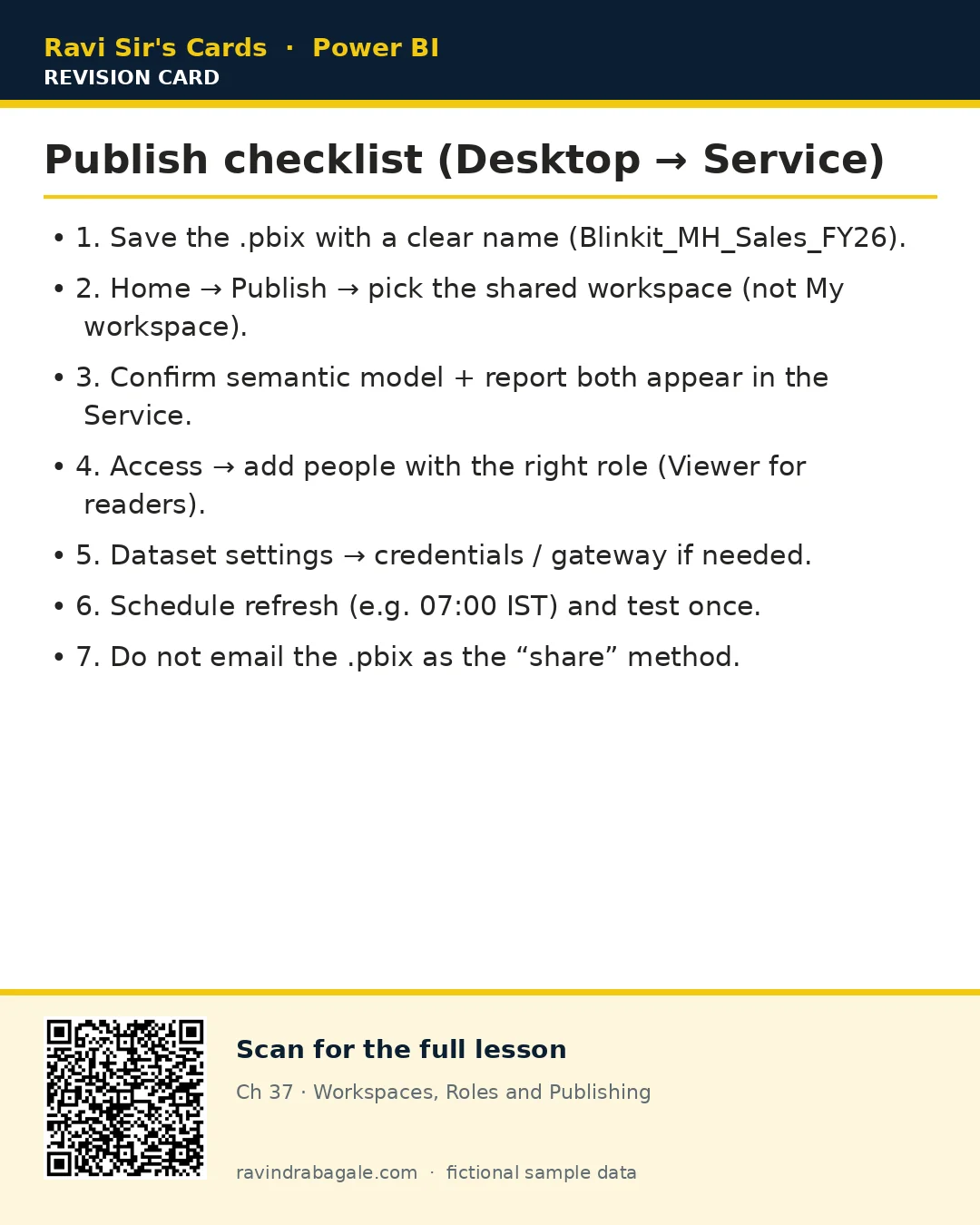
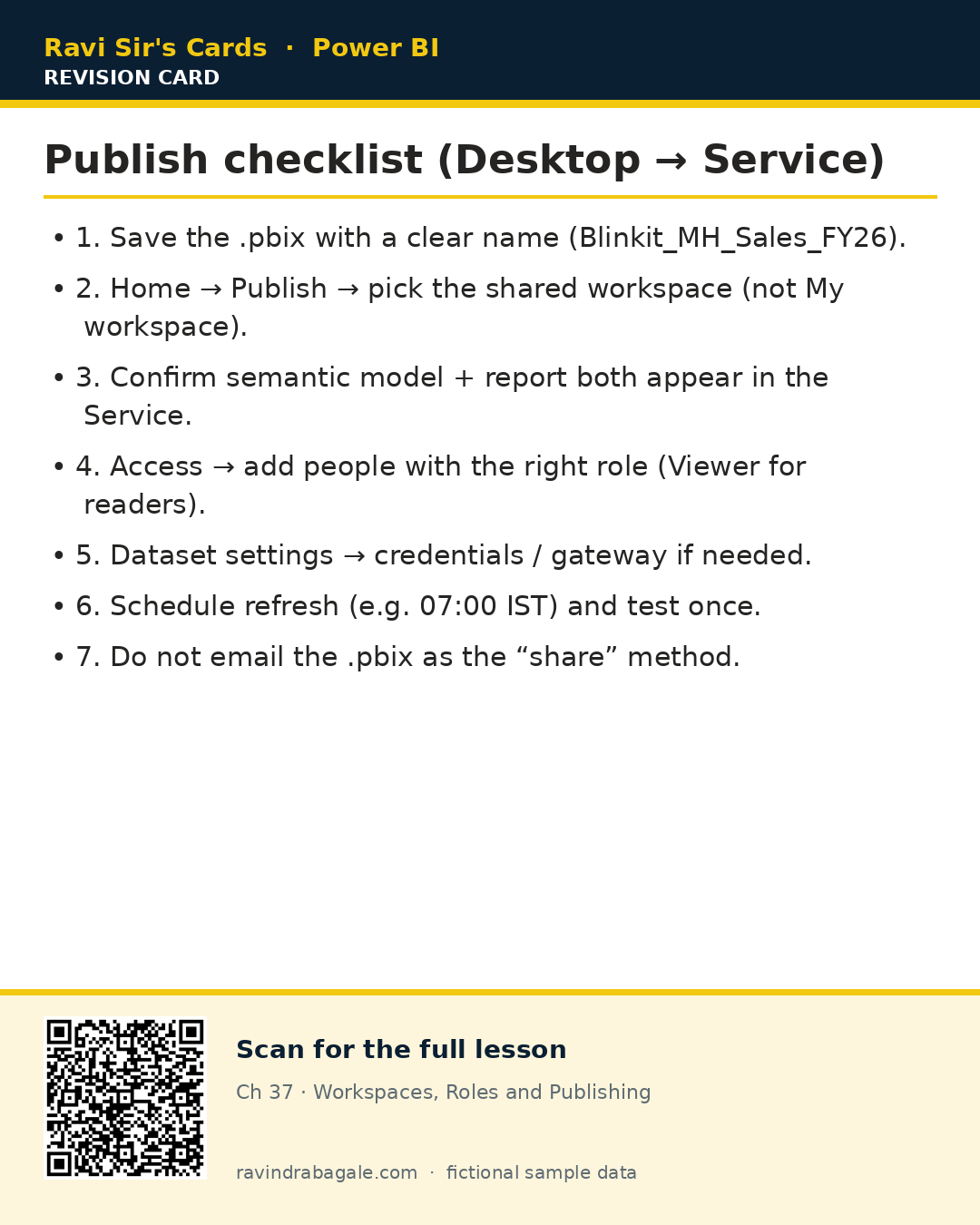
How — numbered vertical steps:
- Open
Blinkit_MH_Sales_FY26.pbixin Power BI Desktop. Save (Ctrl+S). - Sign in to Desktop with the same work account you use in the Service.
- Click Home → Publish → Publish to Power BI.
- In the list, select the shared workspace Sales MH (not My workspace for production).
- Wait for the success message. Optionally open the report link.
- If a report with the same name already exists, confirm overwrite — this replaces the cloud copy.
No fake Service screenshot
We do not show a copied Microsoft UI here. Use the labelled diagram above as your map. In class, your trainer can share their screen of a real tenant.
Example result: After publish, Sales MH shows two items: semantic model Blinkit_MH_Sales_FY26 and report Blinkit_MH_Sales_FY26. Priya pins the report for Raja.
5. What lands in the Service
Why: Students often think “only the pictures” uploaded. The data model uploads too.
What:
- Semantic model (dataset) — tables, relationships, measures, refresh settings.
- Report — pages, visuals, bookmarks — connected to that model.
- Later you may add a dashboard (pinned tiles) — covered in chapter 38.
How — verify after publish:
- Open the workspace Sales MH in the Service.
- Find the report, then open page 1, then check a known total (e.g. Nashik ₹3,40,000 fictional).
- Find the semantic model, then Settings, then see credentials / gateway / refresh (next chapters).
- If the total is wrong, fix in Desktop, save, publish again (overwrite).
6. Manage access and least privilege
Why: A shared workspace without an access list is a locked room with no key for your managers — or worse, open to everyone.
What: Workspace Access lets you add users or security groups and pick a role.
How:
- In the workspace, open Access (or Manage access).
- Add
raja.patil@example.com→ role Viewer → Add. - Add Aisha as Contributor.
- Add James as Member only if he must publish the App.
- Review the list every month — remove people who left the project.
Example: When Raja moves to inventory, Priya removes him from Sales MH and adds him to Inventory MH as Viewer.
Ravindra Bagale's Tip
Friends, prefer Azure AD / Microsoft 365 security groups over 40 individual emails. One group 'MH City Managers' keeps Access clean.
Ravindra Bagale's Tip – मराठी
मित्रांनो, 40 वेगवेगळ्या emails पेक्षा Azure AD / Microsoft 365 security group वापरा. एक group 'MH City Managers' Access स्वच्छ ठेवते.
Ravindra Bagale's Tip – हिंदी
दोस्तों, 40 अलग emails की जगह Azure AD / Microsoft 365 security group इस्तेमाल करें। एक group 'MH City Managers' Access साफ़ रखती है।
Recap. Desktop builds. Service shares. Use a named shared workspace. Four roles — give the smallest one that works. Publish creates a semantic model + report. Manage Access on purpose. Never treat emailing the .pbix as your sharing plan.
7. Worked example — three industries, same rules
Same Service rules, different businesses. All numbers below are fictional sample data.
Retail dark stores (Maharashtra)
Why: Store managers need today's orders, not last week's email.
What: Workspace Sales MH, model refresh planned for 07:00 IST (refresh details in ch 39).
How:
- Priya publishes
Blinkit_MH_Sales_FY26.pbixto Sales MH. - Raja (Nashik) and Meera (Kolhapur) get Viewer.
- They filter City on the report; RLS can further limit rows later.
| City | Orders (fictional) | GMV ₹ (fictional) |
|---|---|---|
| Pune | 1,240 | 18,60,000 |
| Nashik | 410 | 3,40,000 |
| Kolhapur | 280 | 2,10,000 |
Check: After publish, Raja should see Nashik ₹3,40,000 if RLS is city-based — or the full table if RLS is not yet applied. Either way he uses the Service, not a second .pbix.
Bank branch scorecard (HDFC-style training model)
Why: Branch managers in Pune and Nagpur must not edit the official NPA measure.
What: Workspace Retail Assets Lab. Contributors = two central analysts. Viewers = branch managers.
How:
- Publish
Branch_Scorecard_FY26.pbixfrom Desktop. - Add group
MH Branch Managersas Viewer. - Keep measure authors as Contributor only.
Tiny example: Fictional CASA ratio 42% on the card visual. A branch manager can slice by branch but cannot change the DAX behind the card.
Export manufacturer (Germany + India)
Why: Sofia Müller in Munich and Vikram Deshmukh in Pune share one demand plan.
What: Workspace Demand EU-IN. Currency shows € and ₹ on different pages — still one semantic model.
How:
- Vikram publishes from Desktop (IST evening).
- Sofia opens the Service next morning (CET) — same model.
- Both are Contributor; only Vikram's manager is Admin.
Example: Fictional open orders €1.2M and ₹4.8 Cr on two pages. One publish updates both.
8. What “success” looks like on Monday morning
Why: A publish is not done until a viewer can open it without calling you.
What: A short acceptance checklist.
How — vertical checklist:
- Viewer account (or Test as role later) opens the report URL.
- Known KPI matches Desktop (same filter).
- Access list has no ex-employees.
- Workspace name and report name are clear in search.
- You did not send the .pbix on WhatsApp.
Common mistakes
| Wrong | Better |
|---|---|
| Emailing the .pbix every week | Publish once; refresh the model |
| Everyone is Admin | One/two Admins; Viewers for readers |
| Publishing only to My workspace for the whole company | Shared workspace + App (ch 38) |
| Raising role to “fix” RLS | Fix the RLS filter; keep Viewer |
| Vague workspace name “test” | Sales MH / Finance FY26 Lab |
Quiz (5 questions)
1. Priya emails a .pbix to three managers every Monday. What should she do instead?
2. Raja only needs to read Nashik numbers. Best workspace role?
3. Publishing from Desktop to a workspace creates:
4. My workspace is best for:
5. True or false: Making Raja a Member bypasses RLS so he sees all cities.
Practice tasks (12) — hints only, no full answers
- Task. Write one sentence: why emailing a .pbix causes version confusion.
Hint: count how many copies exist after three emails. - Task. Name your shared workspace for a Mumbai retail chain training model.
Hint: include city or region + purpose; avoid “test”. - Task. Assign roles: Priya (owns), Aisha (edits), Raja (reads), James (publishes App).
Hint: map to Admin / Contributor / Viewer / Member. - Task. List the Desktop clicks to publish (Home, then …).
Hint: section 4 steps. - Task. After publish, which two items should appear in the workspace?
Hint: model + report. - Task. A CFO in Singapore (Mei Lin) only needs monthly totals. Role?
Hint: least privilege. - Task. Explain in plain English: workspace role vs RLS.
Hint: keys to the room vs which rows inside the room. - Task. You published to My workspace by mistake. What do you do next?
Hint: publish again to the shared workspace; clean up if needed. - Task. Design Access for 12 Nashik store managers using a group name.
Hint: security group pattern. - Task. Overwrite warning appears. When is overwrite correct?
Hint: same report name, intentional update. - Task. Compare My workspace vs Sales MH in a two-column table of your own.
Hint: section 2 table. - Task. Interview answer (60 seconds): “How do you share a Power BI report with 30 city managers?”
Hint: workspace or App + Viewer; not email.
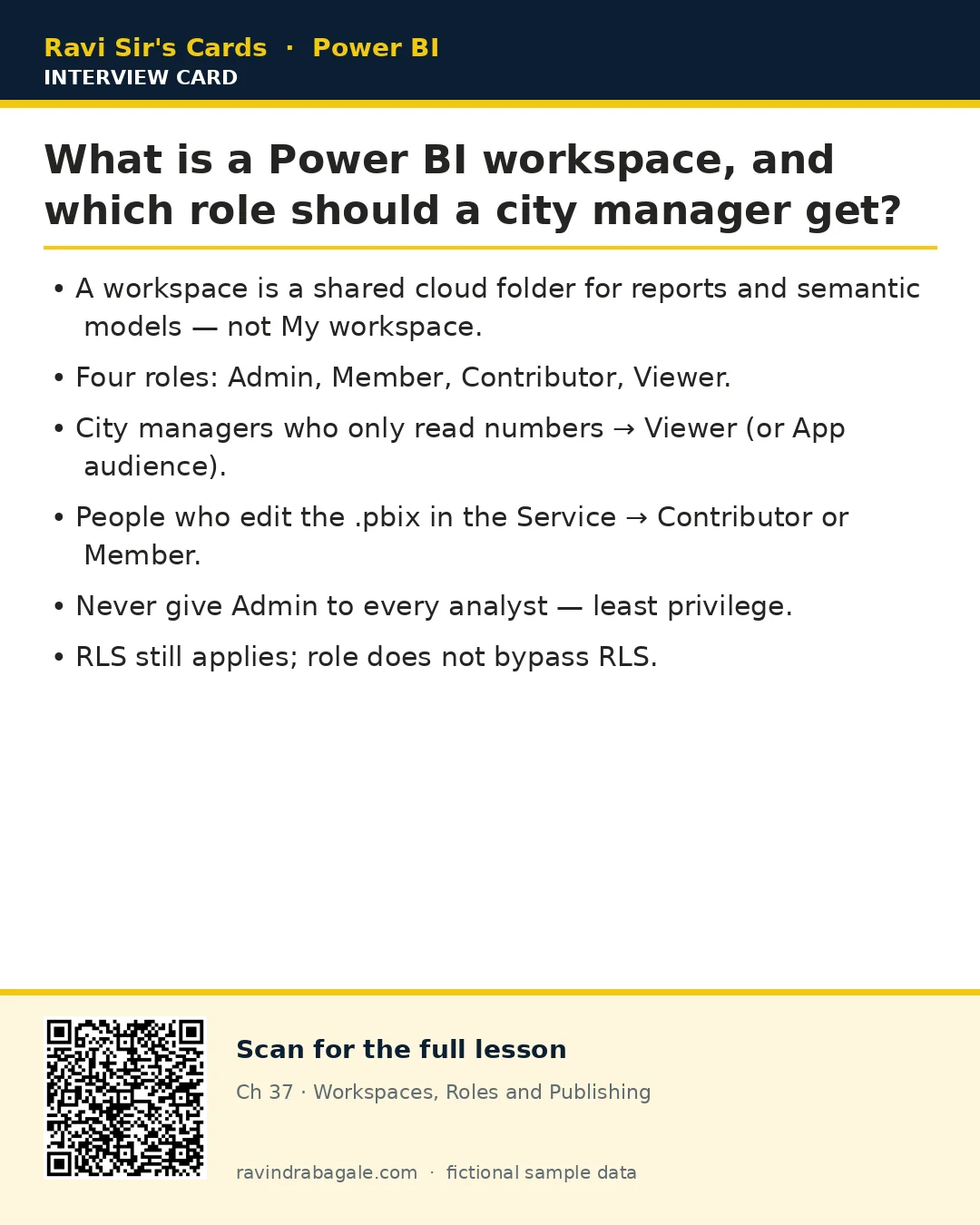
Ravi Sir's cards (Excel card style)
Standalone cards — no tip or photo sections. QR points to this lesson. Download PNG to revise offline.
Think like a professional
In a real tenant, publishing rights, workspace creation, and external sharing are controlled by Fabric / Power BI admins. Always follow your company policy. This lesson uses fictional people and numbers so you can practise the ideas safely.