Chapter 34
Data Validation: Complete Guide
Build rock-solid Excel forms with Data Validation: dropdown lists, whole numbers and decimals, dates, text length, custom formulas, and dependent Region→City lists. The practice workbook already has working rules — try to break them.
Ravindra Bagale’s Tip
After you set a rule, deliberately type something wrong. If Excel stays silent, the rule is on the wrong cells.
Ravindra Bagale’s Tip – मराठी
नियम सेट केल्यावर मुद्दाम चुकीचे टाइप करा. एक्सेल शांत राहिले तर रेंज चुकीची आहे.
Ravindra Bagale’s Tip – हिंदी
नियम सेट करने के बाद जानबूझकर गलत टाइप करें। एक्सेल चुप रहे तो रेंज गलत है।
https://ravindrabagale-cards.s3.ap-south-1.amazonaws.com/excel/ch34/ch34-dv-practice.xlsx.1. Why data validation matters
Validation is cheaper than cleaning the same column every Monday.
प्रत्येक सोमवारी कॉलम साफ करण्यापेक्षा व्हॅलिडेशन स्वस्त पडते.
हर सोमवार कॉलम साफ़ करने से सस्ता है पहले वैलिडेशन लगाना।
Why: One wrong region spelling breaks pivots and Power Query merges. Forms need guard rails.
What: Data Validation limits what a user can type or pick in a cell — lists, numbers, dates, text length, or a custom formula.
How:
- Decide which columns must stay clean (Region, Qty, Date, Email).
- Data → Data Validation on the input range.
- Set Allow type, Input Message, and Error Alert.
- Test with a wrong value — Excel should block or warn.
| Before / setup | Rule or formula | Result | Meaning |
|---|---|---|---|
Region free text “Wesst” | List: West/South/North | Dropdown only | No more typos |
2. Dropdown lists (typed or range)
Keep list sources on a Lists sheet so business users can add items without editing the rule.
यादी Lists शीटवर ठेवा — नियम न बदलता आयटम वाढवता येतात.
सूची Lists शीट पर रखें — नियम बदले बिना आइटम बढ़ा सकते हैं।
Why: Status and department must match a fixed vocabulary.
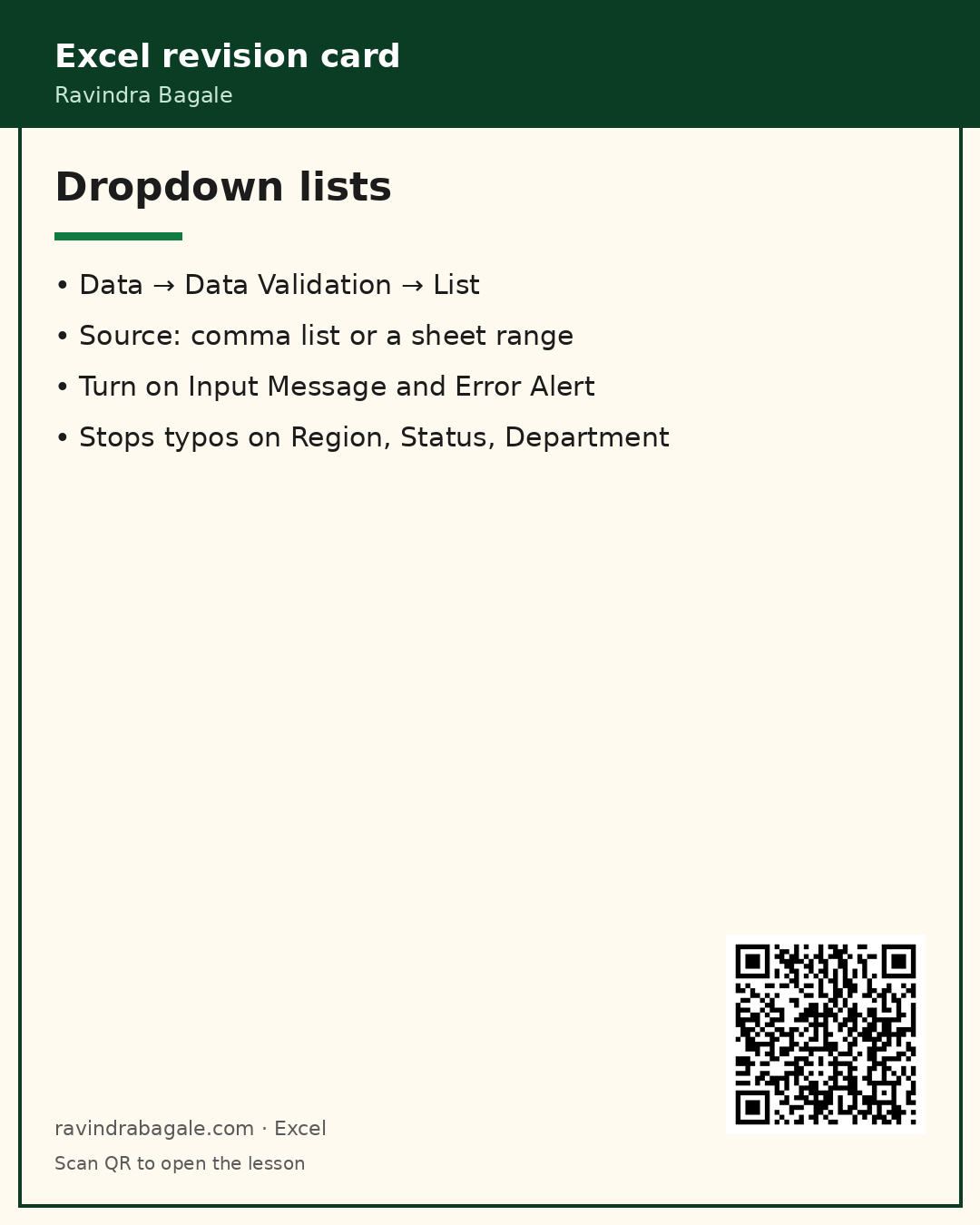
What: Allow → List. Source can be a comma list ("Open,Closed,Hold") or a sheet range like Lists!$E$2:$E$5.
How:
- Select the Status cells (D2:D11).
- Data → Data Validation → Allow: List.
- Source: select Lists!E2:E5 (or type the commas).
- Optional: tick In-cell dropdown. Add Input Message “Pick a status”.
- Error Alert Style: Stop (hard block) or Warning.
| Before / setup | Rule or formula | Result | Meaning |
|---|---|---|---|
Status column | List → Lists!$E$2:$E$5 | Dropdown appears | Controlled vocabulary |
3. Whole numbers and decimals
Match the rule to the real business limit — do not invent 1–9999 if stock max is 500.
नियम खऱ्या व्यवसायाच्या मर्यादेशी जुळवा.
नियम असली व्यावसायिक सीमा से मिलाएँ।
Why: Qty cannot be 3.5 boxes; price cannot be negative.
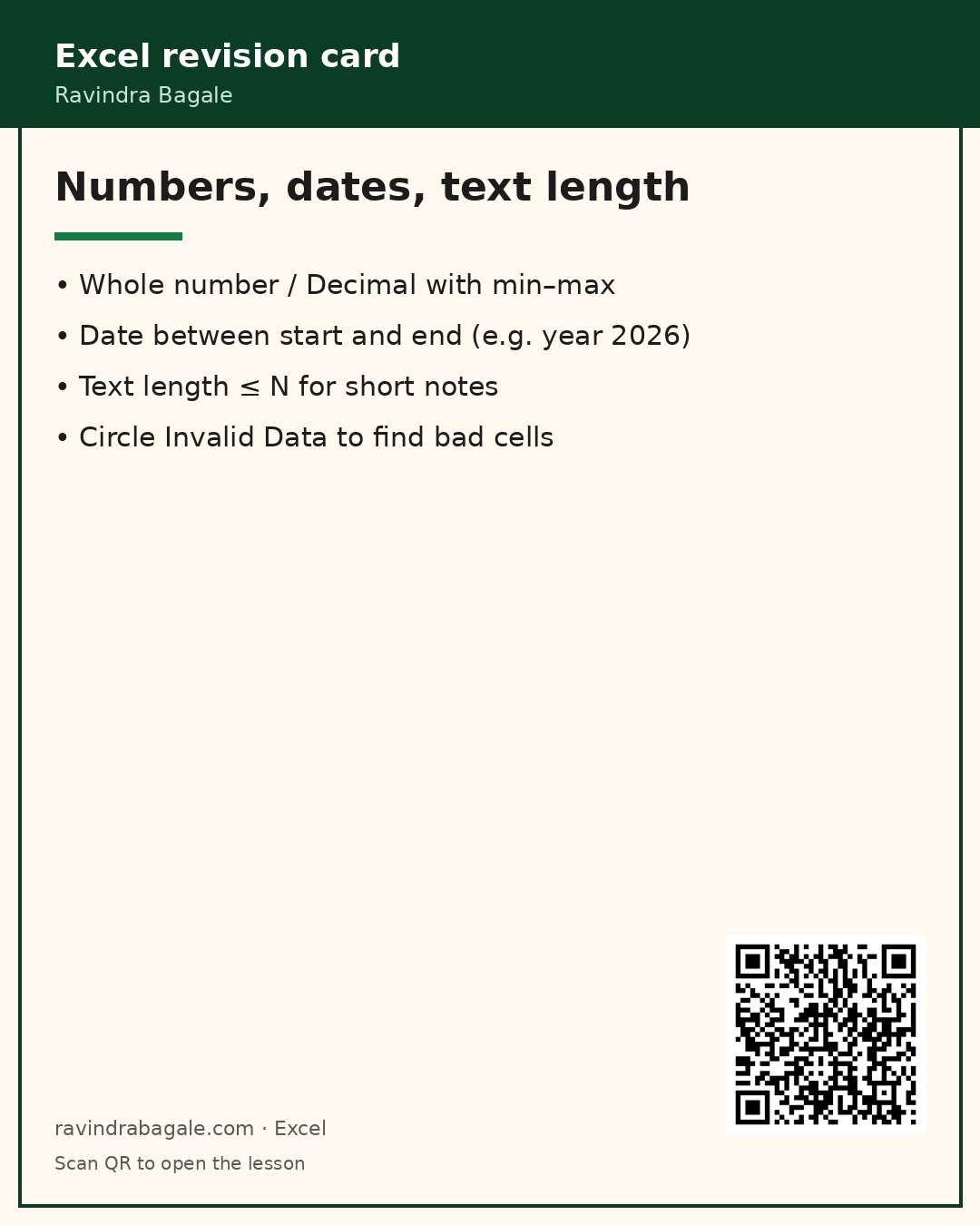
What: Allow → Whole number or Decimal, then between / greater than / less than with min and max.
How:
- Select Qty cells → Data Validation → Whole number → between 1 and 500.
- Select Unit price → Decimal → greater than 0.
- Write a clear Error Alert: “Qty must be a whole number from 1 to 500”.
- Try typing 0 or 12.5 — confirm the alert.
| Before / setup | Rule or formula | Result | Meaning |
|---|---|---|---|
Qty = 12.5 | Whole number 1–500 | Excel blocks entry | Integer only |
4. Dates and text length
Date rules stop “02/30/2026” style chaos when people type by hand.
तारीख नियम चुकीच्या हाताने टाइप केलेल्या तारखा थांबवतात.
तारीख नियम गलत टाइपिंग रोकते हैं।
Why: Orders must stay inside this year; notes must stay short for exports.
What: Allow → Date (between start and end) or Text length (≤ N characters).
How:
- Select Order date → Date → between DATE(2026,1,1) and DATE(2026,12,31) — or pick cells with those dates.
- Select Notes → Text length → less than or equal → 40.
- Test a 2025 date and a 50-character note.
| Before / setup | Rule or formula | Result | Meaning |
|---|---|---|---|
Notes 50 chars | Text length ≤ 40 | Rejected | Keeps CSV columns tidy |
5. Custom formulas (unique, email, phone)
Write the formula as if for the first cell in the range; Excel adjusts rows.
सूत्र पहिल्या सेलसाठी लिहा — एक्सेल ओळी जुळवते.
फ़ॉर्मूला पहली सेल के लिए लिखें — एक्सेल पंक्तियाँ समायोजित करता है।
Why: Lists cannot express “must be unique” or “must contain @”.
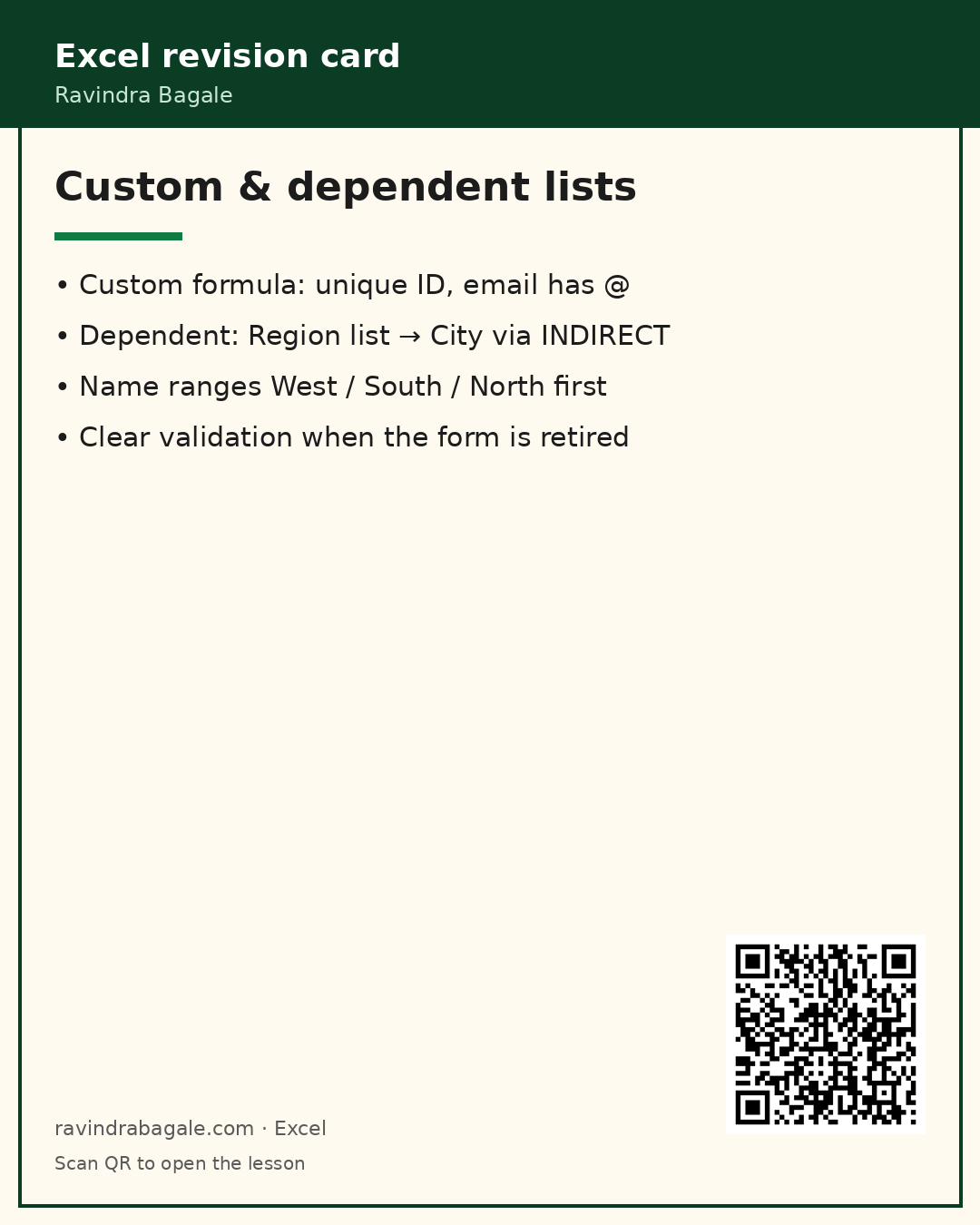
What: Allow → Custom. Formula must return TRUE for valid cells. Excel evaluates relative to the active cell in the range.
How:
- Select Employee ID A2:A9 → Custom → =COUNTIF($A$2:$A$9,A2)=1
- Select Email → Custom → =ISNUMBER(SEARCH("@",B2))
- Select Phone → Custom → =AND(ISNUMBER(VALUE(D2)),LEN(D2)=10)
- Error alerts should say what to fix, not only “Invalid”.
| Before / setup | Rule or formula | Result | Meaning |
|---|---|---|---|
Duplicate E-1001 | COUNTIF(...)=1 | Second entry blocked | Unique key |
6. Dependent dropdowns (Region → City)
Named ranges must match the parent cell text character for character.
नेमड रेंजचे नाव पॅरेंट सेलच्या मजकुराशी अक्षरशः जुळले पाहिजे.
नेम्ड रेंज का नाम पैरेंट सेल के पाठ से अक्षरशः मिलना चाहिए।
Why: City list must change when Region changes.
What: Name ranges for each region (West, South, North). Parent list picks Region; child list uses =INDIRECT(A2).
How:
- On Lists sheet, put West cities in B2:B4, South in C2:C4, North in D2:D4.
- Formulas → Name Manager → define names West, South, North pointing at those ranges (names must match region text exactly).
- Region column: List → Lists!$A$2:$A$4.
- City column: List → Source =INDIRECT(A2).
- Change Region from West to South — City dropdown updates.
| Before / setup | Rule or formula | Result | Meaning |
|---|---|---|---|
Region West | INDIRECT(A2) → West cities | Pune/Mumbai/Ahmedabad | Cascading lists |
7. Circle invalid data, copy, and clear
Circling does not fix data — it only shows what still breaks the rule.
सर्कल फक्त दाखवते — डेटा आपोआप दुरुस्त होत नाही.
सर्कल सिर्फ दिखाता है — डेटा अपने आप सही नहीं होता।
Why: Old data was typed before the rule existed.
What: Data Validation → Circle Invalid Data draws red ovals. Clear Validation Circles removes them. Paste Special can copy validation.
How:
- On OrderForm, temporarily type a bad Qty (use Warning style if Stop blocks you, or clear the cell rule briefly).
- Data → Data Validation dropdown arrow → Circle Invalid Data.
- Fix the cells, then Clear Validation Circles.
- To remove rules: select range → Data Validation → Clear All.
| Before / setup | Rule or formula | Result | Meaning |
|---|---|---|---|
Legacy bad Qty | Circle Invalid Data | Red ovals appear | Audit before share |
8. Design tips for solid forms
Teach users the Input Message — a good prompt cuts support questions.
इनपुट मेसेज चांगला असेल तर सपोर्ट प्रश्न कमी होतात.
अच्छा इनपुट संदेश सपोर्ट सवाल घटाता है।
Why: Validation fails when ranges drift or lists sit on the same sheet users overwrite.
What: Put lists on a Lists sheet, extend named ranges carefully, protect the Lists sheet, and document the Allow type in a header note.
How:
- Keep one Lists sheet; hide it if needed.
- Use tables or dynamic named ranges when lists grow often.
- Protect sheet but allow selecting unlocked input cells.
- Pair validation with Conditional Formatting blanks for a second safety net.
| Before / setup | Rule or formula | Result | Meaning |
|---|---|---|---|
Growing city list | Table or dynamic name | Dropdown stays current | Less maintenance |
Practice tasks (12)
- On OrderForm row 5, pick Region South and Status Open from the dropdowns.
Hint
Use the in-cell arrows.
- Try Qty = 0 on row 5 — confirm the whole-number alert.
Hint
Rule is between 1 and 500.
- Enter Unit price -10 — confirm decimal > 0 blocks it.
Hint
Error Alert on column F.
- Type a 2025-01-01 order date — confirm year-2026 rule.
Hint
Date between Jan–Dec 2026.
- Paste a 60-character note into Notes — confirm text length ≤ 40.
Hint
Column H rule.
- On CustomRules, duplicate E-1001 on a new row — confirm unique rule.
Hint
COUNTIF custom formula.
- Enter an email without @ — confirm custom email rule.
Hint
SEARCH("@",…) formula.
- Enter phone 12345 — confirm 10-digit rule.
Hint
LEN and VALUE check.
- On Dependent, set Region to North and pick Lucknow.
Hint
INDIRECT named range North.
- Change that row’s Region to West — City must be re-picked from West list.
Hint
Old city may no longer be valid.
- Circle Invalid Data on OrderForm after planting one bad value, then clear circles.
Hint
Data Validation menu arrow.
- Add a new city “Surat” under West on Lists and use it in Dependent (extend named range if needed).
Hint
Update name West to include the new cell.
Quick quiz
Q1. Data Validation lives on which ribbon tab?
Q2. A dropdown of fixed words uses Allow type…
Q3. Dependent City lists usually use which function in Source?
Q4. To block duplicate IDs you typically use…
Q5. Circle Invalid Data does what?
Q6. Text length ≤ 40 is best for…
Q7. Named range for region West must…
Q8. Error Alert style Stop means…
End-of-chapter checklist
- I can build List, Whole, Decimal, Date, and Text length validations with clear alerts.
- I can write Custom formulas for unique IDs and simple email/phone checks.
- I can build dependent dropdowns with named ranges and INDIRECT.
- I can Circle Invalid Data and Clear All validation when needed.
Quick revision cards (sample of 3)
Approved Excel card style: standalone, QR to this lesson. Full set can expand at deploy. Cards hosted on S3.